
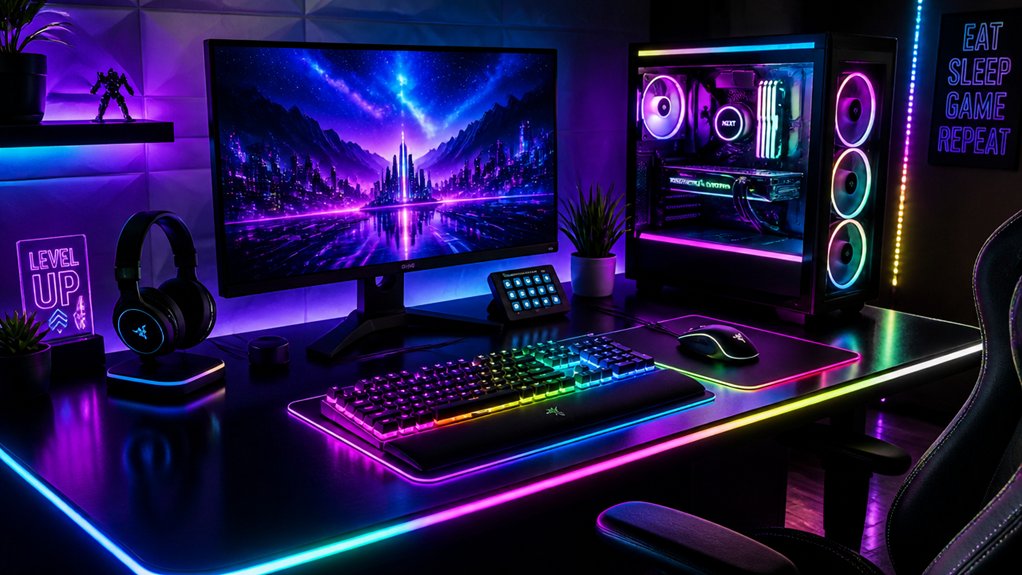
To customize your RGB lighting effectively, start by exploring features like dynamic effects, per-key lighting, and software control options such as Aura Sync or RK Launcher. Create personalized profiles tailored to specific activities, and use advanced techniques like zone lighting or key highlighting for a unique look. If you encounter issues like flickering, troubleshoot connections and update firmware. Keep exploring to discover more tips that help you optimize your RGB setup effortlessly.
Learn the Essential Features of RGB Lighting for Mechanical Keyboards
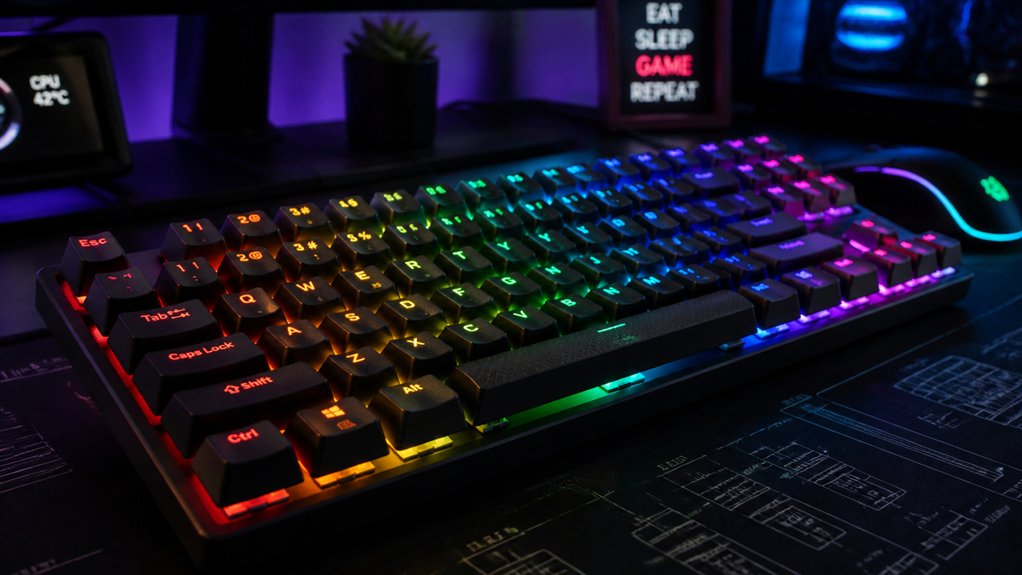
Understanding the essential features of RGB lighting for mechanical keyboards can greatly enhance your setup and user experience.
RGB lighting effects, like color cycling, breathing, wave, and reactive modes, are supported by many keyboards through 5V 3-pin ARGB headers, enabling advanced dynamic lighting.
Many keyboards support dynamic RGB effects like color cycling, breathing, wave, and reactive modes via 5V 3-pin ARGB headers.
Per-key RGB allows you to customize your RGB for individual keys, creating unique layouts or highlighting important keys.
Using RGB control software—such as RK Launcher or Aura Sync—you can create custom lighting patterns, adjust brightness, and manipulate effects to match your preferences.
These software solutions often support self-define modes for fully tailored lighting and macros.
Additionally, understanding how Voltage compatibility impacts your setup can help prevent damage and ensure optimal performance.
RGB connectors and headers make it easy to connect and manage your lighting.
Mastering these features empowers you to craft a personalized, vibrant setup that elevates your mechanical keyboard experience.
Select the Best Software to Customize Your RGB Effects
Choosing the right software is essential to accessing the full potential of your RGB lighting setup. Look for RGB software that’s compatible with your motherboard and RGB components, like Aura Sync, MSI Mystic Light, or Kingston FURY CTRL, to guarantee seamless integration. Update all drivers and firmware to prevent detection issues and reveal full customization capabilities. Opt for programs that support sync lighting across multiple RGB brands or ecosystems, allowing you to unify effects on fans, LED strips, RAM, and peripherals. If native solutions are limited, consider third-party RGB programs to control diverse hardware efficiently. Advanced tools like Aura Creator let you craft multi-preset, per-device, and per-key RGB effects, giving you detailed control over your RGB lighting system for a stunning and cohesive lighting setup. Incorporating RGB ecosystem compatibility can significantly enhance your ability to synchronize and customize effects across all connected devices.
Create Customized RGB Profiles for Different Uses
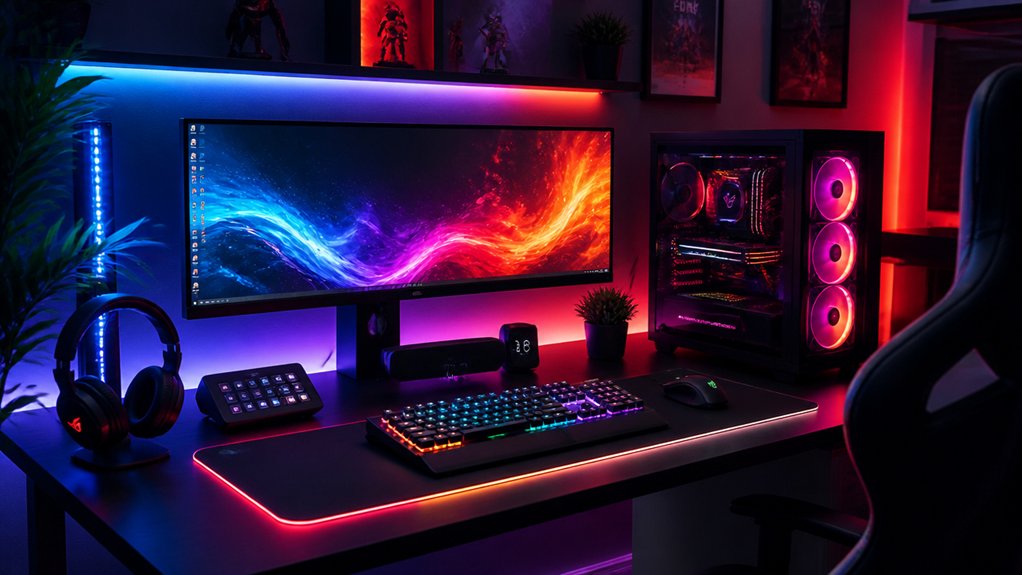
Once you’ve set up your RGB control software, tailoring your lighting profiles for different activities can enhance both aesthetics and functionality. You can create and save lighting profiles optimized for gaming, work, or relaxation environments, ensuring your setup looks great and performs well. Using customizable lighting effects such as static, breathing, wave, or adaptive colors—matched to each activity—allows you to personalize your experience. With per-device customization, you can personalize lighting layouts across multiple RGB components for a cohesive look. Many apps allow you to design and store multiple RGB presets for occasions like parties or movie nights. Moreover, hot-swappable switches and customizable keycaps can further enhance the aesthetic appeal of your setup. Automatic switching between profiles based on your schedule or activity keeps your lighting seamless and dynamic, making your setup more immersive and practical.
Apply Advanced Techniques for Per-Key and Zone Lighting Effects
To elevate your RGB lighting, applying advanced techniques for per-key and zone effects allows for highly customized and dynamic visuals. Use RGB software like Aura Creator or RK Launcher to assign individual colors or effects on specific keyboard sections, enabling precise control over your lighting patterns.
Enable advanced customization modes, such as Self-Define, to craft unique lighting effects like reactive typing or multi-zone color shifts that react to your actions. Take advantage of standalone utilities within your RGB setup to layer multiple lighting presets and schedule timed switches for a more engaging lighting experience.
You can also highlight essential keys with per-key RGB customization for both aesthetic appeal and functional visibility. Don’t forget to save custom profiles for easy application across devices and different use cases.
In addition, understanding tactile switch feedback can help you optimize your lighting choices for better visibility and user experience by matching lighting feedback with switch characteristics.
Troubleshoot Common RGB Lighting Problems and Fixes
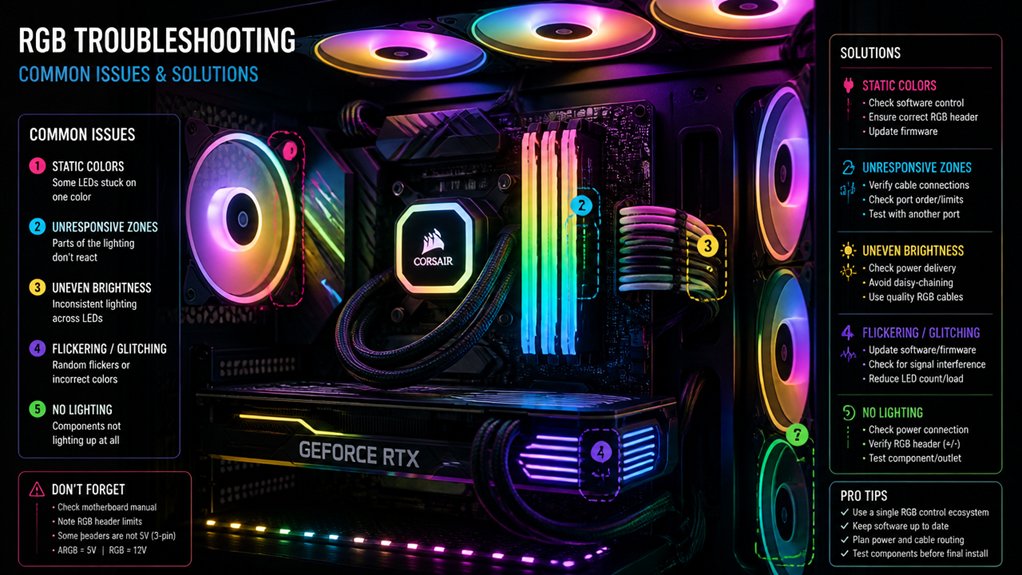
Even with advanced customization techniques, RGB lighting issues can still occur, disrupting the visual effects or causing hardware damage. One common problem is flickering or stuck LEDs, often due to incorrect connections to RGB headers or power issues.
To fix this, try resetting the lighting or changing the USB header to restore stability. Make sure all RGB components are connected to compatible headers with the correct voltage and pin configuration.
Disable multiple RGB software or lighting control applications running simultaneously, as conflicts can cause erratic behavior. Regularly update your PC’s RGB software, BIOS, and device firmware to improve compatibility.
If problems persist, check the RGB software settings to adjust colors or customize effects, ensuring your RGB lighting performs smoothly without hardware faults. Also, understanding the switch type and the connection options can help diagnose issues with compatibility and performance.
Frequently Asked Questions
What Is the Best Software for RGB Lighting?
You should choose ASUS Aura Sync for its broad compatibility and advanced customization. It integrates most components, offers preset effects, and allows detailed control through Aurora Creator, making it the best overall software for RGB lighting customization.
Can I Customize RGB Fan Lighting Effects?
Yes, you can customize RGB fan lighting effects by using motherboard software, third-party apps, or controller tools. You can select modes like static, breathing, wave, or color cycle, adjusting brightness and speed for a personalized look.
How to Make LED Lights Look Nicer?
To make LED lights look nicer, you should diffuse the light with covers, match colors to your room’s theme, position LEDs thoughtfully, use dynamic effects, and adjust brightness and speed for a comfortable, visually appealing ambiance that enhances your space.
Is There a Way to Control RGB Lights on PC?
Yes, you can control your RGB lights on PC by installing compatible software like MSI Mystic Light or ASUS Aura Sync, connecting your components properly, and customizing colors, effects, brightness, and speed through the software interface for a personalized look.
In Summary
By understanding the core features, choosing the right software, and creating personalized profiles, you can truly make your RGB lighting stand out. Experiment with advanced per-key and zone effects to match your style and setup. Don’t forget to troubleshoot any issues to keep your lighting seamless and vibrant. With these tips, you’re all set to customize your RGB lighting to enhance your gaming or work experience effortlessly.



