
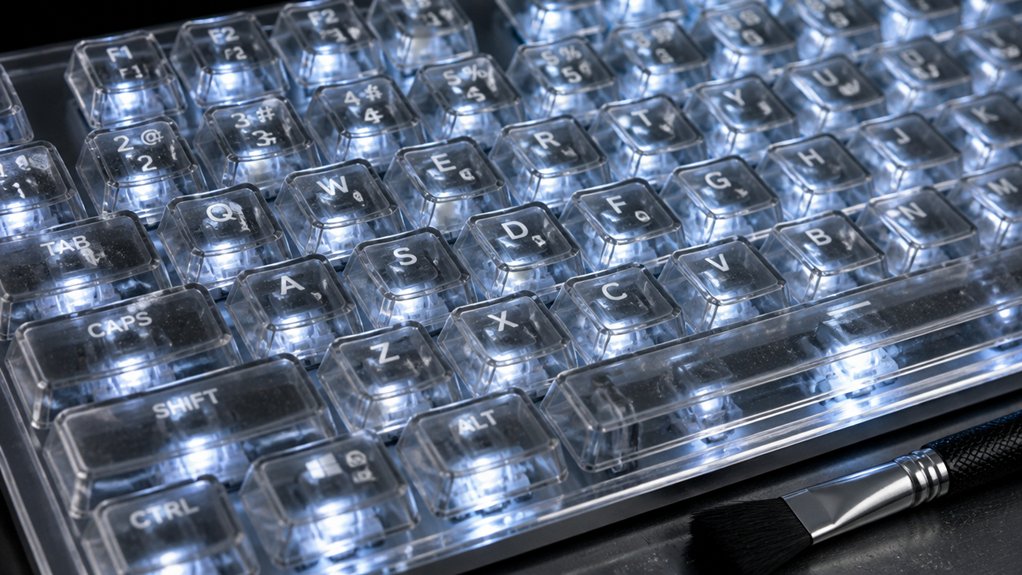
To clean your backlit keyboard keys safely, start by turning off and unplugging it. Use a soft, lint-free cloth dampened with isopropyl alcohol to wipe the keys gently, avoiding excess liquid. For debris, gently blow compressed air between the keys. For stubborn grime, use Q-tips dipped in alcohol around the edges. Never pour liquids directly or scrub forcefully, as this can damage the lights. Keep your keyboard bright and functional by following proven tips—continue for more expert advice.
Why Backlit Keyboards Need Special Care
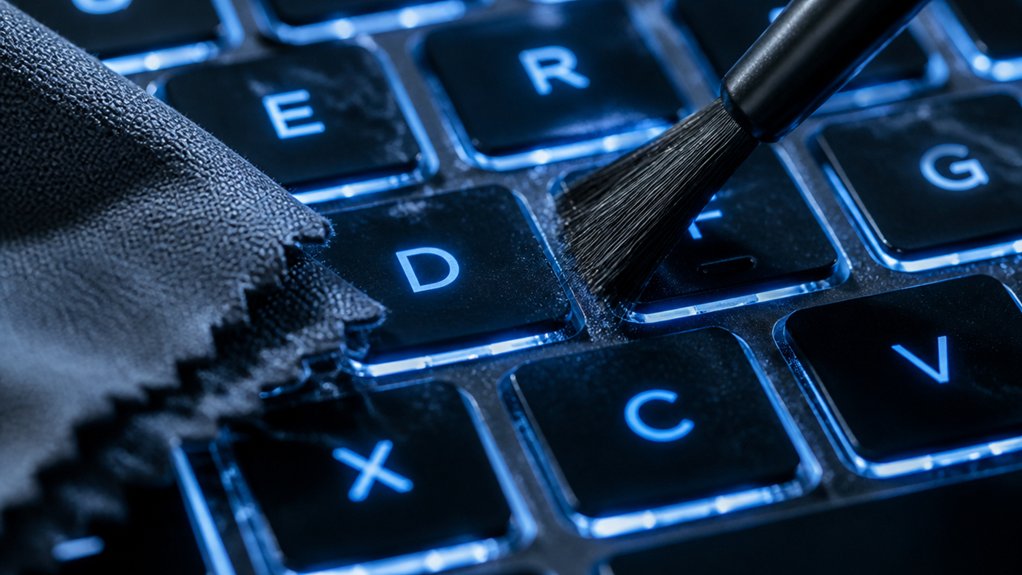
Backlit keyboards require special care because their illuminated components are more delicate than standard keyboards. The LED lighting beneath the keys is sensitive, so you need to use a soft, lint-free cloth for cleaning to prevent damage the keys or the lighting. Using high-quality, safe cleaning products like isopropyl alcohol ensures quick evaporation and minimizes residue, which helps preserve the brightness and longevity of the backlit features. For stubborn stains, dampen a cotton swab with isopropyl alcohol—avoiding harsh chemicals—to gently clean in between the keys. Never pour liquids directly on the keyboard, as moisture can seep into electrical parts and impair illumination.
When removing keycaps, use a keycap puller carefully to avoid damaging the fragile LED connectors. This cautious approach helps retain the brightness of your backlit keyboard and guarantees proper reinstallation without risking damage to the lighting or keys.
Getting Ready: Safety Tips and Tools for Backlit Keyboard Cleaning
Before you start cleaning your backlit keyboard, it’s important to prepare both your tools and workspace for safety and effective results. First, turn off and unplug the backlit keyboard, or remove the batteries if it’s wireless, to prevent electrical damage and accidental key presses. Gather a lint-free, soft microfiber cloth and a keycap puller for removing keys if deep cleaning is needed. Use lightly moistened Q-tips with isopropyl alcohol (70% or higher) for gentle cleaning, avoiding pouring liquids directly onto the keyboard. Instead, apply alcohol to the cloth or swabs for precise control. Work in a well-ventilated area away from ignition sources. After cleaning, let the keys dry on a paper towel before reconnecting power to guarantee safe and thorough cleaning. Incorporating anti-static brushes can help remove dust effectively without risking static damage to sensitive electronics.
How to Clean Backlit Keyboard Keys Without Damaging the Lights
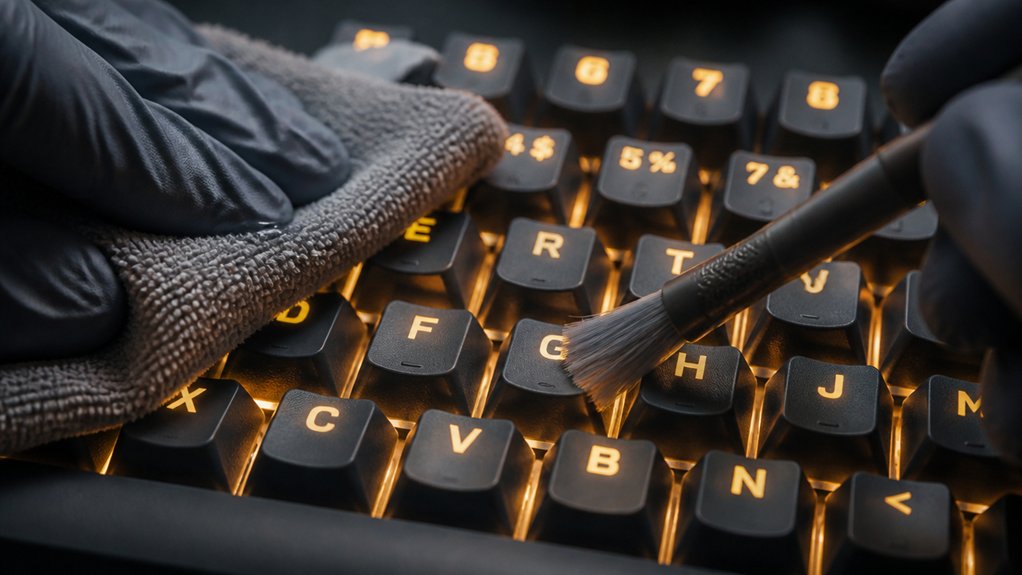
Cleaning your keyboard without damaging the backlighting requires a gentle approach. To clean the backlit keyboard keys, start by turning off your device and unplugging it.
Use compressed air to remove debris from between the keys without disturbing the delicate LED mounts. Lightly moisten a lint-free cloth with isopropyl alcohol, then gently wipe the keys, avoiding excess moisture that could seep into the switch mechanisms or LED components.
Use compressed air gently and wipe with a lightly damp lint-free cloth to clean without damaging backlit keys.
For stubborn grime, a soft brush dipped lightly in alcohol can help clean between the keys carefully. Take care not to apply too much pressure or scrub vigorously to prevent scratching or wearing off the translucent legends and light diffusers. Proper surface compatibility ensures you use safe cleaning methods that won’t degrade the key materials.
Allow the keyboard to dry completely for 2-4 hours before powering on to avoid moisture damage and guarantee the lights function properly.
Troubleshooting Backlit Keyboard Problems After Cleaning
After cleaning your keyboard, it’s common to encounter issues with the backlit keys not illuminating properly. First, verify all keys and the surface are fully dry before powering on—the moisture can cause lighting failure or erratic behavior.
If backlit keys don’t light up, check for misaligned or damaged removable keycaps and stabilizers; these can interrupt electrical contact or block LEDs. Use a lint-free cloth with a small amount of isopropyl alcohol to clean carefully, avoiding excessive liquid.
For stubborn stains, gently apply cotton swabs dipped in alcohol. If problems persist, try resetting the keyboard firmware or reconnecting it after a full dry period—up to 24 hours.
Use compressed air to clear dust, and confirm the LED brightness settings are correctly adjusted. Additionally, inspecting the internal wiring for any loose or damaged connections can help ensure proper illumination.
How to Keep Your Backlit Keyboard Bright and Lasting

Maintaining the brightness and longevity of your backlit keyboard requires regular, careful cleaning and mindful usage. To keep your backlit keys bright, start with routine keyboard cleaning using compressed air to remove dust and debris that can dim the LED lights.
When cleaning the key surfaces, use a soft cloth slightly moistened with isopropyl alcohol to wipe without damaging the LEDs or internal electronics. For stubborn stains, dip Q-tipsed in alcohol and gently clean around the keys, being careful not to let liquids seep under them. Additionally, choosing diffuser films designed to soften harsh lighting can help reduce glare and preserve the clarity of your LED backlighting for a longer period.
Avoid harsh chemicals or abrasive materials, which can scratch keys or dull their transparency. With consistent cleaning and gentle care, your backlit keyboard will stay bright and functional longer.
Frequently Asked Questions
Can I Use 70% Isopropyl Alcohol to Clean My Keyboard?
Yes, you can use 70% isopropyl alcohol to clean your keyboard. Lightly dampen a lint-free cloth or cotton swab, avoid excess liquid, and never spray directly, ensuring safe, effective disinfection without damaging your backlit keys.
Does WD40 Clean Keyboards?
WD40 doesn’t clean keyboards and can cause damage, leave residues, or interfere with backlit lighting. Instead, use isopropyl alcohol or specialized electronics cleaners to safely remove grime without harming your keyboard.
How to Get Gunk Out of Keyboard Keys?
To get gunk out of keyboard keys, remove the keys carefully with a keycap puller, soak them in warm soapy water, then use a lint-free cloth or Q-tips dipped in isopropyl alcohol to clean stubborn grime.
Can I Use Alcohol Wipes on My Laptop Keyboard?
Yes, you can use alcohol wipes on your laptop keyboard, but make sure they contain less than 25% isopropyl alcohol. Use a lint-free cloth gently, avoid excess moisture, and turn off your laptop first.
In Summary
Keeping your backlit keyboard clean is essential for its longevity and performance. By following safe cleaning tips, using the right tools, and being gentle with the lights, you guarantee your keyboard stays bright and functional. Regular maintenance prevents buildup and issues. With a little care, your backlit keyboard will continue to serve you well, enhancing your typing experience. Keep these tips in mind, and enjoy a clean, reliable, and glowing keyboard every day.



