

To build a wireless mechanical keyboard with PBT keycaps, start by choosing a compatible Bluetooth hot-swap PCB that supports your preferred layout. Select durable PBT keycaps in the profile and material that suit your style, and pick a case material like aluminum or wood for aesthetics and sound. Assemble the switches, stabilizers, and PCB securely, then tune sound and feel with foam or stabilizer modifications. For peak wireless performance and battery life, use energy-efficient firmware and keep firmware updated—continue to explore for detailed guides.
Why Build a Wireless Mechanical Keyboard With PBT Keycaps?
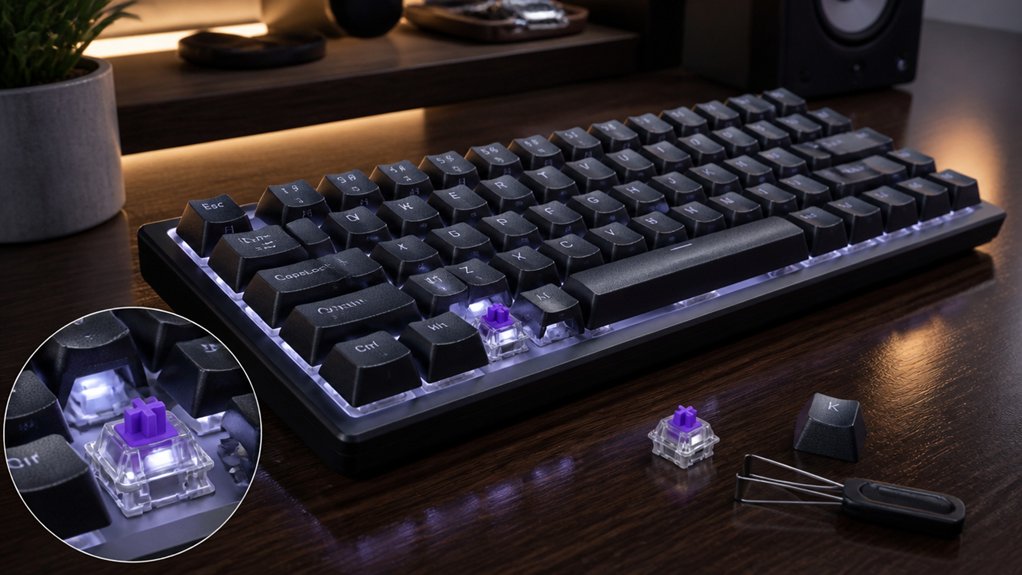
Have you ever wondered why building a wireless mechanical keyboard with PBT keycaps is a popular choice? Wireless mechanical keyboards offer true portability and clutter-free setups, perfect for gaming or work.
Pairing them with PBT keycaps adds durability and a professional look, resisting shine and wear over time. PBT keycaps also deliver a crisp, satisfying sound, enhancing your typing experience.
When creating a custom keyboard, you get the flexibility to choose features like Bluetooth or RF connectivity, ensuring seamless device pairing. Many wireless models include hot-swap PCBs, making switch customization easy without soldering, which is especially beneficial for enthusiasts who want to experiment with different switch types or replace switches easily.
How to Choose a Wireless PCB With Bluetooth and Hot-Swap Support
When choosing a wireless PCB, make certain it explicitly supports Bluetooth and includes hot-swap sockets for easy customization. Check that the layout fits your preferred keyboard size and that it offers reliable power management for wireless use. Also, review the vendor or community feedback on Bluetooth range and battery efficiency to guarantee smooth performance. Additionally, consider if the PCB is compatible with hot-swappable switch support, ensuring easy upgradeability and personalization.
Compatibility With Components
Guaranteeing compatibility when selecting a wireless PCB is essential for building a seamless custom keyboard. You want a wireless PCB that explicitly supports Bluetooth to guarantee smooth, cable-free operation, like models such as Topre Realforce RC1 or Leopold NP900RBT. Choosing a hot-swap PCB makes switch replacement easier, especially if you’re new or want to customize frequently. Make sure the Bluetooth PCB fits your PBT keycap options and that LED orientation doesn’t conflict with north-facing LEDs, common in cherry-profile keycaps. Check that the PCB supports your specific keyboard layout—60%, 75%, or TKL—to match your case and keycap sets. Also, select PCBs with community support and firmware options like VIA or QMK to streamline customization and troubleshooting. Additionally, verifying the PCB’s compatibility with wireless charging standards can help ensure future expandability and integration with other wireless components.
Battery Life Considerations
Selecting a wireless PCB with good battery life begins with understanding how power management influences your keyboard’s overall performance. To maximize battery life, choose a PCB that supports Bluetooth for energy-efficient communication and broad device compatibility.
PCBs with hot-swap switch sockets make maintenance easy, allowing quick switch replacements without soldering. Prioritize PCBs with larger battery capacity and smart power management features, especially if you plan to use RGB lighting, which can drain your battery quickly.
Look for PCBs known for optimized firmware and low power consumption, striking a balance between wireless functionality and battery longevity. Finally, guarantee the PCB is compatible with PBT keycaps and your desired layout, so assembly remains smooth, and wireless performance stays reliable over extended use. Incorporating Hall Effect switch technology can also enhance power efficiency and durability in your wireless setup.
Picking Durable PBT Keycaps: Profiles, Compatibility, and Materials
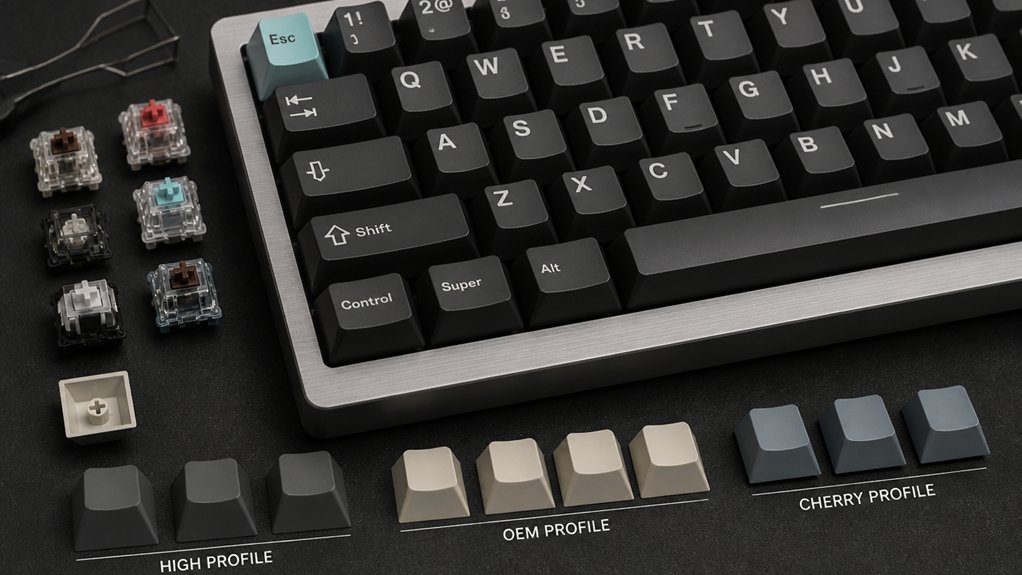
When choosing PBT keycaps, you’ll want to take into account the profile and how it feels during typing.
Compatibility can be tricky, especially with layouts and LED placements, so double-check with the seller before buying.
Also, opt for double shot or dye-sublimation legends to guarantee they don’t fade over time.
Consider the material quality and durability of the keycaps, as high-grade PBT offers resistance to wear, friction, and fading, ensuring long-term performance.
Keycap Profiles and Feel
Choosing the right PBT keycap profile can greatly influence your typing experience on your wireless mechanical keyboard. PBT keycaps come in various profiles, with Cherry profile being the most popular due to its compatibility and comfortable feel.
Taller profiles like SA offer a different typing sensation but may require adjustment. When selecting a PBT keycap set, consider compatibility with your keyboard’s layout and LED orientation—north-facing LEDs may not work well with certain profiles like Cherry.
PBT’s thicker, more rigid construction delivers a deeper, crisper sound, enhancing overall typing satisfaction. Double shot PBT keycaps guarantee durable legends that won’t wear off over time, maintaining aesthetic appeal. Additionally, dye sublimation printing infuses color into the PBT surface, ensuring vibrant, fade-proof legends that last.
Choosing the right profile and material guarantees a long-lasting, enjoyable typing experience tailored to your preferences.
Material Compatibility Challenges
Opting for durable PBT keycaps on wireless mechanical keyboards involves more than just picking a material; it requires careful attention to compatibility issues related to profiles, layouts, and keycap construction.
PBT keycaps come in various keycap profiles, such as Cherry, which offers smooth shifts but can sometimes conflict with certain keyboard supports, especially if they’ve north-facing LED designs. Compatibility also depends on the keyboard supports and layout, particularly for compact formats like 60%, 65%, or 75%. Choosing PBT keycap sets that support these layouts guarantees proper fit and full functionality.
Additionally, material thickness and rigidity influence typing feel and sound, so selecting PBT caps that match the keyboard’s supports guarantees better ergonomics and acoustics, avoiding potential fit or durability issues. Being aware of manufacturing processes, such as double-shot molding, helps ensure legends remain crisp and durable over time.
Core Components: Switches, Stabilizers, Cases, and Mounting Styles
The core components of wireless mechanical keyboards greatly influence their feel, functionality, and durability. Switches are key; choose between hot-swap or solderable PCB options for easy customization and repairs.
Stabilizers support larger keys like spacebar and shift, so properly lubing them and selecting compatible stabilizers enhances typing comfort and reduces rattling.
The case material impacts build quality and aesthetics; an aluminum case provides a sturdy, premium feel and improved durability over plastic.
Mounting styles further affect your typing experience: gasket mounts deliver softer, vibration-isolating typing, while top mounts offer a stiffer, more tactile response.
Together, these components shape the overall feel and performance of your wireless keyboard, creating a customized and satisfying typing environment. Additionally, choosing a premium finish such as anodizing or powder coating can enhance both the aesthetic appeal and corrosion resistance of your case.
How to Assemble Your Wireless Mechanical Keyboard (Beginner-Friendly Guide)
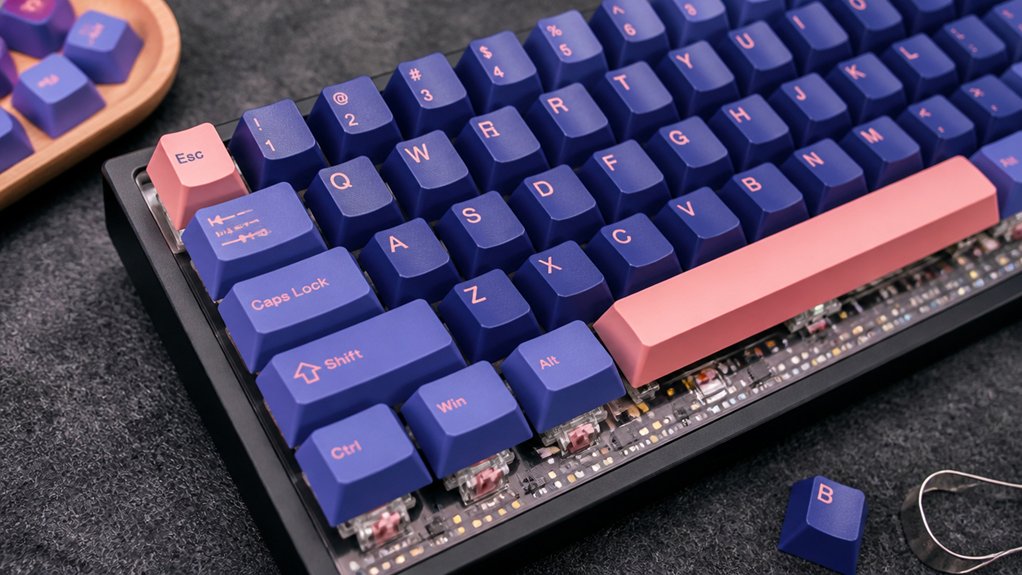
Ready to assemble your wireless mechanical keyboard? Start by testing your wireless PCB with a metallic tool and keyboard testing software like VIA to confirm full functionality before assembly.
Carefully install and lubricate stabilizers on larger keys, such as the spacebar and enter, to reduce rattling and improve the typing feel and sound.
Mount your switches onto either a hot-swap or solderable PCB, ensuring your wireless PCB supports Bluetooth or RF for wireless use. Secure the PCB to the case, which should include gaskets or foam for better acoustic performance.
Finally, place durable PBT keycaps onto your switches. PBT keycaps not only last longer but also resist shine and enhance the overall tactile experience. Switch compatibility is also essential to ensure your chosen switches fit and function correctly with your PCB. This completes your build, ready for years of wireless mechanical keyboard enjoyment.
How to Mount the Case and Secure Components for the Best Sound and Feel
To achieve the best sound and feel, properly mounting your case and securing its components is essential. Use gasket mount styles or add Poron foam inside the case to isolate the plate and PCB, reducing vibrations for a softer, quieter typing experience ideal for PBT keycaps.
Guarantee stabilizers are securely mounted and lubricated beforehand to prevent rattling and improve sound quality and tactile response. Opt for aluminum or FR4 plates for balanced stiffness and acoustics, then firmly fasten the plate and PCB inside the case to avoid wobbling and maintain consistent sound.
Install foam layers underneath or around internal components to fine-tune resonance and suppress hollow or metallic sounds. Properly mounting stability is crucial for a consistent typing experience and long-term durability. Tighten case screws evenly, avoiding overtightening, to strike the perfect balance between comfort and performance.
Programming Firmware and Custom Layouts for Wireless Connectivity
Programming firmware and customizing layouts is essential for optimizing your wireless mechanical keyboard’s performance and usability. Firmware like QMK or VIA supports custom keymaps, macros, and RGB effects tailored to your preferences.
For wireless keyboards, firmware enables seamless Bluetooth connectivity, battery management, and multi-profile switching, which means you can effortlessly toggle between wired and wireless modes without remapping. With custom layouts, you can design key assignments that maximize ergonomic comfort and wireless function.
Advanced firmware options improve pairing stability, introduce power-saving modes, and enhance responsiveness, ensuring low latency and smooth typing. By carefully flashing and configuring the firmware, you make your wireless keyboard truly your own, enabling a personalized experience that aligns with your workflow and comfort needs.
Tips for Tuning Sound and Feel: Stabilizer, Plate, and Switch Mods
To improve your keyboard’s sound and feel, start with stabilizer tuning—lubricate with a high-quality lube to reduce rattling and smooth out keystrokes.
Experiment with different plates like aluminum or POM to find the right balance of stiffness and sound, or consider softer materials for quieter, deeper acoustics.
Finally, use mods like masking tape or hot-swap switches to fine-tune resonance and tactile feedback without effort.
Stabilizer Tuning Techniques
Ever wondered how to make your stabilizer quieter and more satisfying to use? Properly lubricating stabilizers with a quality lube using a syringe and brush is key. Lube reduces rattling noises and creates a smoother, more consistent sound and feel without needing a full disassembly.
Choosing the right stabilizer type, like Cherry or Costar, and installing it correctly aligned with your keyboard layout guarantees wobble-free performance on large keys.
Remember, plate material shapes the stabilizer’s acoustics: aluminum plates produce higher-pitched sounds, while softer materials like POM or polycarbonate dampen vibrations.
Additionally, modifying stabilizers by clipping the wire or inserting band-aids or foam can drastically cut noise and enhance tactile feedback. Combining well-lubricated stabilizers with compatible switches results in a more refined typing experience.
Plate and Switch Modifications
Adjusting the plate and switch components can greatly influence both the sound and feel of your keyboard. You can modify the acoustics and tactile response by choosing different plate materials, like aluminum or FR4, for a balanced stiffness, or softer options like POM or polycarbonate for quieter, deeper sounds. Lubricating stabilizers with quality lube such as Durock reduces rattling and creates smoother sound profiles, without full disassembly. When installing switches, using longer stems with nylon housings deepens sound and enhances tactile feedback. Hot-swap sockets require careful support to prevent damage and guarantee consistent feel and sound. Experimenting with foam or Poron inside the case can dampen resonance, further improving your typing experience.
| Material | Effect on Sound | Recommended Use |
|---|---|---|
| Aluminum | Brighter, Stiffer | For a sharp, precise feel |
| FR4 | Balanced, Neutral | For a versatile sound |
| POM | Quieter, Deeper | For a quieter, bassy tone |
How to Maintain Wireless Performance and Maximize Battery Life
Maintaining ideal wireless performance and extending battery life in mechanical keyboards involves a combination of proper setup and thoughtful adjustments. To guarantee strong wireless performance, keep a clear line of sight between your keyboard and receiver, and minimize interference from Wi-Fi routers or Bluetooth devices.
Maximize battery life by choosing models with low-power consumption chips and enabling power-saving modes during inactivity. Regularly updating your keyboard’s firmware improves connectivity stability and efficiency, as seen with models like Topre Realforce RC1 and Leopold NP900RBT.
Use high-capacity rechargeable batteries or recommended replaceable batteries for longer use. Additionally, disable unnecessary features such as RGB lighting or reduce brightness levels, especially with keyboards like WOBKEY and Evoworks Evo75, to greatly prolong wireless operation and battery life.
Troubleshooting Common Wireless Mechanical Keyboard Issues
Are you experiencing connection drops or delayed responses with your wireless mechanical keyboard? First, check the wireless receiver to guarantee it’s properly paired and within effective range. Signal interference from other devices can disrupt the connection.
Check your wireless receiver is properly paired and within range to prevent connection issues.
Next, monitor the battery level regularly; low or depleted batteries often cause disconnections and sluggish keystrokes. If you have hot-swap keyboards, verify that switches are securely installed and that sockets aren’t loose, as this can worsen wireless input lag.
Additionally, update your keyboard’s firmware and drivers to the latest versions from the manufacturer, improving stability. Finally, test your keyboard on different devices or USB ports to rule out PC or interference issues.
Addressing these aspects can greatly improve your wireless keyboard’s reliability.
Personalizing Your Keyboard: Case Materials and Artisanal Keycaps
Ever wondered how to truly make your wireless mechanical keyboard stand out? Personalizing your setup starts with case materials and artisanal keycaps.
Aluminum cases are a popular choice for their durability, sleek look, and how well they complement the crisp sound of PBT keycaps. If you prefer a warmer or more unique aesthetic, wooden or acrylic cases offer tactile richness and visual variety. Artisan keycaps made from PBT allow for custom themes and textured finishes, adding personality without sacrificing durability.
When paired with a wireless RGB keyboard, these artisan keycaps really shine, with lighting effects highlighting their designs. Choosing a case with hot-swap PCB compatibility lets you easily switch switches and upgrade artisanal keycaps, creating a personalized, stylish, and functional keyboard.
Optimizing Your Wireless Keyboard for Gaming, Typing, and Productivity
To truly optimize your wireless mechanical keyboard for gaming, typing, and productivity, selecting the right model and features makes all the difference. Focus on models with durable PBT keycaps, like the Evoworks Evo75 or Leopold NP900RBT, for a crisp sound and longevity.
Choose wireless mechanical keyboards with a hot-swap PCB, allowing quick switch customization to tailor tactile feedback and sound for different tasks. Prioritize keyboards with Bluetooth or multi-device connectivity, such as the Topre Realforce RC1 or Wooting 80HE, for seamless switching between work and gaming.
For enhanced responsiveness, opt for 75% or TKL layouts that strike a balance between compact design and ergonomic key placement. Additionally, look for models with efficient power management and low-latency protocols to guarantee minimal lag and peak battery life.
- Durable PBT keycaps for reliability and sound profile
- Hot-swap PCB for switch customization
- Multi-device wireless connectivity for versatility
- Compact layouts for responsiveness and convenience
Frequently Asked Questions
Can Any PBT Keycaps Work on Any Keyboard?
Not all PBT keycaps work on every keyboard. You need to match the keycap profile, layout, and switch type, and check for compatibility issues like LED placement or unique key sizes, ensuring a perfect fit and function.
Is It Cheaper to Build Your Own Mechanical Keyboard?
Building your own mechanical keyboard is often cheaper in the long run, especially with DIY parts, sales, and customization options. Although it requires initial investment and effort, it can save you money compared to buying prebuilt models.
Do PBT Keycaps Sound Better?
Yes, PBT keycaps typically sound better because their thick, rigid material produces a deeper, crisper, and more consistent sound. They resist shine, maintaining sound quality over time, and paired with certain plates, they offer satisfying acoustic feedback.
Is 84 Keys 75%?
Yes, an 84-key keyboard typically falls into the 75% layout category, balancing essential keys like function and arrow keys in a compact design. This makes it a popular choice for those wanting functionality and space savings.
In Summary
Building a wireless mechanical keyboard with PBT keycaps combines durability, style, and convenience. With the right components and some patience, you can create a personalized setup that suits your typing needs. Keep optimizing your connection and battery life, and don’t hesitate to customize with unique keycaps or cases. Enjoy a seamless, satisfying typing experience tailored exactly to you. Happy building and typing!



