

To safely clean your mechanical keyboard’s USB connectors, start by unplugging everything and powering down your device. Use compressed air to blow out dust without touching pins, and gently wipe with a lint-free cloth dampened with 70%+ isopropyl alcohol. Avoid liquids dripping into the connector and take care not to bend or damage pins. Allow everything to dry completely before reconnecting. Following these steps helps maintain reliable performance, and you’ll find more helpful tips if you continue exploring.
Why Proper USB Connector Cleaning Matters
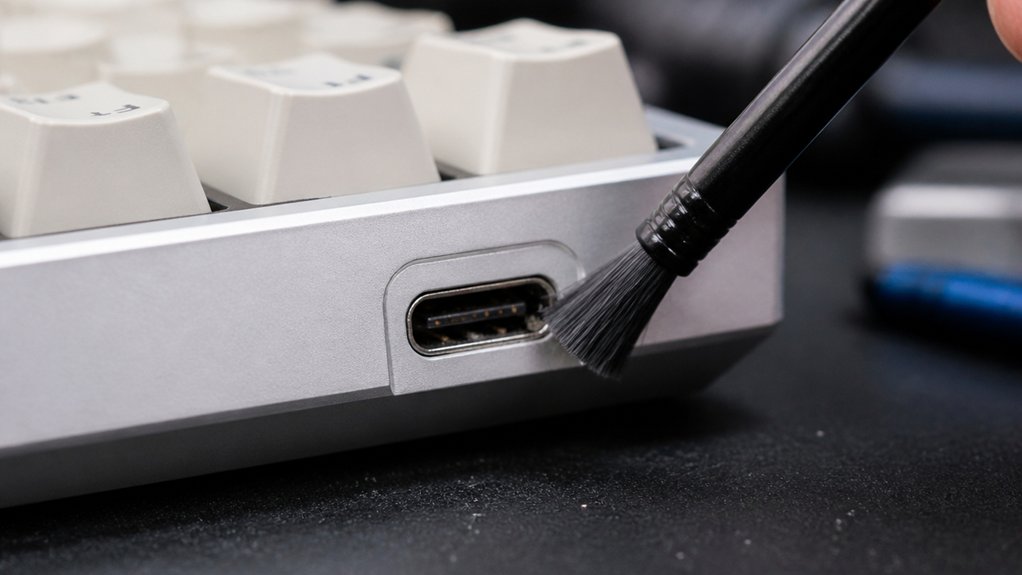
Proper cleaning of your mechanical keyboard’s USB connectors is essential because it directly impacts the device’s performance and longevity. Dirty or corroded connectors can cause unstable data transmission and power issues.
When cleaning, always make certain the keyboard is unplugged to avoid electrical shorts or damage to the electrical components inside. Use isopropyl alcohol (70% or higher) with a lint-free cloth or cotton swab to remove oils, dirt, and debris effectively. This prevents buildup that could lead to corrosion over time.
Be careful not to let excess liquid pool inside the USB connector, as moisture can cause long-term damage or malfunction. Regularly inspecting and cleaning these connectors helps maintain reliable connectivity, improves overall keyboard performance, and prolongs its lifespan.
Inspect Your USB Connectors Before Cleaning
Before you start cleaning, look closely at your USB connector for any signs of corrosion, debris, or bent pins. Use a magnifying glass if needed, and check for loose or damaged parts that could worsen during cleaning. Recognizing the connector’s material quality can help determine the safest and most effective cleaning method. Always make sure the keyboard is unplugged to stay safe during this inspection.
Check for Corrosion
Have you ever wondered why your mechanical keyboard’s connection might be unreliable? The answer could be corrosion inside the USB connectors.
During keyboard maintenance, it’s essential to visually inspect your clean keyboard’s USB ports and plugs for signs of corrosion, such as green or white residue, discoloration, or crusty buildup. Use a magnifying glass or good lighting to examine the metal contacts closely.
Corrosion impairs electrical contact, leading to intermittent or failed connections. If you spot corrosion, don’t plug the connector into your computer until you’ve cleaned it properly—avoiding further damage internal components.
Regularly checking your USB connectors before cleaning helps detect early signs of wear or moisture damage that could compromise your mechanical keyboard’s performance. Additionally, using shielded cables can help reduce interference and protect the connections from environmental damage.
Assess Connector Stability
Are you aware that performing a quick stability check on your USB connectors can save you from future connection issues?
Before cleaning, inspect your USB connectors carefully. Look for signs of damaged or corroded pins, which can worsen if disturbed. Gently wiggle the connector in its port—any looseness or wobbling indicates instability that cleaning might worsen. Use a magnifying glass if needed to spot fine debris or oxidation affecting connection quality. Additionally, verifying the connector’s purity level can help ensure safe and residue-free cleaning. Check that the plastic housing isn’t cracked or warped, guaranteeing safe handling during cleaning. Also, examine the cable and connector for fraying or wear; if present, replacing them could be the better option. A thorough stability assessment helps you avoid damaging your keyboard’s USB connection and guarantees a smooth, reliable cleaning process.
Look for Visible Debris
Taking a close look at your USB connectors can uncover hidden debris that might hinder a solid connection. Inspect the USB connectors on your mechanical keyboard for dust, lint, or particles that could obstruct proper contact.
Use a flashlight or magnifying glass to get a clear view inside the port and connectors, as small debris can be difficult to see with the naked eye. Check for signs of corrosion or damage, which could affect cleaning techniques and increase the risk of damage during cleaning.
If visible debris is present, avoid plugging in or powering your keyboard to prevent short circuits or connectivity issues. Noting the type and extent of debris helps determine whether gentle methods like compressed air are sufficient or if more detailed cleaning is necessary for a safe, effective fix.
Gather the Right Tools for Safe Cleaning
Gathering the right tools is essential for cleaning USB connectors safely and effectively. To protect your keyboards and prevent damage, keep specific items on hand. Use a soft, lint-free microfiber cloth lightly dampened with isopropyl alcohol (70% or higher) to wipe USB connectors gently. Have a small soft-bristled brush or compressed air canister ready to dislodge dust and debris from inside the ports using short bursts. Keep these tools separate from others to avoid cross-contamination. Incorporating dust removal tools like compressed air canisters ensures thorough cleaning without risking damage to delicate connectors. Visualize your workspace with:
Having the right tools ensures safe, effective USB connector cleaning and protects your devices from damage.
- A microfiber cloth for gentle cleaning
- Isopropyl alcohol for disinfecting
- Compressed air or a soft-bristled brush for debris removal
Using these tools guarantees you clean effectively without risking corrosion or electrical issues.
Power Down and Unplug Your Keyboard Safely
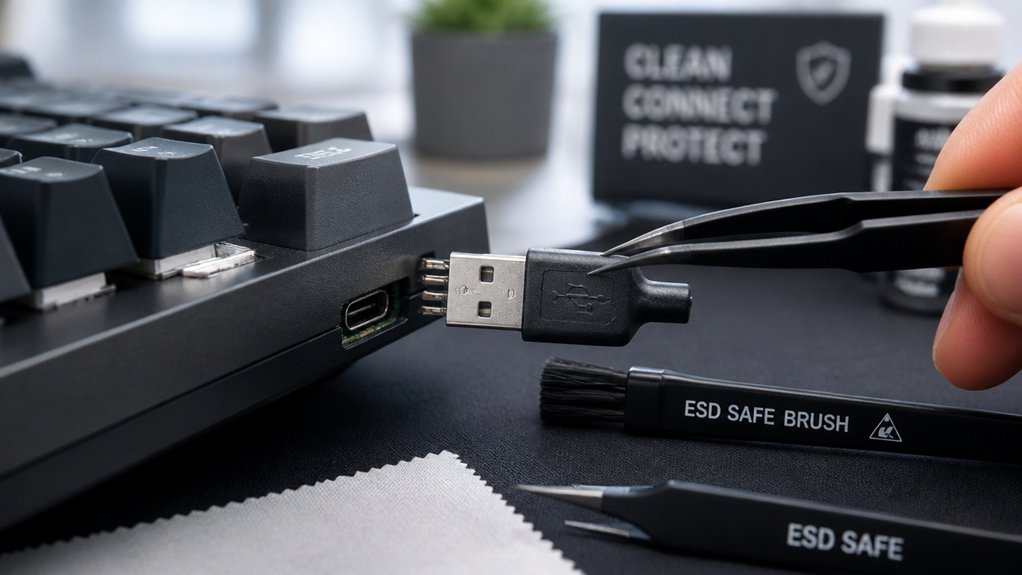
Before you start cleaning your mechanical keyboard’s USB connectors, making sure the device is powered down and unplugged is essential. Power down your computer and disconnect the USB cable from the keyboard to prevent electrical damage. Disconnecting the USB cable guarantees safety by eliminating the risk of short circuits or accidental keystrokes during cleaning.
If you have a wireless keyboard, remove its USB receiver and switch it off before cleaning the connectors. Avoid cleaning USB connectors while still plugged in, as this can harm the device and your computer’s USB ports. Allow some ventilation and wait for a bit after unplugging to let any residual electricity dissipate.
Ensuring the stability and safety of your workspace and tools contributes to a smoother, damage-free cleaning process. These steps safeguard both your hardware and safety during the cleaning process.
Gently Remove Dust and Debris From the Connectors
To remove dust and debris, use compressed air in short, controlled bursts to blow out particles without touching the pins. Before applying air, inspect the connector for blockages or visible dirt that may need extra attention. Carefully clear any obstructions to guarantee a clean, secure connection when you reconnect your keyboard. Additionally, ensure that your cleaning tools comply with safety standards, such as IEC 61010, to avoid damaging sensitive components.
Use Compressed Air Carefully
Using compressed air is an effective way to remove dust and debris from your mechanical keyboard USB connectors, but it’s essential to use it carefully. Hold the can upright to prevent propellant from spraying onto the connectors, which can harm sensitive parts.
Use short, controlled bursts of air at a slight distance to gently dislodge dust and debris without knocking loose pins. Visualize the airflow:
- A gentle blast that clears away lint and dirt
- An even spray over the entire connector
- Quick bursts that prevent damage to delicate components
Always make sure your keyboard is unplugged and your PC powered off before using compressed air. Afterward, consider wiping the connectors with a lint-free cloth lightly moistened with isopropyl alcohol for extra residue removal. Additionally, ensuring the workspace is free from static buildup can help protect sensitive electronic parts during cleaning ESD protection.
Inspect and Clear Blockages
Inspecting your USB connector for blockages is a vital step before applying any cleaning methods. Carefully examine the port for visible debris, corrosion, or damage. Use compressed air in short bursts or a soft brush to gently remove dust and debris lodged inside without risking damage. Avoid inserting sharp objects that could bend or break pins.
| Inspect the port | Use soft brush | Remove debris |
|---|---|---|
| Visual check for blockages | Gentle brushing | Loosen dust carefully |
| Look for corrosion | Avoid metal tools | Prevent damage |
| Confirm port dryness | Use compressed air | Keep connectors intact |
| Guarantee no debris remains | Use microfiber cloth | Prepare for cleaning |
Once clear, lightly dampen a microfiber cloth with isopropyl alcohol to clean the edges, then let it dry completely before reconnecting.
How to Clean USB Pins Without Damaging Them
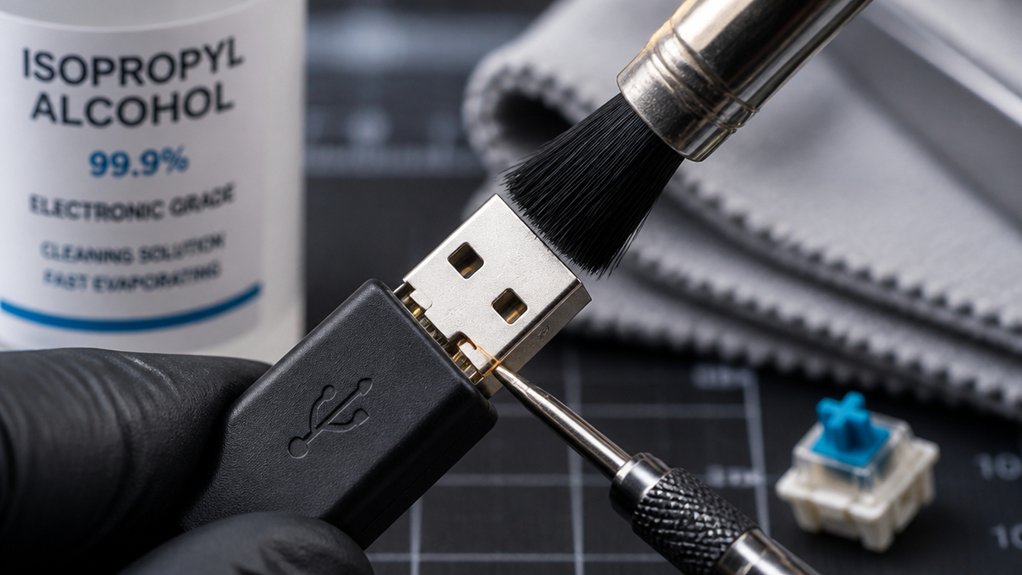
Cleaning USB pins carefully is essential to prevent damage, especially since they’re delicate and easily bent or broken. Always unplug your keyboard before cleaning to avoid electrical issues.
Always unplug your device before cleaning USB pins to prevent electrical damage and ensure safety.
Use a soft, dry brush or compressed air in short bursts to gently remove dust and debris without bending or harming the pins. Visualize this as:
- Blowing away particles with quick, controlled bursts
- Gently brushing dust off, avoiding direct contact
- Dabbing lightly with a microfiber cloth dampened with isopropyl alcohol
Avoid pouring liquids directly onto the USB pins. If needed, lightly dampen a microfiber cloth or cotton swab with alcohol, then gently clean the pins. Incorporating anti-static brushes can further protect sensitive electronics from static discharge during cleaning procedures.
Let everything dry thoroughly before reconnecting to prevent corrosion or short circuits.
Safe Wiping and Drying Tips for USB Connectors
Have you ever wondered how to safely wipe and dry your USB connectors without risking damage?
For your mechanical keyboard, start by unplugging it to prevent electrical issues. Use a dry, lint-free microfiber cloth or a soft brush to gently remove dust and debris from the USB connectors, avoiding moisture contact.
If needed, dip a cotton swab in isopropyl alcohol (70%+) and carefully clean the connector, taking care not to oversaturate.
After cleaning, allow the USB connectors to dry completely, ideally for at least 10–15 minutes, and avoid using heat or hair dryers that can warp components.
Handle the connectors gently during the process to prevent bending or damaging pins, ensuring a reliable connection and long-lasting performance. Proper static control can help maintain the integrity of your electronic devices static decay, extending their lifespan and performance.
When and How to Use Isopropyl Alcohol Safely
Make sure to use isopropyl alcohol with at least 70% concentration for safe, effective cleaning of your USB connectors. Always turn off and unplug your keyboard before applying the alcohol, and use a lint-free cloth or cotton swab to avoid excess liquid. Remember to let the connector air dry completely to prevent moisture damage and only clean metallic contacts to avoid damaging key legends. For optimal safety and performance, ensure your cleaning process adheres to material compatibility guidelines to prevent degradation of plastics or coatings.
Proper Dilution Techniques
Ever wondered the best way to dilute isopropyl alcohol for cleaning your USB connectors? To guarantee effective cleaning without damage, use isopropyl alcohol at 70% or higher.
If you need to dilute, mix 70% alcohol with 30% distilled water for a balanced solution.
Imagine:
- A clear bottle of alcohol, shimmering with just the right concentration.
- A small splash of distilled water gently blending into the alcohol.
- A lint-free cloth or cotton swab soaked lightly, ready to wipe.
Apply this diluted solution sparingly to your USB connectors, avoiding excess moisture that could reach the pins.
Use a lint-free cloth or cotton swab for precise cleaning.
Let your connectors air dry completely before reconnecting.
Avoiding Key Legend Damage
To prevent damage to key legends during cleaning, it’s essential to use isopropyl alcohol carefully and at the right concentration. Use 70% or higher isopropyl alcohol to clean USB connectors effectively without harming plastic components.
Never apply isopropyl alcohol directly onto the key legends, as prolonged exposure can cause fading or discoloration. Instead, lightly dampen a lint-free microfiber cloth or cotton swab with the alcohol, and gently clean the connectors and surrounding areas. This approach minimizes the risk of excess moisture seeping into sensitive parts, helping you avoid damaging the legends or internal components.
Always make certain the keyboard is unplugged before cleaning, and let the connector air dry completely to prevent electrical shorts or damage.
Reconnect and Test Your Keyboard After Cleaning
Once your mechanical keyboard has dried completely and you’ve reassembled it, check the USB connector carefully to confirm it’s free of moisture and debris. Guaranteeing the dry, clean USB connector is essential to prevent electrical shorts and maintain peak functionality.
When reconnecting, insert the USB connector into the port firmly but gently, avoiding excessive force that could damage the connector or port.
Once connected, test all keys to confirm they respond correctly, paying attention to any unresponsive or sticky keys that may indicate lingering residue.
If you’re using a wireless keyboard with a USB dongle, make sure the dongle is clean, securely connected, and that wireless connectivity is stable before use.
Restart your computer if necessary to guarantee proper recognition.
Keep Your USB Connectors Clean : Regular Tips
Maintaining clean USB connectors is essential for ensuring your mechanical keyboard functions smoothly. Regular cleaning helps prevent dust, dirt, and corrosion that can impair connection quality. Avoid using harsh liquids or sprays directly on the USB connector; instead, lightly dampen a cotton swab with isopropyl alcohol (70%+) to carefully clean the pins.
Use a soft brush or microfiber cloth to gently remove debris without scratching or damaging the connector. Consistently inspecting the USB connector for buildup or corrosion allows prompt cleaning, maintaining peak data transfer. Proper storage of the cable prevents bending and damage, prolonging its lifespan.
| Tip | Method | Purpose |
|---|---|---|
| Regular inspection | Check for dirt or corrosion | Keep connection clean and reliable |
| Soft brush & cloth | Gently clean dust or debris | Prevent scratches and buildup |
| Light isopropyl wipe | Dampen cotton swab carefully | Remove grime from pins |
Frequently Asked Questions
How to Clean a USB Keyboard?
To clean your USB keyboard, unplug it first, then use compressed air or a soft brush to remove dust. Lightly dampen a microfiber cloth with isopropyl alcohol, wipe keys gently, and verify everything’s dry before reconnecting.
Can I Use 70% Isopropyl Alcohol to Clean My Keyboard?
Yes, you can use 70% isopropyl alcohol to clean your keyboard. Just apply it sparingly to a microfiber cloth or cotton swab, make sure the keyboard is unplugged, and let the connectors dry completely before reconnecting to prevent damage.
Is WD40 Good for Cleaning Keyboards?
WD40 isn’t good for cleaning keyboards because it’s a lubricant that leaves residues, risking dust accumulation and corrosion. Instead, use 70% isopropyl alcohol on a cotton swab for safe, effective cleaning of your keyboard connectors.
Can I Use Alcohol Wipes to Clean Keycaps?
Yes, you can use alcohol wipes to clean keycaps. Just make sure you use them sparingly, avoid excessive moisture, and wipe gently to prevent damage, then follow with a microfiber cloth to remove any residue and keep your keys looking fresh.
In Summary
Keeping your mechanical keyboard’s USB connectors clean guarantees reliable connections and extends its lifespan. By inspecting, using the right tools, and handling each step with care, you prevent damage and maintain peak performance. Remember to power down and dry thoroughly before reconnecting. Regular cleaning helps avoid future issues and keeps your typing experience smooth. Stay vigilant and clean your connectors periodically—they’re essential for a seamless, hassle-free keyboard experience.



