
To access full RGB lighting control with open-source firmware like QMK, you need to enable RGB features in your configuration files. Add `RGBLIGHT_ENABLE = yes` in `rules.mk`, define your LED count and data pin in `config.h`, and customize effects and animations in the firmware. Using layers, macros, and effects lets you create dynamic lighting setups tailored to your preferences. Keep exploring to discover how these tools can fully personalize your keyboard’s lighting experience.
Getting Started With RGB Lighting on Your Mechanical Keyboard
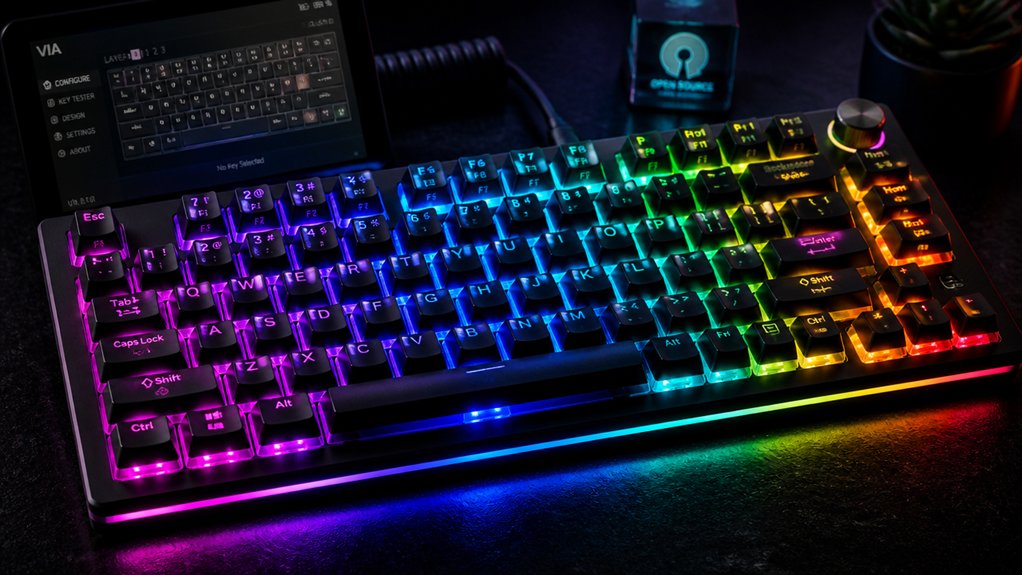
Getting started with RGB lighting on your mechanical keyboard is straightforward if you’re using open-source firmware like QMK. First, guarantee `RGBLIGHT_ENABLE = yes` is added in the `rules.mk` file.
Then, configure the number of LEDs and data pins in `config.h`, specifying your RGB LEDs setup, especially if using addressable LEDs. The firmware allows you to customize lighting effects, including breathing, twinkle, and other animations.
These effects are controlled through macros and layer definitions in `keymap.c`, giving you visual feedback based on active layers or states. You can also assign different colors or effects to specific keyboard layers using RGB lighting layers.
Proper wiring of LEDs to your PCB and adjusting the firmware guarantees your RGB lighting is synchronized and visually stunning, especially if you choose strips that support individually addressable LEDs for intricate customizations.
How to Enable and Configure RGB Lighting Using QMK
To enable and configure RGB lighting in QMK, start by editing your `rules.mk` file to include `RGBLIGHT_ENABLE = yes`. Then, define your LED data pin and count, like `WS2812_DI_PIN` and `RGBLIGHT_LED_COUNT`, in `config.h`. This setup activates the RGB control for your keyboard firmware. Use the following table to visualize configuration options:
| Setting | Description |
|---|---|
| `RGBLIGHT_LAYER_SEGMENTS` | Manage lighting layers and effects |
| `RGBLIGHT_LED_COUNT` | Number of LEDs |
| `WS2812_DI_PIN` | Data pin for LED strip |
You can now customize effects, layer lighting, and split keyboard setups for synchronized RGB lighting. Additionally, understanding the waterproof ratings is essential for choosing suitable PCBs for various environments, ensuring durability and performance.
Personalizing Your Keyboard With Colors, Effects, and Animations
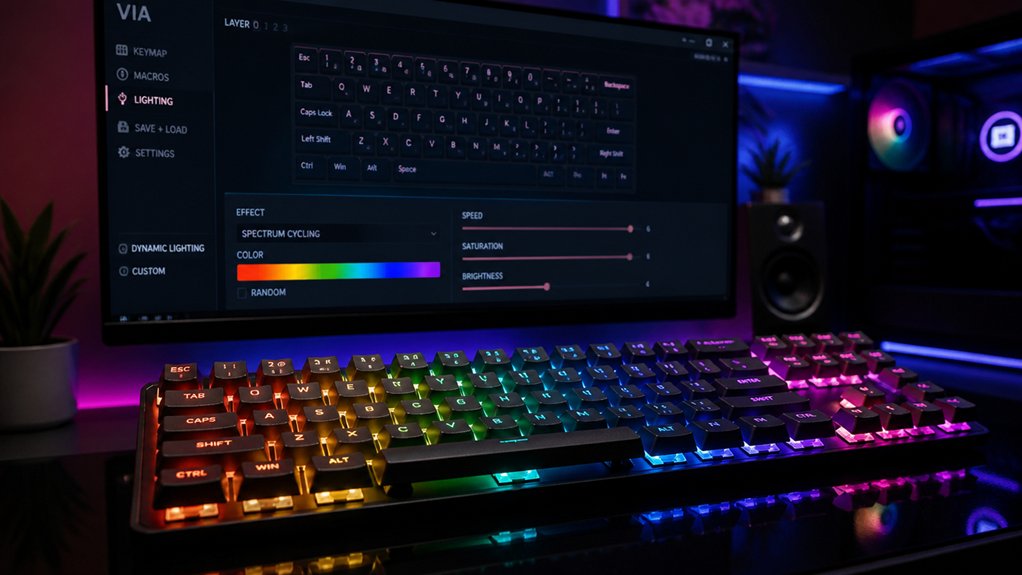
Personalizing your keyboard with colors, effects, and animations brings your typing experience to life, making it uniquely yours. You can customize RGB lights with the HSV color model, adjusting hue, saturation, and value for vibrant, precise colors.
Use addressable RGB components like RGB Matrix or RGB LED strips to create dynamic effects like gradients, breathing, twinkle, or animations such as Rainbow Swirl or Knight. Lighting layers overlay effects for indicators like Caps Lock or layer status without interrupting animations.
Adjust animation speed and colors via firmware configuration, controlling breathing intervals or hue changes. Functions like `rgblight_sethsv_at()` let you target specific LEDs or segments, while Velocikey enables reactive effects based on typing speed.
These tools give you full control over your keyboard’s lighting personality.
Using Layers to Create Dynamic RGB Lighting Effects
Layers in QMK firmware enable you to assign different RGB lighting effects to specific keyboard states or active layers, providing visual feedback that’s both dynamic and informative.
You can define these layers using the `RGBLIGHT_LAYERS` macro, with up to 32 layers supported via `RGBLIGHT_MAX_LAYERS`, each featuring unique lighting setups. These are organized through the `RGBLIGHT_LAYERS_LIST`, and each layer’s visual segments are configured in `keymap.c` using arrays of `rgblight_segment_t` structs that specify LEDs, colors, and effects.
To activate or deactivate layers, use the `rgblight_set_layer_state()` function, which can trigger effects like `RGBLIGHT_LAYER_BLINK`—making certain layers flash—highlighting mode changes with visual cues. Adding these layers to your firmware file enhances your RGB Light feature and creates versatile lighting effects using APA102 LEDs.
Troubleshooting Common RGB Lighting Problems
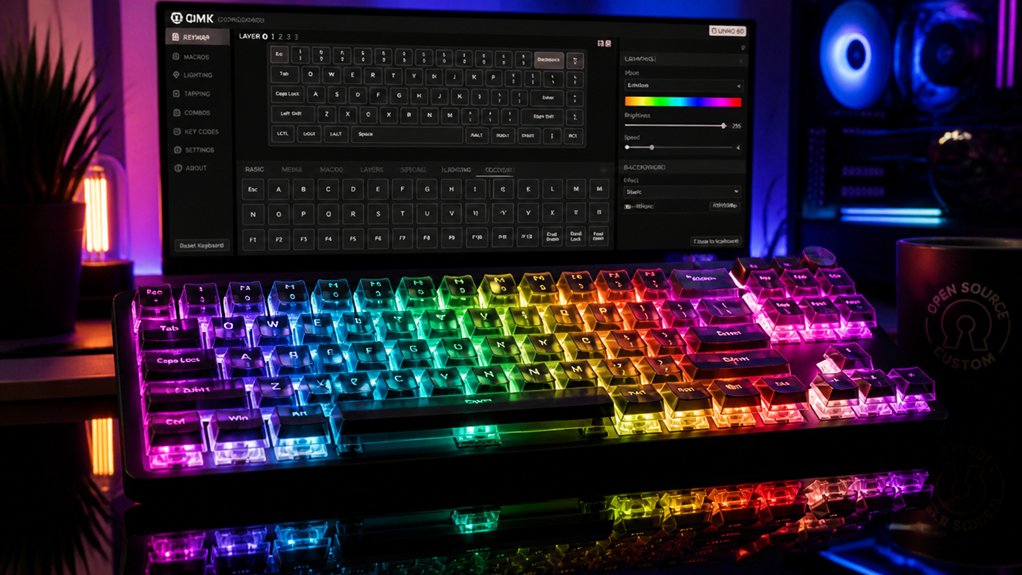
When troubleshooting common RGB lighting issues, it’s crucial to systematically check both your firmware configuration and physical connections. Guarantee `RGBLIGHT_ENABLE = yes` is set in `rules.mk` and verify the data pin and total LED count in `config.h` match your setup.
Excessive brightness can cause flickering or power overload; limit it with `#define RGBLIGHT_LIMIT_VAL 120` or around 128. For split keyboards, enable `#define SPLIT_LAYER_STATE_ENABLE` and define `RGBLED_SPLIT` to keep lighting synchronized.
Use functions like `rgblight_sethsv_at()` to test specific LEDs, and reset EEPROM if colors glitch. Confirm physical wiring, solder joints, and overall power supply capacity to meet your LED voltage and current needs—these are crucial for reliable RGB performance. Additionally, understanding the compatibility of switches and features ensures your setup’s long-term durability and precise lighting control.
Frequently Asked Questions
How to Unlock an RGB Keyboard?
You activate RGB on your keyboard by enabling RGB support in firmware, configuring your hardware connections, flashing your customized firmware, and using keycodes or layers to control lighting effects, giving you full personalized RGB control.
How to Activate RGB Lights on Keyboard?
You activate your keyboard’s RGB lights by using dedicated keycodes like RGB_TOG, or customizing functions within the firmware. Confirm your firmware supports RGB lighting, then compile and flash it onto your keyboard to control lighting modes.
Is There a Software That Controls All RGB?
Yes, SignalRGB controls all compatible RGB devices by syncing their lighting through open-source firmware and plugins. You configure it for your devices, enabling unified control and dynamic lighting effects across your keyboard, mouse, and other peripherals effortlessly.
Can I Control RGB Without Software?
Yes, you can control your RGB lighting without software by using open-source firmware like QMK. You activate effects, toggle lighting, and customize colors directly through keycodes, making your lighting configurable entirely through firmware settings on your keyboard.
In Summary
By enabling RGB lighting with open-source firmware like QMK, you take full control of your keyboard’s aesthetics. You can personalize colors, effects, and animations to match your style. Experimenting with layers and configurations lets you craft dynamic, eye-catching setups. With a bit of tinkering, you’ll turn your keyboard into a vibrant expression of your personality. So go ahead, explore the endless possibilities and make your keyboard truly shine!



