
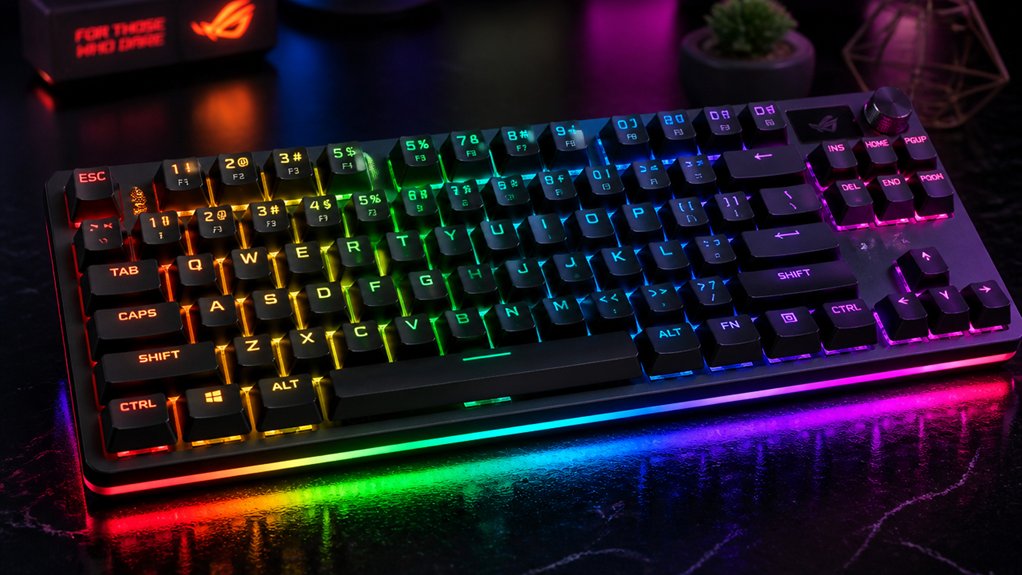
You can easily customize your mechanical keyboard’s RGB lighting by using manufacturer software or third-party tools like RK Launcher or OpenRGB. Start by confirming your keyboard supports per-key or zone lighting, then adjust colors, brightness, and effects with simple options or advanced self-defined profiles. Experiment with preset modes or create your own unique effects. If you encounter issues, troubleshooting tips can help restore your setup. Keep exploring to discover even more ways to personalize your RGB lighting.
Does Your Keyboard Support Custom RGB Effects?
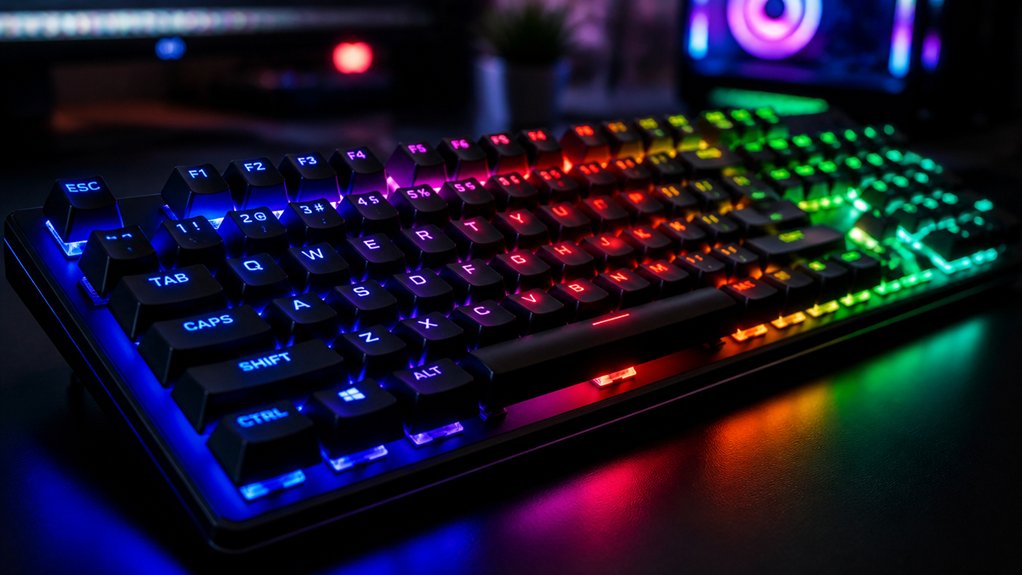
Wondering if your keyboard can display custom RGB effects? Most Mechanical Keyboards that support RGB come with features like RGB backlight and per-key color customization. A quick way to confirm is by examining the lighting customization options in the product details, user manuals, or the manufacturer’s website. Many popular wired keyboards, such as the Corsair K100 RGB, offer advanced lighting zones and programmable effects through proprietary lighting control software like iCUE.
How Do RGB Mechanical Keyboard Lights Work?
Ever wondered how your mechanical keyboard’s vibrant RGB lights are created and controlled? RGB mechanical keyboard lights use red, green, and blue LEDs beneath each key to produce millions of colors through varying light intensities. Controlled via software or hardware, these lights often utilize individually addressable LEDs to enable detailed customization and dynamic effects. Microcontrollers and dedicated software manage these lights, adjusting brightness, color, and lighting effects either dynamically or statically. Many RGB keyboards support per-key lighting, enabling you to customize individual keys with specific colors or effects. This customization allows for dynamic lighting patterns synchronized with your input, system activity, or audio. Keep in mind, RGB lighting consumes more power on wireless keyboards, which can impact battery life or restrict brightness levels. Overall, the combination of LED technology and intelligent control systems makes RGB lighting both visually stunning and highly customizable.
What Software Can Help You Customize RGB Effects?
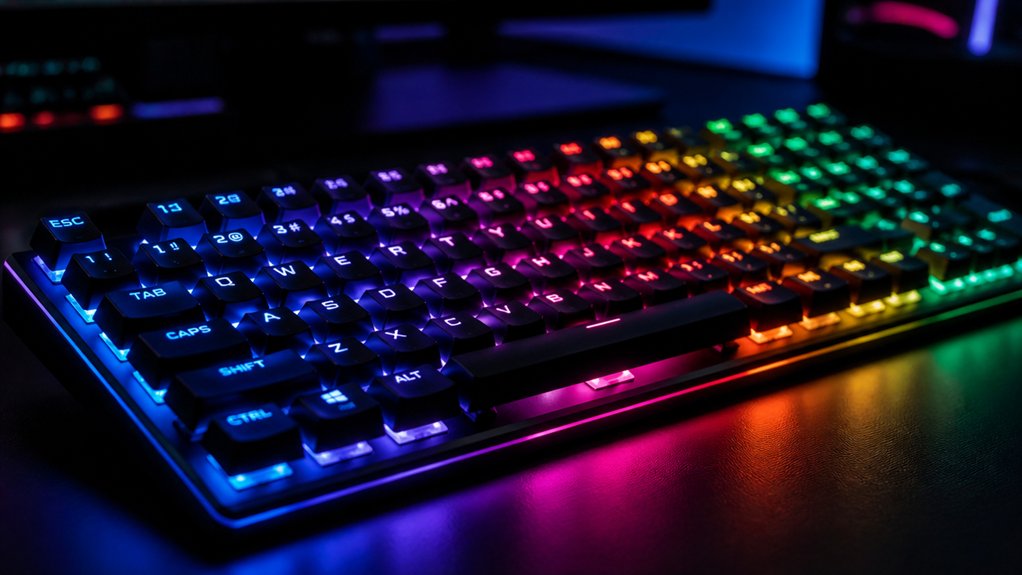
You have several software options to customize your RGB effects, ranging from manufacturer-specific programs like Razer Synapse, Corsair iCUE, Logitech G Hub, and SteelSeries Engine, to open-source tools such as OpenRGB. For supported RK keyboards, the built-in web-based RK Launcher offers simple presets and self-defined modes for per-key control. Most of this software supports Windows and macOS, allowing you to save profiles and fine-tune effect speeds and brightness easily. Additionally, understanding the control and connectivity options can enhance your customization experience by ensuring seamless integration and versatile control methods.
Compatible Software Options
Choosing the right software is essential for tailoring your mechanical keyboard’s RGB lighting to your preferences. Popular options include Logitech G Hub, Razer Synapse, iCUE software, and SteelSeries Engine, each offering customizable lighting profiles, per-key lighting, and effects.
For newer RK keyboards, RK Launcher provides a web-based solution for advanced control, macro creation, and key remapping. OpenRGB stands out as a versatile open-source option supporting multiple brands, ideal if you want unified control across devices.
Some older RK models may require downloadable software, while newer ones use browser-based applications compatible with browsers like Chrome or Edge. Combining keyboard shortcuts with dedicated software allows dynamic lighting adjustments, brightness control, and the activation of complex RGB patterns for gaming and productivity. Programmable lighting options further enhance customization possibilities, enabling users to craft unique visual effects tailored to their setup.
Using Built-in Features
Many built-in RGB features are accessible through the software that comes with your mechanical keyboard or dedicated applications, making it simple to customize lighting effects.
With a keyboard with RGB, you can control the keyboard backlight, switch between various RGB lighting modes, and fine-tune brightness and colors. Software provided by brands like MelGeek, Razer Synapse, Corsair iCUE, Logitech G Hub, and SteelSeries Engine offer intuitive interfaces for customizing lighting.
You can choose from preset effects like breathing, color waves, or reactive modes, or use per-key lighting control for detailed effects. Additionally, some software enables saving multiple lighting options for quick switching, ensuring you can easily personalize your RGB Mechanical keyboard to match your style or gaming setup. Profiles and lighting modes make customization even more versatile and tailored to your preferences.
How to Use RK Launcher for Adjusting Your RGB Lighting
Wondering how to easily customize your RGB lighting on a mechanical keyboard? Use RK Launcher, a browser-based software compatible with most RK keyboards, to simplify the process.
Easily customize your RK keyboard’s RGB lighting with RK Launcher, a browser-based tool for quick, personalized effects and settings.
First, connect your keyboard via wired mode using the RK cable. Then, select your device in RK Launcher and follow these steps:
- Enter Light Mode to access lighting effects, brightness, speed, and color options.
- Enable Self-Define Mode for per-key RGB customization, allowing you to assign colors to individual keys or groups.
- If needed, click One Click Restore Default to reset all lighting settings to factory defaults.
- Ensure compatibility with your switches, such as linear or clicky types like Kailh Box White or MONSGEEK, for optimal lighting effects switch features.
This tool lets you quickly adjust your RGB lighting, customize effects, and fine-tune brightness, making your keyboard truly personalized with ease.
How to Create Custom Per-Key RGB Effects
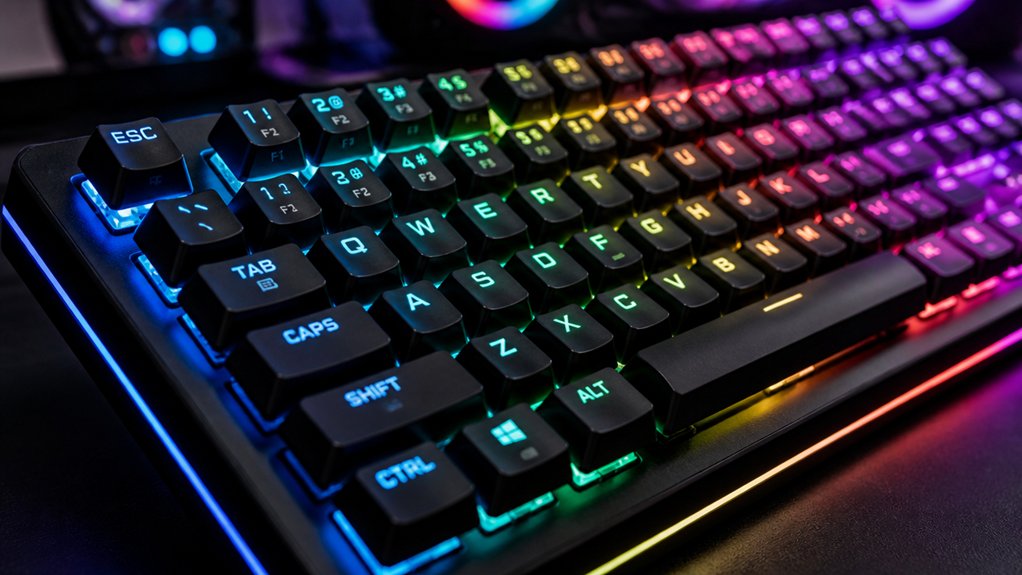
To create custom per-key RGB effects, first confirm your keyboard supports RGB lighting and is compatible with RK Launcher’s Self-Define mode. Connect your keyboard in wired mode for peak functionality.
Enable Self-Define mode within RK Launcher’s Light Mode to access detailed customization options. Use the on-screen keyboard interface to click individual keys or select multiple keys to assign specific colors or lighting effects. This allows you to tailor your lighting precisely to your preferences.
Changes are saved automatically, making customization seamless. If needed, you can quickly revert to factory settings by clicking the One Click Restore Default option. Verify your keyboard supports RGB lighting, like RK S98 or RK R75, to gain access to advanced color options and multiple preset modes.
How to Troubleshoot RGB Lighting Problems
If your RGB lighting isn’t working as expected after customizing your keyboard settings, troubleshooting steps can help resolve common issues.
First, confirm your RGB keyboards support lighting patterns and that the RK Web Driver or relevant software is correctly installed and up-to-date. Next, connect your keyboard via the designated wired mode using the proper cable to guarantee stable lighting control and device detection.
If lighting still doesn’t appear, try these steps:
- Increase brightness or cycle through lighting modes with keyboard shortcuts like Fn + arrow keys.
- Reset lighting effects to default to troubleshoot individual key or overall lighting issues.
- Check for conflicting RGB software or third-party apps like OpenRGB—run them with administrator privileges or disable other programs.
If problems persist, verify hardware compatibility or contact support for assistance.
Frequently Asked Questions
How to Change RGB Lights on Mechanical Keyboard?
To change the RGB lights on your mechanical keyboard, press dedicated shortcuts like Fn + arrow keys or use manufacturer software such as Corsair iCUE or Razer Synapse for detailed customization. Enable settings for per-key lighting if available.
How to Customize Your Keyboard Lighting?
You can customize your keyboard lighting by connecting to RK Launcher or manufacturer-specific software, selecting “Self-Define” mode, assigning colors to keys, and saving your settings. Use shortcuts for quick adjustments or third-party apps for more control.
Is Keyboard RGB Lighting Distracting?
Keyboard RGB lighting can be distracting if too bright or constantly changing. You might find static, breathing, or pulsing effects less disruptive, and adjusting brightness or turning off lights during focus tasks helps prevent eye fatigue and distraction.
How to Make RGB Brighter on Keyboard?
To make your keyboard’s RGB brighter, increase the brightness via FN key combos, use dedicated software to adjust intensity, switch to brighter presets, guarantee a wired connection, and keep your software updated for peak lighting performance.
In Summary
Now that you know the basics, customizing your RGB lighting on your mechanical keyboard is straightforward. You can easily explore different effects, create personalized per-key lighting, and troubleshoot any issues along the way. With the right software and a bit of experimentation, your keyboard can match your style perfectly. So go ahead, have fun customizing, and make your setup truly your own. Your perfect RGB setup is just a few clicks away!



