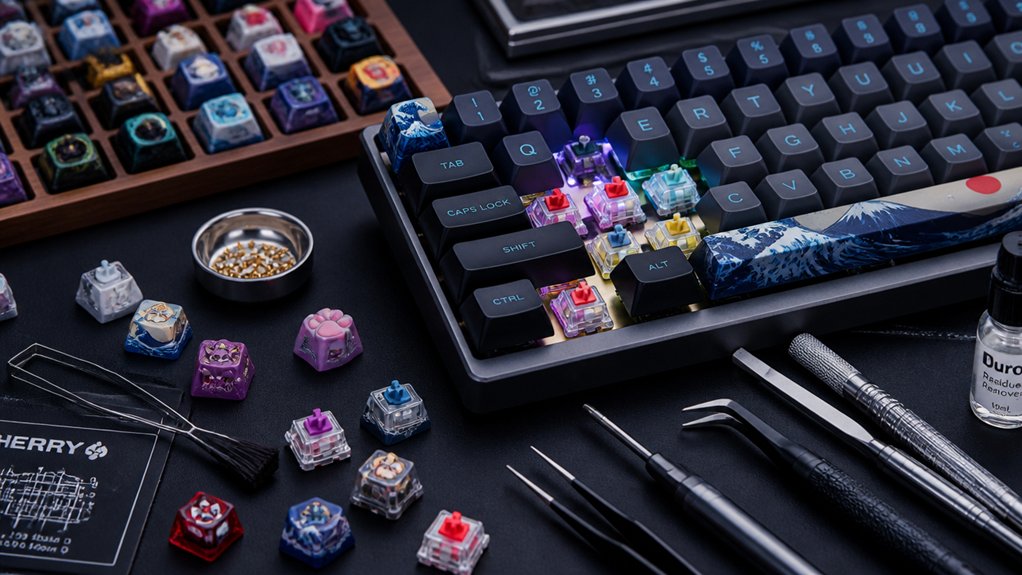
Set a clear typing‑speed goal first, then pick a switch that matches it. Linear switches like MX Reds or Speed Silvers give smooth, low‑force travel for rapid keystrokes, while tactile Browns add a subtle bump for rhythm without sacrificing speed. Keep actuation around 35‑45 g and travel under 1.2 mm to cut fatigue. Verify the stem type fits your ANSI/ISO board, enable 5‑10 ms debounce and NKRO, and lubricate lightly for consistency. Hot‑swap boards let you test silently, and silent linear or tactile options keep noise down. Stick with these tweaks and you’ll see gains—plus more tricks await if you keep exploring.
Define Your Typing Speed Goals Before Choosing a Keyboard Switch
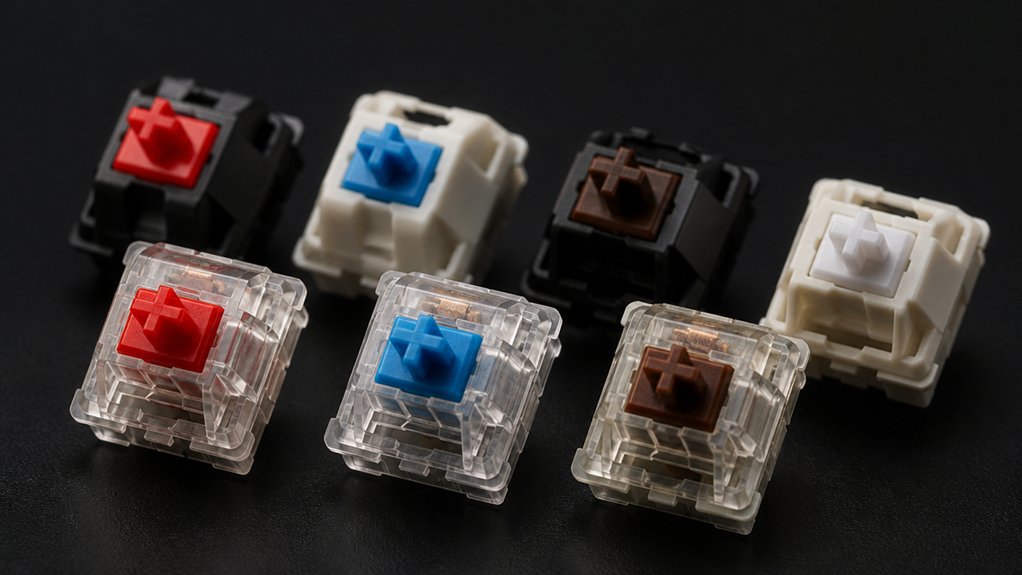
When you set a concrete typing‑speed target—say 60 WPM for casual work or 100 + WPM for competitive gaming—you can match that goal to the switch type that best supports it.
First, pinpoint the exact typing speed you aim to sustain. If you chase 100 + WPM, linear switches like Cherry MX Reds give you smooth, low‑resistance keypresses that let you fly through words. If you need a balance of accuracy and speed, tactile switches provide a subtle bump that curbs errors without sacrificing too much momentum.
For those who thrive on rhythm, clicky switches add audible cues, though they may slow beginners. Assess your long‑term goals, weigh comfort against fatigue, and choose switch types that will help you increase your typing speed while keeping errors low.
Compare Linear, Tactile, and Clicky Switches for Typing Speed
Your speed goal now dictates which switch family will serve you best. On a mechanical keyboard, linear switches give you a smooth, uninterrupted travel that cuts finger fatigue and lets you fire keys in rapid succession, boosting typing speed.
Linear switches deliver smooth, uninterrupted travel, minimizing fatigue and maximizing rapid keyfire for top typing speed.
Tactile switches add a subtle bump at actuation, offering feedback that helps you keep a steady rhythm and reduce errors, so you maintain consistent speed with higher accuracy.
Clicky switches combine that bump with an audible click; the sound can be satisfying, but the extra force and noise often slow the fastest typists.
If you prioritize raw velocity, lean toward lightweight linear switches like Cherry MX Red. If you need a balance of speed and precision, tactile switches such as MX Brown are a solid choice.
Choose the Right Actuation Force for Faster Typing Switches
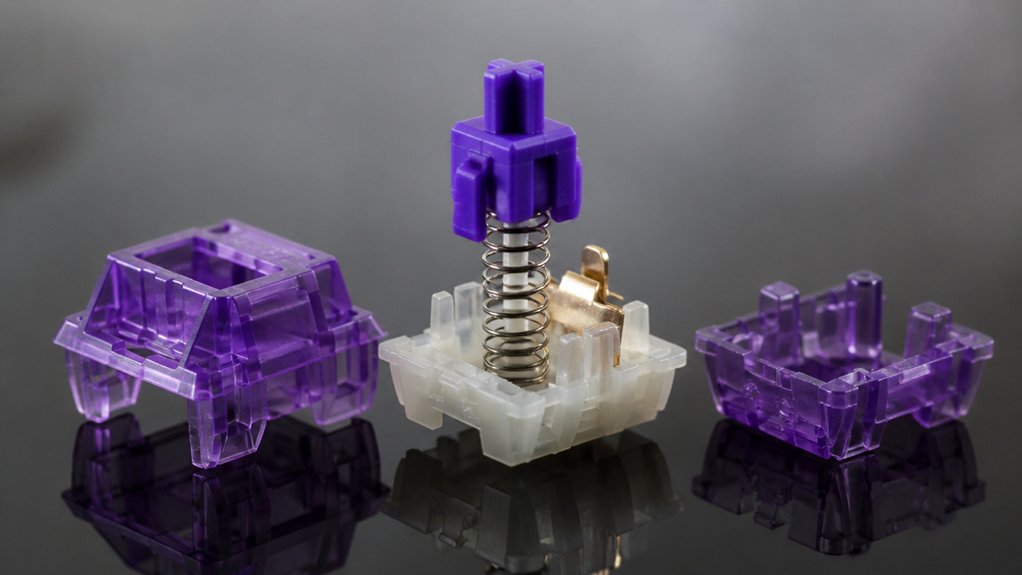
If you want to type faster, pick a switch with a low actuation force—typically 35‑45 g—so each keypress feels effortless and you can maintain a rapid rhythm without tiring your fingers. Light actuation force reduces the energy your fingers spend per keystroke, letting you sustain higher typing speed for longer periods.
Cherry MX Red or Speed Silver exemplify this balance; they register at around 45 g, offering smooth, linear feedback without unnecessary resistance. Avoid overly light switches that trigger unintentionally, but don’t settle for heavy ones that slow your cadence.
Consistently practicing on your chosen actuation force builds muscle memory, sharpening your rhythm and making each press feel natural. In the end, the right actuation force lets you type faster while keeping your fingers comfortable.
Select Low‑Travel Switches to Accelerate Typing Speed
Embrace low‑travel switches to shave milliseconds off each keystroke. When you pick low‑travel keyboard switches, the actuation points sit around 1.0‑1.2 mm, so your fingers travel far less than with a 4 mm switch. That shorter travel cuts finger fatigue, letting you sustain higher typing speed for longer periods.
Mechanical options like Cherry MX Speed Silver deliver faster key registration, keeping your rhythm uninterrupted and your input delay minimal. Pair a low‑travel switch with linear or tactile feedback to balance speed and accuracy. By reducing the distance before actuation, you boost overall typing speed without sacrificing control, turning each keystroke into a swift, reliable pulse.
Match Switch Stem (MX, Alps…) to Your Keyboard Layout

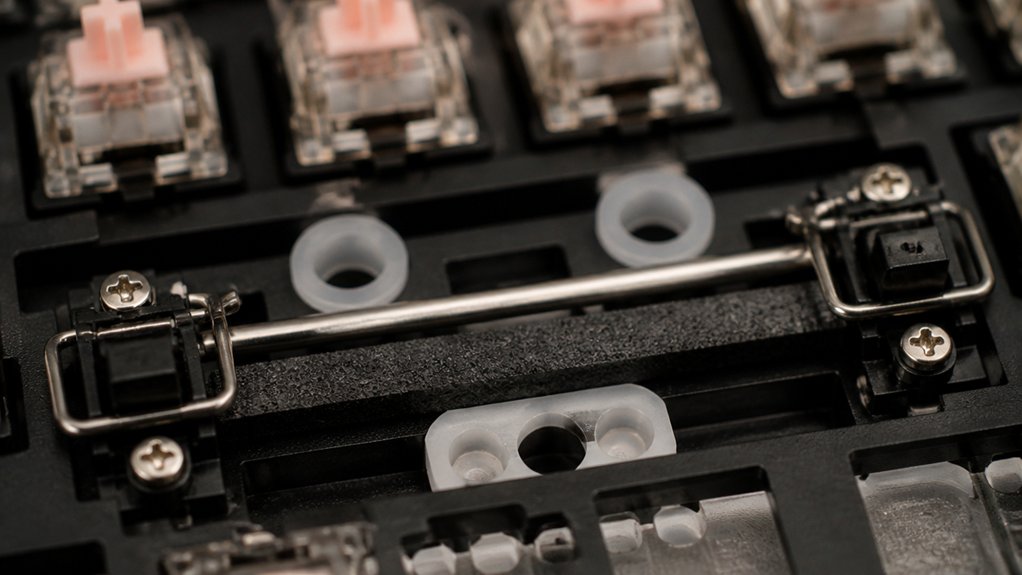
First, verify that the switch stem you choose matches your keyboard’s layout—MX stems work for most ANSI and ISO boards, while Alps stems need dedicated keycaps and wiring.
Next, consult layout‑specific wiring guides to guarantee each switch connects correctly and avoids wobble.
Finally, confirming compatibility lets you enjoy smoother actuation and faster typing.
Switch Compatibility Check
Wondering whether a new switch will fit your board? First, verify the switch stem type matches your keyboard’s keycap mount. MX‑style stems dominate the market and slot into most keycap profiles and layouts, so they’re a safe bet for ANSI or ISO boards with standard plates.
Alpine or Topre stems need dedicated PCBs and caps, so double‑check the layout before swapping. Look at the plate design and stabilizer placement; a mismatched stem can crowd the stabilizer or misalign the case.
Some low‑profile or proprietary housings reject standard MX switches unless you add adapters or modify the plate. By confirming stem‑to‑layout compatibility, you avoid fitting headaches and keep your typing speed on track.
Layout‑Specific Wiring Guides
If your board uses an MX‑style plate, you’ll need switches with a cross‑shaped stem and a matching pinout; the same goes for Alps layouts, which require the distinctive rectangular stem and its specific pin configuration.
Learn keyboard layout‑specific wiring guides that show pinout diagrams for 60%, TKL, or full‑size boards. Match the switch stem to the mounting style, then follow the guide to route each switch’s pins to the PCB. Doing this guarantees the right keys register and preserves switch function, eliminating phantom or missed keystrokes.
For Topre or other non‑MX stems, consult custom wiring instructions that detail unique pin layouts. Accurate wiring lets you type faster, keeps every key responsive, and maximizes the performance of your custom build.
Lubricate and Tune Switches for Speed‑Focused Typing
You’ll start by picking a lubricant that matches your switch type—thin for linear, thicker for tactile.
Spread it evenly over springs, stems, and sliders, then reassemble and give the keys a quick test.
Finally, tweak the amount or switch any spots that feel off until every keystroke feels crisp and consistent.
Chooses Lubricant Types
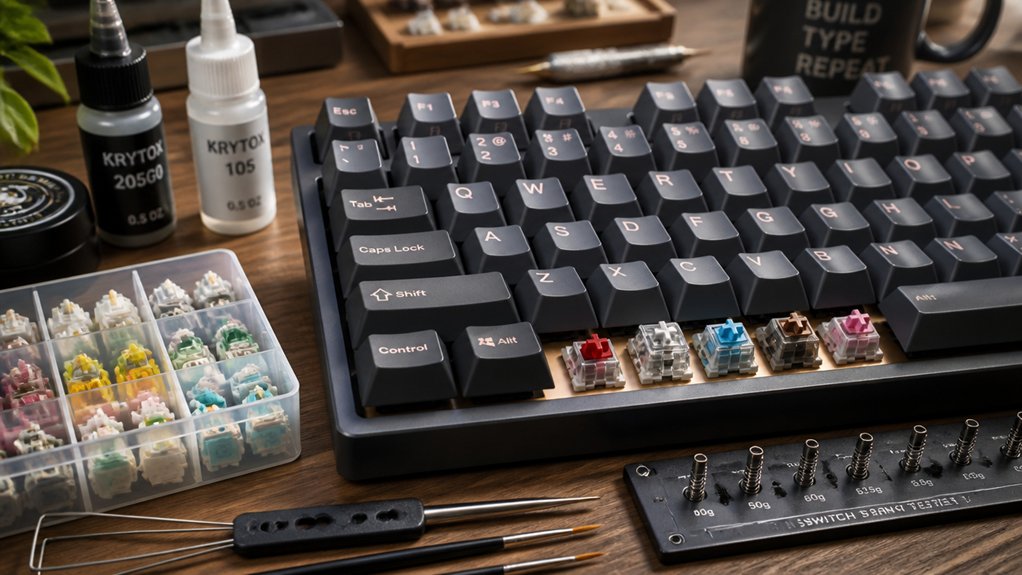
When you prioritize speed, choose a thin lubricant—silicone or Krytox GPL 205 grade 0—to coat the slider and spring. These lubricants cut switch friction, letting each key travel smoothly and boosting typing speed without adding resistance.
A light coat keeps the tactile feel crisp, so your fingers stay comfortable and finger fatigue drops. Avoid thicker greases; they thicken the travel path and sluggish response. Apply just enough to wet the moving parts, then wipe away excess.
Regularly cleaning the stems before re‑lubricating preserves the low‑friction surface, ensuring consistent performance over long sessions. By selecting the right lubricant type, you create a fast, reliable typing experience that feels effortless and stays quiet.
Apply Lubricant Uniformly
Choosing the right thin lubricant gets you a low‑friction foundation; now the key is spreading it evenly across each switch’s slider and spring. You’ll notice smoother actuation and a boost in typing speed when the lubricant coats every surface without pooling. Use a precision brush or a syringe to lay down a consistent,., then rotate the switch to let the liquid glide into the spring cavity. Avoid excess; a thin film preserves muscle memory by keeping key feel consistent. Regularly re‑apply after heavy use to maintain that effortless glide.
| Step | Action |
|---|---|
| 1 | Apply a thin line of lubricant to the slider |
| 2 | Coat the spring with a light dab |
| 3 | Rotate the switch to distribute evenly |
| 4 | Wipe away any excess before reassembly |
Test and Fine‑Tune Switches
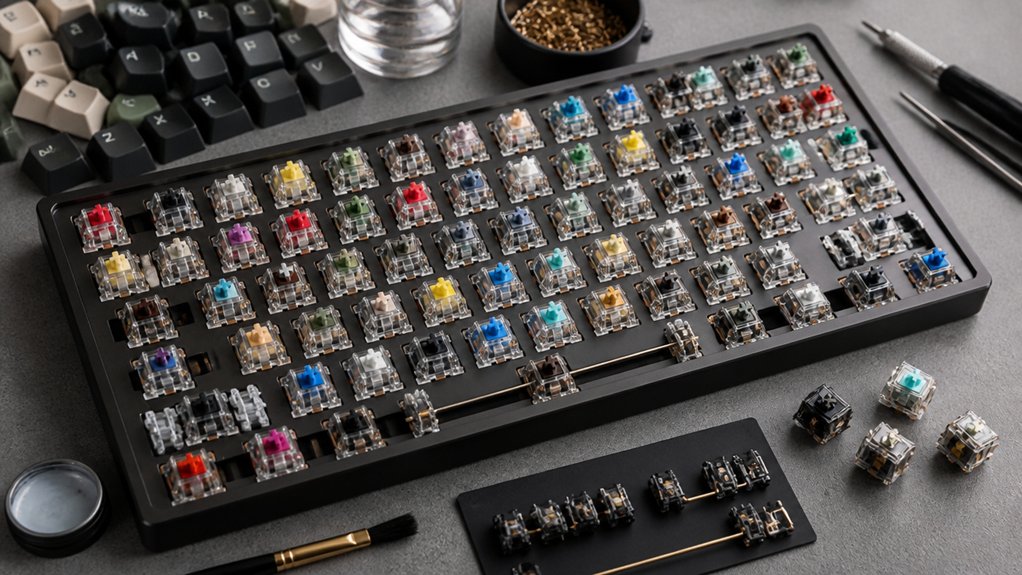
Test your switches by swapping in different types—Cherry MX Reds, Speed Silvers, or other low‑actuation models—and feel which one registers the quickest and most consistent key reset.
When you find a candidate, lubricate each stem and spring with a thin, high‑quality oil or grease to cut friction and noise.
Next, fine‑tune the actuation force by swapping springs: lighter springs boost typing speed, while slightly stiffer ones give better tactile feedback for accuracy.
After each adjustment, type a short passage to check for chatter and rollover issues; consistent registration means the mechanical switch is balanced.
Repeat the cycle until the key feel is smooth, the reset is rapid, and your hand fatigue drops.
This systematic approach maximizes speed‑focused performance.
Test Keyboard Switches With a Real‑World Typing Speed Test
If you want to know which switch truly fuels your typing speed, run a real‑world speed test on a site like 10fastfingers.com. Start with a baseline test using your current keyboard, note the WPM and error rate, then swap in a Cherry MX Red or Speed Silver and repeat the same 60‑second typing test.
Compare the numbers: a lower actuation force and shorter travel often boost your typing speed, while tactile or clicky feedback may slow you down or improve accuracy. Record each result, track trends, and focus on the switch that consistently raises your current typing speed.
Swap Switches Quickly With Hot‑Swappable Boards
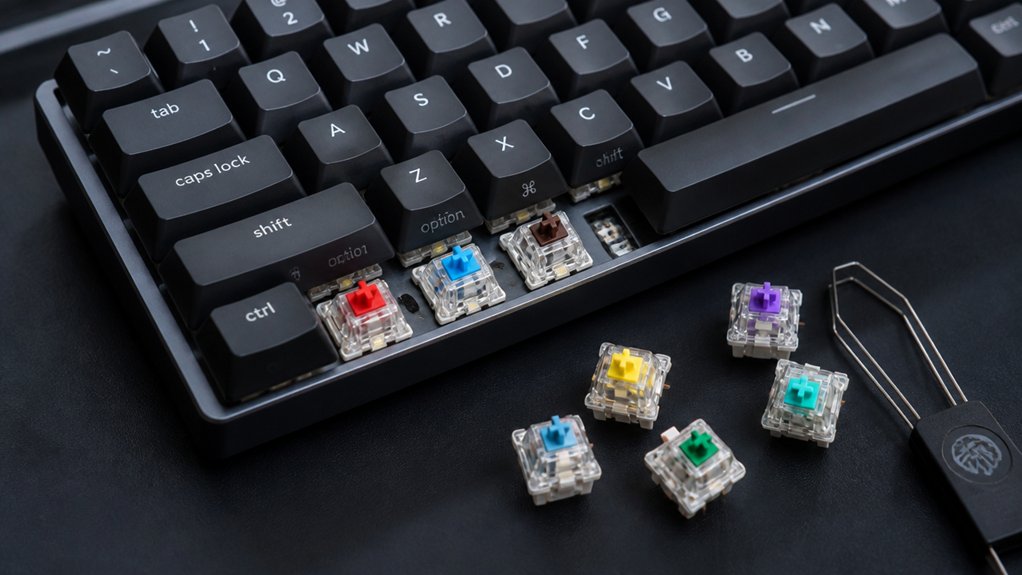
Because hot‑swappable boards let you pull out a switch and pop a new one in seconds, you can experiment with tactile, linear, or clicky options without any soldering. This freedom lets you fine‑tune a hot‑swappable keyboard for peak typing speed while keeping muscle memory intact.
You’ll notice less finger fatigue as you match actuation force to your style, and you can keep the board fresh as your skills evolve.
- Identify the feel you need – test a linear red for speed, a tactile brown for feedback, or a clicky blue for precision.
- Swap switches – use a keycap puller, gently remove the switch, and insert the new one; the board’s sockets hold it securely.
- Run a short typing test – measure words per minute to see the impact on typing speed and accuracy.
- Track muscle‑memory adaptation – note how quickly you adjust to the new feel and repeat as needed.
Pick Quiet Switches Without Sacrificing Typing Speed
You can choose silent linear switches like Cherry MX Silent Red and keep your typing speed intact, because their dampening material cuts noise without slowing actuation.
These low‑force, low‑noise options let you glide through keys quickly while still feeling a subtle tactile balance if you prefer it. Test a few models to find the sweet spot where quiet performance meets your 100 + WPM rhythm.
Silent Switches, No Compromise
Even quiet you’re hunting for a whisper‑quiet board, you don’t have to sacrifice speed. Silent switches like Cherry MX Silent Reds or Gateron Silent Browns keep the click soft while preserving the 45 g actuation force you need for fast typing and touch typing.
Their internal dampening cuts noise without adding travel, so you can maintain rhythm and improve your typing speed. N‑key rollover and rapid debounce let multiple keys register instantly, keeping rapid bursts fluid.
- Choose linear silent switches for smooth keystrokes.
- Opt for tactile silent Browns if you want feedback without extra noise.
- Verify 45 g actuation to stay comfortable during long sessions.
- Test N‑key rollover to guarantee every rapid combo registers.
Feel‑Free Tactile Balance
Silent tactile switches give you the best of both worlds: a soft, muted click and a satisfying bump that guides each keystroke. When you choose quiet mechanical switches with tactile feedback, you keep the rhythm alive without shouting across the room. Low actuation force—around 45 g—lets your fingers glide, reducing fatigue and preserving typing speed during marathon sessions. The bump confirms each press, while the soft landing cuts noise, so you stay focused and fast.
| Switch | Notable Feature |
|---|---|
| Cherry MX Silent Brown | Tactile feedback, low actuation |
| Gateron Clear | Very low actuation, quiet |
| Kailh Box Silent | Smooth travel, muted click |
Pick one of these, and you’ll hit high WPM without the clack.
Low‑Noise Linear Performance
When you prioritize speed, low‑noise linear switches like Cherry MX Reds or Silent Reds let your fingers glide with minimal resistance, delivering smooth keystrokes that keep your WPM high without the distraction of loud clicks. Their reduced actuation force eases finger fatigue, and the lack of tactile bumps means you can sustain rapid typing sessions comfortably.
Because they register on the downward press, you get quicker rollovers and higher words per minute. NKRO support guarantees simultaneous presses don’t slow you down, so you stay in the flow.
- Choose silent linear models (e.g., Cherry MX Silent Reds).
- Pair with a keycap set that offers low-profile sculpting.
- Enable NKRO in firmware for flawless rollover.
- Keep your desk ergonomics ideal to further cut finger fatigue.
Set Debounce & NKRO for Stable Performance
If you set the debounce time to about 5‑10 ms and enable NKRO, you’ll eliminate key chatter and ghosting while keeping input lag minimal, giving you a consistently fast and reliable typing experience. A tight debounce prevents bounce errors, while a short time avoids sluggish response. NKRO (N‑Key Rollover) registers every simultaneous press, so complex shortcuts stay intact. Fine‑tune both settings in your firmware or software, test with a typing test, and adjust until you notice no missed keystrokes or delay. The result is stable performance that scales with your speed, letting you focus on rhythm rather than hardware quirks.
| Setting | Recommended Range | Effect |
|---|---|---|
| Debounce | 5‑10 ms | Cuts chatter, minimal lag |
| NKRO | Full (N‑Key) | Prevents ghosting, all keys |
| Time | Keep short | Maintains responsiveness |
Frequently Asked Questions
What Is the Trick to Increase Typing Speed?
You boost speed by mastering home‑row placement, practicing daily drills, using low‑force switches, and learning common rollovers; keep a steady rhythm, employ shortcuts, and maintain ergonomic hand posture.
Is 70 WPM With 97% Accuracy Good?
Yes, 70 WPM with 97% accuracy is excellent—you’re well above average, making few errors, and handling most professional or academic typing tasks efficiently while leaving room for further improvement.
Is Typing 72 WPM Fast?
Yes, 72 WPM is fast—well above average and comfortably in the “good speed” range. You’re typing quicker than most people, and with 95 %+ accuracy you’ll boost productivity and meet professional expectations.
Is 70 WPM With 2 Fingers Good?
Yes, 70 WPM with two fingers is impressive for a casual typist, but you’ll hit fatigue sooner and miss out on the higher speeds and accuracy that full touch‑typing can give you.
In Summary
Now you’ve got clear goals, the right switch type, actuation force, travel distance, and stem compatibility, you can fine‑tune your board for speed. Test it, swap it if needed, keep it quiet, and lock in stable debounce and NKRO settings. With those choices locked in, your typing will feel faster, smoother, and more consistent—ready to crush any speed benchmark.