
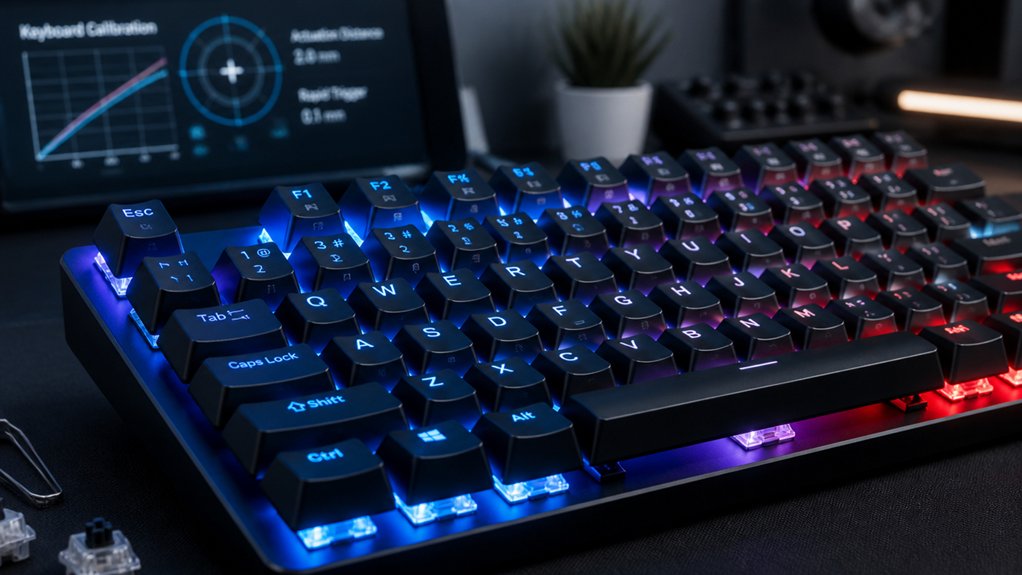
To calibrate your mechanical keyboard effectively, start by testing each key’s actuation point with software like VIA or Switch Hitter, pressing slowly to measure response. Regularly clean and reseat switches to fix hardware issues, and update firmware to enhance response and reduce latency. Adjust response settings like debounce time and actuation depth for ideal feel. Troubleshoot unresponsive keys by inspecting contacts and recalibrating as needed—keep exploring these strategies to fine-tune your typing experience.
How to Test Your Mechanical Keyboard’s Actuation Points
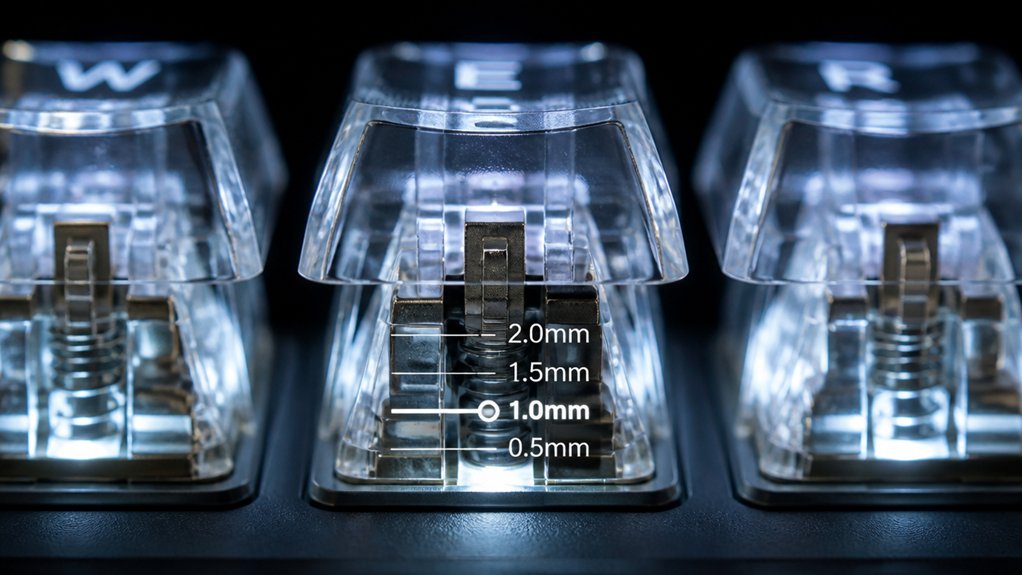
Ever wondered how to accurately measure your mechanical keyboard’s actuation points? You can do this efficiently with keyboard testing software or online tools like Switch Hitter or VIA.
Start by testing each key individually, pressing slowly until the actuation point registers, and note the key travel distance using visualization tools or measurement devices. Check the results against standard actuation distances for your switch type, like 2mm for Cherry MX Browns or Reds.
If your keyboard supports firmware customization, you can fine-tune actuation points through tools like QMK or VIA—adjusting firmware settings for peak response. After making changes, test again to guarantee consistent actuation. Switch performance, and ensure your calibration aligns with the switches’ rated actuation forces, such as 45–60 gf for responsive clicks and reduced finger fatigue.
This process helps verify switch calibration and spot faulty switches before they affect your typing experience.
Diagnose and Fix Common Hardware and Software Issues
After testing your keyboard’s actuation points, you’ll want to address any hardware or software issues that may be disrupting performance. Start troubleshooting common problems with keyboard testing software like VIA or Switch Hitter to identify unresponsive keys or faulty mechanical keyboard switches.
Regularly inspecting and cleaning key switches and stabilizers with compressed air and isopropyl alcohol helps prevent sticky keys caused by dust and debris buildup. If some keys remain unresponsive, reseat or replace switches using a soldering iron or hot-swap mechanism to restore key presses and improve feel.
Additionally, updating firmware and keyboard customization software can fix key mapping errors, RGB glitches, or macro issues. Testing USB connections on different ports and cables further eliminates communication problems affecting performance. Considering soldering techniques for PCB work can also be useful when replacing switches or repairing internal connections for more advanced troubleshooting.
Update Firmware to Improve Calibration and Response
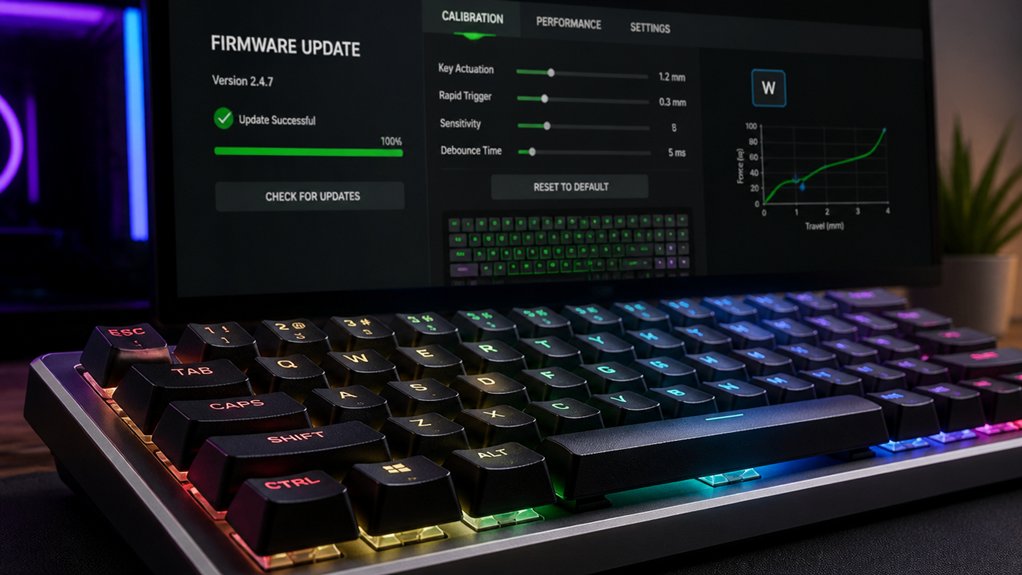
Updating your keyboard’s firmware is a crucial step in enhancing calibration and response accuracy. Firmware updates from your keyboard brand often fix bugs and maximize key response times, making your mechanical keyboard more reliable.
These updates can improve switch actuation point detection, reducing latency and preventing input lag or phantom key presses that disrupt your typing. Manufacturers release firmware patches to boost compatibility with operating systems and enable new features, directly impacting calibration quality.
Using official software tools guarantees safe and correct installation, safeguarding your hardware from bricking. Regular firmware updates keep your keyboard’s internal calibration algorithms current, resulting in a more consistent, precise, and enjoyable typing experience. Additionally, staying informed about microcontroller support ensures compatibility with your specific keyboard model.
Staying up-to-date with firmware is essential for maintaining peak performance and response from your keyboard.
Adjust Response Settings for a Better Typing Experience
Fine-tuning your response settings can greatly enhance your typing experience by making your mechanical keyboard more responsive and accurate. Start by adjusting the switch’s actuation point in your keyboard’s firmware or software, optimizing the depth needed for keypress registration.
Use manufacturer-provided tools like VIA to modify debounce time, which helps prevent key chatter while maintaining quick input recognition. You can also customize key press repeat rates for faster response during long typing sessions.
Experiment with polling rates—ranging from 125Hz to 1000Hz—to improve response times for gaming or rapid typing.
Before finalizing, test your settings with key testing tools to guarantee smooth, glitch-free input and minimal input lag. Proper calibration results in a more efficient, satisfying typing experience.
Troubleshoot Unresponsive Keys and Recalibrate Your Keyboard
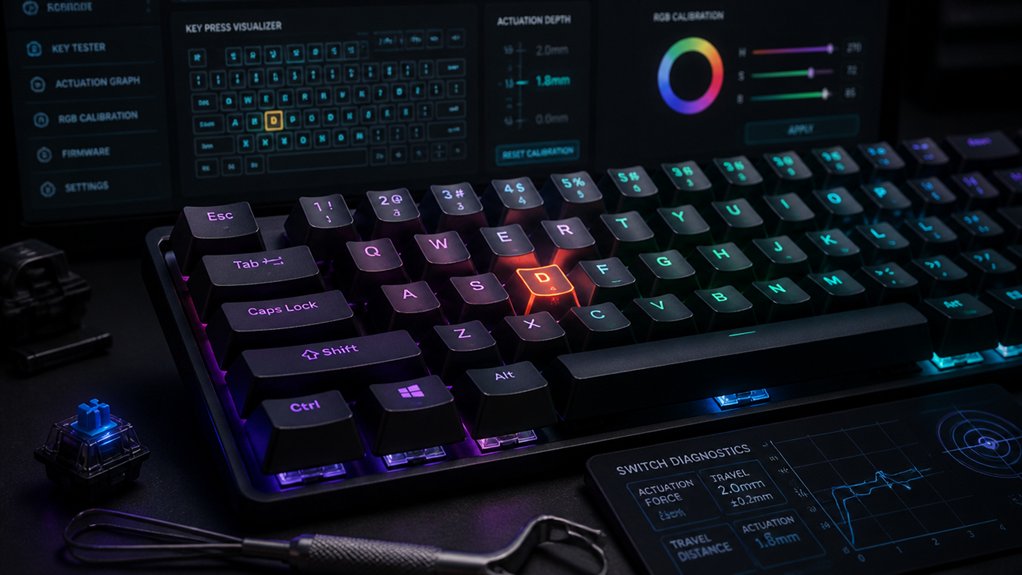
Noticing unresponsive keys can be frustrating, but troubleshooting them promptly can save you time and hassle.
First, check your PCB and switch contacts using tools or software like VIA to verify proper registration. Next, remove problematic keycaps and clean the switches with compressed air and isopropyl alcohol to clear debris blocking contact. If issues persist, consider switch lubrication to reduce friction, especially on stabilizers for larger keys.
For stubborn faults, desolder faulty switches and inspect PCB solder joints for damage or cold soldering; resolder if needed. After repairs, reassemble carefully and retest each key’s responsiveness. Finally, update or reset your firmware to guarantee correct recalibration and peak performance of your mechanical keyboard.
Additionally, ensure you use a suitable Compressed Air Duster that is ozone-safe and residue-free to prevent damage and maintain optimal cleaning effectiveness during your maintenance routine.
Frequently Asked Questions
How to Calibrate a Mechanical Keyboard?
To calibrate your mechanical keyboard, test and adjust key actuation points with software, lubricate switches, replace or swap switches if needed, and guarantee solder connections are solid for consistent performance and responsiveness in your typing experience.
Is 84 Keys 75%?
Yes, an 84-key keyboard generally falls under the 75% layout category. You’ll find it more compact than a full-size keyboard, with fewer keys, but it still retains essential functions and navigation keys for efficient use and space-saving.
What Is a 96% Keyboard Missing?
A 96% keyboard is missing dedicated media controls, macro keys, and ergonomic split designs commonly found on some full-size keyboards. It focuses on compactness, retaining essential keys while eliminating extra spacing and less-used functions.
Is a 60% or 75% Keyboard Better for Gaming?
You’ll find a 75% keyboard better for gaming because it offers direct access to essential keys without complex layers, ensuring quick commands and macros, unlike a 60%, which often needs extra layer switching slowing your gameplay.
In Summary
By following these tips, you’ll guarantee your mechanical keyboard stays calibrated and responsive. Regularly testing actuation points, updating firmware, and adjusting settings help maintain peak performance. Don’t forget to troubleshoot unresponsive keys promptly to avoid frustration. Keeping your keyboard well-maintained not only improves your typing experience but also prolongs its lifespan. With these simple steps, you’ll enjoy accurate, satisfying keystrokes every time you hit the keys.



