
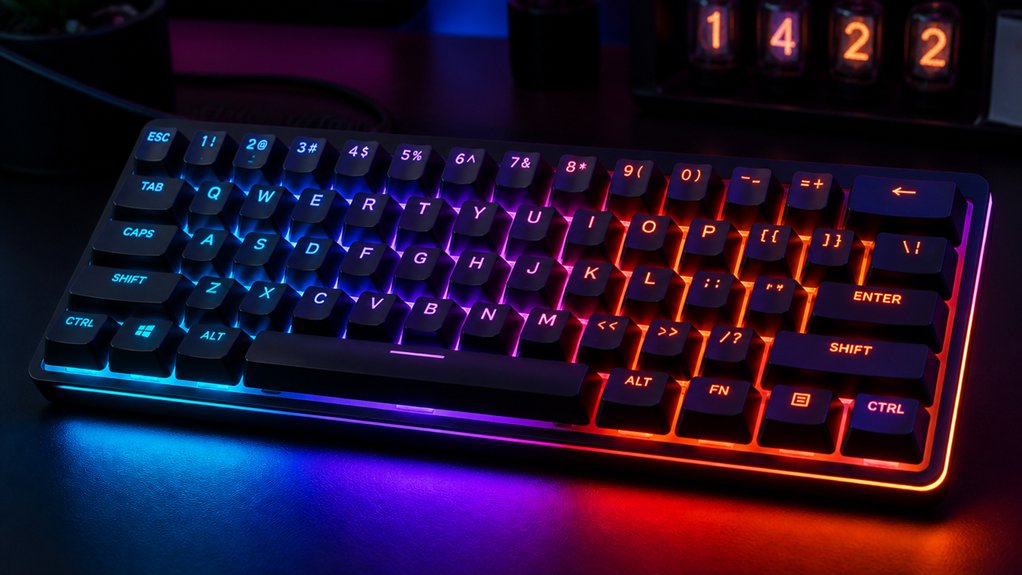
To customize RGB lighting on your compact keyboard, first verify it supports RGB and find the right software or drivers like RK Web Driver. Use wired connection for full control, then explore modes like Self-Define for per-key effects. Adjust brightness, speed, and colors using shortcut keys. Save your favorite profiles for quick switching, and experiment with effects by customizing individual keys or creating presets. Keep exploring to reveal all the tips and tricks for stunning lighting setups.
Understand Your Keyboard’s RGB Capabilities and Compatibility
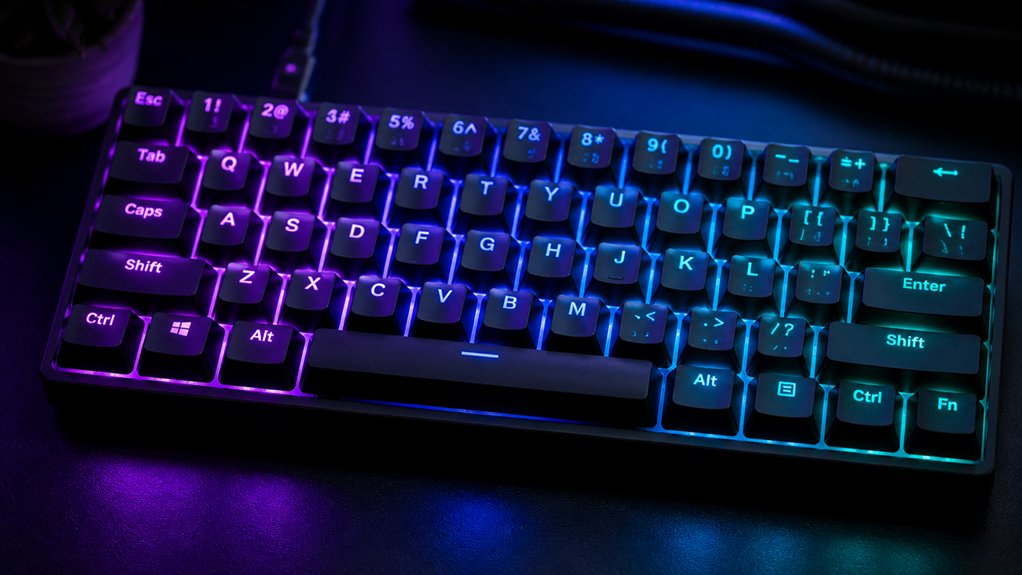
To effectively customize your keyboard’s RGB lighting, you first need to understand its specific capabilities and compatibility. Not all compact keyboards support RGB lighting, so check if yours does, and whether it requires the RK web driver or downloadable software for customization. A variety of models, such as the HyperX Alloy Origins or Newmen GM611, feature customizable RGB effects and per-key lighting, so verifying this beforehand can save you time. Determine if your keyboard supports per-key RGB customization, which usually involves enabling Self-Define or Custom Mode. Make sure you use compatible browsers such as Chrome, Opera, or Edge to access web-based RGB configuration tools, giving you a clearer view of your lighting possibilities.
How to Access and Navigate Your Keyboard’s RGB Settings
Connecting your keyboard in wired mode is the first step before accessing its RGB settings, as wireless connections often limit customization options.
Once plugged in, launch the RK Web Driver using a compatible browser like Chrome, Opera, or Edge. From there, enter “Light Mode” to view and adjust predefined lighting modes, brightness, speed, and sleep timers.
To customize your RGB lights further, enable Self-Define mode, then click individual keys on the on-screen keyboard to assign precise colors.
Use shortcuts like Fn + Alt + T to cycle through backlight modes or hold the combo to turn off lighting completely. You can also adjust effect speeds and brightness with shortcuts like Fn + Alt + J/K and Fn + Alt + Z/X/C.
Reset settings anytime with Fn + Alt + V.
Additionally, exploring features such as custom sound dampening can enhance your overall lighting and typing experience.
Customizing Per-Key RGB Effects and Creating Presets
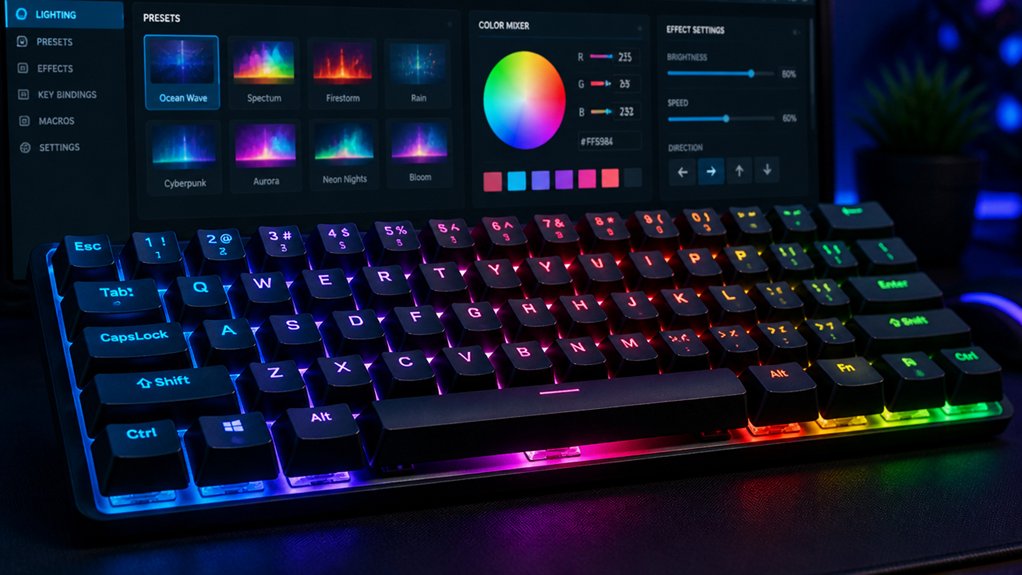
Once you’ve accessed the basic RGB settings, you can move on to customizing individual key effects for a more personalized look on your mechanical keyboard. Enable Self-Define mode via RK Launcher to adjust per-key lighting effects, allowing you to click individual keys or select multiple for batch color changes. Use the “One Click Restore Default” feature to reset custom lighting back to factory presets if needed. To create unique profiles, hold FN + Caps Lock for 3 seconds to start recording, then assign or toggle key colors by holding Caps Lock and tapping keys during customization mode. Individually addressable LEDs enable precise control over each key or zone for detailed and intricate lighting effects. With profiles like CM1 and CM2 on compatible boards, you can save and switch between different per-key RGB presets. Adjust the brightness, speed, and colors using dedicated shortcuts to fine-tune your lighting effects exactly how you want.
Adjusting Brightness, Speed, and Color Transitions for Your Effects
Adjusting brightness, speed, and color shifts allows you to customize your lighting effects for the perfect visual experience on your mechanical keyboards. You can cycle through nine RGB modes using FN + Alt + T, including dynamic effects like reactive and breathe modes.
To modify motion-based effects, use FN + Alt + J to increase speed or FN + Alt + K to slow them down, creating smoother or more energetic changes. Brightness levels, especially in modes 6 to 9, can be adjusted up to 10 levels via FN + Alt + Z, X, or C for red, green, and blue channels respectively, giving you precise control over color intensity.
Reset your custom settings anytime with FN + Alt + V, reverting to default colors and brightness for a fresh start.
Additionally, experimenting with different RGB lighting support features, such as south-facing RGB LEDs and customizable backlighting, can enhance your personalized setup.
Managing, Saving, and Experimenting With Lighting Profiles
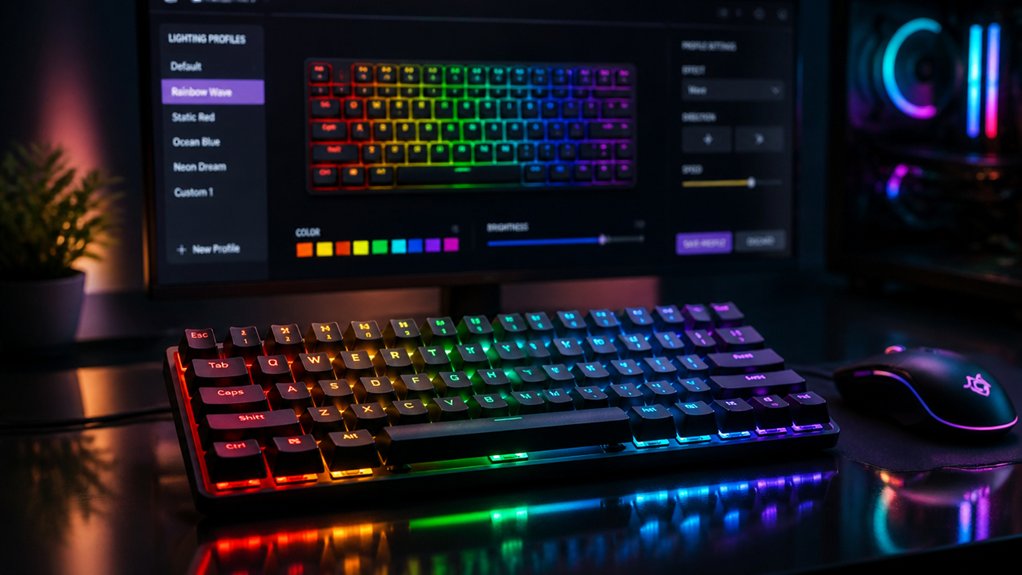
Managing and saving lighting profiles allows you to maintain your preferred RGB setups for quick, effortless customization. This is especially useful when tailoring your gaming setups, as you can switch between options with ease. Additionally, utilizing the different keycap materials, like double-shot PBT or polycarbonate, can enhance your keyboard’s overall look and durability. Use the profiles CM1 (FN + Alt + G) and CM2 (FN + Alt + B) to save distinctive lighting layouts for different scenarios. Make sure to reset the lighting by holding FN + Alt + T for 3 seconds before creating or switching profiles, ensuring a clean start. To record a profile, hold FN + Caps Lock for 3 seconds, then assign or toggle key colors by holding Caps Lock and tapping keys. Profiles retain effects like breathing or static colors, and you can edit or delete them anytime for flexible experimentation with your compact keyboard’s RGB lighting.
Frequently Asked Questions
How to Customize Your RGB Keyboard?
To customize your RGB keyboard, connect it to your computer, use RK Launcher software to select effects or self-defined modes, adjust settings with hotkeys, record new patterns easily, and reset to defaults whenever needed for a personalized look.
Is a 60% or 75% Keyboard Better for Gaming?
A 75% keyboard is better for gaming because it offers more dedicated keys, better RGB lighting zones, and extensive remapping options, helping you improve in-game control and personalization without sacrificing as much desk space as a 60%.
How to Make RGB Brighter on Keyboard?
To make your keyboard’s RGB brighter, use the Fn + Alt + Z/X/C keys to increase red, green, or blue brightness. Cycle modes with Fn + \ or arrows, and verify your keyboard is wired for full control.
How to Enable RGB Lights on Keyboard?
You enable RGB lights on your keyboard by pressing the Fn key along with the \ key, or cycling through modes with Fn and arrow keys. Make sure your cable is connected and you’re using the correct mode for visibility.
In Summary
By understanding your keyboard’s RGB features, mastering how to access and customize effects, and experimenting with profiles, you’ll unleash your keyboard’s full visual potential. Adjust brightness, speed, and color shifts to suit your style, and save your favorite setups for every occasion. With these tips, you’ll create stunning, personalized lighting that enhances your gaming or work environment effortlessly. Jump in, get creative, and let your keyboard’s lighting reflect your unique personality.



