
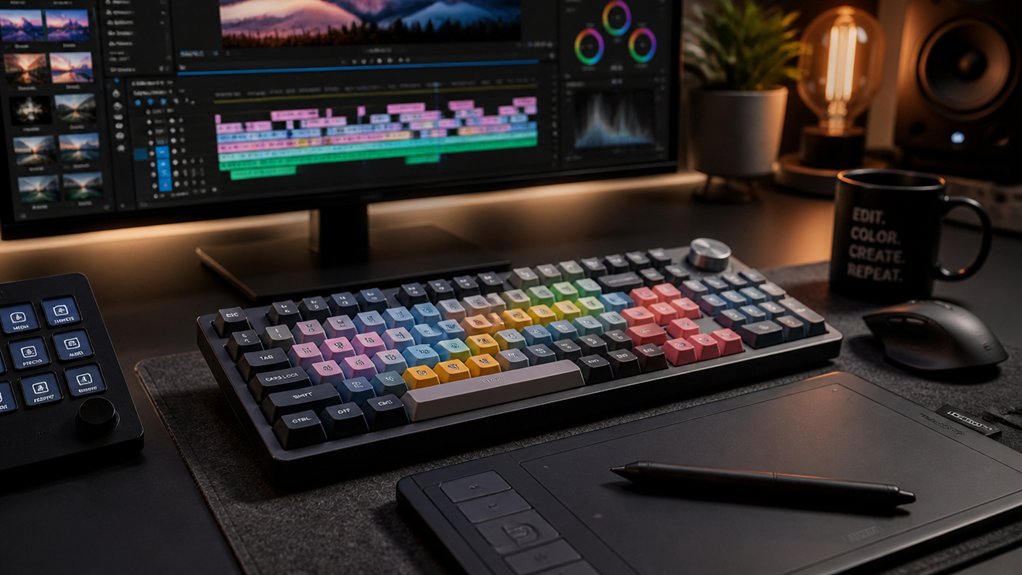
To boost your video editing speed, remap frequently used commands to easily accessible keys, avoiding complex combos. Use tools like PowerToys or AutoHotkey to customize shortcuts that suit your workflow, like assigning shortcuts for cut, undo, and ripple delete. Automate repetitive tasks with macros to streamline complex sequences. Regularly test and refine your setup for maximum efficiency, and discover more tips to optimize your editing game further.
Why Custom Keyboard Shortcuts Boost Video Editing Speed
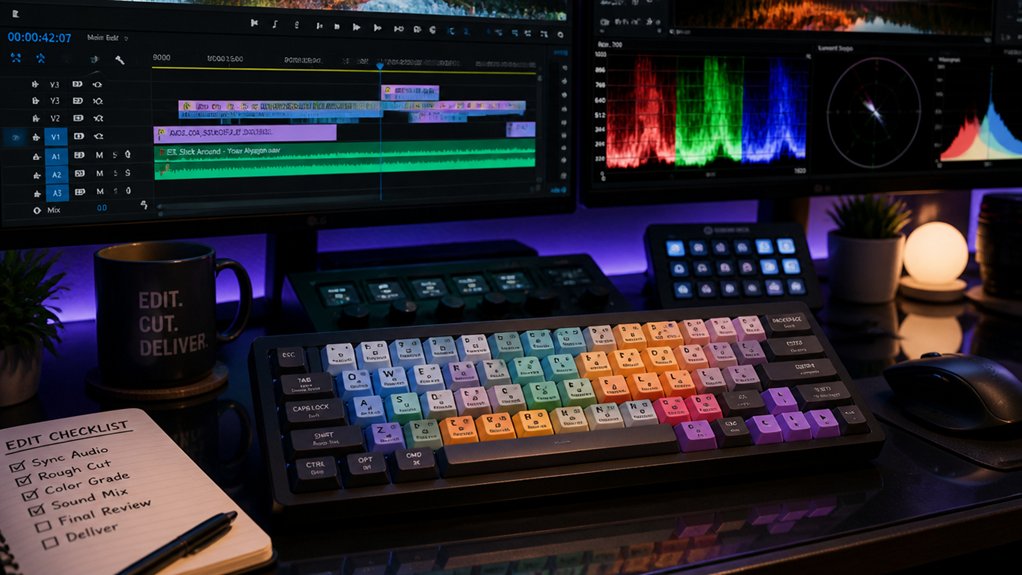
Custom keyboard shortcuts are essential for boosting your video editing speed because they minimize your reliance on mouse navigation. When you create custom shortcuts, you streamline repetitive tasks like trimming, cutting, or applying effects, making your workflow more fluid. A well-designed keymap can optimize your efficiency by aligning shortcuts with your specific editing needs. Tailoring shortcuts to your editing style reduces finger travel and cognitive load, allowing you to work faster and with less fatigue. Studies show that power users with optimized shortcuts can increase their editing speed by up to 30%, giving you more time for creative decisions. Remapping keys for frequently used commands also enables one-handed operation, improving multitasking and smoother timeline navigation. By creating custom shortcuts, you foster workflow continuity, especially when switching between different software or projects, making your editing process more efficient overall.
How to Choose the Right Remapping Tool for Your Workflow
Choosing the right remapping tool depends on your specific workflow needs and technical comfort level. If you want simple, reliable remaps—like toggling Caps Lock—use SharpKeys for direct registry modifications. For more advanced customization, such as creating tailored shortcuts or remapping keys like Caps Lock for editing tasks, PowerToys offers easy management via the Windows System Tray. If your workflow requires macro recording or multiple profiles, keyboard manufacturer software (e.g., Razer Synapse) is ideal. AutoHotkey suits highly customizable, complex remaps, macros, and chained actions. Consider this table:
| Basic Remapping | Intermediate Customization | Advanced Automation |
|---|---|---|
| SharpKeys | PowerToys | AutoHotkey |
| Simple, reliable | Custom shortcuts, Caps Lock remap | Complex macros, chained actions |
| No ongoing software | Easy management | Highly flexible |
Additionally, choosing a remapping tool that supports custom firmware configurations can enhance your workflow flexibility for specific editing tasks.
Top Keybindings to Accelerate Common Editing Tasks
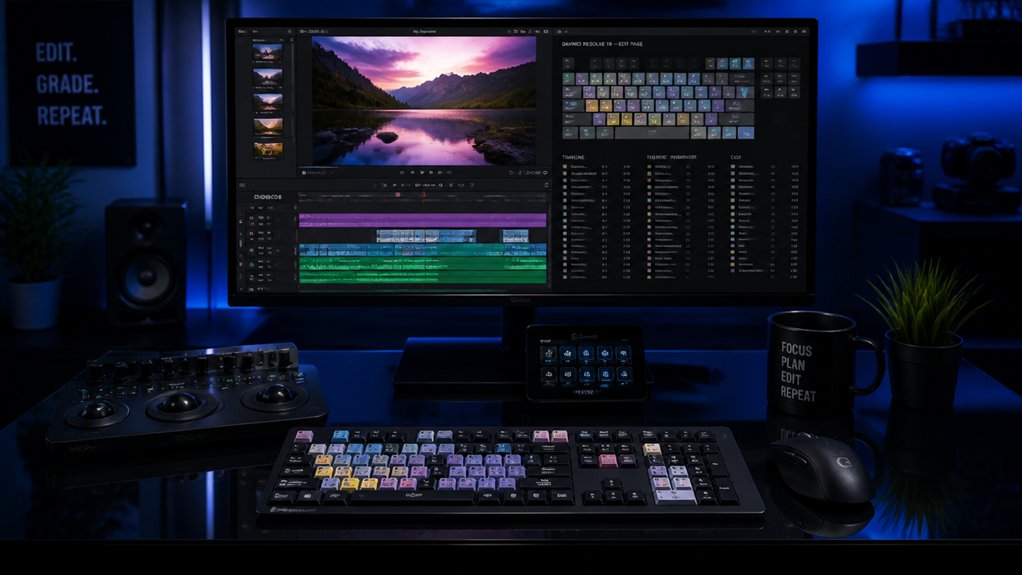
Streamlining your most used editing actions with dedicated keybindings can greatly boost your workflow efficiency. Using single keys for common tasks like Play/Pause, Undo, and Save reduces the need for multi-key combos, helping you stay focused. A well-placed custom key can also serve as a keyboard switch puller, making tool changes faster without interrupting your editing flow. Gaming keyboards are perfect for this, as you can remap unused keys like Caps Lock or Scroll Lock to shortcuts such as Cut (Ctrl+X) or Ripple Delete. Customize shortcuts to toggle tools like razor or hand tool instantly, making clip manipulation smoother.
Manufacturer software or PowerToys’ Keyboard Manager allow you to create context-specific profiles for different editing apps, enabling quick switches between optimized shortcut sets. Additionally, remapping keys to macro commands can chain frequent tasks—saving time on repetitive steps and keeping your editing fast and efficient.
Creating and Managing Macros for Complex Editing Sequences
Creating and managing macros allows you to automate complex editing sequences, saving valuable time and reducing repetitive strain. With macros, you can combine multiple steps—like applying effects, changes, and adjustments—into a single command, streamlining your workflow. A hot-swap keyboard kit can further facilitate quick hardware modifications, enhancing your overall editing setup.
Use keyboard manufacturer software like Logitech G Hub or Razer Synapse to assign these macros to accessible keys or programmable buttons, enhancing your speed and ergonomic comfort. AutoHotkey offers advanced scripting for Windows users, enabling highly customized hotkeys that perform multi-step tasks effortlessly.
Remember to test and refine your macros regularly to guarantee they trigger correctly without conflicts. Properly managed macros help you produce a polished final video faster, with fewer errors, and result in a smaller file size, making your editing process more efficient.
Test and Refine Your Shortcut Setup for Maximum Efficiency
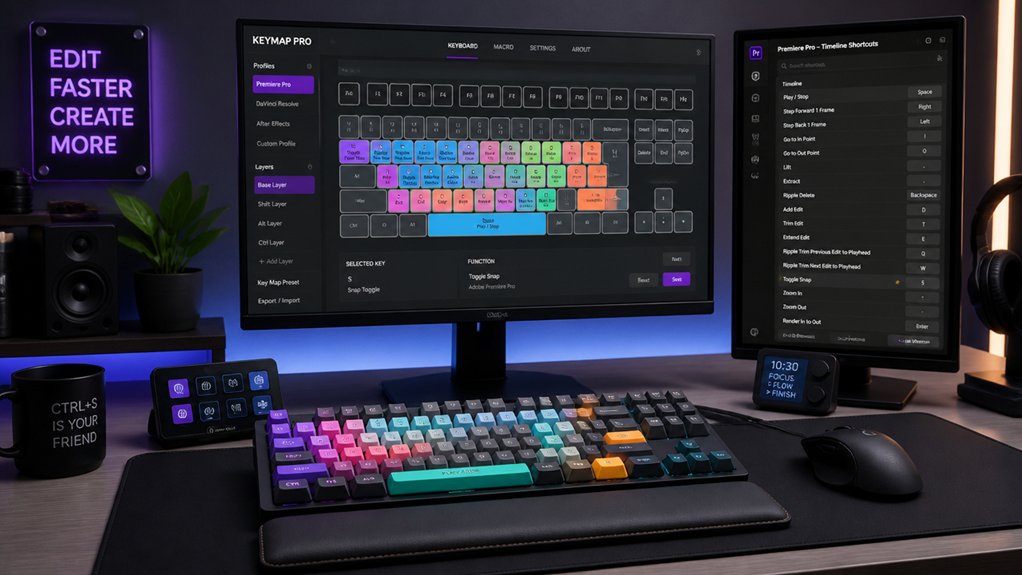
To guarantee your shortcut setup truly boosts your editing efficiency, it’s essential to regularly test them in real-world scenarios. I’ve found that using your shortcuts during actual editing sessions helps reveal whether they’re intuitive and genuinely speed up your work. Incorporating customizable shortcut setups allows you to tailor your workflow more effectively. Can’t find the best keys? Track repetitive tasks and assign easy-to-reach keys or combos to minimize finger movement. Use tools like Microsoft PowerToys or AutoHotkey for quick iterations, so you can experiment without making permanent changes. Gather feedback from peers or review your editing sessions to spot any shortcut conflicts or awkward bindings slowing you down. Periodically reassess and update your shortcuts as your editing style evolves or new features are added. This guarantees your setup remains optimized for maximum productivity.
Frequently Asked Questions
What Are the 5 C’s of Editing?
The 5 C’s of editing are Cut, Cutaway, Close-up, Compressed Time, and Content. You actively use these techniques to enhance storytelling, improve pacing, emphasize details, and create a seamless, engaging viewer experience in your videos.
What Is the 80 20 Rule in Video Editing?
The 80/20 rule in video editing means focusing on the 20% of tasks or shortcuts that deliver 80% of your results, helping you work faster, minimize repetitive actions, and concentrate more on creative decisions instead of technical navigation.
What Is the 3:2:1 Rule in Video Editing?
The 3:2:1 rule in video editing means keeping three copies of your project, stored on two different media types, with one copy offsite. It protects your work from hardware failures, disasters, and accidental deletions efficiently.
What Are the 9 Tips to Consider When Editing?
When editing, consider plan ahead, organize assets, use custom shortcuts, keep clips short, vary angles, set audio markers, maintain a clear workflow, avoid rushed edits, and review your work multiple times for best results.
In Summary
By customizing your keyboard shortcuts and macros, you can greatly speed up your editing process. Choose the right remapping tools, assign keybindings for common tasks, and experiment to find what works best for you. Regularly test and refine your setup to maximize your efficiency. With these tips, you’ll streamline your workflow, reduce fatigue, and focus more on your creative vision—making your editing sessions smoother and more productive.



