
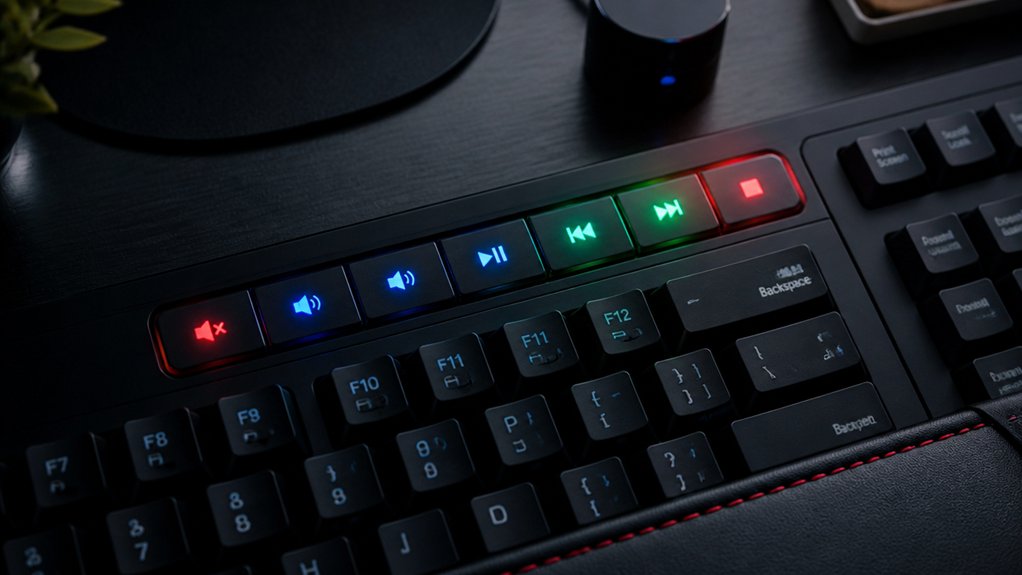
You can assign multimedia keys using built-in Windows features like touchpad gestures or hotkeys, or by using third-party tools like PowerToys Keyboard Manager for easy remapping. AutoHotkey scripts let you automate custom shortcuts, while registry edits offer permanent changes. Hardware options, like external keyboards or remappable devices, also provide solutions. If you’re interested in practical, step-by-step methods and troubleshooting tips, continue exploring to reveal more tips and tricks.
Understand Your Hardware Limitations and Options for Media Keys
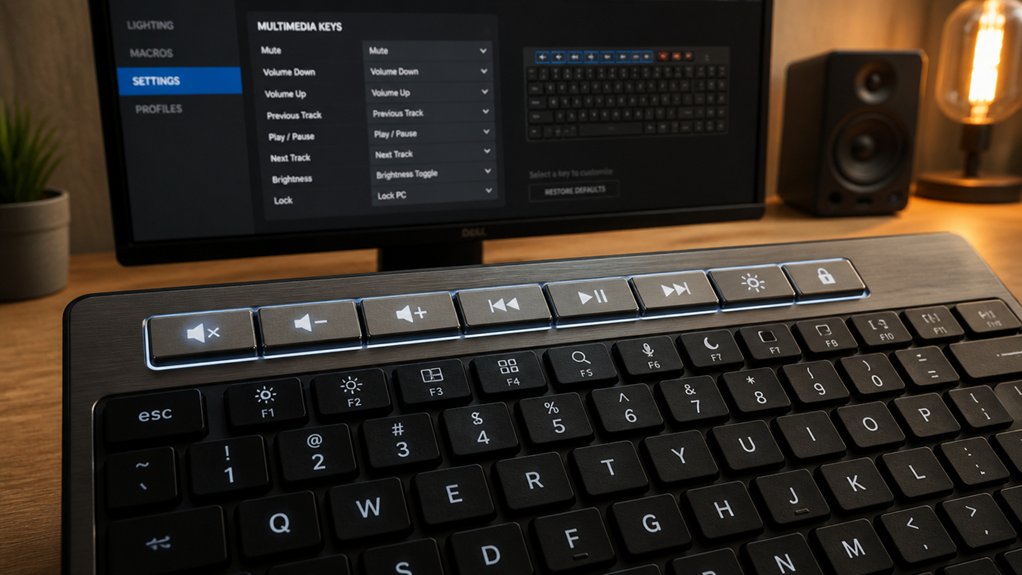
Have you ever wondered why some media keys just don’t work or can’t be reassigned? It’s mainly due to hardware limitations. Most multimedia keys on USB keyboards send unique HID Consumer Page (0x0C) usage IDs that standard remap tools can’t emulate.
Many generic USB keyboards lack dedicated media keys altogether, making remapping impossible without additional software. Plus, hardware-specific multimedia key functions are built-in and often non-replaceable.
Even hardware volume keys, processed at a low level by the hidserv service, resist remapping through typical registry tweaks or software. Your options depend heavily on the hardware’s design and the manufacturer’s support.
If your multimedia keys aren’t working as expected, it’s usually a matter of hardware capabilities, not simple software tweaks. Additionally, many multimedia keys are tied to hardware limitations that prevent software-based remapping or reassignment.
How to Assign Media Control Keys Using Windows Built-In Features
Windows offers several built-in methods to control media playback without needing additional software. You can use media control buttons on your keyboard, which are managed by the hidserv service, triggering system media controls and volume overlays.
Windows provides built-in media controls via keyboard buttons managed by the hidserv service.
Native media keys, like volume up/down and mute, are immediately active. To use keyboard shortcuts, many media players support configurable hotkeys, enhancing your media controls experience.
While Windows doesn’t provide a straightforward graphical interface to remap dedicated media keys, you can utilize the Windows key combined with specific shortcuts for quick access.
Additionally, touchpad gestures, such as three- or four-finger swipes, often include media control options, allowing you to manage playback seamlessly without installing extra tools.
Understanding keyboard layout customization can also help you optimize your media control setup to better suit your workflow and preferences.
These features collectively help you assign media control keys effectively using Windows’ built-in options.
Remap Keys Easily With Powertoys Keyboard Manager
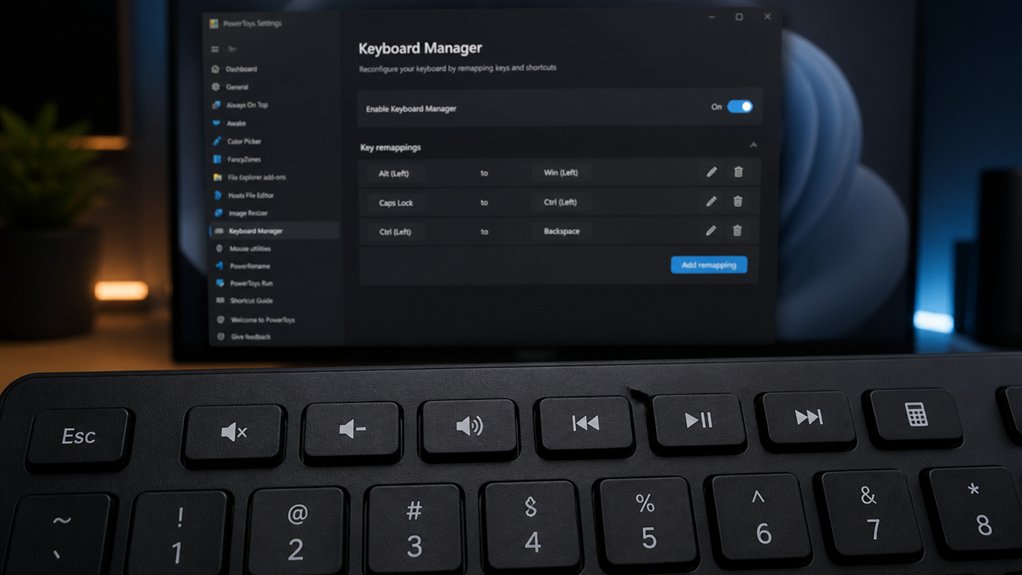
With PowerToys Keyboard Manager, remapping keys is straightforward and quick. You can create custom shortcuts or assign multimedia functions to any key without complex setup. Additionally, support for hot-swap capable keyboards allows for easier switch replacement and customization, enhancing your overall typing experience.
The process is seamless, and changes take effect immediately, making it easy to personalize your media controls.
Easy Remapping Process
Microsoft PowerToys Keyboard Manager makes remapping multimedia keys straightforward and hassle-free. With this tool, you can easily remap a key or shortcut to media controls through its intuitive Settings interface under the Keyboard Manager tab.
To remap a key, simply select “Remap a key” or “Remap a shortcut,” choose your desired input and output keys from searchable lists, and confirm—no need to restart your PC.
Remember these key points:
- Remapping works immediately when PowerToys is running.
- It supports global remapping for all applications.
- You can map keys to media functions like play/pause, next, and volume.
- Modifier keys can be added for custom multimedia shortcuts.
- Remapped keys are active only in the background, providing quick and easy control.
- Ensuring compatibility with your hardware and software setup helps maintain reliable operation, as outlined in Port Compatibility and Usability.
This process offers a quick, official way to remap multimedia keys effortlessly.
Custom Shortcut Creation
Building on the ease of remapping keys through PowerToys Keyboard Manager, creating custom shortcuts offers greater flexibility for multimedia control. With a custom shortcut, you can remap a shortcut to perform specific multimedia functions like play, pause, or volume adjustment.
In the Keyboard Manager, select “Remap a shortcut” to assign new multimedia keys or key combinations, such as Ctrl + Play or Shift + Volume Up. You can also combine modifier keys for more personalized control. These changes take effect immediately without restarting your system, but PowerToys must stay running in the background.
You can apply custom multimedia shortcuts globally or restrict them to specific apps by specifying the process name. This feature simplifies complex controls and streamlines your multimedia experience. Additionally, understanding RGB LED Strips can help enhance your gaming or workstation setup for better immersion.
Automate Media Keys With Autohotkey Scripts and Macros
You can create AutoHotkey scripts to assign custom hotkeys for media controls like play, pause, and volume adjustments, making them easily accessible. A custom keymap can be tailored to include multimedia keys and streamline your media experience further. These scripts are simple to write and can be customized to trigger complex sequences or multiple actions at once. By automating tasks with macros, you streamline your media experience and keep controls exactly how you want them.
Writing Basic Scripts
To automate multimedia controls easily, AutoHotkey (AHK) offers a straightforward way to write basic scripts that assign custom key combinations to actions like play, pause, next track, and volume adjustments.
With a simple AHK script, you can efficiently remap your keys or create shortcuts for multimedia functions. The scripting process involves using built-in commands like `Send {Media_Play_Pause}` or `Send {Volume_Up}`. Here are some key points:
- Use plain text editors for writing AHK scripts
- Save scripts with `.ahk` extension for easy management
- Set scripts to autostart with Windows for persistent control
- Combine commands for advanced macros
- Customize key combinations to suit your habits
- Testing switch feel and compatibility is easier with various switch testers, ensuring you choose the right feel for your multimedia setup
This method makes it easy for you to control media without extra hardware.
Customizing Hotkeys
Once you’ve mastered basic scripting for media controls, customizing hotkeys allows you to tailor your multimedia experience even further. Using a scripting language like AutoHotkey, you can remap your keyboard’s shortcut keys to perform specific media functions, such as play, pause, or skip tracks.
By creating scripts, you can assign complex macros to your preferred key combinations, making it easier to control volume controls or switch tracks seamlessly. These scripts can be compiled into standalone executables and set to run at startup, providing persistent hotkey customization.
AutoHotkey’s flexibility means you can remap any key or combination to standard media keys, giving you full control over your multimedia shortcuts. Just remember to test your scripts to avoid conflicts, especially during gaming sessions. Additionally, you can incorporate switch types into your scripts to match your preferred sound and feel, as different switch profiles can influence your overall typing and gaming experience.
Automating Tasks
Automating media keys with AutoHotkey scripts and macros can streamline your multimedia experience by allowing you to control music and videos effortlessly. With AHK, you can create custom key mapping, assign new shortcuts, and remap keys to your preferred media functions like play, pause, or volume. This flexibility lets you personalize your keyboard controls to fit your workflow. Additionally, choosing a compatible Pro Micro controller with features like USB-C support and multiple I/O options can further enhance your automation setup. By saving these scripts as executables and setting them to autostart, your remapped keys are always ready without manual activation. Keep in mind:
- Easy to customize key combinations
- Supports complex media automation
- Enables consistent media control across apps
- Requires basic scripting knowledge
- Can be set to run automatically at startup
Harness AHK to automate tasks and optimize your multimedia control.
Change Keys Permanently by Editing Registry Settings
Permanently changing your multimedia keys by editing the Windows Registry involves modifying the Scancode Map entry, which directly reassigns keys at a low level. To do this, you create a new Registry entry that maps your original key to the desired multimedia function. A detailed understanding of data transfer speeds and how they impact response times can help you choose more effective remapping strategies. Tools like SharpKeys make this process easier by providing a friendly interface to remap keys before writing new entries to the Registry. Keep in mind, changing Registry settings requires a system reboot for the new mappings to take effect or to revert them. This method applies changes across all users and is limited to single keys; it can’t modify key combinations. Additionally, volume and mute keys often behave differently, making Registry edits less reliable for these specific keys.
Use Touchpads and External Devices for Media Commands Without Extra Software
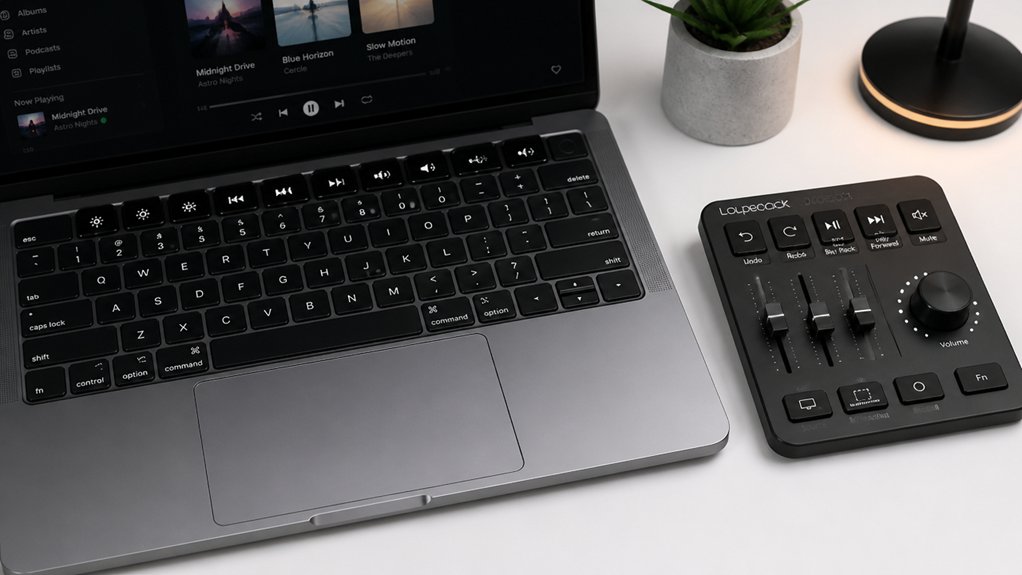
Many modern touchpads and external devices support media commands through built-in gestures, eliminating the need for extra software. By using your mouse and keyboard, you can control media playback with native OS features.
Modern touchpads and devices allow media control through built-in gestures, no extra software needed.
Windows 10 and 11 recognize multitouch gestures, such as three-finger swipes, to manage volume and playback seamlessly. Unlike third-party solutions, these gestures operate at the OS level, offering broad compatibility without additional drivers.
You can also:
- Use touchpad swipe gestures for play, pause, and volume control.
- Rely on industry-standard HID usage codes for compatibility.
- Avoid the hassle of installing extra software or drivers.
- Leverage control keys integrated into many external devices.
- Access media controls quickly through familiar gestures without remapping keyboard keys.
Troubleshoot Common Problems When Setting Up Media Keys
When setting up media keys, encountering issues is common, but most can be resolved with targeted troubleshooting. Multimedia keys like volume and mute are often managed by the hidserv service, which may cause remap problems. Registry remapping tools such as SharpKeys or PowerToys Keyboard Manager usually can’t remap these keys due to hardware or driver-level processing. Make sure no other software, like Chrome extensions or third-party media apps, hijack media shortcuts. Also, verify that your keyboard drivers and related system services are active—disabled hidserv can break functionality.
| Issue | Solution |
|---|---|
| Multimedia keys don’t respond | Check hidserv and keyboard driver status |
| Remap won’t work | Use AutoHotkey scripts or device-specific software |
| Conflicting software | Close or disable conflicting third-party apps |
| Hotkeys are hijacked | Disable or reconfigure other media shortcut apps |
| Functionality sporadic | Restart system or update drivers |
Frequently Asked Questions
How to Remap Multimedia Keys?
You can remap multimedia keys by using tools like Microsoft PowerToys, SharpKeys, or AutoHotkey. PowerToys offers GUI remapping, SharpKeys makes permanent registry edits, and AutoHotkey enables complex macros with scripting knowledge.
How to Set Media Keys on Keyboard?
You can set media keys on your keyboard by using Microsoft PowerToys to remap existing keys, AutoHotkey scripts for custom hotkeys, or manufacturer software for dedicated media controls, making playback commands accessible with ease.
What Are the 20 Shortcut Keys?
You get 20 standard multimedia shortcut keys like Play/Pause, Stop, Next/Previous Track, Volume Up/Down, Mute, and consumer controls like Mail, Calculator, and Browser. These keys let you control media and actions quickly.
How to Allocate Keyboard Keys?
You should use tools like Microsoft PowerToys Keyboard Manager, your keyboard’s dedicated software, or AutoHotkey scripts to allocate keys for multimedia functions. Simply remap unused keys or create custom shortcuts for quick media control access.
In Summary
Now that you know your options, customizing multimedia keys is easier than ever. Whether using built-in Windows features, third-party tools like PowerToys or AutoHotkey, or even hardware shortcuts, you can tailor your media controls to fit your workflow. Just remember to troubleshoot if issues arise. With a little effort, you’ll enjoy seamless media playback and control at your fingertips, making your multimedia experience smoother and more efficient.



