
To optimize your mechanical keyboard for programming, start by remapping common symbols like braces and brackets to easier-to-reach keys, boosting speed and comfort. Focus on creating layered layouts with programmable firmware like QMK to streamline shortcuts and macros. Keep remaps simple, test incrementally, and back up your configurations for stability. If you follow these tips, you’ll see smoother typing—and there’s more valuable advice ahead to help you customize even further.
How Custom Keyboard Remaps Improve Coding Speed and Reduce Finger Strain
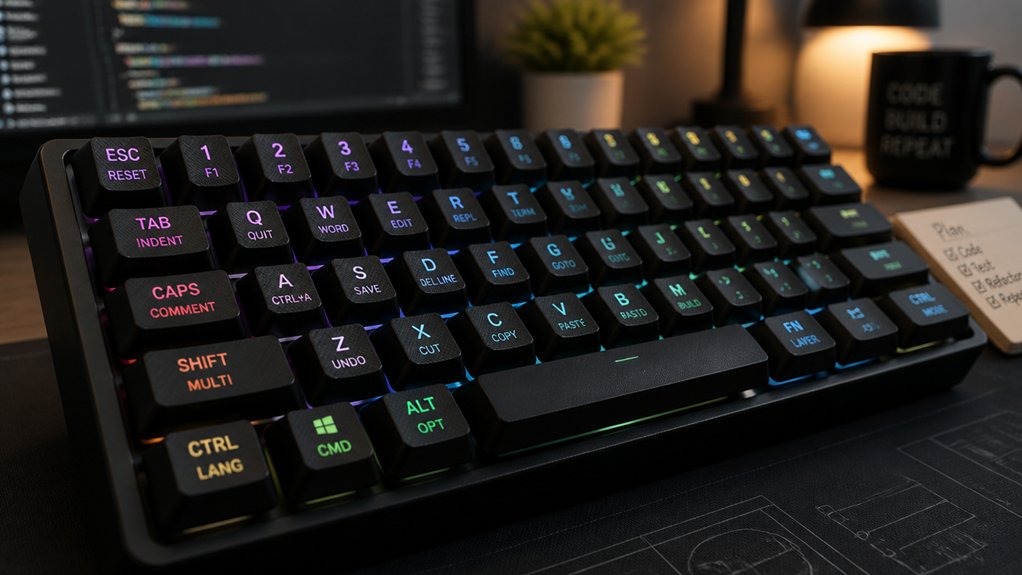
Custom keyboard remaps greatly boost your coding speed by making frequently used characters like braces and brackets more accessible. By customizing key mapping, you reduce finger movement, preventing unnecessary stretches and improving flow.
Programmers benefit from remapping keys to eliminate the need for holding SHIFT or ALT Gr for common symbols, which lowers finger strain and minimizes fatigue during long sessions. Keyboard layouts designed for remapping allow you to assign macros or entire code snippets, further streamlining workflow.
Placing shortcuts on thumb keys or underused keys keeps your hands well-positioned, improving ergonomics and efficiency. Studies show ergonomic layouts with custom remaps lead to faster typing speeds and less fatigue, helping you code comfortably for extended periods. Additionally, using programmable firmware like QMK enables detailed layer management, offering even greater customization options for efficient coding.
Key Remapping Best Practices for Mechanical Programmers
Effective key remapping for mechanical programmers involves strategic planning and the right tools. Use utilities like Microsoft PowerToys Keyboard Manager on Windows 11 to efficiently handle keyboard mapping and key remapping, especially for shortcuts.
When programming, consider remapping umlaut keys on German keyboards to braces or parentheses, reducing complex Alt Gr combinations. Employ layered keymaps on programmable firmware like QMK or keyboardio firmware to assign macros or functions per layer, giving quick access to coding-specific keys without cluttering the base layout.
Prioritize remapping keys that minimize finger travel and avoid Shift or Alt Gr, boosting typing comfort and coding efficiency.
Always test remaps incrementally and keep backups of original keymaps or firmware to easily revert changes and troubleshoot layer or keycode issues, ensuring a stable and optimized typing experience. Additionally, exploring hot-swap PCBs allows for quick switch replacements, enabling you to customize and optimize your keyboard’s feel and layout for coding comfort.
Troubleshooting Common Remapping Problems and Ensuring Stability
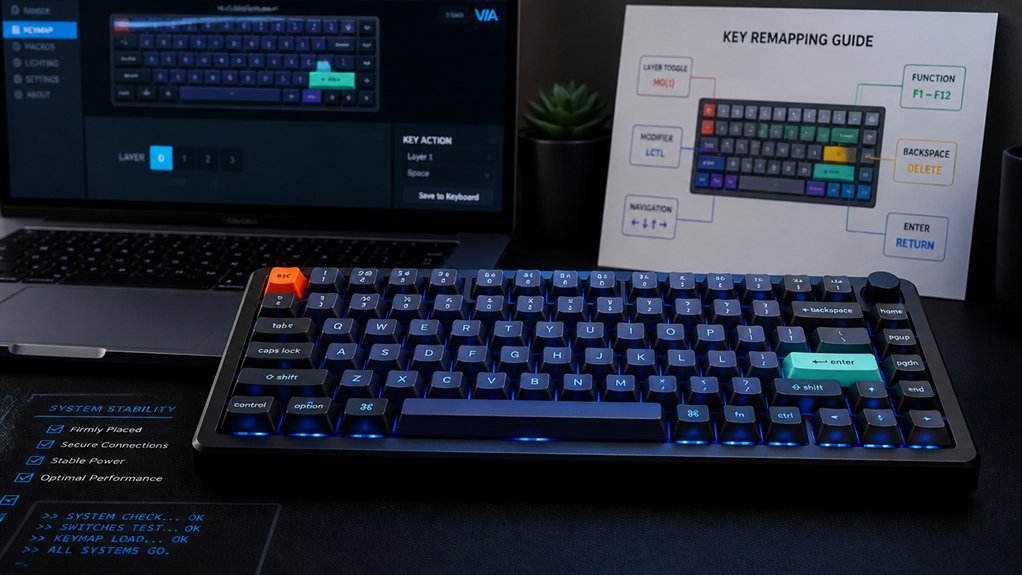
Troubleshooting remapping issues often starts with simple tests; by swapping a few keys first, you can identify whether specific mappings are causing instability. This approach helps pinpoint problematic keymaps or keycodes that disrupt your keyboard’s responsiveness. A helpful step is to verify the switch type compatibility, as mismatched switches or inconsistent switch types can sometimes lead to irregular behavior. Use tools like xev or PowerToys to capture accurate keycodes before remapping, ensuring consistent key behavior. Keep backup copies of your original firmware or keymaps to rollback if unexpected behavior arises. Watch out for layer conflicts that can cause unpredictable inputs—they often affect shortcuts and LED functions. To maintain stability: – Test each remapping on different layers – Regularly update firmware for bug fixes – Monitor community feedback on known remapping bugs – Keep backups to restore previous keymaps if needed These steps will help you avoid erratic behavior and optimize your remapping setup.
Frequently Asked Questions
What Is the Most Efficient Keyboard Layout for Programmers?
The most efficient keyboard layout for programmers is often a custom or ergonomic layout like Colemak or Workman, which reduces finger movement and improves access to code symbols, enhancing your comfort and speed during long coding sessions.
Is a 65% Keyboard Good for Coding?
Yes, a 65% keyboard is good for coding because it balances portability and essential keys, reduces finger travel, and allows customization through remapping and macros. However, you might need to learn layer switching for some functions.
What Is the Best Keyboard Remapping Tool?
The best tool depends on your needs; PowerToys for Windows, Keyboard Layout Creator for advanced layouts, xmodmap on Linux, or QMK firmware for deep customization. Choose the one that matches your workflow and technical comfort level.
What Is a 96% Keyboard Missing?
A 96% keyboard misses a dedicated navigation cluster, usually combining arrow and navigation keys into one compact block or integrating them with other keys, saving space but eliminating separate, dedicated keys found on larger full-size keyboards.
In Summary
By applying these remap tips, you’ll boost your coding efficiency and minimize finger fatigue. Customizing your keyboard setup allows you to tailor your workspace to your needs, making programming more comfortable and productive. Just remember to follow best practices and troubleshoot any issues promptly to maintain stability. With a little effort, your mechanical keyboard will become a powerful tool that supports your coding flow and reduces strain for long coding sessions.



