
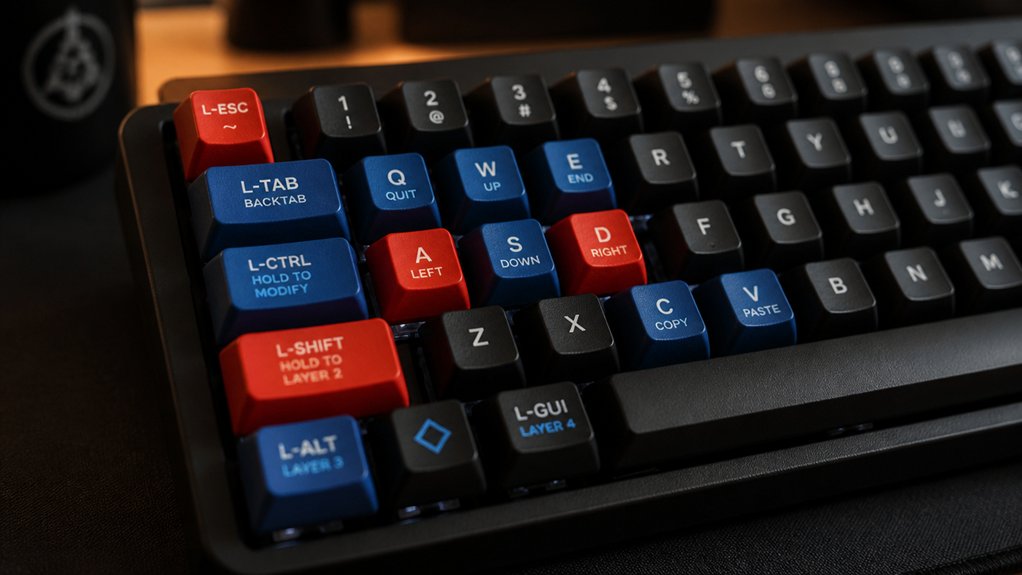
To remap your mechanical keyboard for left-handed use, start by choosing firmware tools like QMK or VIA for precise control over key functions and macros. Customize layouts so your most-used keys are within easy reach, and reposition your numeric keypad if needed. Test your setup to guarantee comfort and efficiency, then back up your profiles for long-term use. If you keep exploring, you’ll discover even more ways to optimize your keyboard for left-handed ergonomics.
What Challenges Do Left-Handed Keyboard Users Face: And How Remapping Can Help
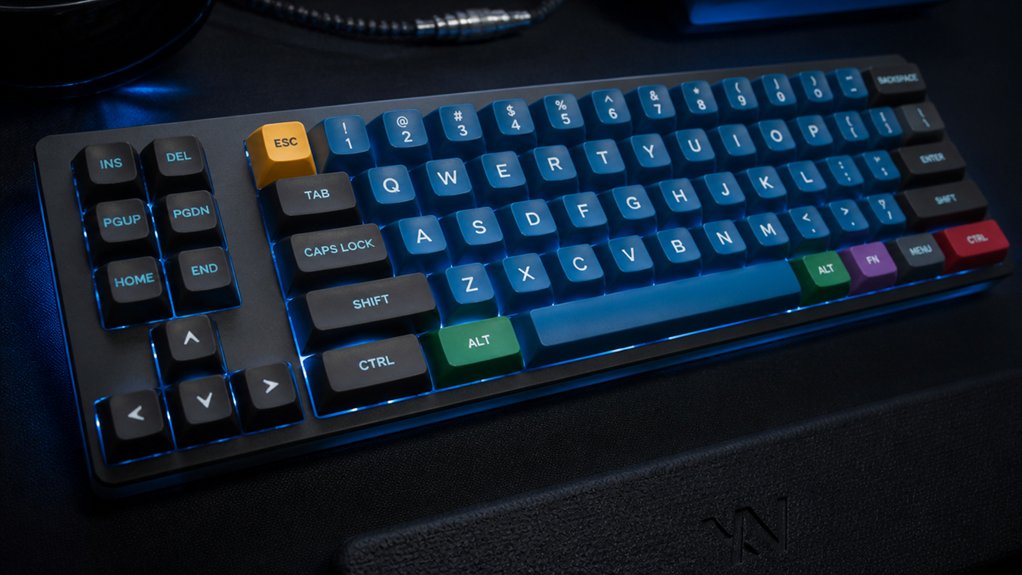
Have you ever struggled with the awkward reach and wrist strain caused by standard keyboard layouts designed primarily for right-handed users? Left-handed users often face challenges like the uncomfortable placement of the numeric keypad, forcing extended lateral hand movements, increasing repetitive strain. A well-designed remapping process can optimize QMK firmware to customize key positions precisely for your needs. Remapping your keyboard allows you to reposition high-use functions, such as modifiers and shortcuts, to the left side, making them more accessible. Custom key layouts help reduce wrist fatigue by aligning key positions with your natural hand movement.
An ergonomic approach to remapping—using software like VIA, QMK, or AutoHotKey—empowers you to create a personalized setup tailored to your workflow. Although it takes time to build muscle memory, remapping greatly enhances comfort, efficiency, and reduces long-term strain for left-handed users.
Essential Tools and Software for Left-Handed Keyboard Customization
To customize your left-handed keyboard effectively, you’ll want to explore various software tools like QMK and VIA firmware, which support real-time key remapping and macro creation. You’ll also find compatible hardware options, such as hot-swappable switches and programmable PCBs, that make physical customization straightforward. Additionally, programs like PowerToys, SharpKeys, and AutoHotKey offer flexible, software-based remapping solutions tailored to your specific needs. When selecting a PCB, consider hot-swappable MX-compatible PCBs to simplify switch replacements and maximize ergonomic benefits.
Remapping Software Options
Choosing the right remapping software is essential for customizing your mechanical keyboard to suit left-handed use, whether you want quick key swaps or complex macros. Firmware platforms like VIA and QMK make reprogramming straightforward, supporting left-handed layouts and macros. Additionally, hot-swap compatibility allows physical customization of switches, enabling users to tailor their keyboard configuration without soldering. For Windows users, tools such as AutoHotKey enable complex scripting for personalized workflows, while PowerToys and SharpKeys offer user-friendly options for quick remapping without hardware changes. Proprietary software that comes with premium keyboards often features graphical interfaces for assigning macros, functions, and lighting to optimize left-handed ergonomics. Additionally, firmware supporting hot-swappable switches allows physical customization, with software adjustments completing your ideal left-handed layout. Effective keyboard remapping software helps you achieve seamless, ergonomic, and personalized setups.
Compatible Hardware Devices
For effective left-handed keyboard customization, selecting compatible hardware is essential. Mechanical keyboards with hot-swappable switches and firmware support like QMK or VIA make remapping straightforward.
Look for programmable keyboards such as the Redragon K585 DITI or RK Royal Kludge L98, which feature left-side numeric keypads and full customization options. These models allow you to remap keys directly, ensuring your left-hand layout is tailored to your needs.
Using tools like the QMK Configurator or VIA enables precise key assignments and macro programming for a seamless left-handed experience. Reliable wired connectivity with USB-C or dual-mode wireless supports low-latency input essential for smooth operation.
Additionally, hot-swap PCBs facilitate easy switch replacements, allowing you to customize your keyboard’s feel and layout without soldering, making ongoing adjustments simple and efficient.
Additional hardware like macro pads, customizable keycaps with left-handed legends, and ergonomic accessories further enhance comfort and efficiency.
Custom Key Mapping Techniques
When customizing your left-handed keyboard layout, leveraging the right tools can make all the difference. For precise custom key mapping on your mechanical keyboard, software like QMK and VIA are essential, enabling you to remap keys, reposition the numpad, and modify modifiers tailored for your left-handed setup. Additionally, with macro-supporting keyboards, you can assign complex shortcuts or multiple functions to a single key, boosting productivity. To streamline your process, consider these key points: 1. Use QMK firmware for deep customization and decoding advanced remap logic. 2. Leverage VIA for a user-friendly interface that allows quick profile switching. 3. Opt for macro-supporting keyboards to enhance workflow with programmable keys for left-handed tasks. Exploring ortholinear layouts can also help reduce finger travel and strain, making extended typing sessions more comfortable.
How to Set Up Macros and Reassign Keys for Left-Handed Use
To set up macros and reassign keys for left-handed use, you’ll want to use firmware tools like QMK or VIA, which allow you to customize your layout without hardware changes.
Assign macros to specific keys or macro pads on the left side to execute complex commands quickly, balancing your workflow.
Test and tweak your remaps over time so muscle memory adapts smoothly, ensuring comfortable and efficient typing.
Custom Macro Creation
Creating macros and reassigning keys for a left-handed layout involves utilizing the keyboard’s firmware—typically QMK or VIA—that supports custom programming. This allows you to craft custom macro creation to boost efficiency with just one hand. A variety of macro pad keyboards offer programmable keys and dedicated software, making the process even more straightforward. To set up, consider these steps:
- Use the graphical interface or code editor within QMK or VIA to remap keys and assign macros tailored to your workflow.
- Program macros to execute sequences of keystrokes, like copy-paste or launching applications, that save time during repetitive tasks.
- Test and fine-tune your macros using software simulators or live use to guarantee responsiveness and prevent conflicts.
Key Reassignment Methods
Reassigning keys for a left-handed mechanical keyboard can greatly improve your workflow and reduce hand strain by customizing key functions to better fit your ergonomic needs. You can remap keys directly on supported left-handed models using firmware tools like VIA or QMK, which allow you to assign macros, adjust layouts, and personalize key functions without extra software. For standard keyboards, key reassignment software such as Microsoft PowerToys or SharpKeys can modify key mappings at the OS level, but they don’t support macro setup. To optimize left-hand use, move navigation or numeric keys to the left side and assign modifiers (Ctrl, Alt, Shift) within your firmware or keymap profiles. Saving custom layouts as files makes switching between workflows seamless. Additionally, understanding hot-swappable PCB options can facilitate easy customization of switch placement for left-handed ergonomics.
Designing Effective Left-Hand Key Layouts and Avoiding Common Mistakes
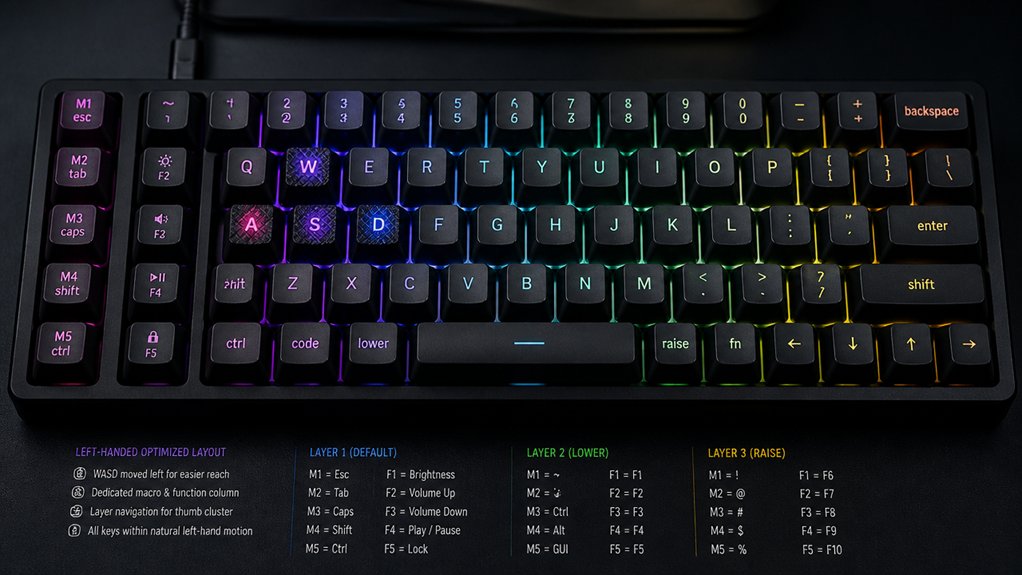
Designing an effective left-hand key layout requires careful placement of high-use functions like number keys, modifiers, and shortcuts to match natural hand movements and reduce strain.
Focus on creating left-handed keyboards with layouts designed for ergonomic balance, minimizing lateral wrist reach.
Avoid mirroring right-handed layouts or relying solely on software remap; physical reconfiguration offers better muscle memory and comfort.
Prioritize positioning frequently used keys within easy thumb and finger reach, supporting natural wrist posture.
- Incorporate programmable macro keys and firmware support to streamline complex shortcuts.
- Avoid over-dense layouts with non-standard spacing, which can cause errors and extend adaptation.
- Guarantee your layout balances function with simplicity, reducing fatigue for the left hand. Proper design helps you optimize workflow while minimizing physical stress.
How to Test and Perfect Your Custom Keyboard Settings
To effectively test and refine your custom keyboard settings, start by remapping a small group of frequently used keys. Focus on your left hand’s layout to build muscle memory gradually.
Begin by remapping frequently used keys on your left hand to develop muscle memory efficiently.
Use firmware tools like VIA or QMK to remap, save, and switch between profiles easily, ensuring compatibility with your left-handed keyboard and OS. Measure your typing accuracy and speed periodically to track progress. Aim to regain your normal pace within 10–20 hours of consistent use, noting improvements in wrist strain and comfort.
Incorporate ergonomic accessories like wrist rests to enhance comfort during testing. For left-handed gamers, remap movement keys to IJKL or ESDF and move the numeric keypad to the left if needed.
This targeted approach helps perfect your custom keyboard setup efficiently.
Maintaining Your Profiles: Tips for Long-Term Remapping Success
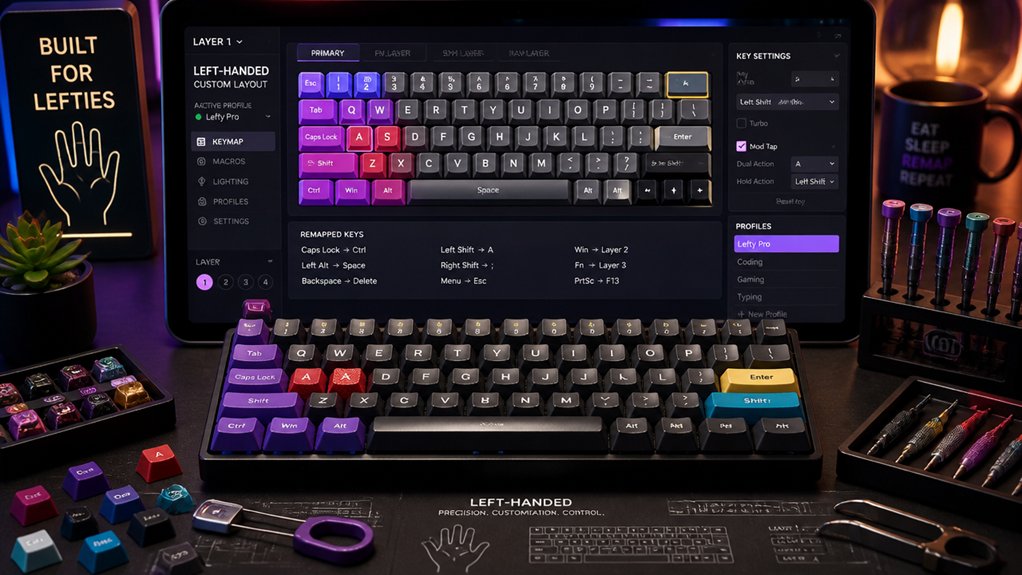
Keeping your remapping profiles intact over the long term requires consistent backups and updates. To guarantee your custom mechanical keyboard remains reliable, start by regularly exporting your profiles using software like VIA or QMK, especially if you’re a left-hander who relies on a unique layout.
Next, keep your firmware and remap software up-to-date to prevent bugs or compatibility issues that could disrupt your layout.
Finally, document your key mappings and macros clearly in a dedicated file or notes app—this simplifies recovery or sharing.
Additionally, test your profiles periodically to catch conflicts, especially after modifying macros or remap settings.
Use cloud sync or portable USB drives to maintain consistent profiles across devices, assuring your keyboard setup endures long-term without losing your preferred configurations.
Incorporating proper switch testing into your setup can also help identify the ideal switch type and feel for your preferences, ensuring your remapped layout is complemented by switches that match your typing style.
Frequently Asked Questions
How to Make Your Keyboard Left-Handed?
To make your keyboard left-handed, you can physically rearrange keys or remap them with firmware tools like QMK or VIA, moving essential keys to the left, and gradually adapt by customizing shortcuts for better ergonomic comfort and efficiency.
What Do Lefties Use Instead of WASD?
Instead of WASD, lefties often use IJKL for movement controls, positioning their right hand more naturally. They remap other keys like Q to U, E to O, and R to Y for easier access and reduced strain.
Is 84 Keys 75%?
Yes, an 84-key keyboard typically falls into the 75% category. You, as a left-handed user, will find it compact yet functional, but you might need to remap keys for ideal left-hand use and workflow.
What Is a 96% Keyboard Missing?
A 96% keyboard mostly lacks a dedicated numpad, extra macro keys, extended multimedia controls, and some navigation keys like Print Screen, Pause/Break, or Scroll Lock, but keeps most essential functions in a compact layout.
In Summary
Creating a custom mechanical keyboard setup tailored for left-handed use can greatly enhance your comfort and efficiency. By understanding the challenges, utilizing the right tools, and carefully designing your key layouts, you’ll improve your typing experience. Testing and maintaining your profiles guarantees long-term success. Don’t hesitate to experiment and refine your setup—you’ll find a configuration that feels natural and boosts your productivity in no time.



