
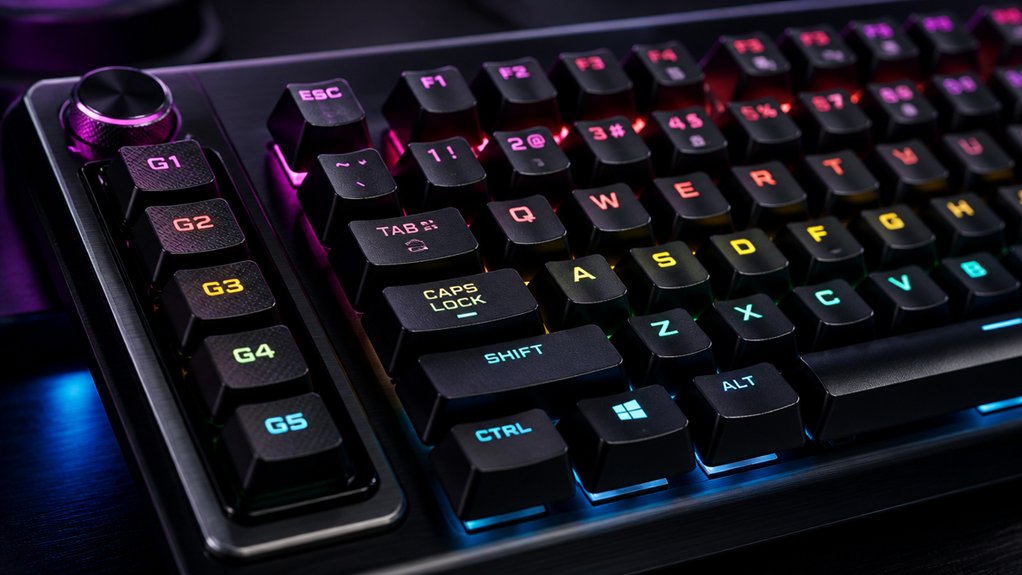
To boost your mechanical keyboard productivity, start by automating repetitive tasks with well-designed macros that combine multiple keystrokes into a single command. Label your macros clearly and use color-coding for quick identification. Manage layers or profiles to switch workflows easily and guarantee thorough testing to prevent errors. Regularly update your macros based on your evolving needs. Keep exploring these tips to release even more efficiency and streamline your daily tasks effectively.
Why Custom Macros Can Transform Your Keyboard Productivity
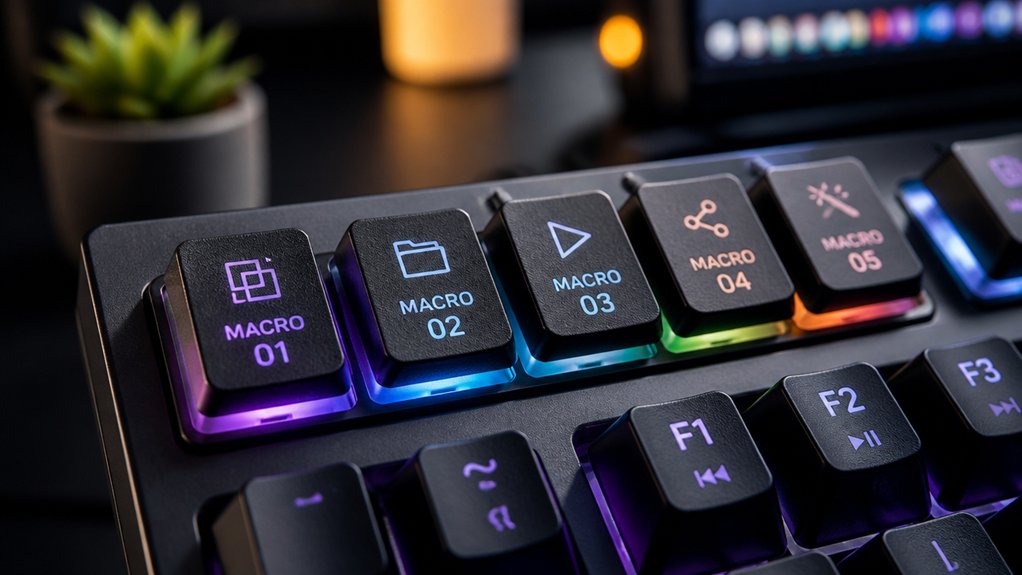
Custom macros can greatly boost your keyboard productivity by automating complex or repetitive tasks. A programmable macro lets you combine multiple keystrokes into one command, saving you time and effort.
With programmable macro keys on mechanical keyboards, you can perform multi-step actions instantly, reducing the time spent on routine tasks from minutes to a single press.
These macros are especially useful for software-specific shortcuts, like Excel formulas or video editing commands, improving accuracy and lowering errors.
Although setting up custom macros takes some initial effort, the long-term gains are significant, especially if you perform the same tasks daily.
Keyboard brands like Hexgears or Logitech make macro customization straightforward, allowing seamless integration into your workflow and enhancing overall productivity.
Additionally, understanding connectivity options and compatibility can help you choose the right macro pad that fits your setup and needs.
How to Identify Tasks to Automate With Macros
Figuring out which tasks to automate with macros is essential for maximizing your keyboard’s efficiency. Focus on repetitive actions performed multiple times daily, like Excel formatting or data entry, to gain significant time savings.
Look for complex multi-step workflows that can be condensed into a single keystroke, such as switching views in a program or executing combined shortcuts. Prioritize tasks with consistent keystrokes, like copy-paste sequences, undo-redo commands, or taking screenshots, to reduce errors and boost precision.
Also, identify tasks interrupting your workflow that require mouse navigation—these are prime candidates for keyboard-only macros. Consider how often you perform each task and its duration to guarantee your macro setup offers long-term productivity improvements. Incorporating programmable macro pads with full NKRO and multi-layer support can further streamline these repetitive tasks seamlessly.
Designing Clear and Useful Macro Labels for Easy Access

Creating clear and useful macro labels is essential for quick and effortless access during intense typing sessions. To create a macro that’s easy to identify, use concise, recognizable icons or text on keycaps. This reduces time spent searching during one-handed operation. Color-code macro labels with distinct hues or patterns—green for editing commands, red for deletes—to visually organize keys and improve quick recognition. For unlabeled or blank keycaps, consider using removable stickers or overlays with printed symbols to stay flexible and customizable. Incorporate standardized symbols, like scissors for cut or a clipboard for paste, to leverage universal recognition and minimize cognitive load. Guarantee labels are durable by choosing high-quality printed keycaps or adding protective layers, so they withstand frequent use without fading. Additionally, understanding keyboard profiles and layout compatibility can help ensure your macro key setup fits your specific keyboard for optimal accessibility.
Programming and Managing Your Macros With Software
Choosing the right macro software is essential for easy customization and management of your key sequences. Once you’ve selected your program, you can create shortcuts and organize macro layers to streamline complex tasks. Proper understanding of keymap layers helps ensure your macros function seamlessly across different configurations. With features like layer switching and profile management, you can tailor your setup to fit your workflow perfectly.
Macro Software Selection
Selecting the right macro software is essential for optimizing your mechanical keyboard’s capabilities, especially if you want to streamline your workflow or gain an edge in gaming. Popular macro software like Logitech Gaming Software, HexDrive, and AutoHotKey makes it easy to record, program, and manage custom macros tailored to your needs. Many programs let you assign macros to dedicated keys or key combinations, allowing for rapid, one-handed operation that boosts productivity. Hexgears keyboards, for example, use HexDrive, which offers a user-friendly interface with drag-and-drop macro creation, key layering, and multi-step task automation. Look for macro software that supports script editing, macro sharing, and cloud synchronization to keep your setup flexible and adaptable for different tasks or gaming scenarios. Additionally, choosing software compatible with hot-swap keyboard kits ensures seamless customization without the need for soldering or complex hardware modifications.
Custom Shortcut Creation
To effectively program and manage your macros, you’ll want to leverage dedicated macro software like HexDrive or Logitech Gaming Software, which allow you to assign sequences of keystrokes and commands to specific programmable keys.
With macro programming software, you can record complex shortcuts, including modifier keys such as CTRL, SHIFT, or CMD, and add delays between keystrokes to guarantee reliable execution across applications.
Organize your macros into layers or profiles within the software, enabling quick switching between different shortcut sets tailored to your tasks. Be sure to test and refine your macros step-by-step to prevent errors and redundancy, especially for repetitive tasks like managing files or editing spreadsheets.
Regular backups and exploring community-shared scripts can further enhance your macro capabilities and productivity. Incorporating accuracy metrics and real-time feedback from typing software can help you fine-tune your keystrokes for maximum efficiency.
Managing Macro Layers
Managing macro layers effectively requires understanding how to assign multiple sets of macros to the same physical keys, which enables you to switch between different workflows or profiles seamlessly. With software like HexDrive, Logitech Gaming Software, or Corsair iCUE, you can intuitively program, organize, and toggle between macro layers using drag-and-drop features and timing adjustments. This setup lets you create dedicated layers for specific tasks, such as Excel shortcuts or video editing commands, reducing the need for reprogramming. Advanced macro layer programming also supports compound functions, executing multi-step commands with a single press. To prevent input conflicts, guarantee debounce delays are optimized and key assignments are unique across layers, boosting reliability during extended use. Additionally, understanding hot-swappable switches allows for flexible customization of your keyboard’s feel and response without soldering, enhancing your macro programming experience.
- Program and organize macro layers easily with intuitive software.
- Switch profiles smoothly using key-layer toggling or FN keys.
- Group macros for specific applications, reducing reprogramming time.
Testing Your Macros to Ensure They Work Reliably
To make sure your macros work reliably, you should verify that each keystroke registers accurately and consistently. Testing them across different applications helps identify any issues with shortcuts or context-specific functions. A variety of switch testers can help you determine the feel and actuation points of your switches, ensuring your macros perform precisely as intended. Don’t forget to check how your macros perform with modifier keys and media controls to guarantee smooth operation in real-world use.
Verify Keypress Accuracy
Ensuring your macros work reliably requires thorough testing under real-world conditions. To verify keypress accuracy, test each macro multiple times across different applications, especially where key switches may behave differently.
Use software tools or built-in macro recorders that offer playback logs or visual feedback to confirm the exact sequence and timing of keystrokes sent. Implement debounce delays of 200-300 ms to prevent accidental double activations caused by mechanical switches.
Regularly update your macro scripts after software or firmware updates and re-test for consistent performance.
- Test in real work scenarios to catch inconsistencies with key switch behavior
- Use feedback tools to visualize macro execution and verify keystrokes
- Adjust debounce delays for smoother, more accurate keypresses
- Be aware of switch type classifications (linear, tactile, clicky) to better understand how they may affect macro reliability and feel.
Test in Different Applications
Testing your macros across different applications is essential to confirm they work reliably in various environments. Your keyboard macros might perform perfectly in one program but falter elsewhere. Use dedicated macro software or Arduino HID emulation to simulate keystrokes, ensuring sequence accuracy before full deployment. Run repeated tests with different input data to identify timing issues or command conflicts, adjusting delay intervals as needed. Check macro responses on all target operating systems, considering platform-specific shortcut differences like CMD for Mac and CTRL for Windows. Monitor how your macros function under typical workload conditions to verify consistent performance without blocking normal keyboard inputs or causing errors. Additionally, understanding USB protocol differences can help troubleshoot hardware communication issues that may affect macro reliability. Cross-application testing guarantees your macros boost productivity smoothly across your entire workflow.
Troubleshooting Common Macro Issues and Fixes
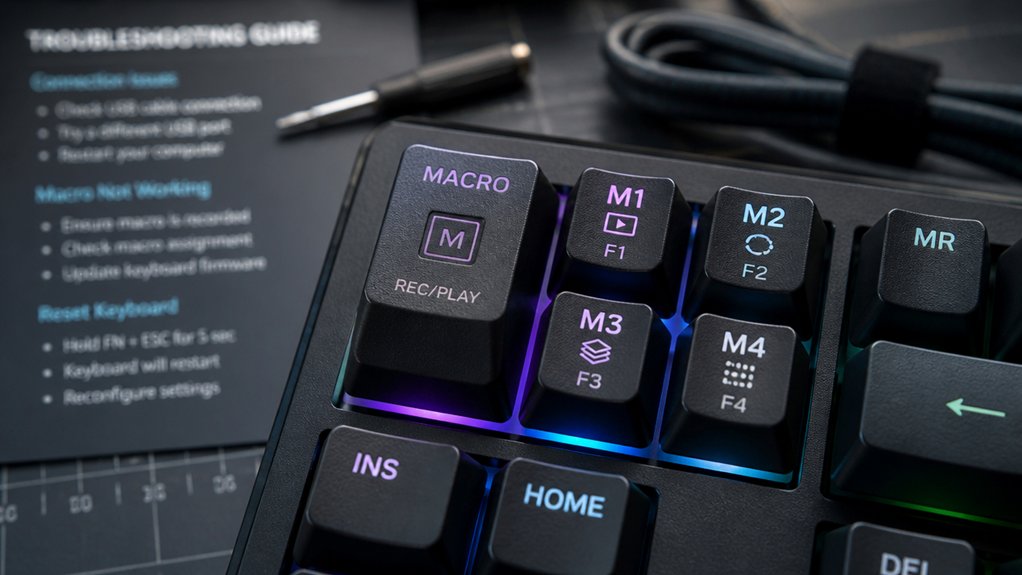
When troubleshooting macro issues on your mechanical keyboard, start by checking for debounce delays and ensuring your microcontroller supports native USB HID emulation.
If your macro isn’t triggering correctly, it could be due to contact bounce or firmware compatibility issues. Also, verify that all firmware and macro software are up to date to prevent responsiveness problems.
Conflicts might arise if you’re using a wired keyboard and mouse simultaneously; switching your mouse to Bluetooth can help resolve input conflicts.
Additionally, avoid using pins 0 and 1 on your Arduino for macro switches to prevent serial communication conflicts. Here are some tips to troubleshoot effectively:
- Test your macro with a minimal setup to isolate issues
- Double-check debounce delay settings in your firmware
- Confirm the microcontroller’s USB support status
Refining and Updating Macros as Your Workflow Evolves
As your workflow changes and you discover new shortcuts or tools, regularly updating your macro guarantees your setup stays efficient. Review macro assignments after major workflow shifts to keep them aligned with your most used tasks. Use programmable software like HexDrive or Logitech Gaming Software to update macro sequences quickly without reprogramming hardware. Incorporate user feedback and productivity data, such as daily macro usage, to refine and eliminate redundant functions. Experiment with multi-step command macros, gradually increasing complexity as your familiarity grows, boosting long-term efficiency. Keep backups of your macro configurations, especially when shifting projects or software environments, to protect your customized setups.
| Macro Type | Tips |
|---|---|
| Frequent Use Macros | Regularly review and update |
| Complex Command Macros | Start simple, then increase complexity |
| Backup Configurations | Save files before shifting |
Frequently Asked Questions
Can Macros Be Customized for Different Software Programs?
Yes, you can customize macros for different software programs by using dedicated software or firmware that supports profile switching. This way, your macros adapt to each application’s specific shortcuts and functions, enhancing your productivity across various tasks.
How Do I Prevent Macros From Being Accidentally Triggered?
You prevent macros from triggering accidentally by assigning them to specific layers or profiles, disabling them when not needed, and avoiding common key combinations. Regularly review macro settings to guarantee they activate only when intended.
Are There Security Risks Associated With Using Custom Macros?
Yes, custom macros can pose security risks if malicious scripts are embedded or shared unknowingly. You should only use trusted sources, review macro code carefully, and update your software regularly to protect against potential exploits.
How Do I Share Macros Between Different Keyboards or Setups?
You can share macros between keyboards by exporting your macro files from your software, then importing them into your new setup. Make sure your macros are compatible across devices, and keep backups to avoid losing any configurations.
What Are Best Practices for Organizing Multiple Macros?
You should categorize macros by function or workflow, name them clearly, and keep a master document for easy access. Regularly update and backup your macro files to maintain organization, ensuring quick implementation across different setups.
In Summary
By customizing your macros, you can greatly boost your keyboard productivity and streamline your workflow. Remember to identify repetitive tasks, design clear labels, and test your macros thoroughly. Keep troubleshooting common issues and refining your macros as your needs change. With these tips, you’ll turn your mechanical keyboard into a powerful tool that enhances efficiency and saves time every day. Start customizing today and experience the productivity boost firsthand!



