
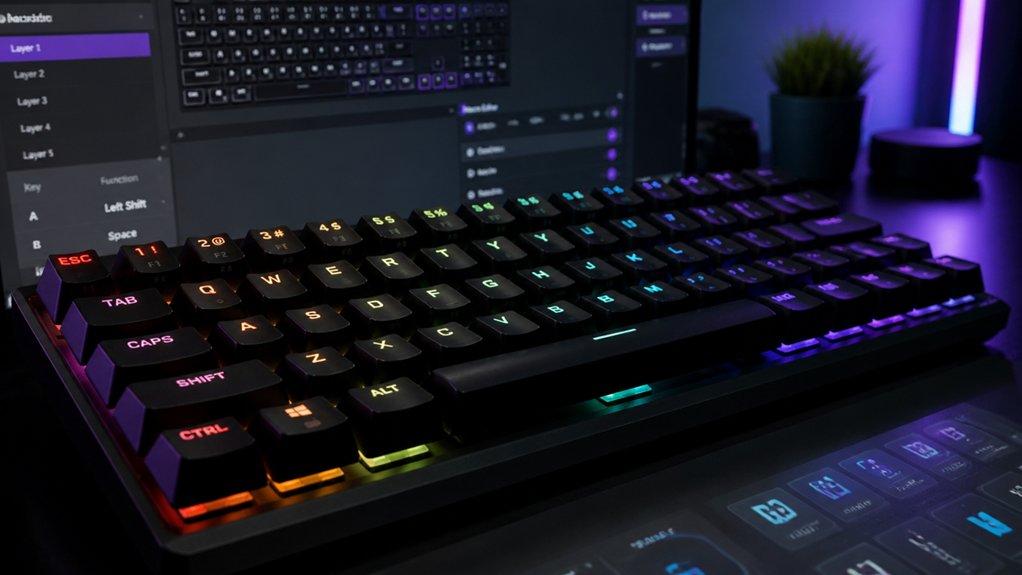
To fix mechanical keyboard remapping issues, start by checking for software conflicts—avoid running multiple remappers or conflicting manufacturer apps. Confirm your keymap settings with tools like YAML or PowerToys and test keys across different programs. Verify your firmware supports remapping and that you have proper permissions. For a more reliable setup, consider hardware-level remapping with QMK or VIA firmware and tools designed for your system. Keep exploring to deepen your understanding and resolve any persistent problems.
What Causes Your Mechanical Keyboard Remapping to Fail?
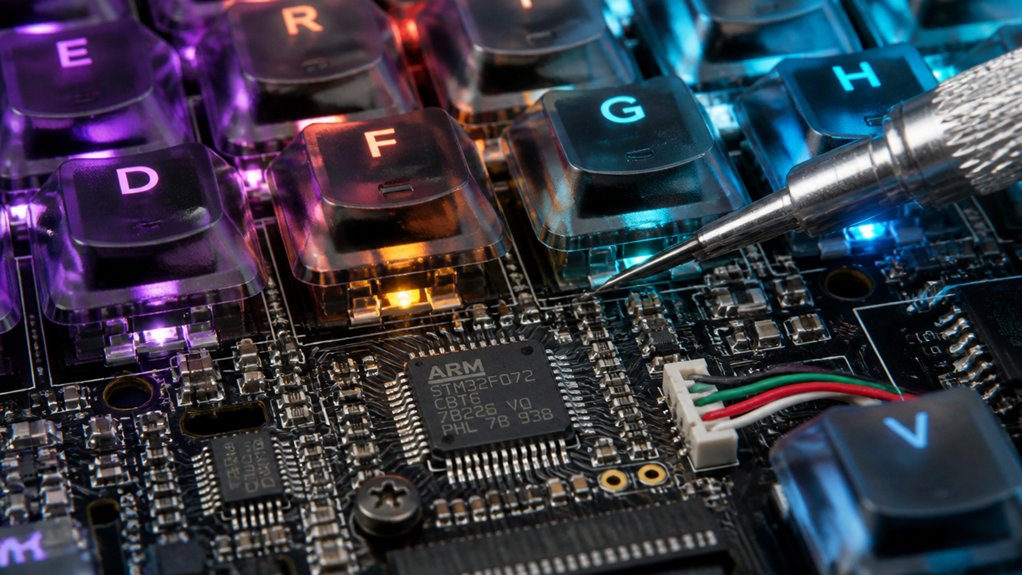
Remapping your mechanical keyboard can fail for several practical reasons, often related to software conflicts or system limitations.
One common cause is proprietary manufacturer software overriding your remap keys, making custom profiles ineffective. If you’re using gaming software or remap tools that don’t support your system’s input architecture, like X11-only tools on Wayland, remapping can break.
Insufficient system-level permissions also block changes; on Windows, you need administrative rights for registry edits, while Linux may require proper user privileges.
Additionally, mismatched keyboard layout or conflicting shortcuts—whether global or application-specific—can cause remaps not to activate correctly. Be aware that some hardware labels stay unchanged, adding to the confusion if software remaps aren’t synchronized with hardware inputs.
Unrecognized firmware or incompatible microcontroller support in QMK firmware can also prevent successful remapping, especially if the firmware doesn’t recognize custom keymaps or configurations.
How to Verify Your Keymap Settings and Test Remapped Keys
To guarantee your remap a key process works, start by verifying your keymap settings through the configuration files or the Keyboard Manager interface—like YAML in xremap or PowerToys. Check that your remapped keys appear correctly and match your intended layout. Use the table below to help confirm your setup:
| Step | Action | Tool |
|---|---|---|
| Verify keymap | Check configuration or interface | YAML or Keyboard Manager |
| Test remapped keys | Test in multiple applications | Keyboard & system utilities |
| Confirm system changes | Click Write to Registry after remap | Registry editor |
| Use system utilities | Observe key events with utilities | On-Screen Keyboard or evtest |
Troubleshooting Software Conflicts and Compatibility Issues
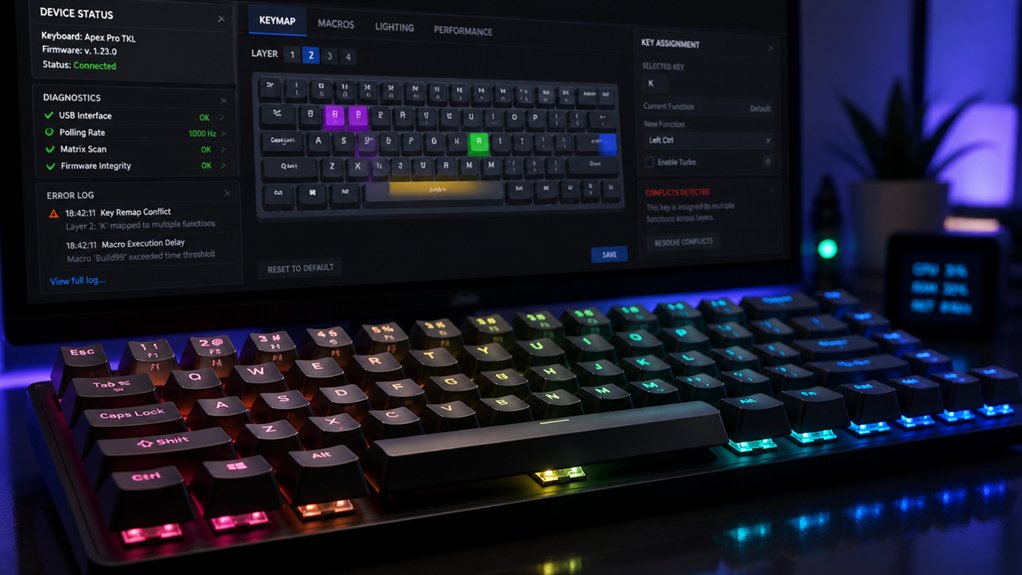
Software conflicts are a common obstacle when remapping your mechanical keyboard, especially if multiple tools that allow remapping are running at once. If you’re using a custom keyboard or gaming keyboards, incompatibility issues may prevent certain key functions from working properly. When keys without specific remap support are involved, you might need manual configuration or custom keycode mapping. Conflicts often occur with manufacturer software like Logitech G Hub or Razer Synapse, which can interfere with third-party tools. Running multiple remapping utilities simultaneously leads to duplicated or ignored key events, so disable all but one. On multiple computers, make certain remap software has proper permissions, especially on Windows or Wayland systems, where security features may block changes. Compatibility issues can be resolved by verifying software settings or switching to compatible remap tools. Additionally, understanding how switch type classifications influence remapping success can help you select the most reliable tools.
Addressing Hardware Limits and Key Interferences
Hardware limitations can pose significant challenges when customizing your mechanical keyboards, especially because the firmware and physical key matrix often restrict how keys can be remapped. Many keys can’t be reassigned without causing conflicts or key interference. Mechanical keyboards with QMK or VIA firmware allow flexible remapping at the hardware level, bypassing these constraints. To understand potential issues, review the key matrix and firmware capabilities. Below is a simple comparison:
| Constraint Type | Effect on Remapping | Solutions |
|---|---|---|
| Key matrix limitations | Key conflicts, interference | Use firmware like QMK or VIA |
| Firmware restrictions | Limited remapping options | Opt for open-source firmware |
| Hardware limits | Ghosting, rollover issues | Adjust remapping, check physical design |
Additionally, understanding the key rollover capabilities of your keyboard can help prevent input issues during remapping. Choosing the right firmware and understanding hardware limits helps mitigate key interference challenges.
Strategies for Reliable and Consistent Key Remapping

Achieving reliable and consistent key remapping on a mechanical Keyboard requires choosing the right tools and configuring them correctly. Use firmware like QMK or VIA-compatible options to remap keys at the hardware level, ensuring clicks for changing the left Alt or Alt key functions stay consistent across all applications.
Linux-native tools such as xremap or keyd offer stable remapping for Keys and Shortcuts, especially on Wayland or X11, using daemon modes for background stability. Implement physical device grabbing via evdev to prevent duplicate events, ensuring remaps like Alt or left Alt are reliably intercepted.
Validate your setup with systemd user services for automatic relaunch, maintaining persistent remappings. For detailed guides and community support, check out the GitHub page recommended for your computer keyboard to avoid manufacturer software inconsistencies.
Frequently Asked Questions
How to Fix Keyboard Remapping?
You fix keyboard remapping issues by confirming your key changes don’t conflict with shortcuts, testing them in specific applications, and ensuring remapping tools launch automatically. Use reliable software like PowerToys or scripts for consistent, error-free results.
What Is the Best Keyboard Remapping Tool?
You should choose PowerToys Keyboard Manager for easy remapping on Windows, SharpKeys for simple system-wide key changes, or AutoHotkey if you want complex scripting. Linux users benefit from xremap, offering versatile, high-performance remapping solutions.
Why Is My Keyboard Mapped Wrong?
Your keyboard is mapped wrong because your OS settings might not match your keyboard’s layout, outdated drivers cause issues, or remapping software is incompatible. Check shortcuts, update drivers, and confirm software supports your hardware and preferred layout.
Can Mechanical Keyboards Be Fixed?
Yes, mechanical keyboards can be fixed. You can remap keys via dedicated software or firmware like QMK, or physically repair issues by disassembling the keyboard and fixing or replacing faulty switches or components.
In Summary
Understanding the common causes of remapping issues and knowing how to troubleshoot them can save you a lot of frustration. By verifying your keymap settings, checking for software conflicts, and ensuring hardware limits aren’t causing interference, you improve your chances of a smooth setup. Implementing these strategies will help you achieve reliable, consistent remapping, enhancing your overall typing experience. Stay patient, test regularly, and enjoy customizing your mechanical keyboard to suit your needs!



