
To synchronize your mechanical keyboard’s RGB lighting, first confirm your hardware and software are compatible and updated. Use the manufacturer’s software to set and sync effects, and try preset modes for a consistent look. Check for hardware issues like loose connections or incompatible LEDs. Reset profiles and resolve software conflicts if needed. Regularly update firmware and maintain your keyboard for steady performance. If you’re curious about more tips, you’ll find detailed strategies to perfect your setup ahead.
Learn How RGB Lighting Sync Works on Mechanical Keyboards
Ever wondered how RGB lighting syncs across your mechanical keyboard and other gaming peripherals? It mainly relies on proprietary software like Aura Sync, OpenRGB, or SignalRGB, which unify lighting effects across compatible devices. These programs communicate with hardware components to synchronize RGB lighting and create seamless effects.
However, sync issues can happen when hardware limitations, such as defective LED controllers or incompatible LED types, interfere. Firmware versions and software updates, like Aura Sync’s Armoury Crate or Logitech’s G HUB, are essential for maintaining smooth RGB lighting synchronization and fixing conflicts. The compatibility of RGB headers on your motherboard, whether 3-pin or 4-pin, also impacts internal keyboard RGB sync with other system parts. Advanced customization tools like Aura Creator or LIGHTSYNC Freestyle expand your lighting control options.
Check Compatibility Before You Start
Before diving into RGB synchronization, it’s essential to verify that your mechanical keyboard supports the control software you plan to use, such as Aura Sync, OpenRGB, or SignalRGB. Check if your keyboard’s brand and model are compatible with these third-party RGB control software to guarantee full lighting sync functionality. Confirm that your keyboard firmware version supports RGB syncing features; older versions might’ve limited or buggy control. Also, update your PC’s operating system and RGB software drivers for smooth communication between devices. If you have other RGB peripherals like mice or case lights, make sure they use compatible protocols or software, so all your lighting effects can sync seamlessly. Proper lighting effect compatibility checks save time and prevent frustration during setup.
Update Firmware and Drivers for Stable RGB Performance
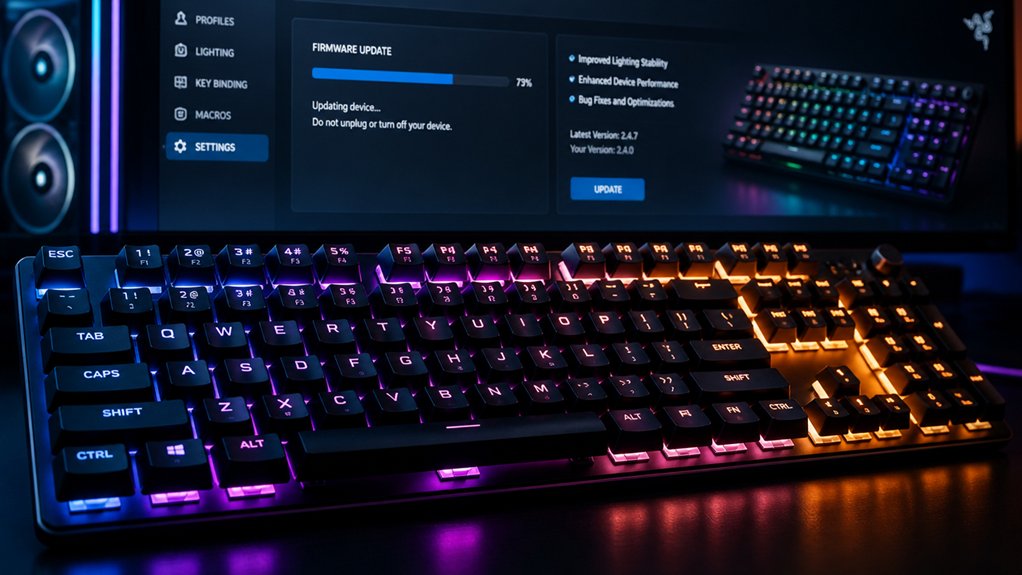
Keeping your firmware and drivers up to date is key to maintaining stable RGB lighting.
Make sure to use official tools like QMK Toolbox or your manufacturer’s update software to avoid compatibility issues.
Regular updates and backups help prevent disruptions and keep your lighting synchronized smoothly.
Check Firmware Compatibility
Guaranteeing your mechanical keyboard’s firmware and drivers are up to date is essential for maintaining stable and synchronized RGB lighting.
First, verify your firmware version, such as PRO:113.4.19 for the G-Pro, and compare it with the latest release notes to confirm compatibility. Second, check your RGB drivers and software—using Device Manager or official apps—and update them regularly to prevent sync issues.
Third, before updating your firmware, back up your configurations and profiles to avoid losing personalized RGB settings. After updating, perform a reset (like holding Fn + Esc for 5 seconds) and test simple solid colors to guarantee stability.
Monitoring firmware release notes and community feedback also helps identify fixes for LED controller problems or synchronization failures. Additionally, understanding firmware compatibility ensures that your updates are effective across different PCB models and features.
Use Official Updates Only
Using official updates for firmware and drivers keeps your mechanical keyboard’s RGB lights running smoothly and in sync. Always check for the latest firmware, like PRO:113.4.19 for G-Pro keyboards, to guarantee peak RGB lighting performance.
Use manufacturer-provided driver updates through Device Manager or the official website to maintain compatibility and fix lighting bugs.
Regularly updating your RGB control software, such as Armoury Crate or Logitech G HUB, helps improve syncing features and resolve issues.
Before installing updates, back up your RGB profiles and configurations to prevent data loss.
After updating firmware or drivers, perform a keyboard reset—like holding Fn + Esc for 5 seconds—to clear conflicting settings and stabilize your RGB lights.
Checking for compatibility with hot-swappable switches can help ensure your RGB sync remains consistent with your preferred switch setup.
Sticking to official updates guarantees better stability and smoother RGB synchronization.
Regular Driver Maintenance
Regularly updating your keyboard’s firmware and drivers is essential to maintaining stable and synchronized RGB lighting. Outdated firmware or drivers can disrupt RGB patterns, causing misalignment or flickering. A dedicated hot-swappable feature in many high-end 75% PCBs allows for easier customization and maintenance, ensuring your lighting remains consistent. To guarantee peak RGB performance, follow these steps:
- Update firmware using tools like QMK Toolbox or Vial to fix bugs and improve compatibility.
- Keep device drivers current through Device Manager on Windows to prevent RGB malfunction across keys.
- Use manufacturer software updates, like Armoury Crate or Logitech G HUB, for unified RGB control across peripherals.
Before updating, back up your custom RGB profiles to avoid losing settings. Regular software maintenance, including resetting profiles and reinstalling drivers, keeps your RGB lighting running smoothly and synchronized.
Use Built-In Software to Sync Your Keyboard’s RGB Effects
To achieve seamless RGB lighting across your mechanical keyboard and compatible devices, leveraging the built-in control software is often the most efficient approach. By using manufacturer’s programs like Logitech G HUB or ASUS Aura Sync, you can easily sync lighting effects across multiple peripherals.
Use manufacturer’s control software like Logitech G HUB or ASUS Aura Sync for effortless RGB synchronization across devices.
Install the latest software version and update firmware, such as PRO:113.4.19 for Logitech G-Pro, to optimize sync performance. Enable features like “Sync Devices” or “Lighting Link” to automatically unify RGB effects.
You can also utilize preset lighting effects—like static, breathing, or adaptive color—for consistent results. Regularly check for updates, and if you encounter issues, reinstall the software to maintain proper sync lighting functionality.
This method simplifies achieving a cohesive, RGB synchronization experience.
Try Preset Effects to Achieve a Consistent Look
Opting for preset lighting effects like Static, Breathing, or Starry Night can make it easier to create a consistent RGB look across your entire setup. These lighting effects, available through software such as Aura Sync, apply a uniform style that guarantees your keyboard’s lighting remains synchronized. Using preset effects simplifies the process by applying a single color or smooth animation to all keys, reducing the risk of mismatched lighting. Here are some benefits: 1. Achieve an even, unified lighting style effortlessly. 2. Quickly toggle or adjust lighting effects for different moods. 3. Easily identify and resolve sync issues before customizing further. Durable construction and the ability to support multiple lighting modes make preset effects a practical starting point for maintaining a consistent look with your RGB lighting effects across your setup.
Customize Per-Key Lighting With Advanced Software Features
Advanced software tools let you control per-key lighting with precision, including matrix-based layouts and synchronization options for individual keys. You can customize dynamic animations and static effects, creating unique zones for gaming or typing. With features like timed profile switching, you can automate changes and easily share your personalized setups across devices. Additionally, many keyboards support macro and key binding customization, allowing for enhanced control and personalized functionality.
Matrix-Based Lighting Control
Matrix-based lighting control allows you to customize your mechanical keyboard’s RGB lighting at the individual key level by mapping each LED in a grid pattern. This precise control lets you create custom lighting effects that highlight specific keys or patterns. With advanced software like Aura Creator or OpenRGB, you can manage multiple profiles and switch between them seamlessly. Imagine:
- Creating dynamic reactive effects that light up keys when pressed, enhancing gameplay or typing feedback.
- Designing application-specific colors to improve workflow, such as different colors for coding, gaming, or media control.
- Sharing your custom profiles with the community to synchronize styles across devices.
- Leveraging customizable switch options like those in various switch testers to better understand and perfect the feel of your switches when creating lighting effects.
Using matrix-based control means you’re not limited to broad lighting effects — you can craft customized, detailed visuals tailored to your preferences.
Dynamic Animation Customization
To truly personalize your mechanical keyboard’s look, you can customize per-key lighting with advanced software features that enable dynamic animations. Using tools like Aura Creator within Armoury Crate, you can create multi-preset lighting profiles and apply distinct dynamic effects to individual keys on compatible models like the Zephyrus S17 or Strix SCAR. Software such as OpenRGB or SignalRGB provides detailed control to craft complex, synchronized lighting animations across multiple controllers, enhancing your setup’s visual impact. Logitech G HUB’s LIGHTSYNC RGB allows you to paint colors and design custom per-key animations, including reactive effects responding to keypresses or sounds. You can also program lighting profiles to switch automatically, cycling through different effects without manual effort, creating a more immersive and personalized experience. Additionally, understanding the materials used in switches, such as transparent housings and acrylic shells, can help you choose lighting effects that optimize visibility and aesthetics.
Per-Key Synchronization Options
Per-key synchronization options give you precise control over your keyboard’s lighting, allowing you to customize each key individually rather than relying solely on preset patterns.
With advanced software like Aura Creator, you can create unique static or dynamic effects on compatible ASUS keyboards, thanks to customizable RGB profiles. It also enables you to set per-key effects that can automatically switch using multi-preset functionality.
Other tools like OpenRGB and SignalRGB support per-key adjustments across different brands, unifying control for all your devices.
To start, consider these options:
- Use Aura Creator to design specific RGB profiles with individual key effects.
- Apply Logitech G HUB’s Freestyle mode for painting colors and key-specific animations.
- Begin simple with solid colors before exploring complex effects to guarantee stability.
Troubleshoot Hardware Problems Causing RGB Mismatch
Wondering why your RGB lighting isn’t matching across your mechanical keyboard? Hardware issues often cause lighting mismatch. Start by inspecting the PCB for visible damage: burnt areas, loose connections, or cold solder joints can disrupt lighting. Use a multimeter to test individual LEDs in single-color mode and verify a consistent voltage (~5V ±0.2V). If an LED isn’t lighting correctly, replace it with a matching one, using a temperature-controlled soldering iron at around 315°F. Additionally, reflow cold joints and repair PCB trace damage with conductive paint. Testing your keyboard on multiple computers helps eliminate software issues. Keep this in mind:
| Hardware Issue | Impact on Lighting |
|---|---|
| Damaged PCB/Loose connections | Causes mismatch or failure |
| Faulty LEDs | Brightness inconsistencies |
| Cold solder joints | Unstable lighting |
Resolve Software Conflicts and Reset RGB Settings
To fix software conflicts, start by closing other RGB control apps before launching your keyboard’s software to prevent overrides.
Resetting your RGB profiles to default can help identify issues, so try that before applying complex effects.
Regular updates of firmware and software, along with resetting the keyboard when needed, can keep your lighting synchronized smoothly.
Troubleshoot Software Conflicts
Software conflicts can cause your keyboard’s RGB lighting to behave unpredictably or stop working altogether. To make sure your lighting stays synchronized, follow these steps:
- Make sure all RGB control software (like Armoury Crate, OpenRGB, SignalRGB) is updated to the latest version to prevent conflicts and guarantee smooth communication.
- Close or uninstall any redundant or conflicting RGB applications that might interfere with device detection or conflicting lighting profiles.
- Reset the keyboard’s RGB profile to a default or solid color setting before reapplying complex effects, which helps isolate software-related issues. If available, make sure to use the keyboard’s reset function (such as Fn + Esc) to clear custom configurations and fix lighting glitches caused by software corruption.
Reset RGB Configuration
Resetting your keyboard’s RGB configuration can effectively resolve software conflicts by clearing corrupted profiles and restoring default settings. To do this, hold the Fn + Esc key combination for about five seconds until the keyboard LED flashes.
Afterward, wait 30 seconds before starting the reconfiguration process. It’s essential to back up any custom lighting profiles beforehand to avoid losing your personalized setup.
Once reset, begin by assigning simple solid colors, such as a static color, to guarantee the RGB functionality is stable. Gradually add more complex effects once you’re confident everything works smoothly.
Regularly performing resets, combined with driver and firmware updates, helps prevent recurring synchronization issues across different devices and brands.
Maintain Your Keyboard and Software for Long-Term RGB Stability
Maintaining your keyboard and its software regularly is essential to keep your RGB lighting stable over time. To guarantee peak performance, start by gently cleaning your keyboard every 3 to 6 months with a microfiber cloth to remove dust and smudges.
Use compressed air daily to prevent dust buildup that can interfere with LEDs. Next, update your firmware and RGB controller software—such as manufacturer apps or QMK Toolbox—to stay compatible and fix bugs.
Finally, periodically inspect for flickering LEDs, loose connections, or dead lights, and perform resets (like holding Fn + Esc for 5 seconds) to restore proper RGB functions. Regular care and updates will prolong your keyboard’s lifespan and keep your RGB lighting vibrant and synchronized.
Get Tips for Seamless Multi-Device RGB Integration
Ever wondered how to create a cohesive RGB experience across multiple devices? First, use open-source software like OpenRGB or SignalRGB to unify control without needing a new account. Make certain all your devices have updated firmware and compatible drivers, reducing conflicts. For seamless integration, prioritize RGB products from the same ecosystem or those supported by software like Aura Sync, Logitech G HUB, or Armoury Crate. Check hardware compatibility—verify RGB header types (3-pin or 4-pin) and support for multiple controller protocols. To maximize synchronization, regularly backup your custom RGB profiles and keep software updated. Here’s a quick overview:
| Device Compatibility | Software Recommendation | Firmware Update |
|---|---|---|
| RGB Header Types | OpenRGB or SignalRGB | Yes |
| Ecosystem Support | Aura Sync, G HUB | Make certain latest |
| Custom Profiles | Backup regularly | Yes |
Frequently Asked Questions
How to Get All RGB to Sync?
You should use open-source software like OpenRGB to sync all RGB lighting across your devices. Guarantee all firmware and software are updated, verify compatibility, and consider alternative programs like SignalRGB if needed for complex setups.
How to Keep Keyboard RGB Lights On?
To keep your keyboard RGB lights on, make certain your firmware and software are updated, avoid overheating and physical damage, and check connections if lights flicker or turn off unexpectedly. Regular cleaning and resetting can also help.
How to Fix RGB on a Mechanical Keyboard?
To fix RGB on your mechanical keyboard, first update firmware and software, reset profiles, and check hardware connections. If LEDs flicker or are dead, carefully resolder or replace damaged LEDs, and test on a different PC for diagnosis.
How to Sync Keyboard Light With Screen?
You sync your keyboard light with the screen by opening compatible RGB software, enabling dynamic or adaptive lighting modes, selecting screen sampler features, and ensuring software updates are installed. Adjust settings to match the display’s colors in real time.
In Summary
By following these tips, you’ll create a synchronized RGB lighting setup that looks seamless and vibrant. Keep your firmware and software up to date, use the built-in synchronization tools, and troubleshoot any issues promptly. Regular maintenance and compatibility checks will guarantee your RGB effects stay in sync over time. With a little effort, your mechanical keyboard’s lighting will impress everyone and elevate your overall gaming or typing experience.



