
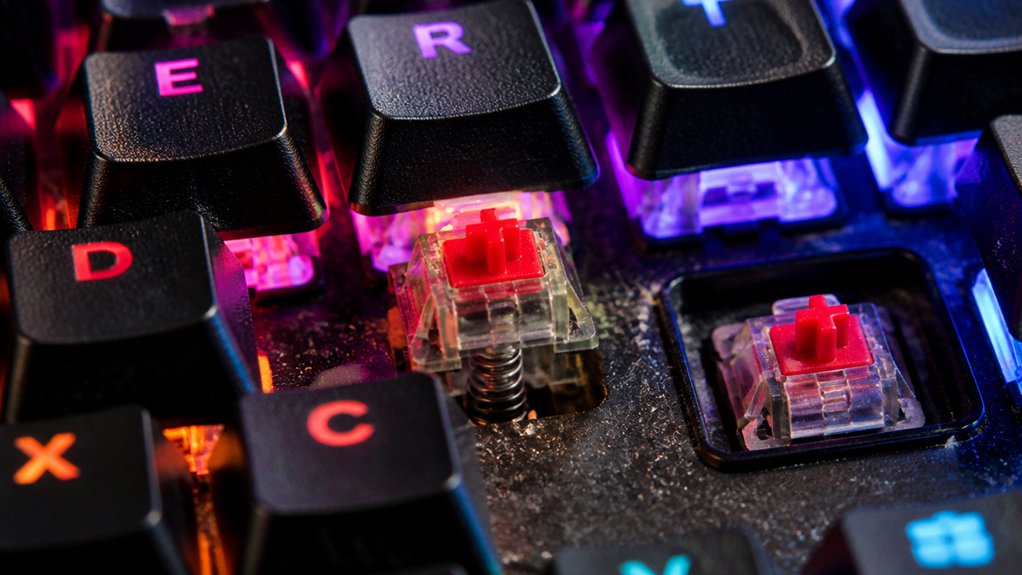
Mechanical keyboard chatter occurs when a single keystroke registers multiple inputs, often caused by contact bounce, dust buildup, or switch wear. Internal misalignments, debris, or contaminated contact points can make switches unstable, leading to repeated or missed characters. Over time, aging switches develop metal fatigue or cracks that worsen contact issues. Proper cleaning, maintenance, and firmware adjustments can reduce chatter, but knowing the causes helps you prevent future problems. Keep exploring to learn how to fix and prevent key chatter effectively.
What Is Key Chatter and How Does It Affect Your Typing?
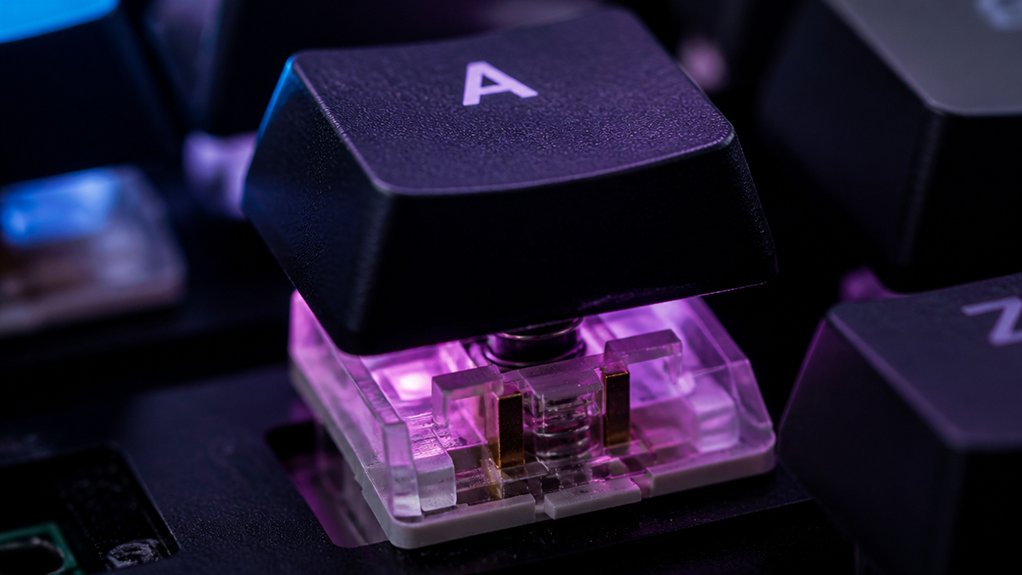
Have you ever typed a word only to see it suddenly repeat or become distorted? That’s often caused by key chatter, which makes a mechanical switch register multiple repeated keystrokes from a single keypress.
Instead of a clean input, you might see “Heello” instead of “Hello,” disrupting your typing flow. This issue stems from contact bounce inside the switch or internal misalignment, causing the switch to send erratic signals.
Key chatter gradually worsens, affecting your speed, accuracy, and productivity. It forces you to spend extra time correcting over- or under-registered characters. Recognizing key chatter early is essential; observing repeated keystrokes during typing or using testing tools can help detect the problem before it becomes a persistent annoyance.
How to Detect Key Chatter With Tools and Software
Detecting key chatter quickly and accurately is essential to maintaining your typing efficiency, and fortunately, there are several tools and software options designed for this purpose. Online keyboard testers let you visually identify multiple signals from a single keypress without downloads. For deeper analysis, software solutions like Switch Hitter provide detailed state visualization and alert you to chattering keys by showing erratic inputs. QMK Toolbox offers simple, real-time testing to detect key chatter swiftly. Testing involves repeatedly pressing suspect keys at different speeds to observe inconsistent multiple registrations. Firmware utilities and driver tools also help monitor input accuracy and debounce settings, pinpointing chatter issues. Utilizing switch testers with features like multi-key support and visual feedback further enhances detection accuracy.
Common Causes of Mechanical Keyboard Chattering
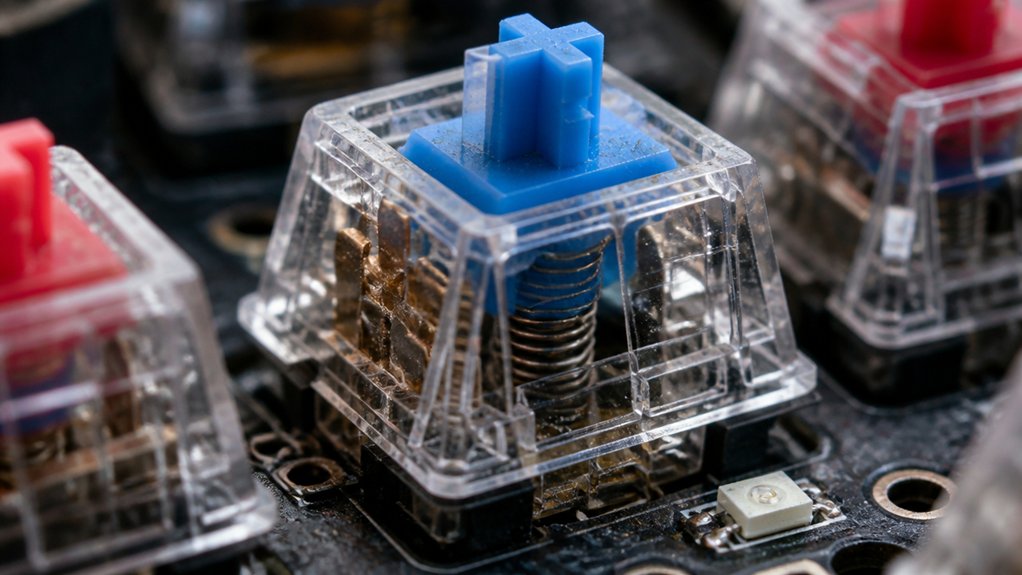
Mechanical keyboard chattering often stems from worn or low-quality switches that produce multiple signals from a single keypress due to contact wear. This issue is closely tied to the switch’s debounce process, which prevents multiple inputs from a single press.
When debounce settings are incorrect or switches are faulty, you experience repeated keystrokes. Additionally, dust, dirt, and debris inside the switch can interfere with stable contact, making chatter worse. Poor soldering or damaged PCB connections also play a role by causing erratic signals.
Here are common causes:
- Worn or low-quality switches causing contact wear.
- Improper or outdated debounce settings.
- Contaminants or damage inside the switch or on the PCB.
Why Dust and Debris Lead to Switch Contact Problems
Dust and debris inside your switch can interfere with the contact points, causing multiple signals or “chattering.” External particles entering the switch housing contaminate the contact leaves, leading to erratic keystrokes. Regular cleaning helps remove buildup, ensuring stable electrical contact and better typing reliability. Using anti-static sprays formulated for electronics surfaces can help neutralize charge buildup, reducing static attraction and keeping dust at bay.
Dust Accumulation Inside Switches
Over time, tiny particles of dust and debris find their way into the narrow spaces inside your mechanical keyboard switches, disrupting their delicate contact points. This dust buildup inside the key switches can cause multiple unintended signals from a single press, known as chatter. A moisture-free and residue-free formula helps prevent additional contamination and corrosion inside the switches. As you use your keyboard, the switches generate fine dust internally, which combines with external dirt, worsening contamination. To prevent issues, you should:
- Regularly clean the switches to remove accumulated dust.
- Avoid exposing your keyboard to dusty environments.
- Use compressed air or specialized cleaners to effectively clean the switches.
Keeping your key switches free of dust is essential for maintaining smooth, reliable actuation and preventing erratic key signals caused by contact interference. Proper cleaning guarantees your mechanical keyboard performs at its best.
Debris Impacts Contact Quality
When dust and debris find their way inside switch housings, they interfere with the delicate metal contacts that register each key press. These particles lodge between contact points, preventing stable electrical connections and causing key chatter.
Unlike membrane keyboards, mechanical switches have intricate contact leaves that are more vulnerable to contamination. Over time, dust buildup hampers consistent key registration, leading to uneven or repeated signals.
Environmental factors like humidity cause debris to stick more firmly, worsening contact issues. Regular cleaning with compressed air and isopropyl alcohol is essential to remove dust and grime from switch internals.
How Wear and Age Impact Switch Performance
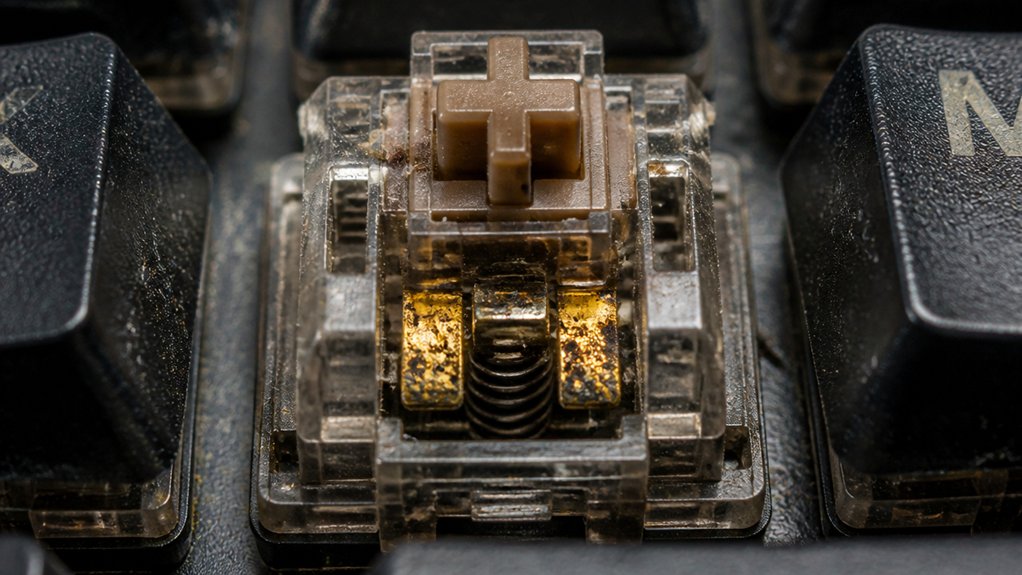
As mechanical switches age, their performance steadily declines due to internal wear and material fatigue. Over time, components like the actuator leaf and contact plates develop cracks and metal fatigue, causing unstable electrical contact and key chatter early on.
Aging switches also benefit from proper lubrication to reduce friction and minimize noise, as lubrication can help maintain performance in older switches. Lubricant application can slow down the degradation process and keep switches operating more smoothly. Additionally, aging switches trap fine dust internally, which interferes with contact quality. This buildup exacerbates faulty switches and overall inconsistency.
You might notice that your Mechanical Keyboards become less reliable, registering multiple inputs or sticking keys more often. Wear and age greatly reduce switch durability, leading to key chatter issues that frustrate often-used keys or central press zones.
Environmental Conditions That Cause Key Chattering
Environmental conditions play a significant role in causing key chattering in mechanical keyboards. Factors like humidity can introduce moisture into your keyboard switch, leading to erratic contact. Temperature swings cause expansion and contraction of switch components, disrupting stable electrical contact. Dust and debris—more common in poorly ventilated or dusty environments—accumulate inside switches, increasing chattering chances. Contaminants like oil or sticky residues from a dirty workspace also worsen switch performance. Extended exposure to direct sunlight or extreme dryness can degrade lubricants and materials, indirectly causing chattering issues. Proper cleaning and maintenance with safe solvents like isopropyl alcohol ensure the removal of contaminants without damaging sensitive plastics or coatings.
Manufacturing Defects That Lead to Early Switch Failures
Manufacturing defects can cause early switch failures that lead to persistent key chatter, even before the keyboard hits the market. These issues often stem from flaws in the production process affecting the key switch components.
For example:
- Misaligned switch parts, like the switch plate’s right stem floating above the friction platform, cause actuator leaf oscillation and chatter.
- Metal fatigue and cracking in the actuator leaf, due to stress or poor materials, lead to early failure of the switches.
- Inconsistent soldering or weak PCB joints create unstable electrical contacts, causing multiple key inputs or missed presses.
These manufacturing defects increase the likelihood of early mechanical switch failures, resulting in keys that register repeatedly or intermittently, frustrating your typing experience.
How Switch Design Affects Chatter Susceptibility
The physical design of a switch plays an essential role in its susceptibility to chatter, as even minor misalignments or unstable internal components can lead to repeated or unintended signals. Variations in switch design, like floating stems or poorly aligned actuator leaves, increase chances of chatter by creating inconsistent electrical contact.
The actuator leaf’s stability is critical—if it oscillates due to fatigue, cracks, or design flaws, it causes repeated contact and bouncing. Switch housings that allow internal parts to move during keypresses also boost chatter risk by making contact less stable.
Without proper stabilization mechanisms, internal components wear out faster, heightening the likelihood of persistent chatter over time. Ultimately, thoughtful switch design directly influences how prone your switches are to developing bounce and unwanted signals.
Signs of Key Chatter During Everyday Use
Recognizing key chatter in everyday use often starts with paying attention to how your keyboard responds as you type. If you notice that a single key press produces multiple characters, that’s a clear sign of key chatter.
You might also experience inconsistent responses, with some keys illegitimately repeating characters or failing to register reliably.
Watch for these symptoms:
- Keys might produce double or multiple keystrokes during a single press.
- Increased use of backspace or error corrections due to accidental double inputs.
- Erratic repeated inputs, especially during fast typing or gaming, which can break combos or slow down your work.
If these signs persist or worsen, it’s a strong indicator that errors caused by key chatter are affecting your typing experience. Additionally, consider the actuation force of your switches, as switches with an actuation force outside the optimal 45–60 gf range might be more prone to unintended activations.
Step-by-Step Guide to Cleaning and Repairing Switches
Cleaning and repairing switches is a crucial step in resolving key chatter, and it begins with careful disassembly of your keyboard. First, unplug your keyboard, then gently remove the keycaps. To Fix Key Chatter, clean around the switches with a soft brush and compressed air to remove surface dirt. Next, apply a few drops of 70%-90% isopropyl alcohol inside each affected switch while pressing the stem repeatedly to dislodge debris. For heavy buildup, submerge the keyboard in alcohol, repeatedly press switches underwater, then let it dry completely. If cleaning doesn’t work, consider replacing faulty switches using hot-swap sockets or soldering. Remember, thorough cleaning and proper switch replacement can greatly reduce key chatter. Proper desoldering tools can make the switch replacement process more efficient and safer.
Using Firmware Settings to Reduce Chatter
Adjusting firmware debounce settings offers an effective way to reduce key chatter without physically modifying your keyboard. By tuning the debounce time, you control how long the firmware waits before registering a keypress, typically around 5 milliseconds. A layer support feature in firmware like QMK allows for different debounce settings per layer, providing customized stability across various configurations. To improve typing stability, consider:
Adjusting debounce settings reduces key chatter without physical modifications, improving typing stability and responsiveness.
- Increasing the debounce time via firmware or software adjustments—use tools like QMK, ZMK, or manufacturer software like Keychron launcher.
- Be cautious not to set it too high, as excessive debounce can cause input lag or missed quick presses.
- Keep your firmware updated, since updates often include improvements to debounce algorithms that better filter chatter issues.
Balancing debounce time is key—small adjustments can greatly reduce chatter while maintaining responsiveness. Proper firmware tuning makes your typing smoother and more reliable.
When and How to Replace Faulty Switches Effectively
When persistent key chatter or unintended inputs continue despite firmware debounce adjustments, it’s time to replace the faulty switches. First, identify which switch is causing issues, then safely replace the bad one.
Use a keycap puller to remove the keycap, and if your keyboard is hot-swappable, simply pull out the switch; if not, you’ll need to desolder and solder a new switch. Prioritize replacing heavily worn keys that have clicked multiple times, as these are more prone to chatter.
Choose high-quality replacement switches to guarantee durability and reduce future problems. After installation, adjust the debounce in your firmware if needed.
Regularly inspecting and replacing faulty switches can extend your keyboard’s lifespan and improve typing consistency, saving you trouble down the line. Material Durability and Construction play a key role in ensuring the longevity of your switches and overall keyboard performance.
Tips to Prevent Future Key Chatter and Maintain Your Keyboard
Regular maintenance is key to preventing future key chatter and keeping your keyboard running smoothly. To do this effectively, you should:
Regular maintenance prevents key chatter and ensures your keyboard stays in top shape through cleaning and updates.
- Use compressed air and a damp microfiber cloth to regularly clean your keyboard, removing dust and debris that can cause chatter.
- Perform switch-level cleaning with 70%+ isopropyl alcohol every 3–6 months to dissolve fine dust inside switches and guarantee reliable key actuation.
- Schedule switch lubrication every 6–12 months to reduce friction, prevent mechanical wear, and delay chatter issues.
- Consider applying specialized lubricants designed for mechanical switches to enhance smoothness and suppress noise.
Additionally, keep your keyboard’s firmware updated and adjust debounce settings if necessary for better signal stability.
Store it in a clean, dry environment away from temperature extremes to prolong switch lifespan and prevent future chatter.
Frequently Asked Questions
Is a 60% Keyboard Better Than 75% for Gaming?
A 75% keyboard is better for gaming because it offers easier access to function keys and arrow keys, enabling quicker reactions and shortcuts. A 60% keyboard saves space but might slow you down during fast-paced gameplay.
What Is a 96% Keyboard Missing?
A 96% keyboard is missing a dedicated numeric keypad, extra macro keys, oversized navigation clusters, and multimedia keys. It combines most keys into a compact layout, sacrificing some specialized functions for a smaller, space-efficient design.
How to Stop Key Chatter?
You can stop key chatter by cleaning switches with isopropyl alcohol, updating firmware to increase debounce time, using software blockers for repeated inputs, replacing faulty switches, and maintaining regular cleaning and lubrication for peak performance.
Why Do Gamers Hate Membrane Keyboards?
You dislike membrane keyboards because they’re slower, less precise, and less durable, affecting your gaming performance. Their inconsistent actuation, ghosting issues, and lack of customization hinder your ability to execute quick, accurate commands with confidence.
In Summary
To keep your mechanical keyboard typing smoothly, regularly clean your switches and stay aware of signs of wear. Adjust firmware settings if needed, and don’t hesitate to replace faulty switches. Proper maintenance helps prevent chatter, ensuring a reliable and satisfying typing experience. By staying proactive, you’ll enjoy your keyboard’s performance for years. Remember, a little upkeep goes a long way in avoiding those annoying key presses that don’t register.



