
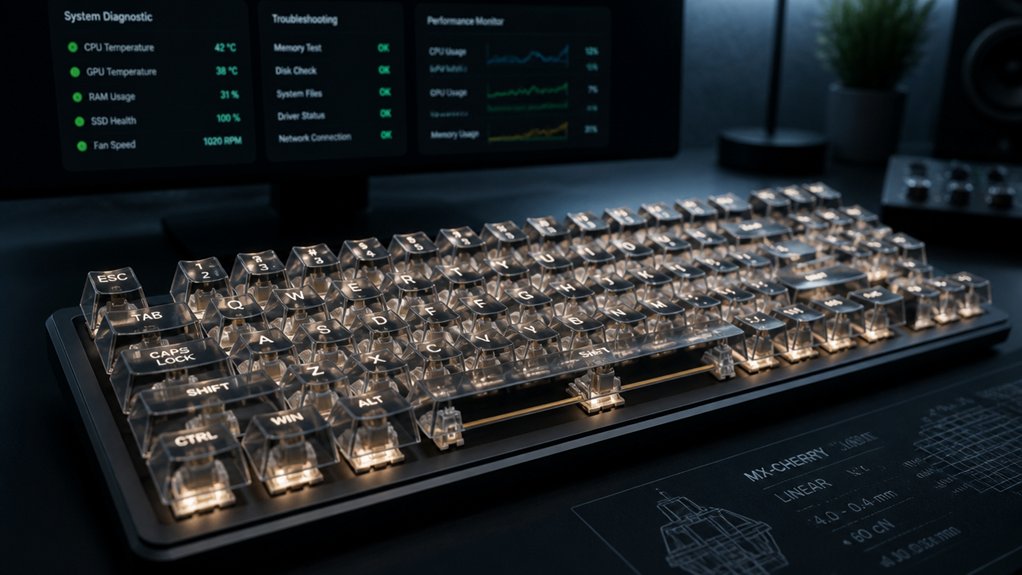
To fix mechanical keyboard input delay, start by checking for hardware issues like worn switches or faulty cables, and clean internal components if needed. Update your drivers, lower debounce times, and set USB polling to 1 ms for faster response. Connect via wired USB ports, preferably directly to USB 3.0, and consider upgrading to fast switches or modern microcontrollers. Combining these steps can drastically improve latency—exploring the details can help you achieve peak performance.
How to Recognize Signs of Keyboard Input Delay
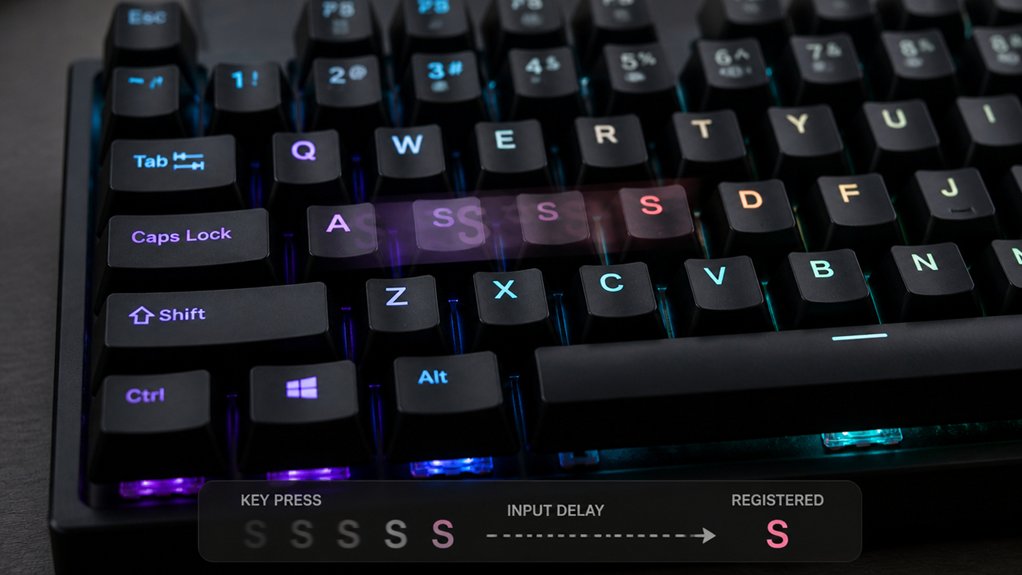
Recognizing signs of keyboard input delay is essential to guarantee smooth typing or gaming experiences. Keyboard Input Lag manifests as a noticeable delay between pressing a key and the character appearing on screen, often measured in milliseconds. You might notice irregular typing rhythms, where keystrokes don’t register consistently, or experience repeated characters caused by delayed signals. Missed keystrokes or unresponsive keys during fast typing or gaming sessions are also common indicators. Wireless keyboards tend to show this more often due to signal interference, but worn-out switches or prolonged use can increase Keyboard Input Lag. Using latency testing tools or comparing wired versus wireless performance helps confirm these issues. Additionally, the hot-swap PCBs available for mechanical keyboards enable easy switch replacements, which can help address input delay caused by faulty or degraded switches. Identifying these signs early helps you take targeted actions to improve your keyboard’s responsiveness.
Troubleshoot Hardware Problems Causing Keyboard Lag
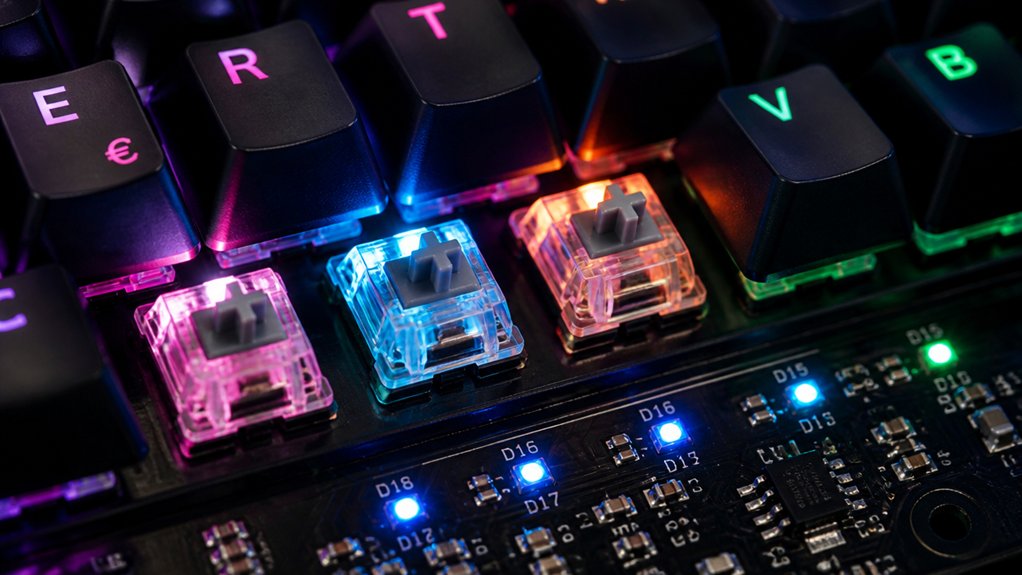
When you’re experiencing keyboard input delay, hardware issues are often the culprit. Start by inspecting your mechanical switches and keycaps; worn-out or damaged switches can cause inconsistent electrical contact, leading to input lag.
Check your USB ports—faulty or dirty ports, broken cables, or bad USB receivers can disrupt data transmission, causing delays. To isolate the problem, test the keyboard on another device or try a different keyboard with the same device. If it works fine elsewhere, the issue likely lies with your original hardware.
For wireless models, make sure the batteries are fresh and there are no obstructions blocking the signal. Cleaning dust and debris inside the keyboard and verifying all internal circuits and connectors are secure can also help resolve hardware-related lag issues. Additionally, using keyboard switch pullers and tools designed for safe removal can prevent damage during maintenance and ensure reliable contact.
Optimize Firmware Settings to Speed Up Your Keyboard
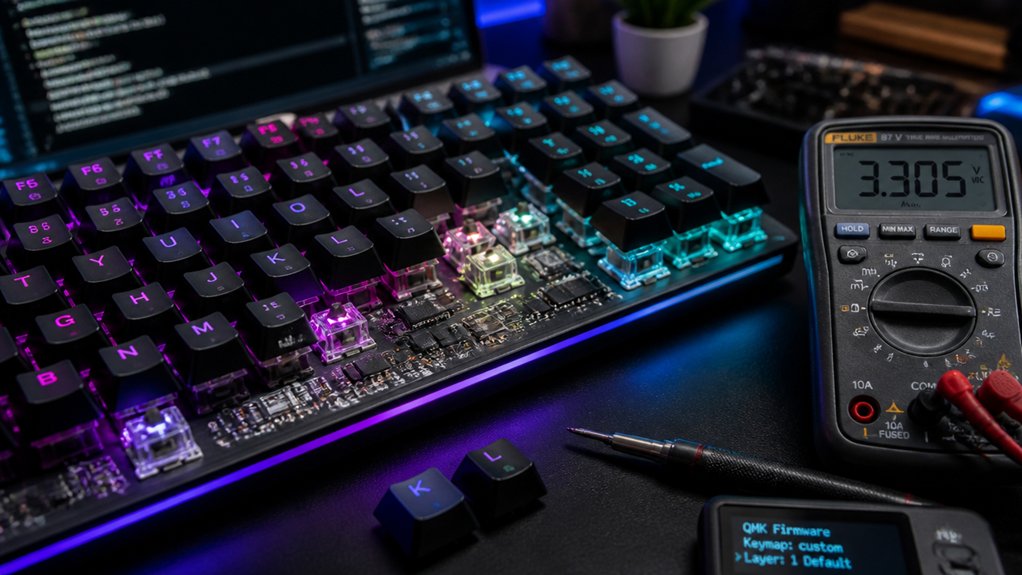
To reduce input delay, start by adjusting your firmware settings like lowering debounce time with `#define DEBOUNCE 3`, which helps speed up key registration.
Next, optimize USB polling by setting `#define USB_POLLING_INTERVAL_MS 1` for faster data transfer, and fine-tune matrix scanning with `#define QMK_KEYS_PER_SCAN 12` to lessen latency.
Use QMK tools to verify improvements and aim for a total input delay below 8 ms for the best response. Additionally, ensure your firmware supports microcontroller compatibility, which is crucial for optimal performance.
Adjust Debounce Settings
Adjusting debounce settings is a key step in reducing input delay on your mechanical keyboard. By lowering the debounce time from the default 5-10 ms to about 2-3 ms with `#define DEBOUNCE 3`, you can cut input lag considerably without causing key chatter on high-quality switches. Utilizing switch testers can help you identify which switches respond best to lower debounce times and achieve optimal performance. Using QMK firmware, you can implement a symmetric debounce algorithm (`#define DEBOUNCE_TYPE symm`) or an asymmetrical keen-defer approach to improve responsiveness further. Shortening the bouncing filter delay reduces total latency from roughly 8-12 ms to under 8 ms. However, you need to test stability, as setting debounce too low may lead to multiple keystrokes from a single press. Remember, these firmware changes must be compiled and flashed via tools like QMK Toolbox to take effect.
Optimize USB Polling
Ever wondered how your keyboard’s responsiveness depends on USB communication? Adjusting your firmware’s USB polling rate can greatly reduce input delay. Increasing the polling rate to 1000 Hz with `#define USB_POLLING_INTERVAL_MS 1` shortens the interval to just 1 millisecond, making key presses register faster.
Optimizing firmware settings also involves tweaking the scan efficiency using `#define QMK_KEYS_PER_SCAN 12` and boosting clock speeds (`#define F_CPU 16000000`) to improve responsiveness. Lowering the debounce time to 2-3 ms (`#define DEBOUNCE 3`) further diminishes overall latency.
Here’s what happens behind the scenes:
- Adjusted polling rates guarantee your firmware sends key press data more frequently
- Faster scan times reduce the delay between key presses and recognition
- Stability tools like HIDUSBF verify consistent low-latency performance
- Selecting compatible Pro Micro Controller boards can ensure reliable firmware support and optimal responsiveness
Enhance Matrix Scan
Enhancing matrix scan performance can greatly decrease input lag, making your keyboard more responsive during fast typing or gaming.
To achieve this, increase the matrix scan rate by adjusting firmware settings, reducing scan cycles to around 0.5 to 2 milliseconds per cycle. Boost efficiency by configuring `QMK_KEYS_PER_SCAN` to scan more keys per cycle, which cuts down latency.
Additionally, setting the microcontroller clock speed with `#define F_CPU 16000000` speeds up the matrix scanning process and improves overall responsiveness. Correctly choosing diode direction (`COL2ROW` or `ROW2COL`) guarantees fast, accurate signal processing.
Monitoring switch compatibility options via the QMK console—aiming for around 315–316 Hz—confirms your setup is optimized for minimal input delay.
Test and Measure Your Keyboard’s Response Time
How can you accurately measure your keyboard’s response time? To gauge input delay, you need precise tools that analyze key switch activation and USB data transfer.
First, enable the QMK Debug Console with `#define DEBUG_MATRIX_SCAN_RATE` to monitor real-time scan timestamps. This helps identify the matrix scan time—usually around 1 ms—and debounce duration, about 5 ms.
Second, use a USB Protocol Analyzer or oscilloscope for exact timing of switch activation and data transfer, especially with mechanical keyboards.
Third, test with online browser latency tools or gaming diagnostics to see how your keyboard performs during actual use. These measurements reveal your keyboard’s response time, helping diagnose input delay rooted in switch or firmware issues, and guide you toward ideal fixes.
Additionally, understanding the reflow station features like precise temperature control and airflow adjustment can help ensure optimal soldering conditions, minimizing delays during repairs.
Adjust Operating System and Drivers for Faster Input
To reduce input delay, start by updating your keyboard drivers through Device Manager on Windows or System Settings > Software Update on Mac. Confirm your drivers are current to optimize communication and minimize lag.
Update your keyboard drivers via Device Manager or System Settings to improve responsiveness and reduce input lag.
If issues persist, consider updating or reinstalling your keyboard drivers—uninstall them via Device Manager, then reboot to clear any corrupted drivers or conflicts causing delays.
Additionally, review your keyboard settings: disable accessibility features like Filter Keys on Windows or Slow Keys on Mac, as these can introduce intentional input delays. Adjust the keyboard repeat delay and rate to “Short” and “Fast” respectively in your OS settings for quicker response times.
Keeping your operating system up to date also helps prevent compatibility issues that could increase input latency. Ensuring your system complies with IEC 61010 safety standards or similar certifications can contribute to overall stability and responsiveness.
Improve Connection and Setup to Reduce Delay
Guaranteeing your keyboard is properly connected plays a significant role in minimizing input delay. Use a wired USB connection, preferably USB-C with a high-quality shielded cable, to reduce latency compared to wireless setups.
Position your wireless keyboard and its USB receiver within close range and a clear line of sight to cut down on signal interference. Avoid physical obstructions and move nearby 2.4 GHz devices, like Wi-Fi routers and Bluetooth peripherals, to prevent wireless latency.
Additionally, connect your keyboard hardware to USB 3.0 ports, which offer faster data transfer, and test different USB ports or use USB extensions if necessary. Not all USB ports are created equal—optimizing your connection guarantees your key inputs are registered swiftly and reliably. Make sure to select a cable with appropriate data transfer speed and build quality for best performance.
Upgrade Hardware for the Lowest Latency Performance
To achieve the lowest input delay, you should start by choosing switches with shorter actuation distances and faster reset times, like magnetic Hall Effect or high-quality mechanical switches. Upgrading to a wired connection with a high polling rate and using shielded USB-C cables helps guarantee faster, more stable data transfer. Combining these hardware improvements will greatly reduce input latency and improve your overall responsiveness. Additionally, selecting switches that are pre-lubricated or provide smooth travel, such as the Gateron G Speed Silver Pro 3.0 or EPOMAKER Creamy Jade, can further enhance all-around performance by minimizing friction and wobble switch performance.
Choose Fast Switches
Choosing the right switches can greatly cut down input delay on your mechanical keyboard. Faster switches, like Cherry MX Speed or Kailh Silver, register key presses quicker than traditional options, reducing input delay.
Magnetic Hall Effect switches, found in MelGeek keyboards, offer near-instant response by bypassing mechanical contact delays. Switches with lighter actuation force and quick return mechanisms improve responsiveness by decreasing the time between key press and release.
To visualize this:
- Mechanical keyboard with shorter actuation points for faster registration
- Lightweight switches that reduce physical travel time
- Well-maintained switches that prevent lag caused by damage or wear
Selecting high-quality, fast switches helps you minimize input delay, making your gaming or typing experience more responsive and precise.
Optimize Connection Types
Upgrading your connection type can greatly reduce input delay, especially if you prioritize wired USB connections. To optimize settings, use high-quality shielded USB-C cables and connect directly to USB 3.0 ports, avoiding hubs that can add latency.
Modern microcontrollers like STM32 or RP2040 in keyboards enable faster matrix scanning and USB communication, further lowering delay.
Wireless connections, such as Bluetooth or 2.4 GHz, often experience higher latency and interference, making wired options preferable for minimal input delay. Dual-mode keyboards offer flexibility, allowing you to switch to wired mode for gaming or fast typing when system load is high.
Choosing the right connection type and ensuring a stable, direct connection minimizes input lag, providing a smoother typing experience.
Frequently Asked Questions
How Do I Fix Input Delay?
To fix input delay, update or reinstall your keyboard drivers, disable accessibility features like Filter Keys, use wired connections, lower debounce settings, and close unnecessary programs. These steps improve communication and reduce latency during typing.
Why Do I Have Input Delay on My Keyboard?
You have input delay because of power issues, connectivity problems, outdated drivers, high system resource usage, or hardware wear. Check your connections, update drivers, reduce background tasks, and consider hardware repairs to improve keyboard responsiveness.
Why Do I Type Slower on a Mechanical Keyboard?
You type slower on a mechanical keyboard because you’re still adapting to its tactile feedback, longer key travel, and higher actuation force. With practice and familiarity, your typing speed will improve as muscle memory develops.
How to Get Rid of Keyboard Latency?
You can reduce keyboard latency by lowering debounce time, increasing USB polling rate, using a wired connection, disabling unnecessary accessibility features, and upgrading to modern microcontrollers with optimized firmware for faster key response.
In Summary
To fix your mechanical keyboard’s input delay, start by recognizing the signs and troubleshooting hardware issues. Optimize firmware and adjust system settings for quicker response times. Make sure your connection is stable and your drivers are up to date. If problems persist, consider upgrading your hardware for the best performance. By following these steps, you’ll enjoy faster, more reliable typing with minimal lag, enhancing your overall experience and productivity.



