
To fix double keypress issues, first test your keyboard across multiple devices and update or tweak your debounce settings to filter switch chatter. Clean dust and debris with compressed air and isopropyl alcohol to improve contact. If needed, replace faulty switches—especially if your keyboard is hot-swappable—or upgrade to one with easily replaceable switches. Sorting out hardware versus software causes helps; keep exploring for more detailed tips to get your keyboard typing smoothly again.
How Can I Quickly Tell If My Double Keypress Is Hardware or Software?
Wondering whether your double keypress issue is caused by hardware or software? Start by testing your mechanical keyboard on different computers or operating systems—if the double typing issue persists across devices, it’s likely a faulty switch.
Test on multiple devices to determine if hardware or software causes double keypress issues.
You can also test the keyboard using software like Unshaky or Keyboard Chattering Software to see if software debounce is the cause. Adjust your OS’s keyboard repeat rate or enable Filter Keys to check if these settings help—that suggests a software problem.
To rule out physical causes, clean affected keys with compressed air or isopropyl alcohol and retest. Additionally, using switch testers can help identify if specific keys are experiencing hardware issues such as contact bounce or switch failure.
If double keypress only occurs on one device, it might be a software or driver issue. Broad issues across devices point to a faulty switch in your mechanical keyboard.
Simple Steps to Clean Dust and Debris From Your Keyboard
To keep your mechanical keyboard functioning smoothly, regular cleaning to remove dust and debris is essential.
First, unplug the keyboard to prevent accidental inputs. Use a keycap puller to carefully remove the keycaps from the double key or any affected keys, giving you access underneath.
With the keycaps removed, blow compressed air in short bursts at a 60-75 degree angle into the switch housings to dislodge dust and debris without damaging the switches. Gently wipe around the switches and affected areas with a soft brush or a cotton swab dampened with 99% isopropyl alcohol for stubborn dirt.
Using ozone-safe compressed air duster can help efficiently clear dust without leaving residue or moisture, which is beneficial for delicate electronics.
After cleaning, allow everything to fully dry—preferably overnight—before reassembling the keycaps and reconnecting your keyboard. This helps keep your mechanical keyboards clean and running smoothly.
How Do I Tweak Debounce Settings to Prevent Double Typing?
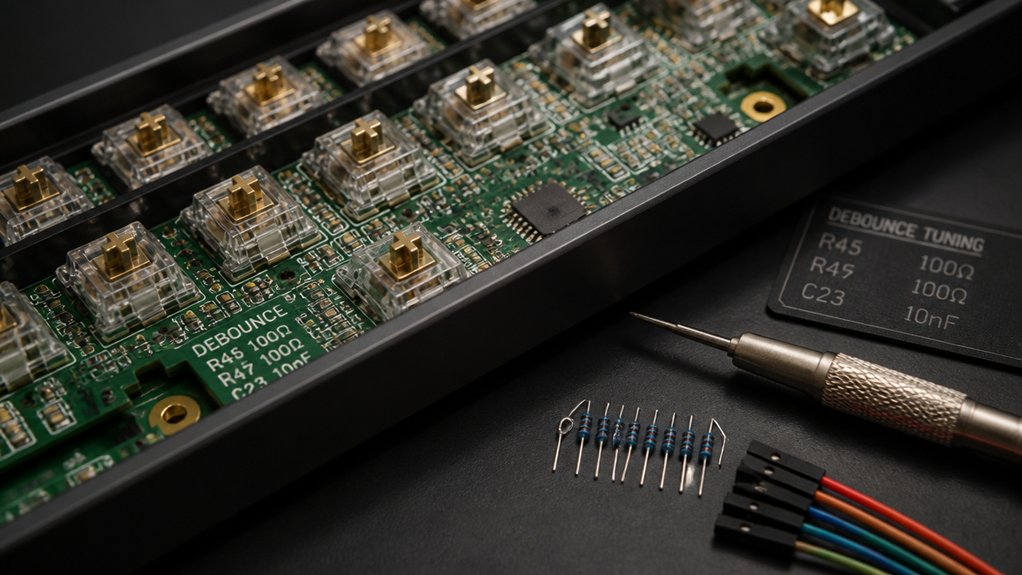
Are double keypresses bothering your typing experience? Adjusting debounce time can help prevent keyboard double and reduce double typing. Many mechanical keyboards allow you to tweak debounce settings to ignore switch contact vibrations that cause switch chatter. Increasing debounce time from the default 5ms to around 10-20ms filters out false signals, decreasing unwanted double key signals. Using hot-swap PCBs, which support easy switch replacements, can also assist in identifying and replacing problematic switches to improve overall performance.
| Debounce Time | Effect on Typing |
|---|---|
| Short (5ms) | Faster response, risk of double typing |
| Longer (15ms) | Smoother, fewer keyboard doubles |
| Too long | Input delay, slow key response |
| Ideal | Balanced speed and accuracy |
Use keyboard configurator tools or firmware updates to tweak debounce, but don’t overdo it, or you’ll slow responsiveness. Adjust gradually for best results.
How to Test Switches and Replace Faulty Ones Easily
Testing and replacing faulty switches is a straightforward way to fix double keypress issues on your mechanical keyboard. To do this, open the keyboard by gently removing the keycap with a key puller, avoiding damage to the keycap or switch stem.
Use a switch tester or software that registers keystrokes to identify switches causing double typing or chatter.
If you have a hot-swappable keyboard, simply pull out the faulty switch with the included tool and insert a new one without soldering. With a soldered switch, you’ll need to open the case, desolder the faulty switch, then solder in a new switch.
Once replaced, test the key using diagnostic software or by typing to confirm the double keypress problem is fixed. Interchangeable nozzles and replacement tips widely available can also facilitate easier maintenance of your switches and keyboard components.
Upgrade to Hot-Swappable Keyboards or Replace Switches for a Permanent Fix
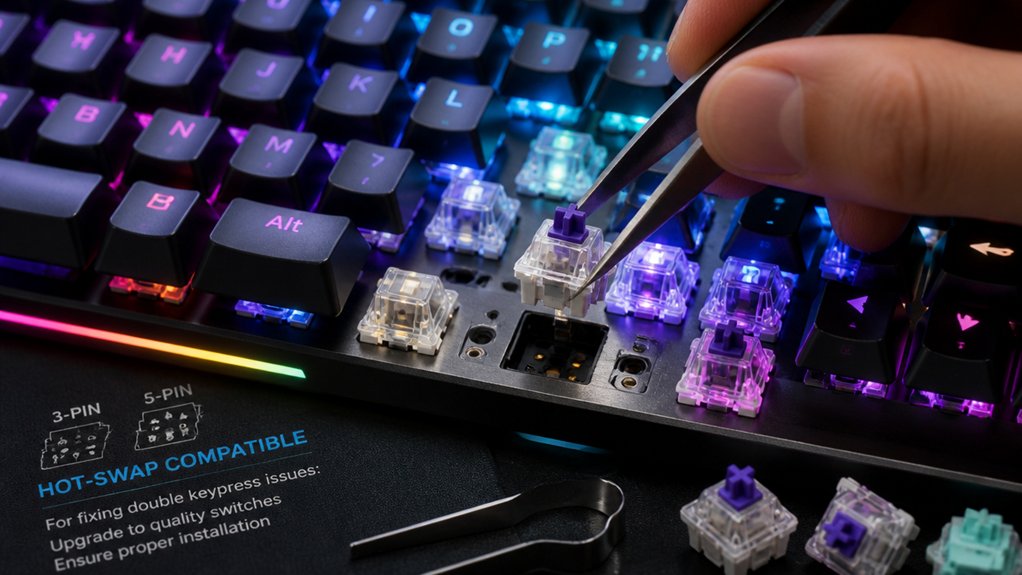
Upgrading to a hot-swappable keyboard is one of the most effective ways to address double keypress issues permanently because it lets you replace faulty switches quickly and without soldering. If you experience key chattering or double typing, swapping out worn or defective mechanical switches like Cherry MX or Romer-G restores consistency. Unlike soldered switch replacement, hot-swappable boards—such as Keychron or Glorious models—offer easy customization and quick repairs. You can replace switches without skills or tools, saving time and effort. Additionally, utilizing dedicated hot-swap sockets can improve switch stability and longevity in DIY builds.
Frequently Asked Questions
How to Fix Mechanical Keyboard Double Pressing?
You can fix double pressing by cleaning your switches with alcohol, adjusting debounce settings in your software, enabling filter keys, or replacing worn switches if problems persist. Regular maintenance also helps prevent future double key presses.
Is 84 Keys 75%?
Yes, an 84-key keyboard is generally considered a 75% layout because it offers most functions and navigation keys in a compact form. You get a balance of size, function, and accessibility, fitting well into the 75% category.
How to Fix Double Keys?
To fix double keys, start by cleaning the switches with isopropyl alcohol while pressing the key repeatedly, and consider adjusting debounce settings through software. If issues persist, replace worn switches or seek professional repair for durability.
How to Fix Keyboard Pressing Multiple Keys?
To fix your keyboard pressing multiple keys, start by cleaning switches with isopropyl alcohol, adjusting debounce settings, enabling filter keys, and replacing faulty switches if necessary. Using compressed air can also help remove dust and temporary issues.
In Summary
If you’re still experiencing double keypress issues after trying these tips, consider upgrading to a hot-swappable keyboard or replacing faulty switches. Regular cleaning and tweaking debounce settings can also make a big difference. Remember, identifying whether the problem is hardware or software helps you target the right fix quickly. With a bit of troubleshooting, your mechanical keyboard can feel just like new, ensuring smooth, accurate typing every time.



