
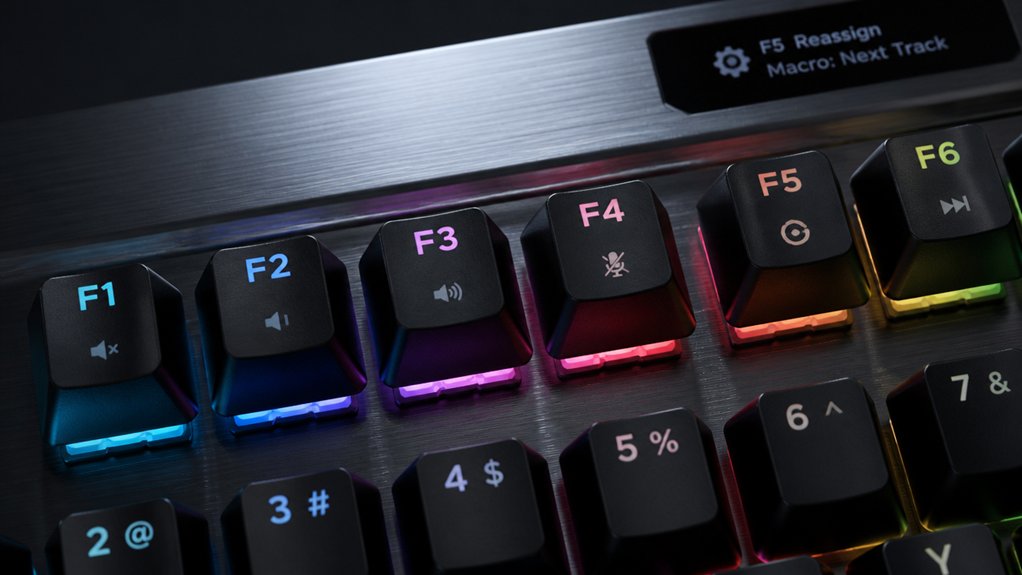
To remap function row keys on a mechanical keyboard, choose compatible software like Sharp Keys or PowerToys. Open the program, select the key you want to change, and assign a new function, macro, or shortcut. Save your settings and restart your computer to apply the changes. Remember, some hardware or software may block remapping, so troubleshooting might be necessary. Keep exploring, and you’ll discover how to optimize your keyboard to suit your needs perfectly.
Why Remapping Your Function Keys Can Improve Your Experience
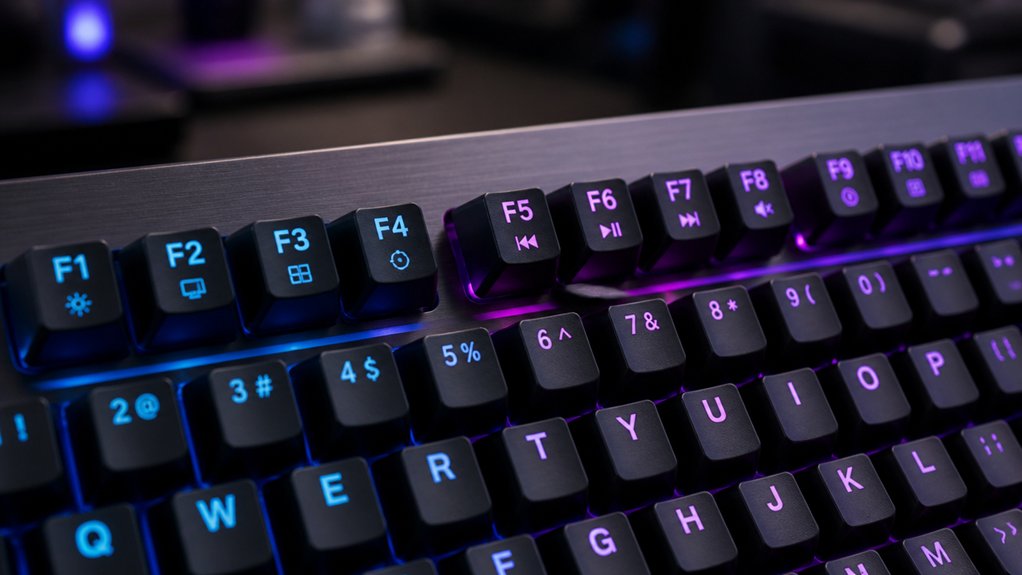
Remapping your function keys can greatly improve your overall experience by tailoring your keyboard to better suit your needs. On a mechanical keyboard, default media and shortcut keys might be inconvenient or missing, limiting efficiency.
By customizing these keys, you can assign frequently used commands or macros, streamlining your workflow and reducing keystrokes. This is especially beneficial in gaming, where quick access to essential actions can make a difference.
Additionally, remapping improves accessibility and decreases finger movement, helping to reduce fatigue and strain during long typing or gaming sessions.
Using tools like PowerToys or Sharp Keys makes remapping straightforward and reversible, allowing you to personalize your mechanical keyboard easily—leading to a more comfortable, efficient, and productive experience.
Understanding how to program custom layouts with tools like QMK firmware can also give you more control over complex key remapping and macro support.
How to Choose the Best Software for Remapping Function Keys
Choosing the right software to remap your function keys depends on your specific needs and system setup. You want a program that allows users to easily customize keys, support your keyboard’s features, and fit your workflow. A variety of testers and configurations are available in the market, so understanding the switch types and features can help you decide which software will best accommodate your preferred feel and functionality.
For Windows 11, Microsoft PowerToys Keyboard Manager is popular because it supports remapping individual keys and shortcuts, and runs continuously in the background. If you prefer a free, straightforward tool, Sharp Keys allows users to remap by editing the registry, though it requires a reboot to apply changes.
Consider whether you need to remap missing or special function row keys and if the software’s compatibility suits your keyboard. Some tools focus more on layout redesign rather than remapping, so choose software that aligns with your goal.
Step-By-Step: Reassigning Function Keys With Sharp Keys
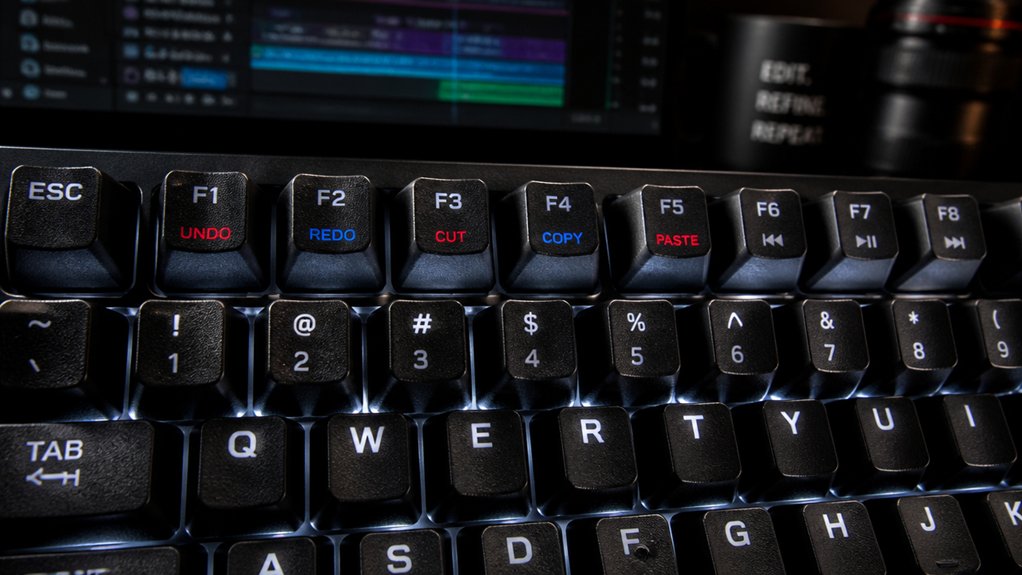
Using Sharp Keys to reassign your function keys is a straightforward process that puts you in control of customizing your keyboard. First, open the software and click “Add” to select the function key you want to remap from the left list.
Next, choose the new key or macro function—such as media controls or shortcuts—from the right list. Confirm the change to complete your key mapping. Repeat this process for all desired function row keys.
Once finished, click “Write to Registry” to save your key mapping changes. To activate the new settings, restart your computer, as Sharp Keys modifies the Windows registry for the remappings to take effect.
The software also allows easy toggling or editing of remapped keys, but a reboot is needed after each update. Additionally, understanding how remapping can influence your keyboard layout and overall typing efficiency can help optimize your setup.
Make Your Function Keys Work for Your Workflow and Gaming
Customizing your function keys can greatly boost your workflow and gaming performance, especially on compact mechanical keyboards that lack dedicated media or shortcut keys. By remapping the function row keys, you can quickly access essential commands, improve responsiveness, and reduce reliance on mouse interactions. A well-implemented remapping can also utilize hot-swap PCBs, making switch customization quick and effortless. Using tools like Microsoft PowerToys makes it easy to customize these keys for your specific needs. Keep in mind that this setup requires PowerToys to stay active for your remappings to work seamlessly.
Customizing function keys enhances productivity and gaming performance on compact keyboards by providing quick, easy access to essential commands.
Here are some ways to optimize your function row keys:
- Assign media controls like volume and playback
- Create quick-launch shortcuts for frequently used apps
- Map gaming macros for faster in-game commands
- Reassign system functions for easier access
- Reduce mouse dependency during intensive tasks
Troubleshooting Common Problems After Remapping
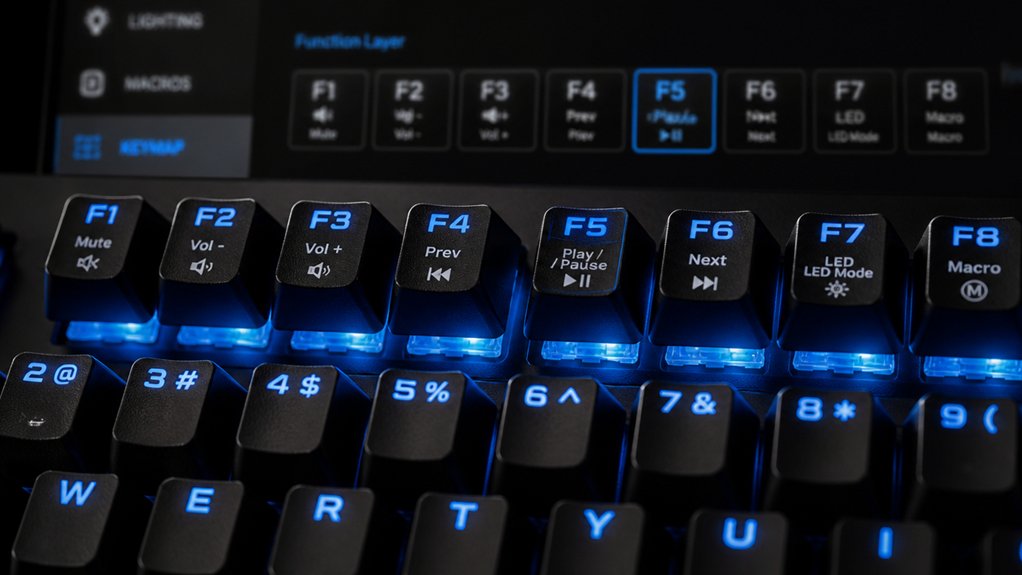
If your remapping isn’t working as expected, you might encounter shortcut conflicts or see that changes haven’t saved properly.
Sometimes, the remapped keys still don’t function after a restart, or their new functions get overridden by software. You’ll need to check your settings, restart your system, and test in various programs to pinpoint the cause.
Additionally, ensuring the firmware or software used for remapping supports the specific keyboard kit and its features can prevent compatibility issues.
Shortcut Conflicts Occur Frequently
Remapping function row keys can lead to frequent shortcut conflicts, especially when the new keys overlap with existing system or application shortcuts. These conflicts can cause unexpected behaviors, like unresponsive keys or shortcuts triggering wrong actions.
To reduce shortcut conflicts, you can disable or modify conflicting shortcuts within Windows settings or third-party software. Running remapping tools like PowerToys or Sharp Keys in administrator mode guarantees changes register correctly and minimizes conflicts.
Remember to restart your computer after remapping for registry updates to take effect. Be vigilant about key overlaps, especially on Windows 11, where some remapped keys may still face limitations. Additionally, understanding reset button functionalities can help you better manage hardware-related remapping issues. By managing shortcuts proactively, you can keep your modified function row keys working smoothly without interfering with essential system workflows.
- Check for overlapping shortcuts before remapping
- Disable conflicting system shortcuts
- Use administrator mode for remapping tools
- Restart your computer to apply changes
- Test remapped keys after reboot
Remap Changes Not Saving
Sometimes, after remapping your function row keys, the changes don’t seem to stick or persist as expected. This usually happens if your keyboard layout isn’t set up correctly or if the remapping software isn’t running continuously in the background.
For registry-based tools, you need to reboot your system to apply and save your new keyboard layout; skipping this step can cause your remaps to revert. Conflicts with other keyboard customization software or default Windows shortcuts can also interfere with saving your changes.
Make sure you run your remapping program as an administrator, so it can write to system files. Additionally, check for any hardware-based key programming, like onboard keyboard profiles, that might override your software remap settings. Ensuring compatibility with hot-swap keyboard kits can also prevent unintended overrides or conflicts.
Key Functionality Not Restored
After remapping your function row keys, their intended functions mightn’t work properly if the necessary software, like PowerToys or Sharp Keys, isn’t running in the background. Remapping relies on active processes, so if they’re not running, frequently used functions won’t register correctly.
Hardware-level controls or special firmware can also block remapping, preventing commands from registering in Windows. Additionally, a system reboot is often needed to fully apply registry changes and restore key functions.
Conflicts with external media control software, like Asus Zone, can interfere with remapped keys — adjusting software priorities or disabling overlaps might fix this.
Finally, some condensed mechanical keyboards might require extra drivers or utilities beyond basic remapping tools for full functionality.
- PowerToys or Sharp Keys must stay active
- Hardware limitations can block remapping
- Reboot to apply registry updates
- External media software may conflict
- Additional drivers may be needed
- Proper firmware can be essential for advanced remapping features
Advanced Techniques for Perfecting Your Keyboard Layout
You can refine your keyboard layout by exploring custom layering strategies that assign multiple functions to a single key. Combining tools like PowerToys and supplementary software lets you create more flexible and efficient shortcuts. A variety of hot-swappable switches are available, allowing you to easily customize your setup without soldering. Just remember, default settings often take priority, so you’ll need to carefully manage conflicts to achieve the perfect setup.
Custom Layering Strategies
Custom layering strategies empower you to maximize the functionality of your mechanical keyboard by assigning multiple commands to a single key through carefully designed layers. With these layers, you can seamlessly switch between essential productivity tools, media controls, macros, and shortcuts without cluttering your layout. Adding hot-swappable PCBs further enhances customization by allowing easy switch changes and layer modifications without soldering. Advanced users leverage software like QMK or VIA for precise programming, enabling quick toggling or tapping to access different layers. This approach reduces finger movement and accelerates workflows, especially on compact keyboards. However, successful layering requires strategic planning to avoid conflicts and guarantee key accessibility. When done right, custom layering transforms your keyboard into a powerful multitasking tool suited for demanding tasks and streamlining your productivity.
Combining Multiple Tools
Combining multiple remapping tools allows for a highly customized keyboard layout that leverages the strengths of each utility.
With a QWERTY layout, you can use PowerToys’ Keyboard Manager to handle complex shortcuts and multimedia controls, ensuring your function row performs advanced functions. Sharp Keys simplifies straightforward key-to-key replacements or toggling mappings, which are effective for quick adjustments without frequent reboots.
To keep remaps active, run PowerToys continuously, while Sharp Keys prepares registry changes that finalize function row behavior on restart. Enhance functionality further by integrating manufacturer software like Asus Zone or Center, adding volume and media controls without extra hardware.
For advanced customization, combine these tools with Microsoft Keyboard Layout Creator to develop a unique layout that maximizes your mechanical keyboard’s potential.
Priority of Default Settings
Prioritizing default function row settings is essential for maintaining seamless access to core system controls like brightness, volume, and media playback.
As a keyboard user, you’ll want to guarantee these important functions stay operational despite custom remappings. Using software like Microsoft PowerToys or Sharp Keys, you can remap function keys selectively, preserving essential shortcuts. This approach minimizes workflow disruptions and avoids conflicts with OS-specific commands.
Always back up your default key mappings before making changes, so you can easily revert if needed. Structuring remaps to fallback on default functions when custom ones are inactive boosts reliability and user experience.
- Keep core controls accessible even after customizing keys
- Use software that allows selective remapping
- Minimize interference with workflow and shortcuts
- Save and back up default mappings before changes
- Enable fallback functions for reliability
Frequently Asked Questions
How Do You Remap Function Keys on a Keyboard?
You can remap function keys by using software like Microsoft PowerToys or Sharp Keys, which allows you to assign new functions, customize shortcuts, and enhance efficiency. Just install, select keys, and configure your preferences easily.
Can I Reassign Function Keys?
Yes, you can reassign function keys by using software like PowerToys, Sharp Keys, or your keyboard’s onboard software if available. Just make sure the remapping software runs during use for constant functionality.
How to Change Keyboard Fn Function Keys?
You change your keyboard’s Fn function keys by accessing the device’s firmware or configuration software, customizing the key functions, saving the settings, and rebooting your system. Specialized software or manufacturer tools are often needed.
What Are the F1, F2, F3, F4, F5 on the Keyboard?
The F1 to F5 keys are function keys on your keyboard’s top row, used for quick commands like opening help (F1), renaming files (F2), searching (F3), closing windows (F4 with Alt), and reloading pages (F5).
In Summary
Remapping your function keys can make your keyboard more efficient and tailored to your needs. Whether for work or gaming, customizing these keys helps streamline your workflow and enhances your experience. Just follow the steps carefully, choose the right software, and test your new setup. With a little patience, you’ll create a keyboard layout that fits perfectly with how you work and play, making every command quicker and more intuitive.



