
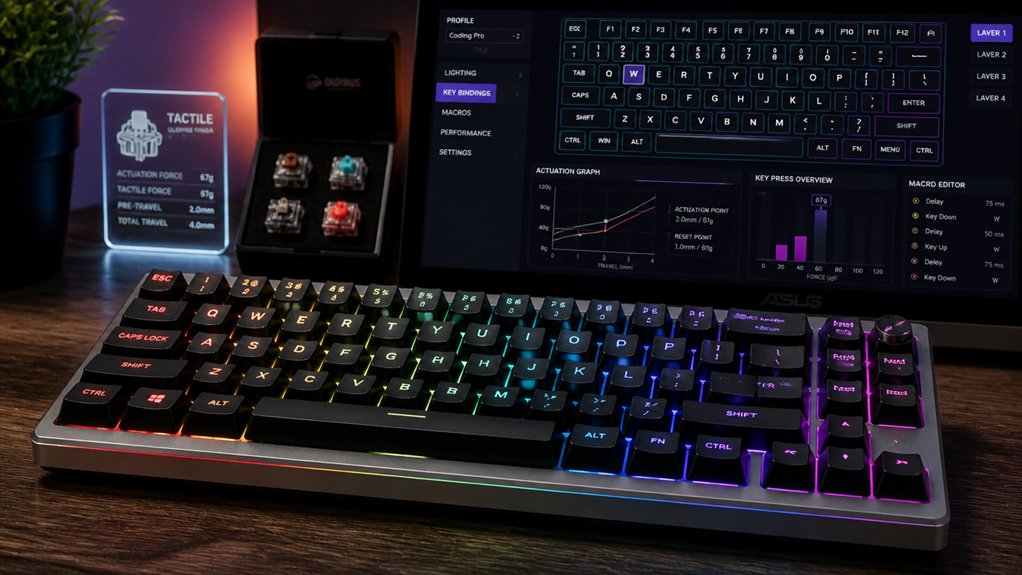
To boost your workflow with mechanical keyboard macros, focus on selecting a programmable keyboard with onboard storage, multi-layer support, and customizable keys. Create macros for repetitive tasks like coding, design alignment, or gaming combos, and organize them logically for quick access. Use software tools to refine your macros and troubleshoot issues when needed. If you keep exploring, you’ll uncover advanced tips to maximize your productivity and automate more complex workflows efficiently.
What Are Mechanical Keyboard Macros and Why Are They Useful?
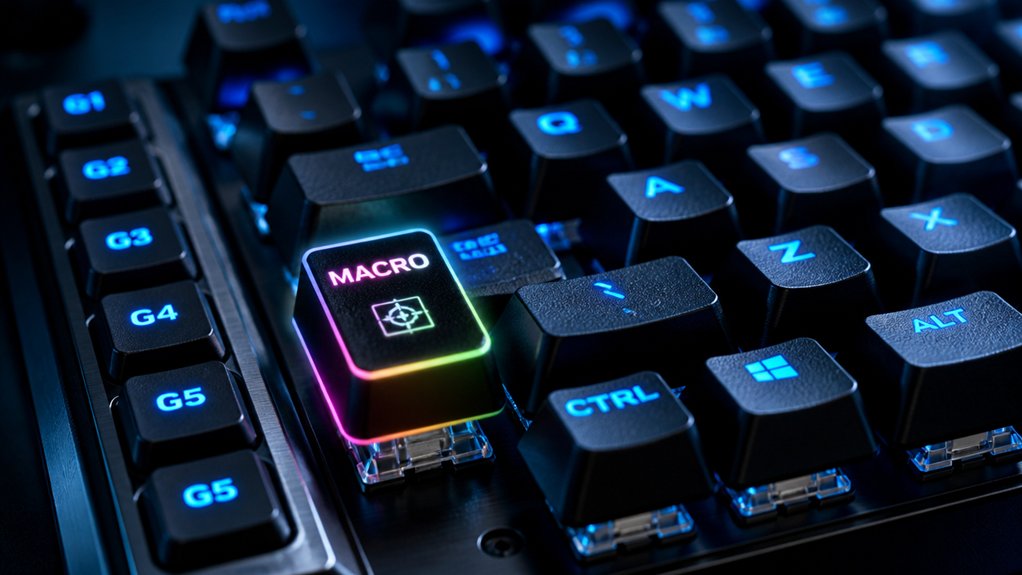
Ever wondered how some users perform complex tasks with just a single keystroke? That’s the power of mechanical keyboards equipped with keyboard macros. These macros are sequences of keystrokes or commands triggered by a single key, automating repetitive or complex actions.
They greatly boost efficiency, especially in gaming, software development, music scoring, and office work. Instead of manually entering lengthy commands, you can program macros to execute multi-step processes instantly. The range of programmable keys and customization options allows users to tailor their macro setups to specific workflows and preferences.
Many mechanical keyboards allow you to customize these macros via dedicated software or onboard engines like the Kinesis SmartSet, eliminating the need for external programs. With dedicated macro keys or programmable layouts, you can seamlessly automate workflows across different operating systems, saving time and reducing errors in your daily tasks.
How to Choose the Right Programmable Keyboard for Your Workflow
Choosing the right programmable keyboard depends largely on how you use it, so start by identifying your primary tasks—whether gaming, software development, or repetitive office work—and select a model that caters to those needs.
For ergonomic comfort, consider macro keyboards like the Kinesis Advantage2. If versatility and gaming productivity are priorities, models like Hexgears with multi-layer support and onboard macro recording are ideal.
Make certain the keyboard is compatible with your OS—Windows, Mac, or Linux—and that it offers dedicated macro keys or external macro pads for quick access to complex commands.
Look for software support that simplifies customization, favoring models with hardware-based macro storage and intuitive graphical interfaces.
Your choice should streamline workflows and reduce repetitive task effort, boosting overall efficiency.
Additionally, consider the connectivity options available to ensure seamless integration with your devices and prefer models that support multiple connections such as Bluetooth, USB-C, or wired options depending on your mobility and setup needs.
How to Customize Your Keyboard Layout for Better Productivity
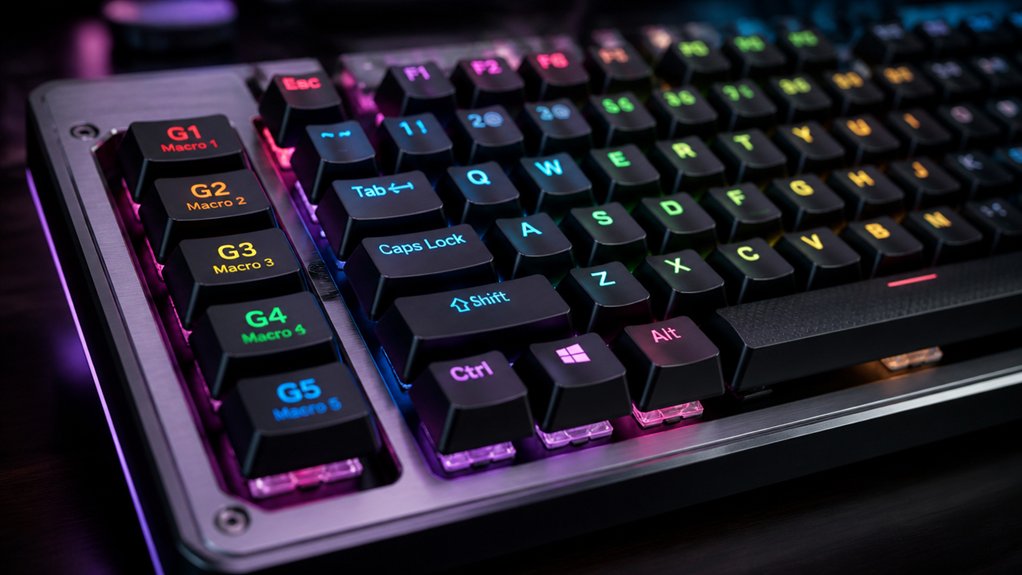
Customizing your keyboard layout helps you work more efficiently by adjusting keys to match your habits and ergonomic needs. A well-configured layout can also include macro support, allowing you to create complex commands or shortcuts with a single keystroke. You can remap keys for better accessibility or use programmable features to create multiple templates for different tasks or operating systems. This way, you reduce errors, improve comfort, and streamline your workflow across various software and platforms.
Ergonomic Key Remapping
Ergonomic key remapping transforms your keyboard layout by electronically reassigning keys to minimize finger travel and reduce strain. Using programmable keyboards, you can customize key functions for peak comfort based on your workflow and physiology. Swap frequently used keys like Escape or Caps Lock, or relocate navigation keys to more natural positions. This setup streamlines your typing process and lessens discomfort during long sessions. Dual-layer mapping further enhances efficiency by enabling secondary functions without adding physical keys. Consider this layout:
| Key Function | Default Position | Remapped Position |
|---|---|---|
| Escape | Top-left | Under index finger |
| Caps Lock | Bottom-left | Function key |
| Navigation | Arrow keys cluster | Accessible layer |
With ergonomic key remapping, you tailor your keyboard’s efficiency and comfort, ensuring better productivity without hardware changes. Proper layout choices, such as ortholinear or staggered arrangements, aid in reducing wrist pronation and ulnar deviation, further promoting ergonomic benefits.
OS-Compatible Layout Optimization
Once you’ve optimized your key remapping for comfort, the next step is guaranteeing those settings work seamlessly across different operating systems. With programmable keyboards, you can create multiple OS-compatible layouts, allowing smoother shifts between Mac, Windows, and Linux. This prevents dead keys and ensures that keyboard shortcuts function consistently, no matter the platform.
Embedding additional layers within your keyboard grants quick access to hard-to-reach keys, multimedia controls, and macros, all without increasing the physical size. You can also assign functions like swapping frequently used keys or relocating navigation keys to improve efficiency.
Onboard and software-based layout customization make switching between OS environments simple, helping you maintain productivity and comfort regardless of your operating system.
Using Multiple Layers to Access More Functions With Fewer Keys
Using multiple layers on your mechanical keyboard allows you to access more functions with fewer keys, making your setup more efficient. By switching between layers with toggle or shift keys, you can embed shortcuts, macros, or specialized controls directly into your layout. Additionally, programmable features such as hot-swappable switch compatibility enable quick customization without soldering, enhancing your workflow flexibility. This customization helps you streamline workflows and reduce hand movement, boosting productivity across different tasks.
Layer Switching Techniques
Layer switching techniques enable you to maximize your keyboard’s capabilities by assigning multiple functions to a single key through different layers. With programmable keyboards, like the Kinesis Advantage2 or Hexgears, you can toggle between base and secondary layers using dedicated shift or toggle keys. These keys can be placed anywhere on the keyboard for ergonomic ease.
When you switch layers, a key’s function changes instantly, revealing new commands without adding physical keys. This setup allows you to embed functions such as numeric pads or multimedia controls, streamlining your workspace and reducing clutter. Hot-swappable switches can also be utilized within layers to further customize the typing experience and adapt to different tasks.
Many macro programming software options support multiple layers, enabling you to customize key behavior for various tasks, applications, or operating systems. Layer switching techniques make your keyboard smarter, more adaptable, and highly efficient.
Maximizing Key Functionality
By leveraging multiple layers on your keyboard, you can greatly expand the range of actions each key can perform without adding extra keys. With macro-capable and programmable keyboards, you can assign different functions to the same key on various layers, maximizing efficiency. A multi-layer design allows for custom macros and complex shortcuts to be easily accessible, streamlining workflow processes. Switching layers via toggle or shift keys allows quick access to macros, multimedia controls, numeric pads, or specialized commands, reducing finger movement and clutter. Embedding multiple functions into secondary layers saves space and keeps workflows streamlined. This setup enables customized layouts tailored to specific applications or operating systems, making shortcuts and macros easily accessible. Using layers effectively enhances ergonomics, speeds up tasks, and minimizes the need for additional hardware, helping you get more done with fewer keys.
How to Create Effective Macros for Repetitive Tasks in Design and Coding
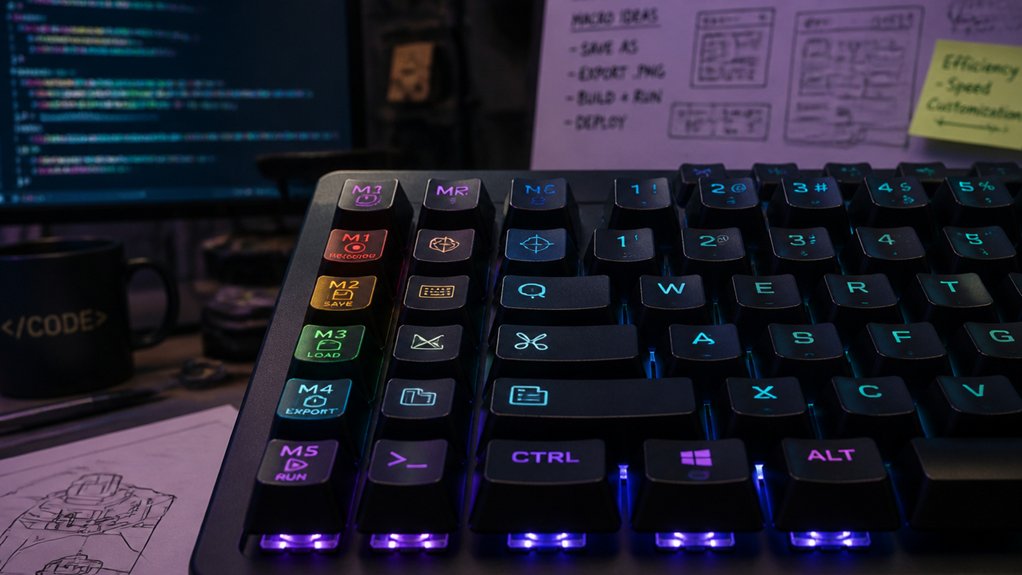
Creating effective macros for repetitive tasks in design and coding begins with identifying common actions that slow down your workflow. Focus on tasks like batch aligning elements or executing frequently used code snippets. Use macro software or onboard tools like Kinesis SmartSet or Hexgears HexDrive to record sequences and assign them to single keys. Customize macros with shortcut sequences for specific software commands, such as batch distributing blocks or formatting code, to cut menu navigation. To boost flexibility, utilize dual-layer functions or function keys that switch between macro sets for different tasks. Regular testing and refinement guarantee macros remain accurate and compatible with software updates. Here’s a quick overview:
| Task Type | Macro Example |
|---|---|
| Design Alignment | Batch align objects in design software |
| Coding Snippets | Insert common code blocks |
| Formatting Commands | Apply consistent formatting in editors |
| Software-specific tasks | Run batch processes or commands |
Setting Up Shortcut Keys for Fast Command Execution
Assigning shortcut keys on your mechanical keyboard allows you to execute complex commands instantly, streamlining your workflow. With a programmable keyboard, you can assign programmable macros to dedicated keys or layers, enabling quick access to frequently used commands. Software tools like HexDrive or Kinesis SmartSet make creating and editing these shortcut keys easy, often storing macros directly on the keyboard itself. Utilizing a Pro Micro controller, which supports firmware customization through platforms like QMK or Arduino IDE, can enhance your macro setup and overall key mapping flexibility. Mapping commands to shortcut keys reduces repetitive manual input and navigational delays, boosting efficiency in applications like Excel, Simulink, or music scoring software. You can also embed shortcut keys within secondary layers accessed via toggle or shift keys, maximizing key utilization without adding size. This setup supports rapid batch operations and semi-automatic multi-step execution, helping you accomplish tasks faster and smarter.
How to Organize and Manage Your Macro Library for Ease of Use
To keep your macro library manageable, start by organizing macros based on application or task type for quick access. Use clear, consistent names so you can easily identify each macro’s purpose. A progress tracking system can help monitor and improve your macro organization over time. Regularly review and update your collection to remove duplicates or outdated entries. Maintaining a well-structured library helps you work more efficiently across different workflows and software environments.
Categorize Macros Effectively
Organizing your macro library effectively starts with categorization that aligns with your workflow. To do this, group macros by application or task type, like coding, design, or spreadsheet operations, so you can access them quickly when needed. Use descriptive, consistent naming conventions for your macros to make identification effortless and reduce confusion, especially in large libraries. Consider creating custom key groups or folders that correspond to project phases or workflow stages, helping you stay organized and relevant. Physical segregation using keyboard layers or dedicated macro pads can further streamline access and improve ergonomic efficiency. Additionally, understanding the switch types used in your keyboard can help you tailor your macro setup for optimal responsiveness and feel. Finally, regularly audit your macro library, removing unused or redundant macros to keep it lean and tailored to your current workflow needs.
Use Descriptive Naming Conventions
Using descriptive naming conventions for your macros makes locating and managing them much more straightforward. Choose clear, specific names that reflect each macro’s function—like “Align_Left_Blocks” or “Insert_Signals_From.” To organize better, incorporate prefixes or categories, such as “Excel_Format_” or “Simulink_Align_,” for faster navigation. Avoid overly long names but remain descriptive enough to distinguish between similar commands. Keep your macro library centralized and searchable, using consistent naming patterns for easy editing and sharing across devices. Additionally, add version numbers or dates for updates, making it simple to track changes or revert if needed. Here’s a quick overview:
| Name | Purpose | Category |
|---|---|---|
| Align_Left_Blocks | Aligns blocks to left | Layout macros |
| Insert_Signals_From | Inserts signals from data | Data macros |
| Excel_Format_Date | Formats date cells | Formatting |
Implement Regular Library Updates
Regularly updating your macro library is essential to maintain compatibility with evolving software versions and prevent workflow disruptions.
To do this, organize macros into clearly labeled folders or categories based on task types or applications, making it easy to find and use them quickly with your macro pad.
When creating a custom macro, make sure you incorporate the latest commands, so your workflow stays efficient.
Use version control or backup systems like cloud storage to preserve the integrity and history of your macro configurations, safeguarding against data loss.
Periodically review your library to remove obsolete or rarely used macros, reducing clutter and increasing efficiency.
Document macro functions and key bindings within your files or notebooks, which helps with sharing and collaborative maintenance.
Regular updates keep your macro setup streamlined and reliable.
Troubleshooting Common Macro Programming Issues on Mechanical Keyboards
Have you ever experienced a macro not triggering correctly or behaving unpredictably on your keyboard? This can happen when macros conflict with system or application shortcuts, causing unexpected behavior or failure.
To fix this, verify that your macro commands don’t overlap with existing shortcuts. Make certain your keyboard’s firmware and macro software, like HexDrive or Kinesis SmartSet, are up to date, preventing compatibility issues.
Double-check key mappings and layer assignments, especially when using multiple layers or toggle keys, to avoid triggering wrong sequences.
If your macros include delays or complex commands, use the software’s pause functions to insert proper timing, ensuring commands execute accurately.
Test your macros thoroughly in the intended app, and revise them if they skip steps or don’t execute fully, to keep your workflow smooth.
Enhancing Your Workflow With Software and Firmware for Advanced Macros
To supercharge your workflow, leveraging advanced macro software and firmware customization is key. Programmable keyboards with intuitive firmware like HexDrive and Kinesis SmartSet enable you to record and edit macros directly on your device, no external tools needed. Firmware customization offers multi-layer key mapping and complex command sequences, automating repetitive tasks in software like Excel or creative suites with a single press. Enhancing this, open-source tools such as AutoHotKey support scripting for batch processing and shortcuts. Firmware-storage guarantees macros remain accessible across devices without relying on host software. Graphical editors stored on the keyboard’s virtual drive make quick macro modifications easy.
| Feature | Benefit |
|---|---|
| Firmware Storage | Cross-device consistency |
| Multi-layer Mapping | Automates complex workflows |
| Graphical Editors | Easy macro sharing |
Real-Life Examples of Macros Improving Design, Development, and Gaming Productivity
Ever wondered how macros can streamline your workflow across different fields? Mechanical keyboards use macros to simplify complex tasks, saving you time and reducing errors.
Macros automate complex tasks, boosting efficiency and accuracy across design, coding, gaming, and office work.
In design, macros help align and distribute blocks in tools like Simulink, speeding up model refactoring.
Developers rely on macros to automate repetitive coding tasks and execute multi-step shortcuts in IDEs such as Visual Studio Code, boosting coding speed and accuracy.
Gamers use macros for rapid sequences and combos, minimizing input errors and sharpening response times during competitive play.
Office professionals leverage macros to quickly perform advanced Excel functions like SUMIF and VLOOKUP with a single keystroke.
Custom macro pads mapped to special keys enable seamless switching between workflows, making your mechanical keyboard a versatile productivity tool across various fields.
Frequently Asked Questions
Can I Use Macros Across Different Software Applications Seamlessly?
Yes, you can use macros across different software applications seamlessly, especially if you choose customizable macro software or keyboard firmware. Just verify the macros are compatible with multiple programs and are assigned correctly for smooth, efficient workflow integration.
Are Mechanical Keyboard Macros Compatible With All Operating Systems?
Mechanical keyboard macros aren’t universally compatible with all operating systems. You need to verify your keyboard’s software supports your OS, as some macros work seamlessly only on specific platforms like Windows or macOS, not across all systems.
How Secure Are Macros in Sensitive Work Environments?
Macros can pose security risks in sensitive environments if they contain malicious code or are poorly managed. You should guarantee proper safeguards, use trusted sources, and restrict macro permissions to protect confidential data and prevent unauthorized actions.
What’s the Maximum Number of Macros My Keyboard Can Store?
Your mechanical keyboard’s macro storage capacity varies depending on the model, but typically, you can store between 10 to over 100 macros. Check your keyboard’s specifications for exact numbers, and consider software limits if applicable.
Can Macros Be Shared or Transferred Between Different Keyboards?
Yes, you can share or transfer macros between keyboards if they support custom firmware or software. You typically export macro profiles from one device and import or upload them to another, ensuring compatibility with the same software or firmware.
In Summary
By mastering mechanical keyboard macros, you streamline your workflow and boost productivity across design, coding, and gaming. Choosing the right programmable keyboard and customizing your layout make tasks quicker and easier. Organize your macros efficiently and use software for advanced functions. With practice, you’ll see how these simple tweaks can transform your routine, saving time and reducing errors. Start implementing these tips today and experience a smoother, more efficient work experience.



