
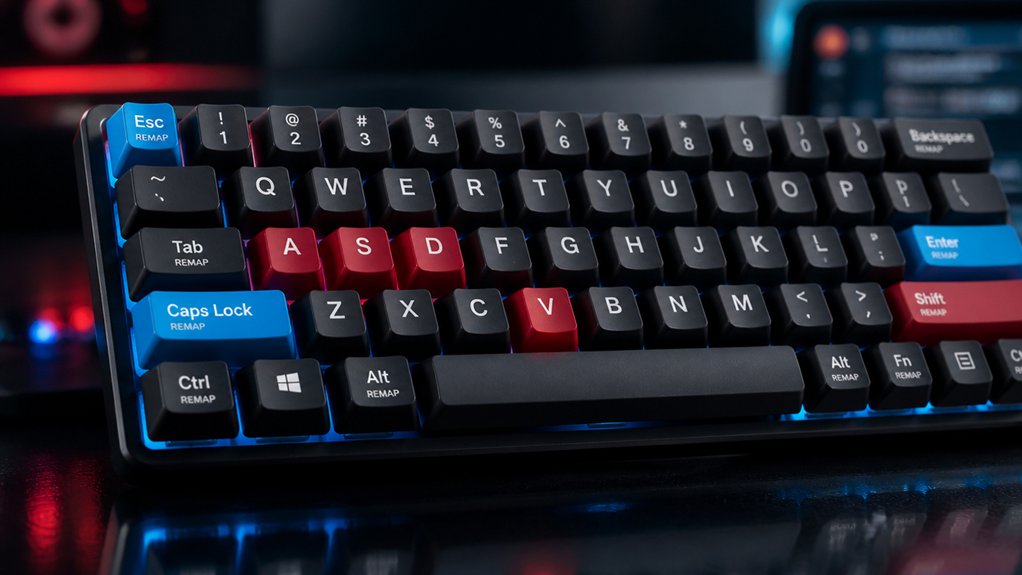
To master VIA key remapping, start by clearly organizing your layers and assigning descriptive names to macros and key functions for easy identification. Next, verify your remaps with VIA’s Key Tester to guarantee keys output correctly, testing both tap and hold actions. Finally, regularly troubleshoot your configuration by reconnecting your keyboard and reloading your JSON file to prevent firmware mismatches. Keep exploring these tips to reveal your keyboard’s full potential.
How to Understand and Use Layers and Key Functions in VIA

Ever wondered how to make the most of VIA’s layered key design? Layers let you assign different key functions, giving your keyboard versatile layouts and shortcuts you can remap on-the-fly.
The default layer (Layer 0) handles your regular typing, while higher layers store macros, custom shortcuts, and special functions.
To access these, you can hold a key with the MO(n) function, which temporarily activates Layer n, or toggle layers with TG(n) for permanent switching. The fn key is often used in combination for quick access.
For dual purposes, functions like LT(layer, keycode) enable a key to type normally when tapped but switch layers when held.
Understanding these layer functions helps you optimize your keyboard’s layout for faster workflow and better efficiency.
Best Practices for Naming Macros and Key Assignments in VIA
When organizing your macros and key assignments in VIA, adopting clear and descriptive naming conventions is essential for efficiency. Use names that reflect their function or involved keys, like “CopyPaste” or “ShiftCmd4_Screenshot,” to easily identify them later. Keep consistent labels across layers, such as “Layer1_Macro1,” to streamline organization. Follow QMK keycode syntax in macro aliases (e.g., `{KC_LSFT,KC_LGUI,KC_4}`) for JSON file compatibility. Avoid vague names like “Macro1” or “KeyA” to prevent confusion, especially when remapping keys across two layers. Use descriptive macro names with modifier keys, like “CtrlC_Copy,” for clarity. Proper naming simplifies selecting the keymap, creating a macro, and remapping keys for easy management.
Additionally, understanding keycode assignments and how they interact with layers can improve your workflow.
How to Test and Troubleshoot Your Remaps for Stable Keyboard Performance

To guarantee your remapped keys work reliably, start by using VIA’s Configure tab’s Key Tester feature. This allows you to immediately verify that pressing a remapped key registers correctly and consistently. A hot-swap socket in your keyboard is crucial for quick and secure switch replacements during testing. If keys don’t produce the expected output, make sure you’ve flashed the correct VIA-enabled firmware with the appropriate JSON layout, as firmware issues often cause remap failures. When testing temporary layer switches like MO or LT, check both tap and hold actions to confirm layers activate and revert properly without suppressing key outputs. Verify that macros assigned to remapped keys function smoothly by recording and replaying sequences. If you encounter detection or remapping errors, reconnect the keyboard, authorize VIA device access, and reload the JSON file to refresh the environment and fix configuration glitches.
Frequently Asked Questions
How to Remap Keys Using Via?
To remap keys using VIA, connect your keyboard, load the correct layout, then click the key you want to change. Select the new function from categories like BASIC, MEDIA, or MACRO—changes happen instantly for testing.
What Is the Best Software to Remap Keys?
The best software for remapping keys is VIA. It offers real-time editing, a user-friendly interface, extensive customization options, and macro support without requiring manual firmware updates, making it ideal for both casual and power users.
How to Keymap Via?
To keymap via, connect your compatible keyboard, open VIA on a supported browser or app, upload your layout if needed, then click keys in the Configure tab to assign new functions from categories like BASIC or MEDIA. Save and test.
What Are Some Keyboard Hacks?
You can hack your keyboard by creating layers with TG or MO functions for multitasking, using MT keys for modifiers, programming macros or shortcuts with the Any key, and placing frequent shortcuts on the left side for efficiency.
In Summary
Now that you know how to understand layers, name your macros effectively, and troubleshoot your remaps, you’re well on your way to customizing VIA for peak performance. Remember to test your key remaps thoroughly to guarantee everything works smoothly and reliably. With these tips, you’ll create a more functional and personalized keyboard setup. Keep experimenting and refining, and you’ll maximize your typing comfort and efficiency in no time.



