
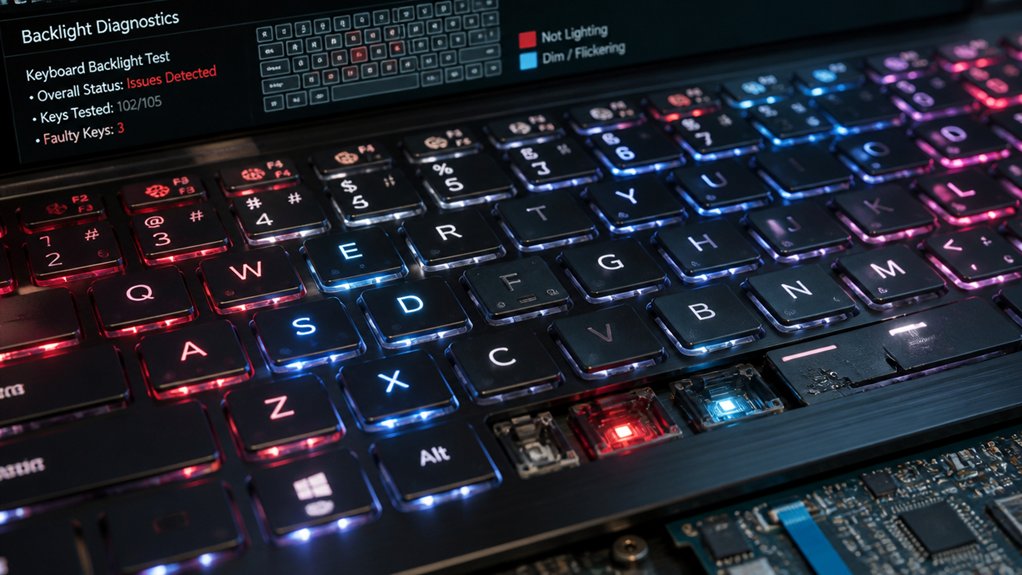
To fix keyboard backlight problems, start by toggling the backlight using Fn + F7 or F4, and check if lock mode is off by pressing Fn + Esc. Next, update or reinstall your keyboard drivers through Device Manager and download the latest versions from the manufacturer’s site. Finally, confirm your BIOS and firmware are current, which can resolve compatibility issues. If you want more detailed steps, keep going for a complete guide.
How to Toggle Your Keyboard Backlight and Fix Lock Mode
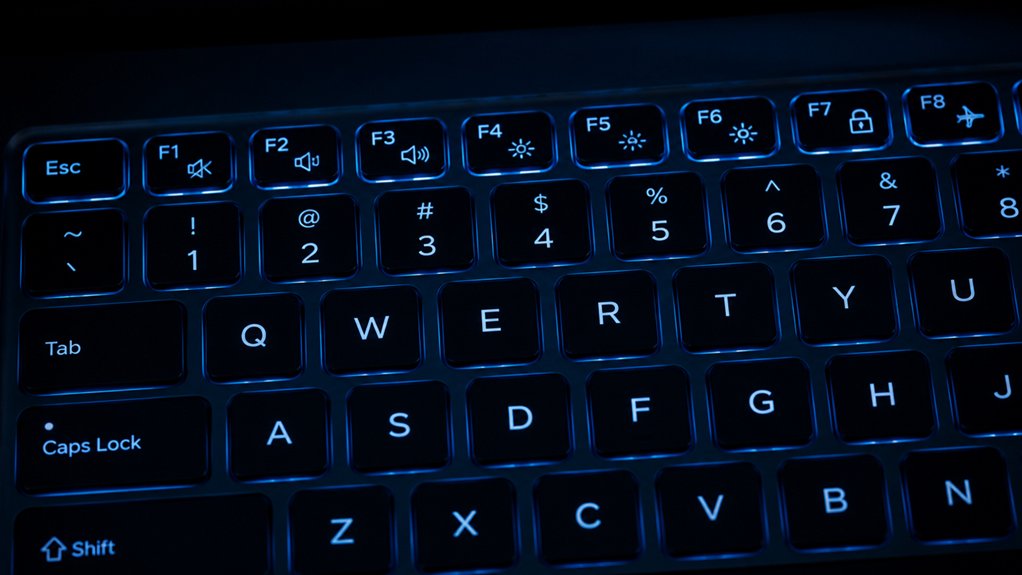
Have you ever struggled to turn on your keyboard backlight or found that the keys aren’t responding as they should? To toggle the keyboard backlight, press the designated function key combination, like Fn + F7 or Fn + F4, depending on your model.
If the backlight remains off, check the Fn Lock; press Fn + Esc to toggle it off, allowing function keys to work normally. You should also verify your BIOS settings to guarantee the keyboard backlight feature is enabled.
Check the Fn Lock by pressing Fn + Esc and verify BIOS settings to enable the keyboard backlight.
Sometimes, keyboard backlight issues happen because of outdated drivers or software conflicts—consider updating the keyboard drivers. If these steps don’t work, try restarting your laptop to reset temporary glitches.
Confirming the keyboard lock isn’t active is vital to restoring full backlight control. Additionally, ensure that the lighting and customization features are properly configured within your device’s software or firmware settings.
How to Update and Reinstall Your Keyboard Drivers for Backlight Issues
If your keyboard backlight isn’t working properly, updating or reinstalling your keyboard drivers can often fix the issue. Start by opening Device Manager, right-click your keyboard, and select “Update driver” to search automatically for the latest software.
If that doesn’t work, uninstall the ASUS System Control Interface driver and choose to remove associated driver files before reinstalling it. You can also download the latest keyboard and function key drivers from the ASUS or HP support site for improved compatibility.
After updating or reinstalling drivers, restart your laptop to guarantee the changes take effect. If you use specialized apps like MyASUS or Armoury Crate, uninstall and reinstall these to prevent driver conflicts and restore your keyboard backlight functionality. Be aware that some hot-swap keyboard kits allow easy customization and troubleshooting for lighting issues without soldering.
How to Update BIOS and Firmware to Resolve Hardware and Software Conflicts
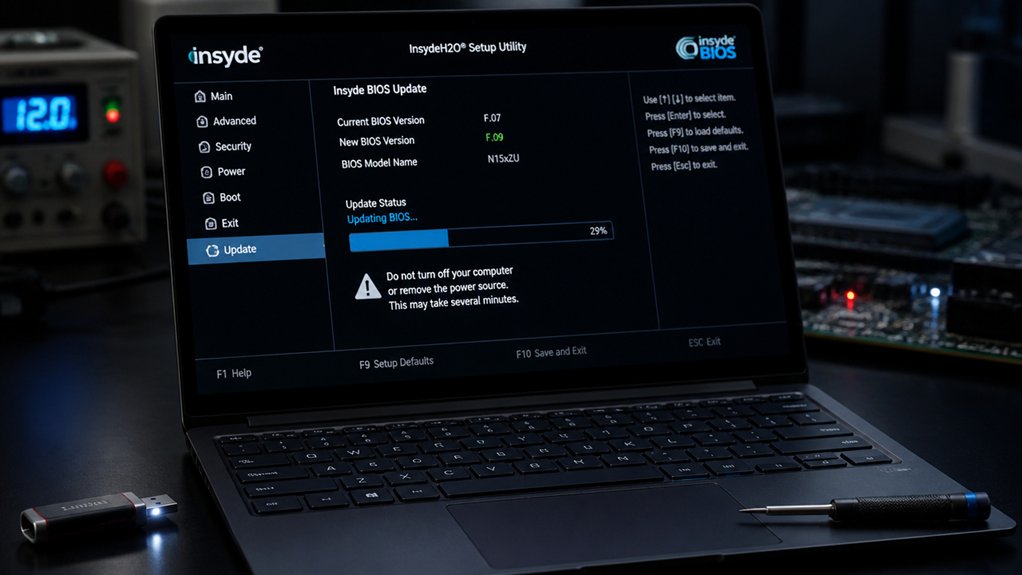
Updating your BIOS and firmware is a key step in resolving hardware and software conflicts that can cause keyboard backlight not working issues.
To update the keyboard, first access BIOS setup by holding [F2] during power-on. Use the built-in EZ Flash tool or download and install the latest BIOS version from the manufacturer’s website. Updating firmware ensures that any compatibility issues are addressed, which can resolve backlight problems caused by outdated software. Firmware updates often fix bugs affecting keyboard lighting control, guaranteeing your backlit keyboard functions properly. If recent updates cause problems, perform a hard reset or restore BIOS to default settings to clear corrupted configurations.
Frequently Asked Questions
Can Keyboard Backlight Be Repaired?
Yes, your keyboard backlight can be repaired. You might try software troubleshooting like drivers or BIOS updates first, but if those fail, professional repair for hardware issues like faulty bulbs or cables is often necessary.
How to Restore Keyboard Backlight?
You can restore your keyboard backlight by resetting BIOS to default, toggling it with function keys, reinstalling relevant drivers and utilities, or performing a hard reset to clear temporary faults that may affect the backlight.
How to Fix a Keyboard That Won’t Light Up?
To fix a keyboard that won’t light up, first try toggling the backlight with the function keys, then perform a hard reset, check BIOS settings, update drivers, and test hardware connections. If issues persist, seek professional repair.
Why Is My Keyboard No Longer Backlit?
Your keyboard isn’t backlit because you might’ve accidentally turned it off, a BIOS or driver issue, or hardware failure. Check your backlight toggle, update drivers, reset BIOS settings, and inspect the hardware for faults to fix it.
In Summary
If you’re still having backlight issues after trying these steps, don’t give up. Make sure your keyboard drivers are up to date, reset any lock modes, and consider updating your BIOS or firmware. These simple fixes often solve the problem. If not, it might be a hardware issue, and you should contact support. With a bit of troubleshooting, you’ll have your keyboard backlit and ready for use in no time.



