
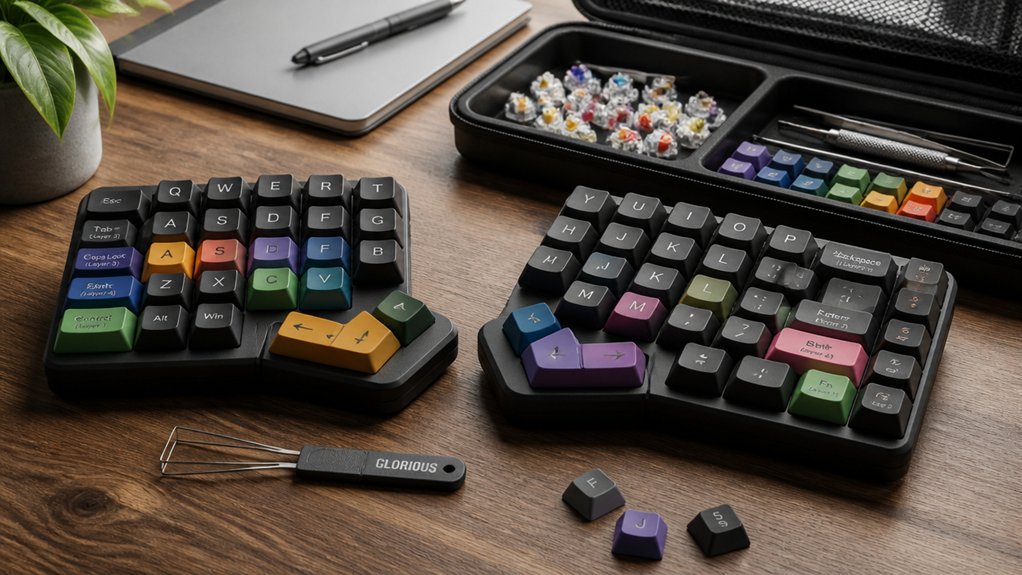
To effectively remap split keyboard keys, start by defining your workflow needs and focus on easy access to essential shortcuts, especially on thumb clusters. Choose firmware like QMK or ZMK that supports custom layers and tap/hold functions. Arrange modifier keys naturally to reduce strain, avoiding awkward stretches. Test your setup, tweak key positions regularly, and prioritize comfort. If you keep optimizing, you’ll find your perfect layout faster—more tips await as you continue exploring.
Define Your Goals and Workflow Needs
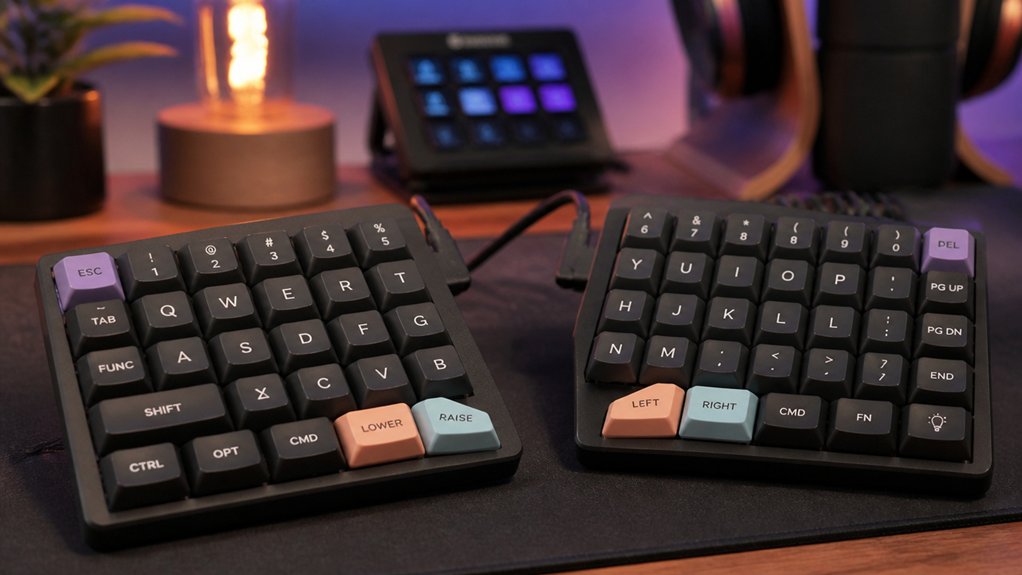
Have you clearly defined what you want to accomplish with your remapped split keyboard? Your goals shape your entire setup, whether you prefer an ergonomic keyboard or a split keyboard tailored for comfort.
Identify your main typing tasks and essential shortcuts to prioritize which keys and modifiers should be easily accessible. Preserving muscle memory helps you type efficiently, so keep commonly used keys like Ctrl, Shift, and Alt in familiar positions.
Consider whether your workflow relies heavily on editing, coding, or gaming—this influences whether to remap shortcuts to the thumb cluster or keep them on finger rows for comfort.
Additionally, understanding the ergonomic layout design can help you arrange keys and shortcuts more naturally, reducing strain during extensive typing sessions.
Choose the Best Software for Custom Key Layers
Selecting the right firmware software is essential for creating effective custom key layers on your split keyboard, especially if you want flexibility and control. You want software that supports custom key layering and tap/hold functionality—key features for optimizing your typing experience. QMK is popular for its extensive documentation and community support, making learning easier. ZMK offers modern features and wireless capabilities, ideal for a split ergonomic setup. Choose software that allows easy toggling between default and custom layers, maintaining muscle memory while experimenting. Look for strong configurability for thumb clusters and modifiers to enhance ergonomics and reduce finger strain. Make certain it’s compatible with your hardware for reliable programming and seamless integration. Additionally, layer management capabilities can streamline your workflow and simplify layer switching during intense use or testing phases.
Arrange Modifier Keys for Natural Access
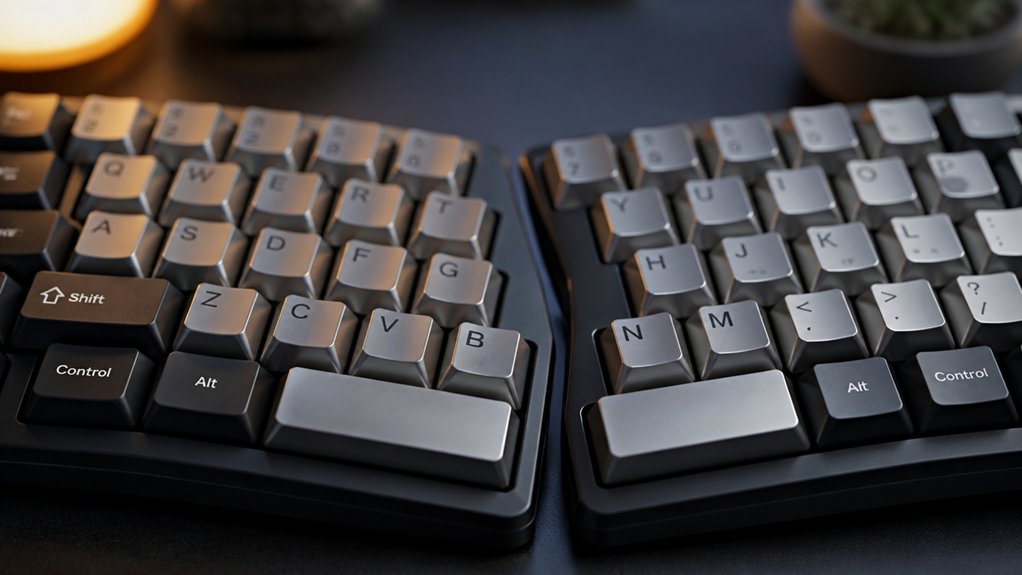
Arranging modifier keys for natural access requires thoughtful placement to maximize comfort and efficiency.
Place your modifier keys—like Ctrl, Alt, and Shift—on thumb clusters to reduce pinky strain and improve key access.
Avoid positioning the left Ctrl on the home row pinky, which can cause awkward stretches and make shortcuts like Ctrl+C difficult.
Use tap/hold functions cautiously for modifiers, balancing ease of use with a manageable learning curve, especially since complex combos like Ctrl+MouseClick can be tricky.
Make certain your modifiers are separated by the keyboard split so each hand controls its own set without crossover conflicts.
Maintain traditional modifier placements where possible to preserve muscle memory, but leverage thumb clusters to reduce finger workload and increase overall comfort on your non-programmable keyboard.
Additionally, customize your key mappings using firmware like QMK to optimize layer configurations and further adapt your setup to your workflow.
Test and Tweak Your Key Remapping for Comfort
Once you’ve set up your remapped keys, it’s important to test them thoroughly to guarantee they feel comfortable and natural during regular use. Use your keyboard or new keyboard to perform common shortcuts like Ctrl+C, Ctrl+Z, and Ctrl+V, moving your fingers back and forth without pinky strain. Regularly tweak thumb cluster assignments for keys such as Backspace, Enter, and Shift to balance workload and reduce finger stretching during long typing sessions. Conduct trial typing over 2-4 weeks so your muscle memory can adapt fully, avoiding abrupt changes. Pay attention to signals of discomfort or fatigue, taking micro-breaks and making gradual adjustments. Strict finger separation during testing guarantees that the split keyboard benefits are preserved and your key remapping supports peak speed and comfort. Additionally, understanding the switch type classifications can help you choose the most suitable keys for your needs, whether linear, tactile, or clicky.
Troubleshoot Common Issues and Fine-Tune Performance
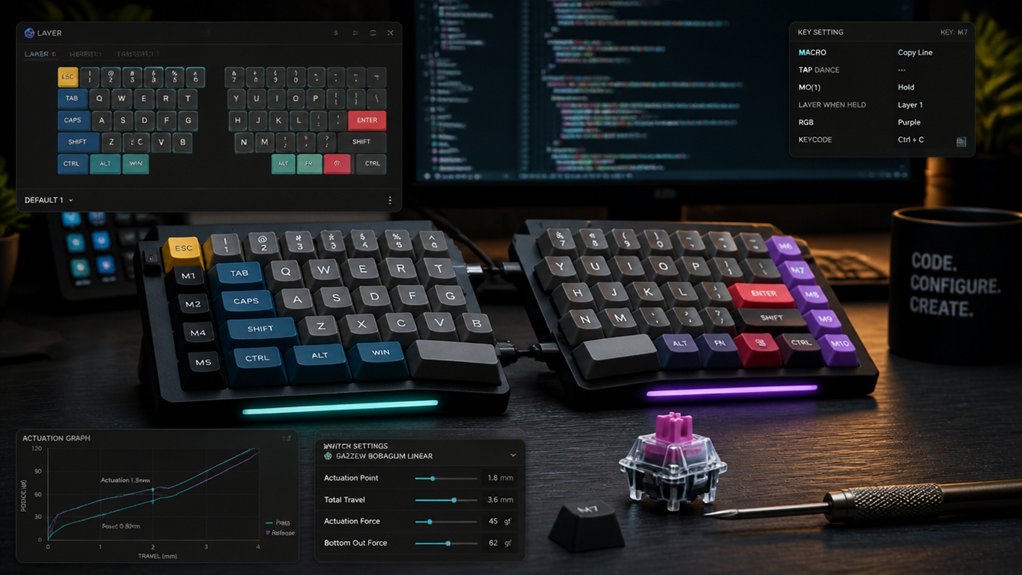
Troubleshooting your remapped split keyboard involves identifying and addressing common issues that can hinder comfort and efficiency.
Identify and fix common issues to enhance comfort and efficiency with your remapped split keyboard.
If you really need to improve your setup, don’t hesitate to go back and reassess.
First step: pick one problem, like awkward shortcuts or finger strain, and focus there.
- Check that modifier keys like Ctrl aren’t placed on the pinky’s home row—this avoids uncomfortable shortcuts.
- Use thumb clusters for frequent keys like Backspace and Enter to reduce finger stretching.
- Avoid tap/hold functions (like Ctrl) if they interfere with tasks like Ctrl+MouseClick.
- Maintain strict finger separation, guaranteeing each hand only accesses its side to rebuild muscle memory.
- Consider the ortholinear layout to minimize finger travel and reduce overall strain during prolonged typing sessions.
Addressing these issues incrementally helps fine-tune your performance and guarantees a more comfortable typing experience.
Frequently Asked Questions
Is It Possible to Remap Keyboard Keys?
Yes, you can remap split keyboard keys. You just need compatible firmware like QMK or ZMK, and then customize key functions and layers to suit your ergonomic needs, making frequently used keys more accessible and comfortable for you.
How to Correct Split Keyboard?
To correct your split keyboard, guarantee proper finger separation, remap frequently used modifiers to thumb clusters, keep familiar key arrangements, and adjust workspace ergonomics. Test configurations incrementally, focusing on efficiency and comfort for peak setup.
What Is the Best Software to Remap Keyboard Keys?
You should use QMK or ZMK firmware to remap your split keyboard keys; both offer extensive customization, support for advanced functions, and active communities, making it easier for you to create an ideal, personalized ergonomic setup.
How Hard Is It to Learn Split Keyboard?
Learning a split keyboard can be challenging initially, as you must relearn finger separation, adapt to new hand positioning, and develop muscle memory. However, with consistent practice over a few weeks, your speed and accuracy will improve considerably.
In Summary
By following these tips, you can create a personalized keyboard layout that enhances your comfort and productivity. Take the time to define your needs, select the right software, and experiment with key arrangements. Don’t forget to test and tweak your setup regularly to guarantee it stays ergonomic and efficient. With a bit of customization, your split keyboard can become a seamless extension of your workflow, making typing more enjoyable and less straining.



