

To create macros on a mechanical keyboard without software, you’ll typically enter a dedicated programming mode using key combinations like Fn plus a macro or function key. Then, you can record your macro sequences directly on available or assigned keys, often with visual or audio feedback confirming your input. Many keyboards store these macros in onboard memory, making them ready to use without external tools. Keep exploring for more detailed steps and tips to maximize your keyboard’s potential.
Our Recommended Products on Amazon


As an Amazon Associate we earn from qualifying purchases.
What Are Hardware-Based Macros on Mechanical Keyboards?
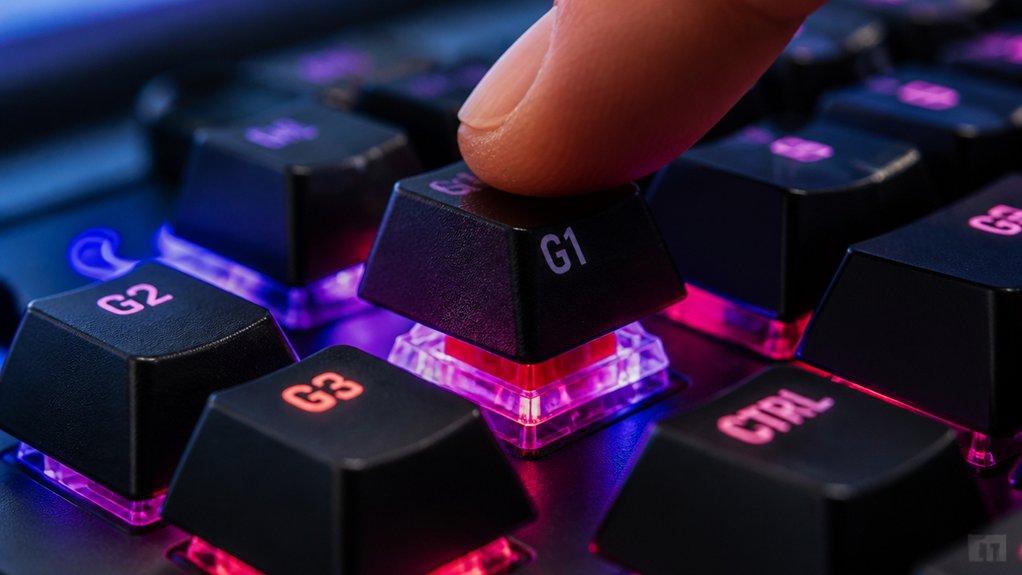
Have you ever wondered how some mechanical keyboards can remember complex commands without relying on software? That’s because they use hardware-based macros. These macros are sequences of keystrokes stored directly on the keyboard’s onboard memory, so you don’t need external software to run them. Many compact and custom keyboards support QMK firmware, which enables advanced macro programming directly through custom keymaps and configuration files. You can program and edit these macros using built-in tools like Kinesis’ SmartSet Programming Engine or other onboard interfaces—no downloads required. Once saved, these macros stay tied to the keyboard, working across different computers and operating systems without any additional setup.
You can assign them to dedicated macro keys, layered functions, or unused keys that toggle macros on or off. This setup is ideal for secure environments or setups where software installation isn’t possible, offering a reliable, plug-and-play solution.
How Can I Check My Keyboard’s Built-In Macro Capabilities?
Start by checking your keyboard’s specifications or user manual to see if onboard macro recording is supported.
You can also explore the manufacturer’s website for details on features like SmartSet or dedicated macro functions.
Finally, test these capabilities directly on your keyboard using function keys or specific key combinations to confirm what’s available.
Verify Keyboard Specifications
Wondering how to determine if your mechanical keyboard has built-in macro capabilities? Start by checking the official product specifications or user manual for mentions of onboard macro storage or programmable keys.
Look for features like hardware key remapping or onboard macro recording, which indicate that you can customize commands without external software. Identify if the keyboard uses onboard memory chips that save your macro settings directly on the device.
You can also review manufacturer resources or support forums to find explicit details about the macro functions and how they’re managed onboard. Additionally, some programmable keyboard models offer hardware macro recording procedures—such as specific key combinations—that confirm the presence of built-in macro capabilities.
Checking for hot-swap compatibility can also be helpful, as many customizable keyboards with hot-swappable switches often include on-board macro features to maximize their flexibility. These steps help verify if your keyboard supports macro creation without needing external software.
Explore Software Options
To determine if your keyboard supports built-in macro features through its software options, begin by consulting the manufacturer’s official documentation or user manual. These resources typically outline the device’s macro capabilities, including onboard macro recording and storage features.
Many fully programmable keyboards, like those from Kinesis, have onboard macro engines such as SmartSet that enable software-free customization directly on the device.
To verify macro support, explore your keyboard’s menus or modes by using special key combinations indicated in the guide. Testing macro capabilities can involve pressing designated macro keys or function layers pre-configured for macros.
Additionally, connecting the keyboard to any computer and using its pre-programmed macros can confirm native macro functionality, demonstrating its macro capabilities without external software. Some keyboards also feature built-in memory to save macros locally, making them accessible even without software reprogramming.
Test Macro Functions
Testing your keyboard’s built-in macro functions is straightforward and essential for confirming its capabilities. With mechanical keyboards, many models feature onboard macro recording engines, like the SmartSet Programming Engine, allowing you to record macros directly on the device without software.
Use the manual or quick start guide to find key combinations or dedicated macro keys that initiate recording or playback modes. Press unused keys or specific macro trigger keys, then record a sequence of keystrokes to verify if they execute correctly.
For keyboards like Kinesis, toggle between different “Thumb Key Modes” or layers to guarantee macros assigned to various layouts work properly. Finally, watch for onboard indicators, such as LED lights or virtual drives, confirming macro recording or playback success during your tests. Also, programming interfaces allow you to customize and verify macro functions more thoroughly.
How Do I Enter Programming Mode Without Using Software?
How can you enter programming mode on a mechanical keyboard without relying on software? Many fully programmable keyboards, like Kinesis models with the SmartSet Programming Engine, let you activate programming mode through specific key combinations. A variety of hot-swap PCBs support onboard programming, enabling users to switch microswitches and customize functions directly without external tools. Typically, you hold down a designated key—such as Fn combined with a macro or function key—to initiate the process. Once in programming mode, you can record macros or remap keys directly, with these changes saved internally on the keyboard. Many models include visual or audio feedback, like LED indicators or beeps, to confirm you’ve entered or exited programming mode. This onboard approach allows for fast, plug-and-play customization without installing external software, making it compatible across different machines and operating systems.
How Do I Assign Macros Using Physical Shortcut Keys or DIP Switches?
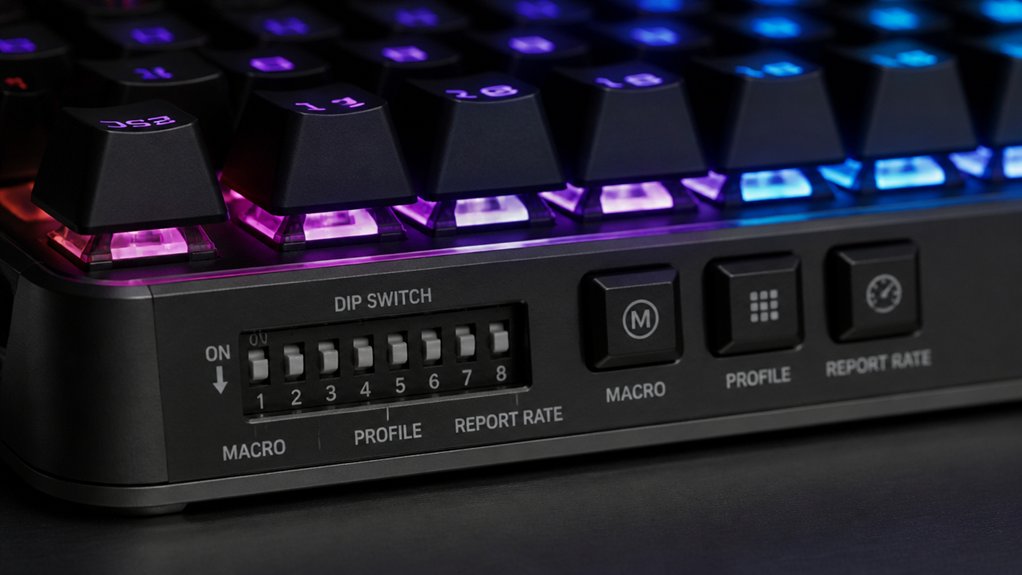
Many mechanical keyboards with onboard macro capabilities enable you to assign macros directly through physical shortcut keys or DIP switches, making software installation unnecessary.
To assign a macro with a single key press, you typically enter onboard programming mode by pressing a dedicated macro record key. Then, press the desired shortcut key or DIP switch to activate the macro trigger. Record your keystrokes as a sequence, which will be stored in the keyboard’s internal memory, often in EEPROM, ensuring it remains saved across power cycles.
Some keyboards allow you to switch between layers or modes via DIP switches, which can serve as macro triggers. This setup simplifies assigning macros without external software, allowing you to execute complex commands with a single key press or switch.
Additionally, many high-performance hot-swappable switches support easy customization of macros directly from the keyboard, further enhancing usability without the need for software.
How Can I Create and Store Macros in Onboard Memory?
Creating and storing macros directly in onboard memory is a straightforward process on many programmable mechanical keyboards. To begin, enter the keyboard’s dedicated programming mode—often activated with a specific key or shortcut.
Then, press the macro-record key, which enables you to input the desired keystroke sequence. Once you finish, save the macro to a specific macro key or button; this key will store the macro in the keyboard’s onboard memory. These macros remain persistent across different computers, making your setup truly plug-and-play.
Some keyboards even offer a graphical interface accessible via a virtual drive, simplifying macro editing without installing software. Assigning macros to unused keys or special hotkeys allows you to maximize your keyboard’s functionality while keeping your setup clean and efficient. Additionally, many models feature onboard memory options, enabling quick customization without reliance on external software.
What Are Best Practices for Making My Macros Reliable and Consistent?
To guarantee your macros perform reliably and consistently, it’s important to follow some key best practices. Without relying on external software, use onboard macro recording features like Kinesis SmartSet to program macros directly into your keyboard. Assign macros to dedicated or easily accessible keys—such as unused or embedded layer keys—to prevent accidental triggers and maintain consistent execution. Test your macros thoroughly in various applications to verify accurate command sequences and timing, reducing errors during repetitive tasks or gaming combos. Save your macro configurations onboard the keyboard’s memory, so they remain functional across different computers without additional software. Avoid overly complex macros that require precise timing, as they can be sensitive to system performance differences, affecting their reliability and consistency.
What Are Common Hardware Macro Programming Issues and How Do I Fix Them?
Have you ever experienced a macro that simply refuses to trigger or works inconsistently on your mechanical keyboard? Common hardware issues can cause frustration.
- Make certain your keyboard’s firmware properly saves macros onboard; if not, recheck the save confirmation to prevent loss.
- Confirm your device’s ID in software like LuaMacros matches your keyboard; mismatched IDs can prevent macros from working.
- Watch out for layer conflicts or key overlaps, which can interfere with macro execution. Use unique layer assignments.
- Using a dedicated switch tester or sampler can help identify underlying hardware inconsistencies, such as switch misalignments or faulty contacts, which may affect macro performance. Switch testers can be invaluable tools for diagnosing these issues.
Additionally, some mechanical keyboards need you to enter a specific programming mode to record macros correctly.
Firmware or software incompatibilities, such as outdated drivers or unsupported features, can also cause issues. Keep your firmware updated and use compatible software for smooth macro programming.
How Do I Use Multiple Macro Layers for Enhanced Functionality?
Using multiple macro layers on your mechanical keyboard allows you to expand its capabilities without adding extra keys. By switching between layers via dedicated toggle or shift keys, you can assign different actions to the same keys across layers.
This setup enables you to embed functions like a numeric keypad or media controls into a secondary layer, making them accessible when needed. Layers are easily accessed, allowing seamless shifts between tasks or applications.
Many programmable keyboards support multi-layer macros, letting you customize each layer for specific functions. This approach reduces reliance on software, as all macro programming and storage happen onboard within the keyboard firmware. Layer switching enhances workflow efficiency by quickly adapting to different tasks.
How Can I Edit and Manage My Macros Directly on the Keyboard?
Many programmable keyboards let you edit macros directly using onboard features, so you don’t need any software. You can start, modify, or delete macros through easy-to-use key combinations or dedicated modes.
This makes managing your macros quick and convenient, even when you’re away from your computer.
Onboard Macro Editing
Onboard macro editing empowers you to create, modify, and manage macros directly on your keyboard without needing external software. With dedicated key combinations or a built-in programming mode, you can quickly record or edit macros on the fly.
For example, Kinesis keyboards use their SmartSet Programming Engine to save macros directly into the keyboard’s internal memory, ensuring portability. Some keyboards feature a virtual drive (v-Drive) accessible via USB, housing macro programming tools that require no software installation.
Onboard macro editing also supports assigning macros to unused keys, layer keys, or modifier combinations, giving you versatile customization options. You can easily re-record, delete, or tweak macros directly on the keyboard, keeping your setups simple, portable, and consistent across different systems.
Efficient Macro Management
Managing your macros directly on the mechanical keyboard involves entering a dedicated programming mode, typically activated through specific key combinations. Once in this mode, you can record, edit, or delete macros efficiently without software.
For example, some programmable mechanical keyboards, like certain Kinesis models, use onboard macro recording via their SmartSet Programming Engine. Macros are stored directly in the keyboard’s memory, so they work across different computers without additional setup.
Many keyboards also offer a virtual drive (v-Drive) interface, allowing you to access a graphical macro editor on the device itself. To edit or delete macros, you simply re-enter the programming mode and perform actions like re-recording or clearing stored sequences.
This approach streamlines macro management, making it simple and quick to customize your mechanical keyboard’s functionality.
How Should I Organize Macros for Productivity and Gaming?
Efficiently organizing macros on your mechanical keyboard can greatly boost both productivity and gaming performance. To stay organized, separate tasks into profiles or layers—dedicate one set of macros for work, like Excel shortcuts, and another for gaming combos.
Organize macros into profiles or layers for enhanced productivity and seamless gaming performance.
Use trigger keys that are easy to reach, such as unused keys, modifier combos, or ergonomic layer keys, to minimize hand movement and increase efficiency. Group macros logically by workflow or application, avoiding confusion and ensuring quick access.
Keep macro sequences concise, focusing on automating repetitive actions for maximum time savings and fewer errors. Also, save macro configurations onboard; this allows for quick setup across different computers without reprogramming.
Use graphical tools, like Kinesis SmartSet, for easier editing and layer management, simplifying your macro organization process.
What Are the Limitations of Hardware-Only Macro Programming and When Should I Upgrade?
Hardware-only macros are limited to simple keystroke sequences, so they lack advanced features like conditional logic or delays.
Memory restrictions mean you can’t store many macros or create lengthy ones, making complex tasks difficult.
If your automation needs grow, upgrading to software-based solutions becomes essential for deeper customization and multi-application support.
Limited Customization Options
While hardware-only macro programming on mechanical keyboards offers a straightforward way to automate simple tasks, it often falls short when you need more advanced customization. You’re limited by fewer macro layers, shorter sequences, and onboard memory restrictions, especially when trying to map complex commands or multi-step automations.
Without dedicated software, recording macros involves physical key combos or onboard menus, which can be less intuitive. You also won’t find options for real-time debugging or conditional triggers, which software offers.
If your setup requires extensive multi-application automation or seamless cross-platform compatibility, it’s time to contemplate upgrading.
- Fewer macro layers for advanced commands
- Limited macro length and complexity
- Difficulty customizing extra keys for versatile automation
Lack of Dynamic Features
Because hardware-only macro programming lacks the ability to support complex, real-time adjustments, you’re limited to pre-recorded sequences that can’t adapt on the fly. This makes it difficult to handle repetitive tasks that require flexibility, such as changing input depending on the application’s state. Without conditional logic or dynamic layering, your macros remain static. If you need to tweak or update macros frequently, you’ll find this setup restrictive. Limited onboard memory also caps the number and complexity of macros you can store. When your workflow demands multi-step automation, cross-application functionality, or real-time modification, it’s time to upgrade. Consider the table below to see the main limitations at a glance:
| Limitation | Impact |
|---|---|
| No real-time editing | Hard to modify macros during use |
| Lack of conditional logic | Can’t adapt to different situations |
| Limited onboard memory | Fewer complex macros can be stored |
| No cross-application support | Macros only function within specific tools |
| No macro sharing or export | Restricts portability and customization |
Increased Complexity Over Time
As your workflow grows more complex, relying solely on hardware programming for macros quickly shows its limitations. Hardware-only macro programming is constrained by onboard memory and processing power, making it difficult to create intricate macros. You can record simple sequences and assign them to keys, but anything involving nested macros, conditional logic, or delays requires installing software.
Managing and editing multiple macro profiles becomes cumbersome without a PC interface, especially as your needs evolve. Upgrading to keyboards with built-in software or supporting external tools like AutoHotkey or LuaMacros allows for more advanced customization. If your tasks require loops, variables, or application-specific macros, investing in a software-supported keyboard makes sense.
- Installing software enables editing, management, and backup of complex macro profiles
- Hardware limitations restrict editing multi-layered or conditional macros
- Increased workflow complexity necessitates more flexible, software-based solutions
Can You Give Examples of Creating Macros for Office Tasks and Gaming?
Are you wondering how to practically implement macros on your mechanical keyboard for everyday tasks and gaming? You can assign macros to automate common office tasks, like inserting formulas such as SUMIF or VLOOKUP with a single keystroke, saving time and reducing errors. For gaming, macros trigger rapid sequences—like executing combo moves or multi-key commands—to improve speed and accuracy. Using onboard macro programming tools like the Kinesis SmartSet Programming Engine, you can record macros directly on your keyboard, without additional software. Here’s an example of macro functionality:
| Office Tasks | Gaming Activities | Key Features |
|---|---|---|
| Copy/Paste Data | Rapid Combo Moves | Multiple Layers for Versatility |
| Insert Formulas | Multi-Key Commands | Custom Assignments |
| Formatting Cells | Precise Timing for Actions | No Software Needed |
Frequently Asked Questions
How to Create a Simple Keyboard Macro?
You press the macro record key, then input your desired keystrokes, and finally press the record key again to save. This lets you trigger complex actions easily with a single press, boosting your efficiency instantly.
What Is the Free Macro Program for Keyboard?
You can use tools like AutoHotkey or Pulover’s Macro Creator, which are free and user-friendly. They let you create, edit, and assign macros easily, even without dedicated keyboard software, giving you flexible customization options.
Can I Make My Own Macro?
Yes, you can create your own macro if your keyboard has onboard programming features or supportsLayer functions. You simply record your keystrokes directly on the keyboard or use compatible scripting tools for customization.
Can Keyboard Macros Be Detected?
Keyboard macros stored onboard are difficult to detect because they operate independently of software and don’t generate abnormal input patterns. Security tools mainly monitor software-based macros or suspicious activity, so hardware-stored macros remain largely undetectable in typical environments.
In Summary
Without relying on software, you can customize your mechanical keyboard with hardware-based macros to boost productivity and enhance gaming. By exploring your keyboard’s built-in features, entering programming modes, and using physical shortcuts, you gain quick, reliable macro control. While there are limits to hardware-only options, understanding these methods helps you optimize your experience. So, take advantage of your keyboard’s capabilities and streamline your tasks effortlessly—no software needed.



