
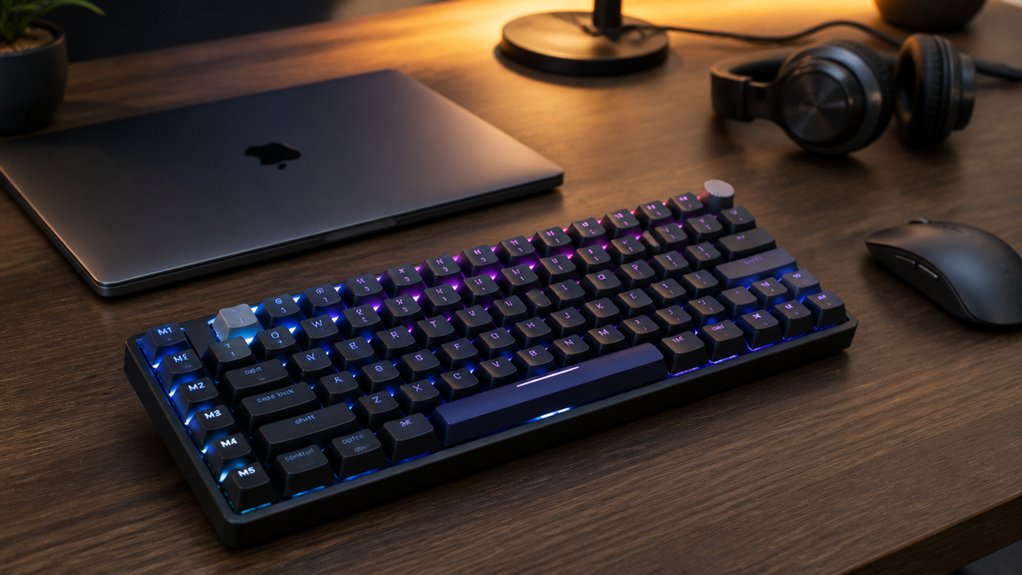
To choose the best wireless mechanical keyboard with macros, look for models with dedicated macro keys, customizable layers, and support for software like Logitech G HUB or Hexgears HexDrive. Opt for a wired connection or a high-quality 2.4 GHz receiver for low latency, and consider hot-swappable switches for comfort. Position macros within easy reach and organize them logically. Stay updated on firmware and troubleshoot common issues for reliable performance. Keep going to discover more tips on optimizing your setup.
How to Choose the Best Wireless Mechanical Keyboard for Macros
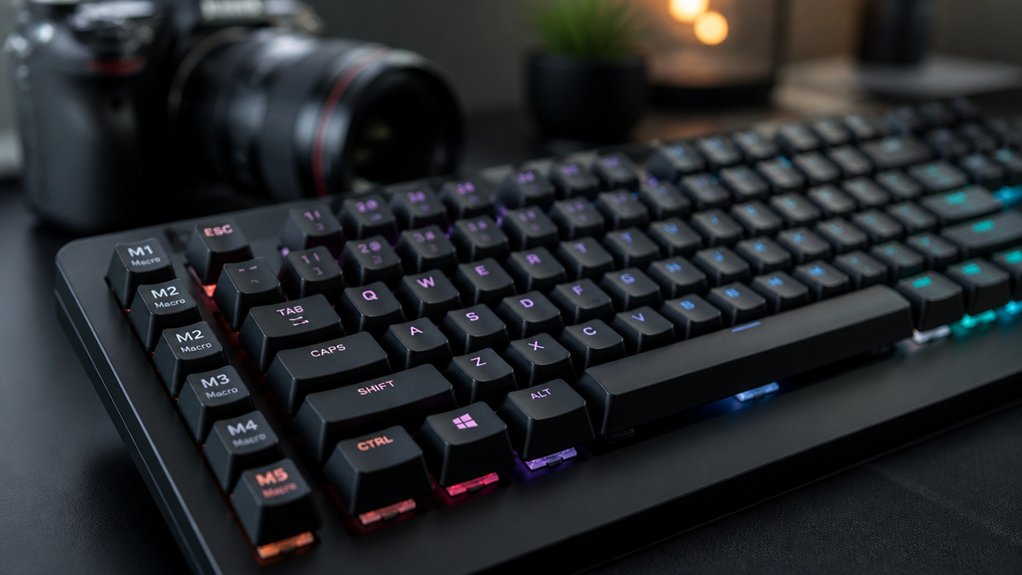
Wondering how to find the best wireless mechanical keyboard for macros? Start by checking if it offers dedicated macro keys or customizable key layers, which make automating repetitive tasks straightforward.
A good wireless gaming keyboard should support seamless macro programming via software like Logitech G HUB or Hexgears HexDrive—easy to use and reliable for both gaming and productivity. Prioritize keyboards with Bluetooth or a wireless USB dongle connection, along with USB-C charging for low latency and dependable performance.
Mechanical switches like Cherry Brown or options with swappable switches provide tactile feedback and comfort, especially during long sessions. Finally, verify software compatibility with major macro-editing platforms, and consider ergonomic features such as media controls, wrist rests, and compact layouts for ideal macro access and overall comfort.
Additionally, paying attention to hot-swappable switches can greatly enhance customization and longevity for your setup.
Optimizing Key Placement for Easy Macro Access
Optimizing key placement is essential for quick and comfortable macro access, especially during intense gaming or focused work. To achieve this, focus on positioning macros within thumb or pinky reach to reduce finger movement and boost ergonomic comfort.
Use secondary or FN layers on your Wireless Mechanical gaming keyboard with macro to keep macros accessible without increasing width. Assign frequently used macros to keys on the left side, tapping into your right-hand dominance for faster execution.
Organize macro keys into logical groups to develop muscle memory and improve response times. With a keyboard that’s possible to customize, choose models with dedicated, well-labeled macro keys or per-key software layering; this streamlines macro programming and makes macro access intuitive during critical moments.
Additionally, programmable keys that support multiple layers or onboard memory can significantly enhance your efficiency by allowing quick switching between macro setups without software.
Getting Seamless Wireless Performance and Low Latency
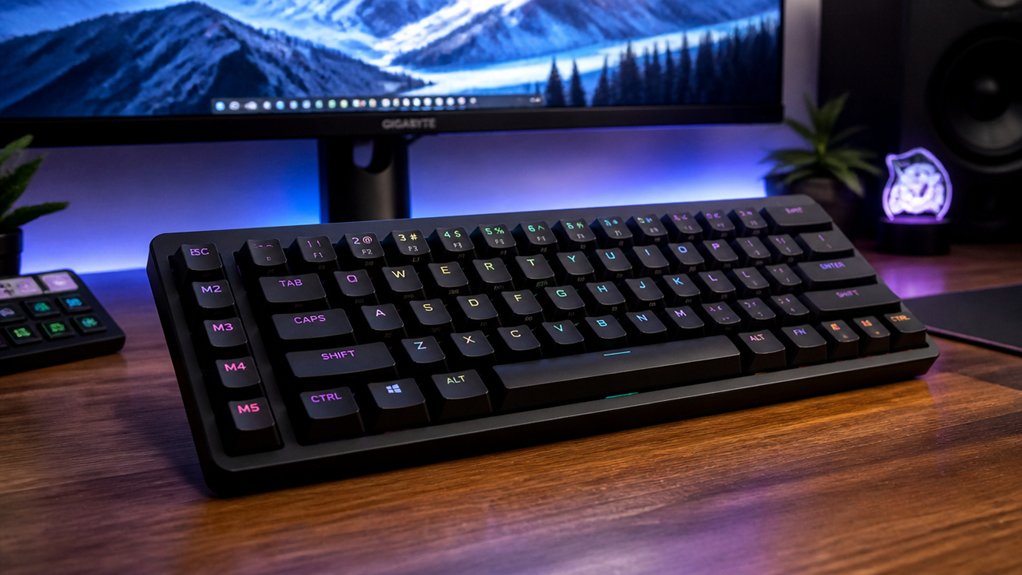
Achieving seamless wireless performance with low latency hinges on choosing the right keyboard and setup. Opt for wireless mechanical keyboards that use proprietary 2.4 GHz USB receivers over Bluetooth, like the Logitech G915X, to reduce input lag. Look for models with advanced wireless protocols and error correction, guaranteeing fast, macro-driven sequences register accurately. Consider keyboards supporting USB-C charging and wired connections to avoid latency spikes caused by low batteries. Firmware and software with macro programming and quick synchronization are essential for immediate macro execution. Keep the receiver close—away from USB hubs or interference sources—to minimize signal delay. Additionally, selecting kits with features like wireless connectivity modes enhances overall responsiveness.
Customizing and Organizing Macro Sets for Easy Management
Organizing macro sets effectively is essential for quick access and smooth operation during gaming or productivity tasks.
Efficient macro organization ensures rapid access and seamless performance in gaming and productivity tasks.
To do this, you should:
- Create distinct profiles for each game or application, allowing you to switch contexts swiftly and execute relevant commands without confusion.
- Use keyboard software like Logitech G HUB, Corsair iCUE, or Hexgears HexDrive to assign, edit, and group macros into folders or tabs, keeping your macro sets tidy and easy to navigate.
- Label and comment macros clearly within the software, making it simple to memorize commands and adjust settings on the fly, so your macros are always ready for whatever task comes next.
- Make sure to utilize layer support and macro functions in QMK firmware to customize and organize your key mappings even further, enhancing your workflow and gaming experience.
Programming and Testing Macros for Reliable Results
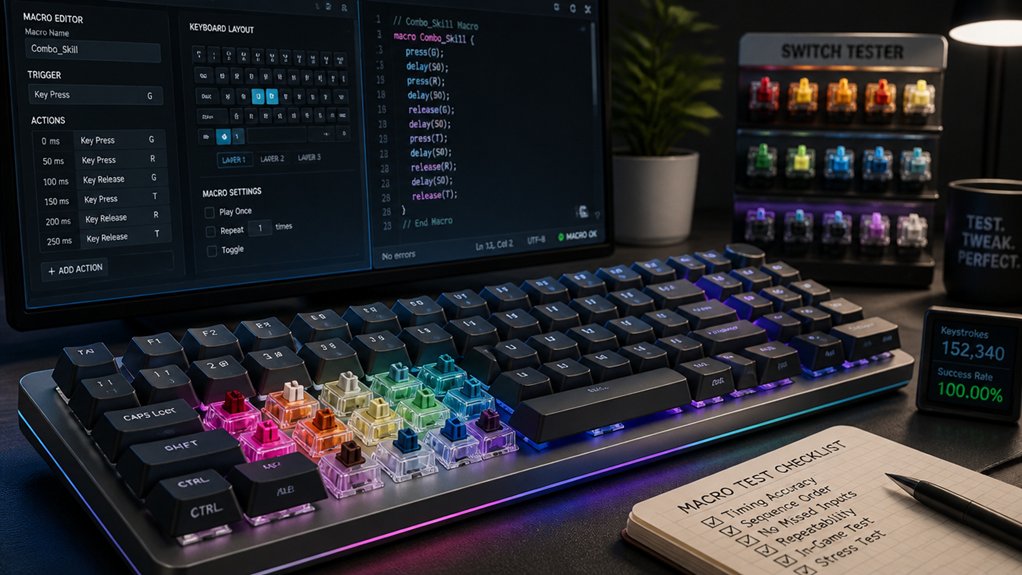
To guarantee your macros perform reliably, it’s essential to thoroughly test them across different game and software environments. Start by creating simple macros, like a single key or basic commands, then gradually add complexity with complex combos.
Use dedicated keyboard software like HexDrive or Logitech G HUB to create, edit, and layer macros for precise customization and easy debugging. During testing, check for timing issues and unintended key repeats that could interfere with regular functions.
Confirm macros don’t conflict with modifiers or interfere with standard keyboard use, maintaining overall performance. Regular firmware and software updates help fix bugs and improve macro processing. Additionally, understanding hot-swap compatibility can assist in troubleshooting issues more effectively.
Troubleshooting Common Macro and Connection Issues
Wireless mechanical keyboards can sometimes experience macro delays or missed inputs, often due to signal interference or low battery levels. To improve macro execution, start by:
- Ensuring your USB receiver is positioned for a strong, stable connection, reducing connection drops that disrupt macros.
- Updating your firmware regularly to fix bugs and enhance macro accuracy, especially if using third-party firmware like Kaleidoscope.
- Choosing a keyboard with at least NKRO and high polling rates to prevent key rollover issues that can block rapid macro inputs.
- Selecting a model with reliable wireless connectivity and multi-mode support, such as Bluetooth 5.0 or 2.4 GHz, to minimize latency and input lag.
Avoid Bluetooth-only models when USB reliability matters. Confirm your macro software is up to date and free from conflicts with other programs or drivers.
These steps will help enhance the stability of your wireless mechanical keyboard’s macro performance.
Features to Look for in a Gaming and Productivity Keyboard
When choosing a gaming or productivity keyboard, it’s important to prioritize features that enhance usability and performance. Look for wireless mechanical keyboards with full-size layouts and dedicated macro keys—you can perform complex commands quickly with a single keystroke. Switch options like Cherry Brown or swappable switches provide balanced tactile feedback and quiet keystrokes, ideal for both work and gaming. Make sure the keyboard offers USB-C wired charging or connectivity, along with wireless USB receivers—avoid Bluetooth for work laptops to guarantee stable connections. Key features include individual RGB lighting for customization and compatibility with software like Logitech G HUB, Corsair iCUE, or HexDrive. Consider media control wheels, ergonomic design, and durable build quality for long-term comfort. Additionally, choosing a keyboard with hot-swappable switches allows easy customization to suit different preferences without soldering.
Frequently Asked Questions
What Is a Good Wireless Keyboard With Macros?
A good wireless keyboard with macros is the Logitech G915X, offering customizable macros through G HUB software, low-profile mechanical switches, and RGB lighting. It’s perfect for gaming and productivity, combining reliability, comfort, and advanced features for your needs.
What Is a 96% Keyboard Missing?
A 96% keyboard misses dedicated macro keys and some function or media controls. You’ll find it lacks a separate macro key cluster, relying instead on software for macro programming, which can limit quick, on-the-fly macro access.
What Can I Do With Keyboard Macros?
With keyboard macros, you can automate complex keystroke sequences, boost your productivity, perform gaming combos faster, switch profiles effortlessly, and reduce errors. They’re perfect for streamlining repetitive tasks in software and enhancing your overall workflow.
Can Keyboard Macros Be Detected?
Yes, keyboard macros can be detected, especially in competitive environments. Detection often happens through specialized software analyzing input patterns, timing, or external programs, making it harder to hide macros if you’re using external tools or suspiciously rapid input sequences.
In Summary
Choosing the right wireless mechanical keyboard with macros can vastly improve your gaming or productivity experience. Focus on easy key placement, seamless connectivity, and customizable macro management. Test your macros thoroughly and troubleshoot any issues promptly. By selecting a keyboard with the right features, you’ll enjoy reliable performance and effortless macro access. Keep these tips in mind, and you’ll boost your efficiency and gaming precision without sacrificing comfort or speed.



