
To detect phantom keys on your mechanical keyboard, use a key tester that supports multiple simultaneous key presses. Press various keys together and watch for false signals or missing inputs, which indicate ghosting. Check your keyboard’s rollover capacity and compare it to your test results. Confirm drivers and firmware are updated, and consider testing on different ports or systems. If you keep exploring, you’ll discover more tips to fix ghosting issues effectively.
What Are Ghosting and Phantom Keys?
Have you ever pressed multiple keys on your keyboard only to see some of them not register or, worse, unintended keys appear? That’s keyboard ghosting in action.
Keyboard ghosting causes unintentional or missing key inputs during multi-key presses.
It happens when your keyboard incorrectly registers phantom key presses due to hardware or matrix limitations. Phantom keys are false inputs caused by the keyboard’s inability to distinguish between simultaneous key presses, often because of limited keyboard rollover or electrical interference in the key matrix circuits.
Most standard office keyboards have 2-key rollover (2KRO), which makes them vulnerable to ghosting when pressing multiple keys together. Gaming and mechanical keyboards usually feature anti-ghosting technology or N-key rollover (NKRO) to prevent these false inputs.
Testing for ghosting involves pressing three or more adjacent keys simultaneously to see if unintended keys appear on screen.
Understanding hot-swap PCB compatibility and switch types can help improve keyboard performance and customization, reducing issues like ghosting.
Why Do Phantom Keys Happen on Mechanical Keyboards?
Ever wonder why phantom keys sometimes appear on your mechanical keyboard? These phantom keys happen mainly due to electrical ghosting, where the keyboard’s circuitry mistakenly registers non-pressed keys during specific key combinations.
This occurs because of limitations in the keyboard’s matrix circuitry, which struggles with multiple simultaneous presses, especially if it’s limited to 2KRO or 6KRO. Outdated or improperly configured firmware can also cause the keyboard to scan the matrix incorrectly, leading to false detections.
External interference from USB ports, drivers, or switch boxes can further trigger phantom keys independent of the actual switches. Fortunately, models featuring full N-key rollover (NKRO) with PS/2 or advanced USB protocols are less prone to ghosting issues.
How to Use a Key Tester to Detect Ghosting
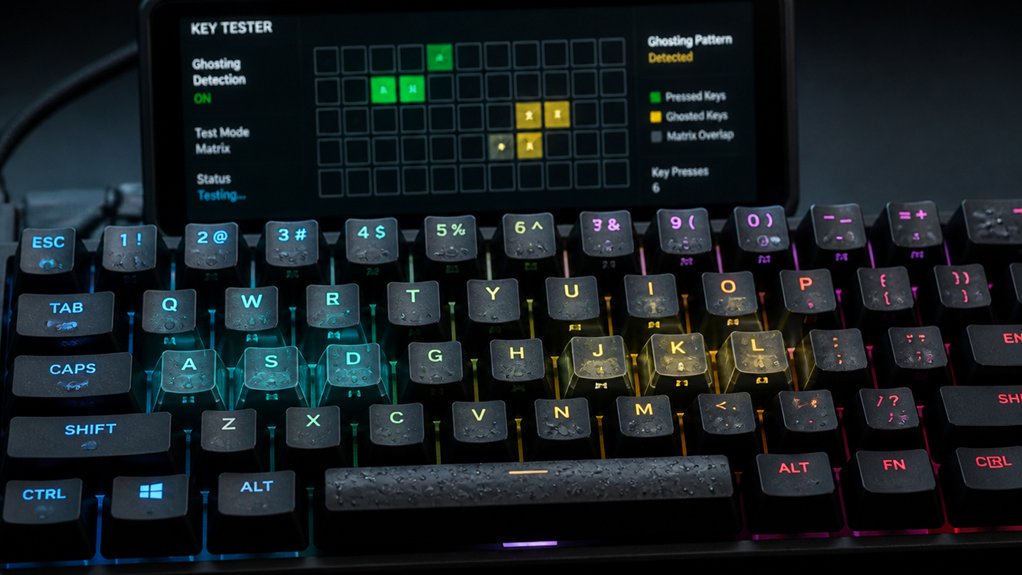
Start by choosing the correct key tester for your keyboard size and layout, then click to focus on the page before pressing keys. A well-designed tester, such as the large 81 Switch Tester with Acrylic Base, can help provide a comprehensive overview of your switch types and issues. As you press multiple keys, watch for color changes—red indicates detection, while dark keys may signal ghosting or damage. Interpret the results carefully to identify unresponsive keys or ghosting issues affecting your keyboard’s performance.
Selecting the Right Tester
Choosing the right key tester is essential for accurately detecting ghosting on your mechanical keyboard. Make sure the tester supports full NKRO (N-Key Rollover) to accurately gauge your keyboard’s true capacity. Match the tester interface to your keyboard size—whether 60%, TKL, or full-sized—to get precise results. Look for one that allows you to press multiple keys simultaneously, especially near each other, to simulate gaming or typing scenarios. Ensure the tester uses switch compatibility features that can accommodate various switch types like linear, tactile, or clicky, to better reflect your keyboard’s potential issues. The tester should highlight active keys in red and confirm successful presses in green, making it easier to spot ghosting. If you see unlit keys or inconsistent registration during tests, it indicates potential ghosting. Having a tester optimized for NKRO helps you identify whether your keyboard truly supports all key combinations without phantom inputs.
Performing Key Press Tests
To effectively perform key press tests and detect ghosting, begin by clicking on the key tester page to guarantee your browser is focused; unfocused pages can miss key inputs.
Every key press should be tested by pressing multiple keys simultaneously to see if all are detected in real-time, indicated by color changes—red for held and green for detected after release. Use the key tester to identify ghosting by checking if certain key combinations don’t register or show phantom keys.
The display shows the number of simultaneous keys pressed and lists recognized keys, helping verify rollover capacity. If keys remain dark after pressing, it indicates unresponsive or damaged keys, making it easier to isolate hardware issues.
This process helps confirm your keyboard’s ghosting is accurately diagnosed.
Interpreting Ghosting Results
Once you’ve performed key press tests and observed how your keyboard registers multiple keys, interpreting the results is the next vital step.
If your tester highlights phantom keys during simultaneous presses, you’re likely encountering ghosting. True ghosting happens when the tester shows keys you didn’t physically press, revealing limitations in the keyboard’s matrix design.
Testing three or more adjacent keys helps confirm ghosting effects common in keyboards with limited rollover.
To interpret these results:
- Count how many keys register versus how many you pressed
- Note phantom keys appearing that weren’t pressed
- Compare with manufacturer rollover claims
- Determine if fewer keys register than pressed, indicating blocking rather than ghosting
Test Your Keyboard Rollover Limit to Find Out

To understand your keyboard’s true capabilities, you should test its rollover limit. This simple step reveals whether it can accurately detect multiple simultaneous key presses or if ghosting occurs. Performing a multi-key rollover test can help identify if your keyboard supports the full 6-key or n-key rollover capabilities often found in gaming models. Interpreting the results helps you identify potential hardware issues that could affect your typing or gaming experience.
Understanding Rollover Types
Understanding your keyboard’s rollover capabilities is essential to ensuring it performs well during intense gaming sessions or fast typing. Rollover describes how many keys your keyboard can detect pressed simultaneously without errors.
Common types include 2KRO, six-key rollover (6KRO), and N-key rollover (NKRO). NKRO detects every key pressed at once, ideal for complex key combinations. Standard office keyboards often support 2KRO, while gaming keyboards usually feature 6KRO or full NKRO for better multi-key input.
USB keyboards are limited to 6KRO due to protocol restrictions, unlike PS/2 keyboards that offer true NKRO. To gauge your keyboard’s capabilities, performing a rollover test helps identify the maximum simultaneous keys detected and reveals issues like ghosting or missed inputs.
- How many keys your keyboard registers at once
- Presence of ghosting or missed keys
- Difference between USB and PS/2 protocols
- Suitability for gaming or fast typing
- Many high-quality gaming keyboards, especially those with full NKRO, utilize advanced switch technology and specialized PCBs to prevent ghosting and improve multi-key detection.
How to Perform Test
Performing a rollover test is the most straightforward way to determine your keyboard’s maximum key recognition capacity, including full NKRO. Start by opening a keyboard rollover test webpage or tool that visually tracks simultaneous key presses in real time. Click on the page to focus your browser before pressing multiple keys, like WASD plus Shift or Ctrl, to mimic gaming combos. Press increasing numbers of keys at once while observing the display—this helps identify the limit, whether it’s 2KRO, 6KRO, or full NKRO. Look for keys that don’t register or stay unlit; these indicate the rollover limit or ghosting issues related to hardware or firmware constraints. Repeat the test using different USB ports or enabling manufacturer software to see if rollover capabilities improve. Ensuring your keyboard’s PCB supports hot-swappable switches can also impact its rollover performance by maintaining stability during intense keypresses.
Interpreting Test Results
After completing a rollover test, analyzing the results helps you determine your keyboard’s actual input capabilities. Look for signs of phantom keys, which appear as unexpected or ghosted detections during the test.
If you see extra keys highlighted or pressed simultaneously, it indicates ghosting issues. Keys that stay dark after pressing suggest non-responsiveness or hardware problems.
Red coloring means the key is actively held down, while green shows it was detected after releasing, helping you verify durability.
To interpret effectively:
- Extra detected keys signal ghosting or rollover limits
- Missing keys indicate potential hardware or connection issues
- Dark keys reveal unresponsive or faulty switches
- No phantom keys and full detection point to good NKRO performance
Understanding these cues helps you identify phantom key problems and evaluate your keyboard’s true capabilities. For example, keyboard rollover limitations can cause ghosting, especially in cheap or non-mechanical keyboards.
Common Hardware Issues Causing Ghosting
Ghosting in mechanical keyboards often stems from hardware limitations or faults that interfere with accurate key detection. Limited key matrix designs can cause phantom key detections when pressing certain key combinations simultaneously.
Faulty diode circuits or poorly designed PCB layouts may fail to isolate key signals properly, leading to ghosting. Keyboards lacking proper anti-ghosting circuitry struggle to prevent false inputs, especially with multiple keys pressed at once.
Mechanical faults like damaged switches or degraded diodes can mimic ghosting by sporadically triggering unintended signals. Using keyboards with NKRO (N-key rollover) support, via PS/2 connections or advanced USB firmware, helps greatly reduce ghosting issues. PCB design quality is also crucial, as high-quality layouts with proper hole plating and component placement minimize potential wiring faults that cause ghosting.
Identifying these hardware problems is essential for diagnosing and minimizing false keypresses during your testing process.
How Software Conflicts Trigger Fake Keypresses
Software conflicts, like overlapping keyboard drivers or remapping tools, can send incorrect signals to your system, causing fake keypresses. A QMK firmware setup that isn’t properly configured may also generate unintended inputs, especially if layers or macros are misused. When multiple input device drivers or system services interfere, they can create duplicate signals that appear as phantom keystrokes.
Driver Conflicts and Glitches
When conflicting drivers and software clash on your system, they can trigger phantom keypresses by sending duplicate or misaligned signals to your keyboard. This issue often affects mechanical keyboards, especially when drivers are outdated or incompatible. A malfunctioning or improperly configured (Pro Micro controller), for instance, can cause unexpected key signals. Misfires can also happen when custom firmware, like NKRO, conflicts with native drivers. Additionally, software such as keyboard remapping tools or gaming suites might interfere with the default drivers, creating glitches that simulate random keystrokes. Multiple HID keyboard devices installed without proper management can cause ghost keypresses, especially if driver versions differ or overlap. To fix this, you should uninstall all keyboard drivers, then reinstall the latest manufacturer-specific firmware and software, ensuring the drivers correctly communicate with your mechanical keyboard—eliminating driver-level glitches.
Background Processes Interference
Background processes running in the background can often interfere with your keyboard’s normal operation, causing fake keypresses to register unexpectedly. Software like keyboard macro tools, driver utilities, or remote desktop clients may conflict and send phantom input signals, making your keyboard seem unresponsive or erratic.
Bugs or incompatibilities in keyboard firmware drivers can also trigger repeated or false keystrokes without any physical key press. Security tools scanning in the background might disrupt input handling, leading to intermittent fake key detections.
Additionally, third-party programs such as gaming overlays or input managers install virtual input devices that inject phantom keystrokes into your system. Using monitoring tools like AutoHotkey or Windows Event Viewer can help you identify which background processes are triggering these elusive phantom keys on your keyboard.
Can Wireless Devices Cause Phantom Keystrokes?
Could wireless devices be causing those mysterious phantom keystrokes? Absolutely. Wireless keyboards, mice, and dongles can interfere with your setup through RF collisions or signal interference.
Nearby gadgets emitting infrared or electromagnetic signals may sporadically trigger unintended key presses. Overlapping wireless signals from multiple Bluetooth or 2.4 GHz devices can disrupt your keyboard’s communication, resulting in phantom keystrokes.
Additionally, weak battery power or unstable wireless connections often cause random keystrokes to appear as ghosts on your screen. To find out if wireless interference is the culprit, try removing or relocating wireless peripherals or switching to wired connections temporarily.
This quick step can help you pinpoint whether those mysterious keystrokes stem from your wireless devices, or if another issue is at play.
Troubleshoot Your Setup Step by Step
To effectively troubleshoot phantom keystrokes, start by disconnecting all input devices except your mechanical keyboard. This isolates hardware issues that cause phantom key presses.
Use keyboard testing tools like AutoHotkey’s key history to log and identify when and which phantom keystrokes occur. Inspect your keyboard physically for debris, damaged key switches, or faulty stabilizers, cleaning or replacing parts as needed.
Test the keyboard on another PC or USB port to rule out port or system-level driver conflicts. Temporarily disable or uninstall any third-party keyboard or macro software, along with wireless peripheral drivers, that might interfere with input signals.
Following these steps systematically helps you pinpoint the cause of phantom key presses, ensuring your setup is free of unintentional inputs.
Monitor Keyboard Inputs With Key Logging Tools
After isolating your keyboard and testing it on different systems, monitoring actual input signals can reveal hidden causes of phantom key presses. Using key logging tools like AutoHotkey allows you to record precise timestamps and key codes, helping you spot ghost or phantom keystrokes.
You can leverage Windows’ “View Keyboard History” feature in AutoHotkey for detailed logs, distinguishing between intentional and errant inputs. Software key loggers track key states over time, catching intermittent phantom keys that sporadically appear.
Advanced key logging scripts can filter out noise and immediately alert you when unexpected presses, such as random “j” or “b,” occur. This method helps connect phantom keystrokes to system interference or other anomalies, increasing your chances of diagnosing the root cause efficiently.
Adjust BIOS and Drivers to Reduce Ghosting
Adjusting your BIOS settings and updating your drivers can greatly reduce ghosting issues on mechanical keyboards. Start by updating your motherboard BIOS to the latest version, which improves USB controller compatibility and minimizes phantom signals caused by hardware conflicts.
In the device manager, confirm your keyboard drivers are current and include any manufacturer-specific firmware for full NKRO support. Check BIOS settings for USB rollover options; enabling USB legacy support or disabling USB compatibility mode can enhance key detection accuracy.
Switching between USB 2.0 and 3.0 ports can also impact ghosting, so experiment with different ports. Finally, disable conflicting keyboard software or drivers, as these can interfere with input signals, causing ghost or phantom keystrokes during intense keypresses.
Upgrade Your Keyboard for Better Rollover
Upgrading to a mechanical keyboard with true N-key rollover (NKRO) is one of the most effective ways to eliminate ghosting and phantom key detections. With NKRO, every key press is individually registered, ensuring precise input during fast typing or gaming.
High-quality mechanical keyboards support advanced USB protocols or PS/2 connections that facilitate full NKRO, providing reliable multi-key input even during rapid keystrokes. Choosing a keyboard with hot-swappable switches makes maintenance easy, helping maintain peak rollover performance over time.
Additionally, reputable models include firmware or driver support, allowing you to configure rollover modes and anti-ghosting features. Before purchasing, test your keyboard with rollover tools to confirm it offers true NKRO, guaranteeing a significant upgrade from low-rollover keyboards and reducing ghosting issues.
Tips to Prevent Ghosting and Keep Your Keyboard in Top Shape
Maintaining your mechanical keyboard in top condition helps prevent ghosting and guarantees reliable performance during intense gaming sessions or fast typing.
To do this, regularly clean switches and keycaps with compressed air or a soft brush to remove dirt that can cause sticky or unresponsive keys linked to ghosting issues. Use a keyboard rollover test to verify that multiple simultaneous key presses are correctly detected without phantom inputs.
Choose a keyboard with N-key rollover (NKRO) support, which allows all pressed keys to register accurately without ghosting. Keep firmware and drivers updated to make certain anti-ghosting features work efficiently.
Finally, avoid problematic USB hubs or switch boxes prone to electrical interference, and test different USB ports to reduce signal noise that might cause phantom key detections.
Frequently Asked Questions
How to Fix Keyboard Keys Ghosting?
You fix keyboard ghosting by choosing a mechanical keyboard with NKRO support, updating firmware, testing with rollover sites, switching to PS/2 or enabling hardware NKRO, and avoiding key combinations that cause ghosting patterns. Use different USB ports too.
What Is a 96% Keyboard Missing?
A 96% keyboard is missing a dedicated numeric keypad, which is integrated with the main keys. It preserves most functions of a full-size keyboard but condenses navigation, function, and numpad keys for a compact design.
Do Mechanical Keyboards Have Anti-Ghosting?
Yes, mechanical keyboards generally have anti-ghosting features. They use specialized circuitry and firmware, like N-key rollover, to prevent phantom key presses during multiple simultaneous inputs, making them reliable for gaming and typing accuracy.
How to Test Keyboard Ghosting?
To test keyboard ghosting, press three or more adjacent keys simultaneously, then use an online ghosting test tool. It visually shows which keys register or ghost, helping you verify your keyboard’s rollover and anti-ghosting capabilities.
In Summary
By understanding ghosting and phantom keys, you can easily identify and address issues with your mechanical keyboard. Using key testers, running rollover tests, and monitoring inputs help pinpoint hardware problems. Adjusting BIOS settings or upgrading your keyboard can improve performance. Regular maintenance and proper use will keep your keyboard in top shape, preventing ghosting from frustrating your gaming or typing experience. Stay proactive, and enjoy smooth, accurate keystrokes every time.



