
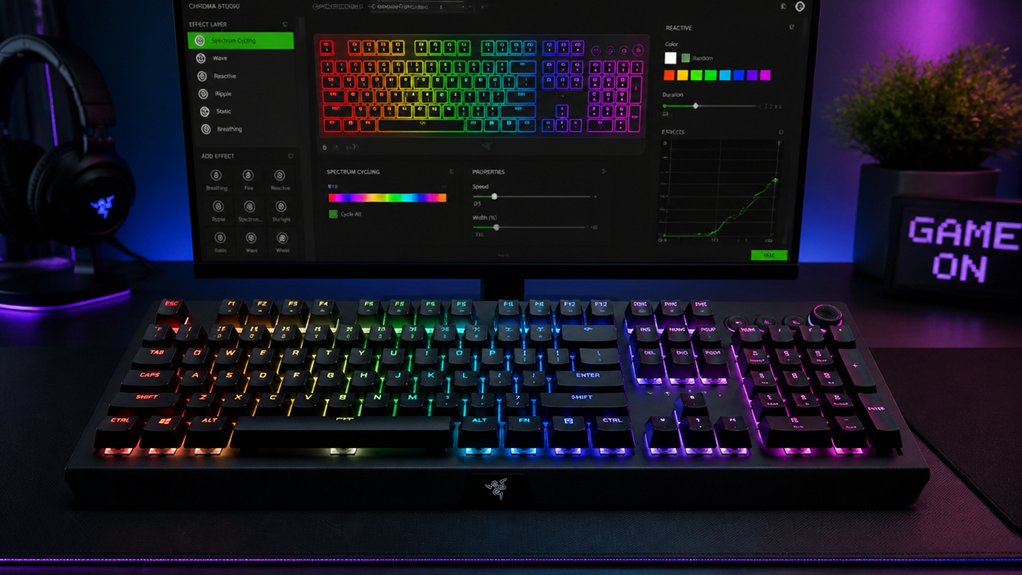
To set up per-key reactive RGB lighting, first verify your keyboard supports it and connect it properly via wired or wireless options. Install compatible software like Aura Sync or RK Launcher, then enable per-key RGB effects and customize each key’s color and animation. You can create dynamic effects triggered by keystrokes, switch modes, and fine-tune brightness or speed. If you keep exploring, you’ll discover even more advanced ways to customize your lighting setup.
What Is Per-Key Reactive RGB Lighting, and Why Is It Cool?
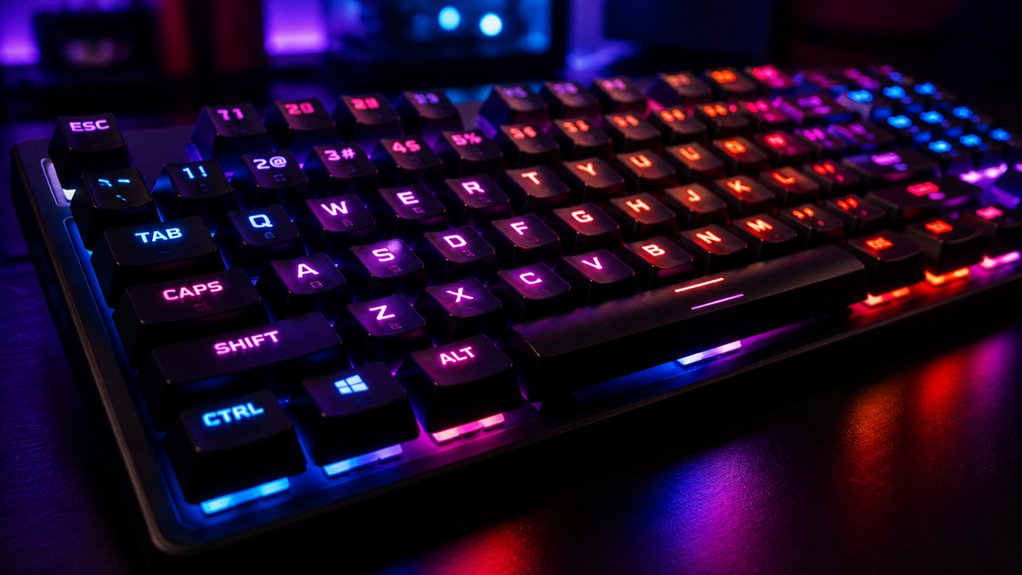
Ever wondered what makes high-end gaming keyboards so visually striking? It’s the power of per-key reactive RGB lighting. This feature enables each key to change colors or effects individually, creating dynamic visual feedback based on your actions.
With RGB Control, you can customize how keys respond—whether lighting up in ripple, wave, or pulse effects, all triggered by your keystrokes. This not only enhances the look but also boosts usability—highlighting recent inputs and making it easier to find keys, especially in low-light conditions.
Activating these effects requires simply enabling per-key RGB modes in compatible software like Aura Sync or RK Launcher. Overall, per-key reactive RGB lighting adds a personalized, immersive touch to your gaming or typing experience, making your keyboard both functional and visually impressive.
Does Your Keyboard Support Custom RGB Lighting?
First, check if your keyboard’s hardware and firmware support individual key customization, which varies by model.
Then, see if the software offers options to assign or change colors on each key, since some keyboards only allow preset effects or zones.
Finally, confirm that the lighting effects you want are compatible with your device’s supported modes to guarantee full control. Additionally, ensure that your device supports per-key RGB lighting to enable detailed and reactive customization.
Compatibility With Hardware
To use per-key reactive RGB lighting, your keyboard must have hardware support for individually addressable LEDs, which is typically found in advanced mechanical or gaming models like the RK S98 or RK R75. These keyboards enable you to customize each key’s RGB lighting, rather than just zone-based or preset effects.
Many RGB keyboards utilize specific controllers like the IS31FL3743A, but compatibility with software such as RK Launcher or RGB Matrix firmware is essential for seamless customization. Some keyboards only support fixed patterns, lacking per-key key individually customizable lighting due to firmware or layout limits.
Make certain your keyboard has updated firmware and drivers that support per-key RGB without conflicts, particularly when using platforms like QMK Firmware or proprietary software like Aura Sync or G HUB. Additionally, understanding the controller types and their integration with custom firmware can make a significant difference in achieving desired reactive lighting effects.
Software Customization Options
The ability to customize per-key reactive RGB lighting depends heavily on the software you use with your keyboard. Software customization options streamline the process, allowing you to enable and adjust per-key reactive lighting features effortlessly.
Compatible keyboards, like newer RK models or Aura Sync-enabled ASUS devices, work with intuitive tools such as RK Launcher or Aura Creator. These applications let you activate “Self-Define” mode or similar features to assign individual colors or effects to specific keys in real-time.
With the right software, you can easily save and apply your customized reactive lighting layouts. Proper connection, whether wired or wireless, guarantees seamless synchronization between hardware and software. Overall, your choice of software is vital for precise, flexible per-key reactive RGB customization. Hot-swap capability enhances the flexibility further by allowing easy switch replacement without soldering.
Supported Lighting Effects
Many modern gaming keyboards support a variety of customizable RGB lighting effects that enhance your typing experience. These lighting effects include ripple, wave, and color-shift reactions triggered by keystrokes. Supported effects are often adjustable via software like RK Launcher or Aura Creator, allowing you to personalize responses for each key. To make the most of these lighting effects, you need compatible hardware, especially with RGB leds and controllers like IS31FL3743A, though some may face driver limitations. Connecting your keyboard via wired mode and toggling reactive options in the software is essential. Below is a quick overview of common lighting effects:
| Effect | Description | Customization |
|---|---|---|
| Ripple | Waves radiate from pressed key | Yes |
| Wave | Seamless moving color flow | Yes |
| Color-Shift | Gradual color changes | Yes |
Additionally, understanding the lighting zones and their configuration can greatly improve your customization capabilities and overall aesthetic.
How to Set Up Aura Sync and Aura Creator for RGB Customization
Wondering how to get started with customizing your RGB lighting using Aura Sync and Aura Creator?
First, install Armoury Crate and update all device modules and plugins to enable Aura Sync for compatible ASUS peripherals. Launch Armoury Crate and pair your Aura Sync-compatible devices by connecting them, then access the Sync Devices tab via the Aura Sync icon after restart.
Use Aura Sync to select preset lighting effects or turn off lighting altogether for a unified RGB look across all supported devices.
For advanced customization, download Aura Creator from Armoury Crate’s Aura Effects menu. With Aura Creator, you can design multi-preset profiles, set per-key RGB, and create dynamic, reactive lighting effects tailored to your gaming or work environment. Additionally, understanding the backlighting support in your keyboard accessories can enhance your lighting customization experience.
Connecting Your Keyboard Properly for RGB Control
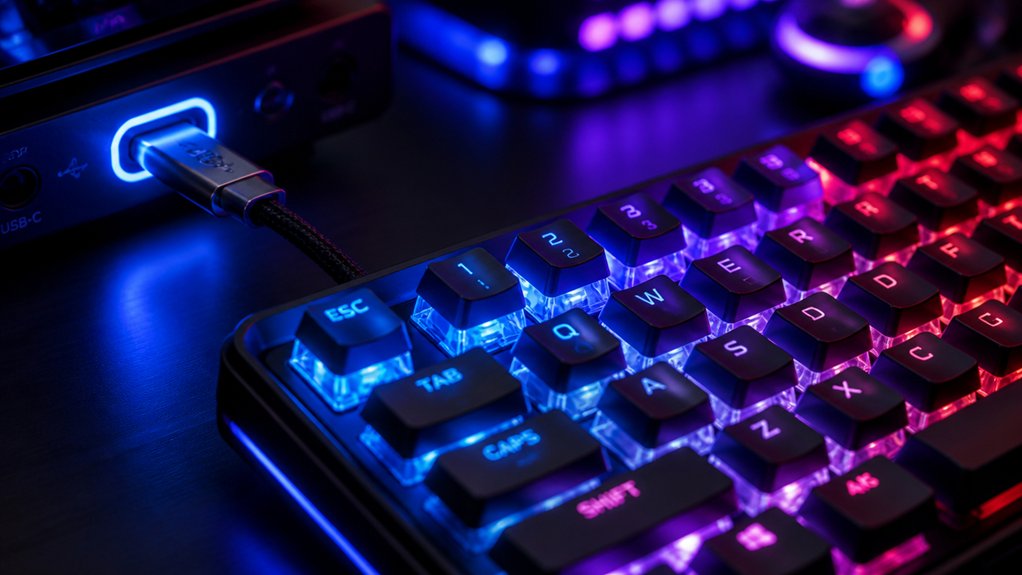
First, verify your keyboard is connected correctly using the dedicated cable or a compatible wireless receiver, based on your model.
Then, open the RGB control software or launcher with a supported browser and click “Connect” to select your device.
Confirm that your keyboard’s firmware and drivers support per-key RGB, and set it to the appropriate mode before customizing your lighting.
Additionally, ensure your keyboard features dedicated RGB controls to facilitate easier adjustments and personalization.
Supported Connection Methods
To properly control the RGB lighting on your keyboard, you need to establish a physical connection first. This connection is essential for your lighting setup, allowing the RK Launcher to recognize and customize your device’s backlight. You can connect via a dedicated wired cable or a 2.4 GHz receiver, but it’s important to verify compatibility, as some models only support wired connections. Once connected, open a supported browser like Chrome, Opera, or Edge, and click the Connect button in the launcher. This step guarantees your keyboard is recognized for per-key RGB control. Remember, a hot-swappable design with configurable RGB lighting components helps facilitate easier customization and repairs.
the right connection method ensures your lighting customization is seamless and reliable before you start clicking through the lighting effects and creating your desired lighting effects.
Device Selection and Setup
After establishing a physical connection with your keyboard, the next step is to properly select and set up your device within the RGB control software. Start by opening the software in a compatible browser like Chrome, Opera, or Edge to guarantee stability. Click the “Connect” button to identify your keyboard, which is vital for customizing keyboard lighting and controlling selected keys. Make sure your keyboard model supports per-key RGB, as some older models only support zone lighting. Establish a wired connection for initial setup; this guarantees reliable communication with the RGB controller. Proper understanding of hot-swap socket compatibility ensures that switches are correctly installed and maintained for optimal RGB lighting performance.
Getting Started: Enable and Activate Per-Key RGB Effects
Begin by opening your RGB customization software or web-based launcher and proceeding to the Backlight or Light Mode section. This is where you’ll find the options to enable per-key RGB lighting.
Start by opening your RGB software and navigating to the Backlight or Light Mode section.
Next, select the Per-key RGB or Self-Define mode and toggle it on to activate individual key lighting customization. Once enabled, you can click on specific keys—usually highlighted when selected—and assign new colors to create reactive lighting effects.
Remember to save your configuration to guarantee the per-key RGB lighting activates correctly. Some platforms also offer extra controls for adjusting brightness, reactive effect speed, and multi-key selection, allowing you to fine-tune the dynamic lighting setup. Pay attention to the lighting profile settings to ensure your chosen effects respond accurately to your input.
This setup process is essential to start creating vibrant, reactive lighting effects tailored to your preferences.
How to Customize Each Key’s Color for a Unique Look
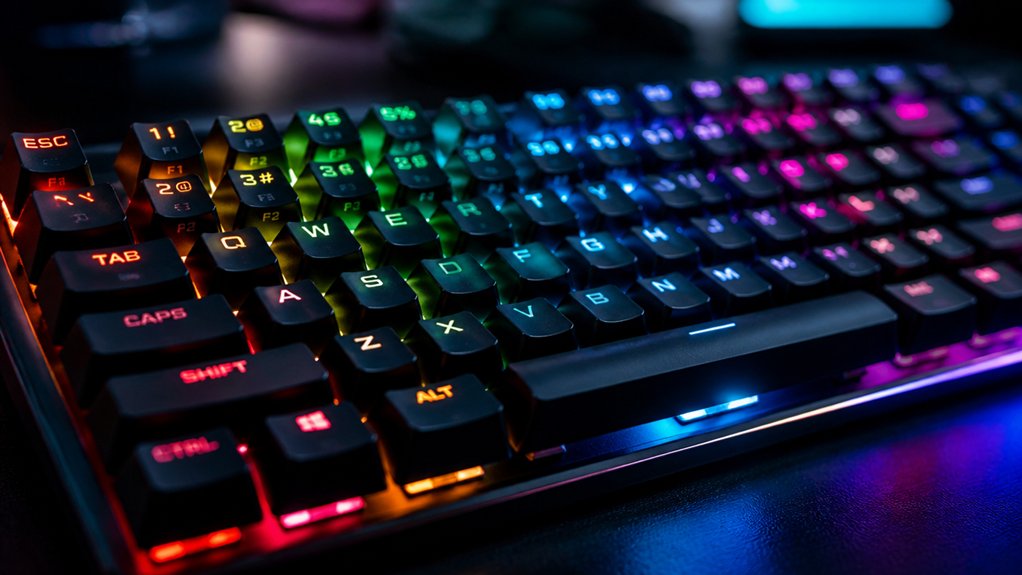
Once you’ve enabled Per-key RGB or Self-Define mode in your keyboard’s software, you can start customizing each key’s color individually. Begin by selecting specific keys through the visual keyboard layout, where they highlight to confirm selection. From there, choose your preferred colors from a palette or input custom RGB values, which often allows full 16.8 million color options per key. You can assign effects—such as solid, gradient, or custom patterns—to enhance your design. When customizing, consider the sound calibration and microphone placement, as these factors can influence acoustic testing accuracy and overall performance. After customizing, apply and save your settings to see the unique colors on your physical keyboard. This approach lets you craft a personalized look, whether for aesthetic appeal or functional partitioning, giving each individual key a distinct effect and color that truly reflects your style.
Creating Dynamic and Reactive RGB Effects Without Hassle
Creating dynamic and reactive RGB effects is straightforward with the right software, so you don’t have to be a tech expert.
You can easily set up custom reaction triggers that change colors or animate when keys are pressed, adding a new level of feedback.
Just test and tweak the settings until you get the perfect balance of visibility and performance.
Easy Effect Creation
Designing dynamic and reactive RGB effects has never been easier, thanks to intuitive customization software that allows you to set up vivid lighting patterns without complex programming.
You can enable per-key reactive RGB by selecting “Per-key RGB” or “Self-Define” mode in your software, like RK Launcher or Aura Sync. Assign reactive effects—such as key press-triggered color changes or wave animations—to individual keys with simple controls.
Customize effect parameters like brightness, animation speed, and color palette to craft immersive lighting displays effortlessly. Many tools offer one-click presets for reactive effects, making it quick and easy to apply dynamic lighting styles per key or group of keys.
Test your effects by pressing keys and adjust settings immediately for optimized responsiveness and visual impact.
Custom Reaction Triggers
To add dynamic flair to your RGB lighting, you can leverage custom reaction triggers that link keypresses or system events to specific color changes, creating engaging backlight effects. Enable per-key RGB customization in your software, like RK Launcher’s Self-Define mode or Aura Creator, to access individual key control.
Use built-in triggers or custom scripts to activate reactive effects—keys can light up with specific colors briefly when pressed. Configure reaction parameters such as color fade duration, brightness, and ripple spread to tailor the visual experience.
Many RGB control programs support layering reactive effects with static or animated backgrounds, ensuring smooth shifts. Additionally, utilize SDKs or macro tools in G HUB or Aura Creator to program complex triggers that respond to in-game actions or system alerts, boosting immersion.
Troubleshooting Common RGB Setup Issues
Are you struggling to get your per-key RGB lighting to display correctly? First, confirm your keyboard supports per-key RGB and that you have the correct driver or firmware installed, as incompatible controllers like IS31FL3743A can prevent rgb allows proper lighting operation.
- Make sure the device is physically connected and selected in your RGB customization launcher before configuring reactive modes.
- Toggle per-key RGB features within your software’s Backlight or Light Mode sections, and make sure you enable Self-Define or reactive modes and assign colors to individual keys.
- If lighting isn’t visible, adjust brightness, cycle through modes, reset settings, or use the default restore feature. These steps often resolve common issues and guarantee your rgb allows full control.
Saving and Managing Your Custom RGB Profiles
Once you’ve customized your per-key RGB lighting to your liking, saving your profile guarantees your hard work isn’t lost. To do this, simply click the Save button after selecting and coloring individual keys or key partitions.
Creating custom key partitions makes it easy to manage and edit specific groups later without resetting the entire layout. Many RGB software options also let you export your profile, so you can back up or share your personalized setup.
Creating custom key partitions simplifies managing and editing specific groups separately.
If you need to undo any unintended changes during your session, use the software-supported Undo function before saving. If you want to reset to a default profile, most launchers provide a one-click restore option.
Properly saving and managing your custom profiles guarantees your designs stay intact and easily adjustable whenever needed.
Final Tips and Exploring Advanced Customization Options
For those looking to push their RGB customization further, exploring advanced options can enable dynamic and reactive lighting effects that truly stand out.
To customize your RGB beyond basic settings, use features like “Self-Define” mode or Aura Creator to assign per-key reactive effects triggered by typing or specific key presses.
You can also experiment with macro programming via launchers such as RK Launcher or Aura Sync, combining lighting reactions with actions for tailored interactive experiences. Layered lighting profiles that switch dynamically based on application or gameplay modes, using software presets or custom scripts, add another level of customization.
Additionally, take advantage of firmware-level RGB matrix programming on compatible keyboards for detailed control over brightness, color, and animation speed.
Explore community-shared configurations and tutorials for inspiration and troubleshooting.
- Use “Self-Define” mode or Aura Creator for reactive effects
- Combine macros and custom scripts for tailored lighting experiences
- Leverage community resources for tips and advanced setups
Frequently Asked Questions
How Does per Key RGB Work?
Per-key RGB works by assigning each key individual LEDs and controlling their colors through specialized software. When you press a key, the lighting responds with animations or color changes, creating dynamic, interactive effects customizable per key on your keyboard.
How to Configure RGB Lights?
You enable RGB in your software, select individual keys or groups, choose colors or effects, and save your configuration. Adjust brightness and speed to optimize responsiveness, and use undo or reset features to refine your setup.
How to Activate RGB Lights on Keyboard?
You activate RGB lights on your keyboard by ensuring it’s connected properly, opening the dedicated software like Aura Sync, then toggling the lighting through function keys or software settings. Make sure drivers are installed for full control.
What Is per Key RGB Keyboard?
A per-key RGB keyboard lets you customize each key’s lighting individually, with different colors and effects. You control these through dedicated software, enabling reactive lighting that responds to your typing or gaming motions for a personalized experience.
In Summary
With the right tools and steps, setting up per-key reactive RGB lighting becomes easy and fun. Once you familiarize yourself with your software and connection processes, you can create stunning, dynamic effects that truly personalize your gaming or work experience. Experiment with different effects, troubleshoot issues as they come up, and save your favorite profiles. Soon, you’ll enjoy a custom keyboard lighting setup that matches your style and enhances your overall setup.



