
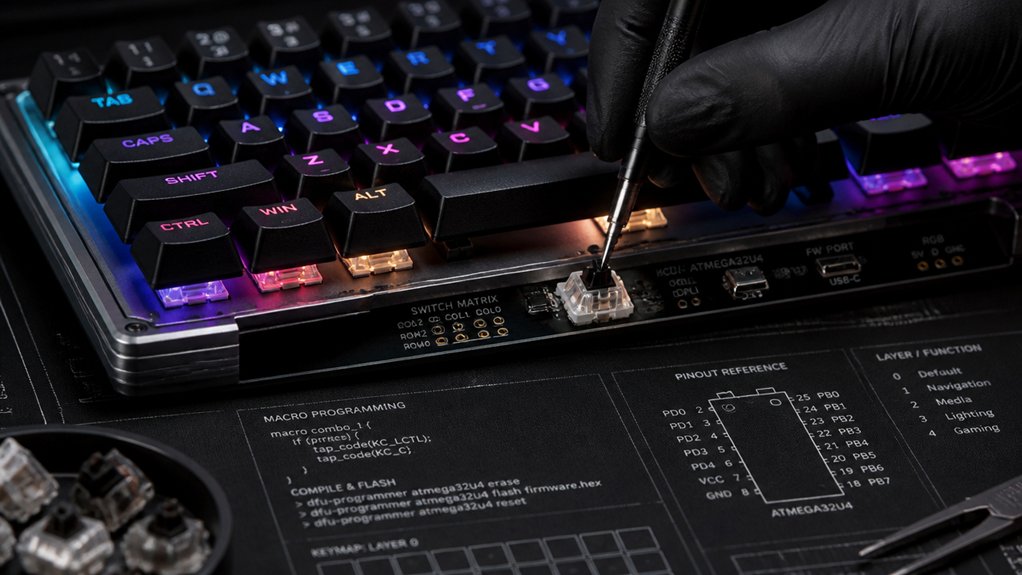
To program macros on your custom mechanical keyboard, start by choosing a keyboard with dedicated macro keys or onboard programming support. Install the appropriate software or firmware, like HexDrive or Redragon Macro Editor, and connect your keyboard. Use the macro record function to capture keystrokes, delays, and commands, then assign these sequences to specific keys or layers. Testing and adjusting your macros guarantees proper function, and exploring further features can help you optimize your setup—there’s more to discover below.
Why Macros Are Essential for Workflow Efficiency
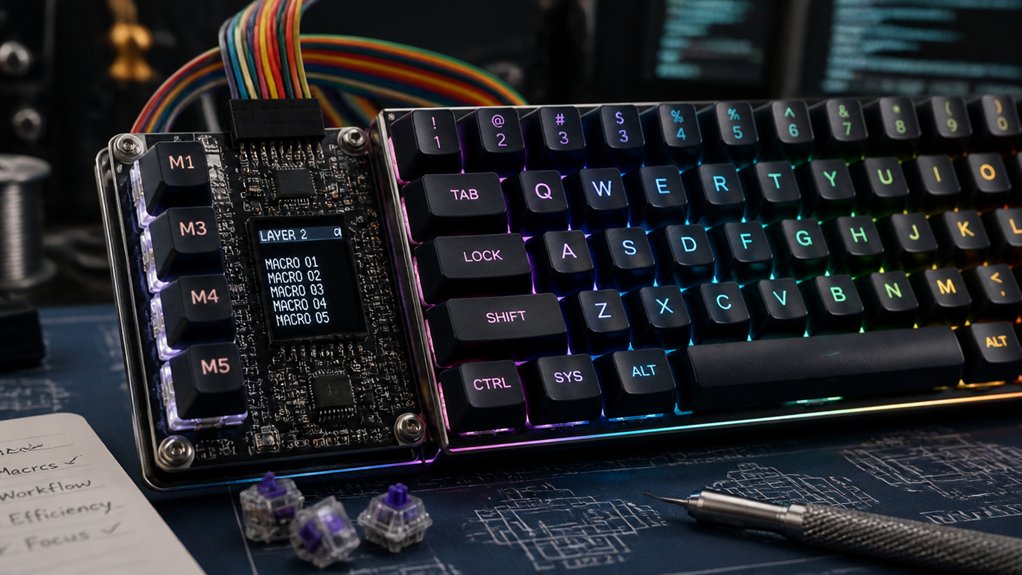
Have you ever felt frustrated spending extra minutes on repetitive tasks that could be automated? Macros help you cut down on that time by transforming multi-step commands into single keystrokes. The keyboards feature programmable macro functions, making it easy to streamline complex workflows.
These macros not only save precious seconds but also improve accuracy by reducing manual input errors—crucial in high-stakes work and gaming. In office programs like Excel, macros simplify formula application and data management across sheets, boosting speed and correctness. With features like onboard memory and multiple programmable keys, you can create extensive macro sequences tailored to your specific needs.
For gamers, programmable macros enhance performance by executing tricky combos effortlessly. Overall, using macros on your mechanical keyboard turns it into a personalized automation tool, helping you accomplish more in less time and boosting your workflow efficiency markedly.
Choosing the Right Hardware and Software for Macros
When choosing hardware and software for macros, focus on compatibility with your device and operating system to guarantee seamless functionality. A QMK firmware support ensures you can customize keymap layers, macros, and advanced features like leader keys or tap-dance functions, providing greater flexibility for your workflow needs. Look for features like onboard macro recording, multiple profiles, and hardware customization options that match your workflow needs. Selecting the right combination will give you flexible, efficient macro control with minimal setup hassles.
Compatible Devices Selection
Choosing the right mechanical keyboard for macros involves guaranteeing it supports programmable features either through dedicated keys or compatible software. Look for devices that enable macro creation via macro keys or onboard recording.
Imagine:
- Mechanical keyboards from brands like Corsair or Logitech with dedicated macro keys ready for quick programming.
- Keyboards with onboard macro recording, such as the Redragon HORUS K618 or VATA K580, allowing hardware-level programming without software.
- Models with multiple macro profiles and secondary key layers, so you can handle complex macros for gaming and productivity seamlessly.
Confirm that their firmware and companion software, like HexDrive or Corsair iCUE, enable editing, creating, and assigning programmable macros. Finally, guarantee compatibility with your OS and user-friendly macro editors.
Software Compatibility and Features
Selecting a mechanical keyboard with the right hardware features is only part of ensuring effective macro capabilities; software compatibility plays a vital role as well. Your choice of software on your computer determines how easily you can program macros and organize key functions. High-end keyboards, like those from Corsair, Razer, or Hexgears, often come with dedicated software such as iCUE or HexDrive, providing an intuitive interface for macro customization. Some keyboards rely on proprietary apps, while others support third-party solutions or OS-level configurations. Features to look for include recording sequences of keystrokes and mouse actions, assigning macros to specific keys, and managing multiple profiles. Advanced macro software also offers options like editing delays, repeat actions, and secondary layers for more precise control support various switch types, ensuring compatibility with different hardware setups.
Hardware Customization Options
Hardware customization options are essential for tailoring your mechanical keyboard to your specific macro needs, offering a range of features that influence both functionality and user experience.
With the right hardware, you can:
- Choose between keyboards with dedicated macro keys or full remapping via proprietary software like iCUE, HexDrive, or Redragon software, enabling complex keyboard macros.
- Opt for models with onboard Macro Recording, such as the Redragon HORUS K618 or Hexgears DeathStrike GK760, to program macros directly on the hardware without extra software.
- Select keyboards with customizable mechanical switches and removable keycaps, allowing tactile preference adjustments alongside macro functionalities.
Ensure compatibility with your OS and software ecosystem to seamlessly integrate macro programming into your workflow.
Preparing Your Mechanical Keyboard for Macro Customization
Before you start customizing macros on your mechanical keyboard, it’s vital to verify that your device supports programmability through dedicated macro keys or compatible software like HexDrive or Redragon’s Macro Manager. Guarantee your keyboard’s firmware is up to date, as outdated firmware can hinder macro functionality. Additionally, selecting a keyboard with hot-swap compatibility allows for easier switch upgrades and maintenance, supporting a more flexible customization process. Download and install the appropriate customization software, which grants access to programming features such as macro recording and key assignment. Familiarize yourself with the macro recording methods, whether onboard via MR (Macro Record) keys or through software for advanced editing. Planning your macro setup—identifying keys or layers for macro assignment—helps streamline the process. Confirming compatibility and updating firmware before customization ensures smooth programming of your programmable macros.
Getting Started: First Steps in Keyboard Macro Programming
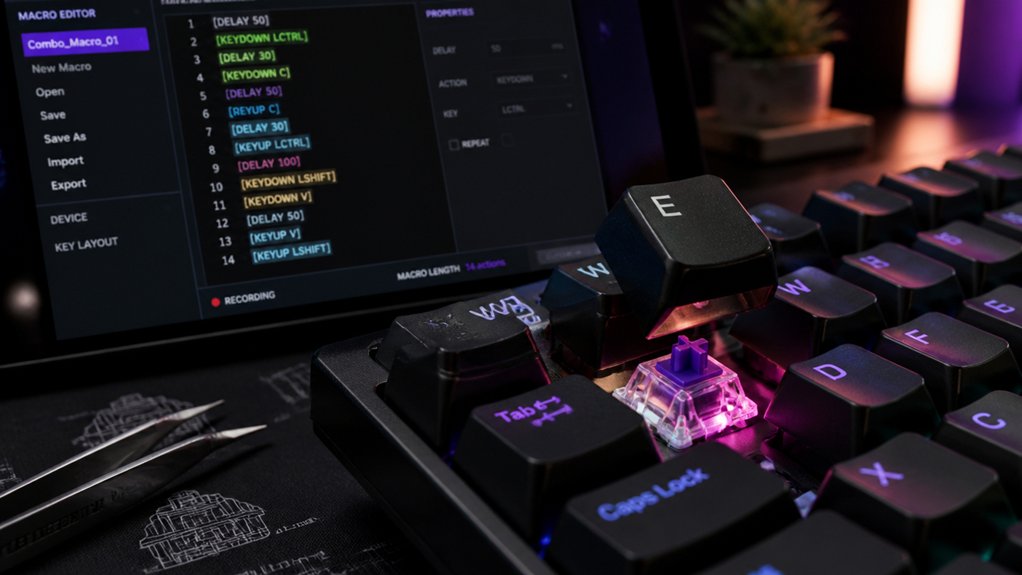
To begin programming macros, connect your mechanical keyboard to your computer and install the compatible software, whether it’s from the manufacturer or a third-party option. A macro programming interface can significantly simplify the process of assigning and customizing shortcuts. Open the macro editor and create or select a macro profile to start recording keystroke sequences. Once set up, you can assign macros to specific keys and configure any needed settings before testing.
Setting Up Hardware
Getting started with setting up your mechanical keyboard for macro programming involves connecting it properly and installing the right software. First, plug in your keyboard and make sure it’s recognized by your computer. Next, download and install the manufacturer’s dedicated macro programming software, like HexDrive for Hexgears or Redragon software for Redragon keyboards. Finally, identify the macro keys or layer keys on your keyboard, noting any dedicated macro keys or secondary layers available. Use the software or onboard buttons (such as MR or Rec) to enter macro recording mode. Now, you can capture your desired key sequence, including keystrokes and delays, to create a macro tailored for your needs. Verify it works in your target application before finalizing your setup, and familiarize yourself with hot-swappable switches to easily customize or repair your switches if needed.
Accessing Programming Software
Once your keyboard is connected and recognized by your computer, the next step is to open the dedicated macro programming software provided by your device’s manufacturer. This macro programming software is essential for customizing your keys and creating macros. Confirm your keyboard is connected via USB or wireless so it’s detected correctly. Launch the software and navigate to the macro editor or key assignment section to begin. Here, you can record or input keystroke sequences, delays, and macros precisely. Use profile management features within the software to create multiple macro sets for different scenarios, like gaming or productivity. Save your macros to either the keyboard’s onboard memory or the software cloud to guarantee immediate activation and consistent functionality across sessions. Proper hot-swap PCBs support reliable key swaps, ensuring your macros remain functional after switch replacements.
Recording Macros Using Built-In Tools
Have you ever wondered how to quickly set up macros directly on your mechanical keyboard without relying on external software? Using the built-in tools, you can record macros effortlessly.
First, activate macro record mode by pressing the macro record button, often labeled MR or Rec, with an LED indicating the recording status. Next, select a target macro key (like G1–G5) where you want to store your sequence.
As you record, press the keys and commands you want to automate; the onboard memory captures the keystrokes, including delays if supported. Finally, press the macro record button again to save the sequence. Additionally, some PCBs support features like programmable software or onboard remapping, which can further enhance macro flexibility.
Your macro is now stored in onboard memory, ready for immediate testing or gameplay.
Editing and Managing Your Macros
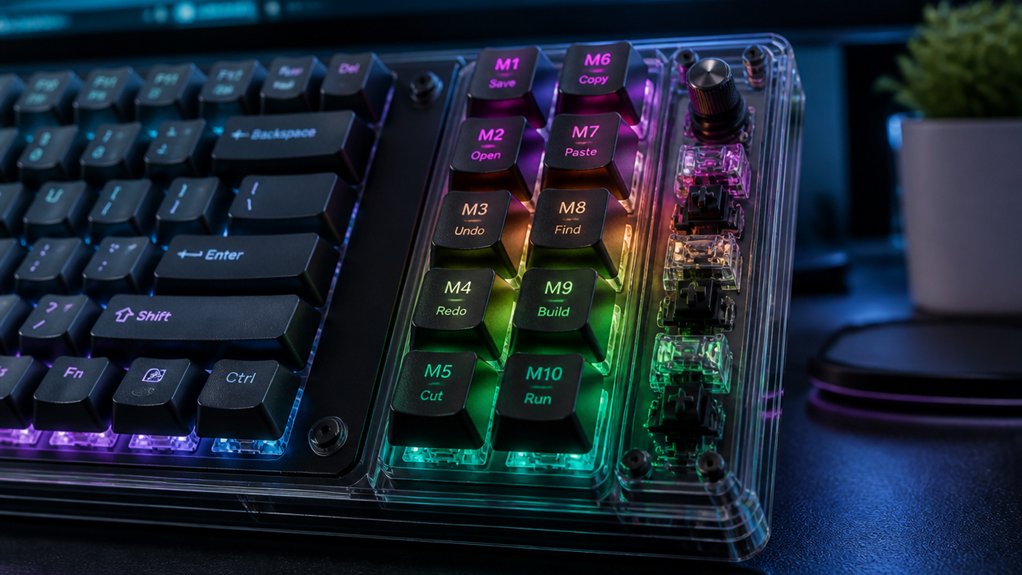
You can refine your macros using dedicated software, which lets you easily edit recorded keystrokes, delays, and repeat options.
Managing multiple profiles helps you switch between command sets for different tasks or games without hassle.
Keep backups of your macros so you can restore or share them across devices effortlessly.
Additionally, understanding your switch preferences, such as actuation force and sound profile, can enhance your overall gaming and typing experience, ensuring your macros align with your preferred switch types and features.
Macro Editing Techniques
Editing and managing your macros effectively is essential for achieving seamless performance, especially in gaming and productivity tasks.
To do macro editing successfully, imagine three key steps:
- Adjust delays by right-clicking delay elements in your software, fine-tuning execution speed.
- Modify sequences by inserting, deleting, or reordering commands to automate a series efficiently.
- Organize macros within profiles, rename them clearly, and assign multiple macros to different keys or layers for easier management.
Many onboard macro edits are limited, so you’ll often delete and re-record macros.
Using dedicated software, like Redragon Macro Editor or HexDriver, allows users to create precise edits and guarantee accuracy.
Additionally, understanding switch compatibility and how different switches respond to editing can help optimize macro performance.
Test macros immediately in software or your games to optimize effectiveness before finalizing.
Managing Multiple Profiles
Managing multiple profiles on your mechanical keyboard allows for quick switching between different macro setups tailored to specific tasks or games. With effective profile management, you can create macros suited for work, gaming, or other activities, then save each setup for easy access.
Creating macros within each profile is straightforward; you can assign them to specific keys, adjust delays, and set repeat options. Changes are saved directly to the profile, ensuring seamless use during tasks or gameplay.
Switching profiles is simple, whether using software, onboard shortcuts, or function keys, enabling you to move effortlessly between configurations. Some keyboards also support layering within profiles, letting you toggle overlapping macros or key functions for more complex workflows.
Efficient profile management keeps your macros organized and ready when you need them most.
Assigning Macros to Keys and Layers
Assigning macros to keys and layers allows you to customize your mechanical keyboard for maximum efficiency and convenience. You can create complex macro sequences by:
- Recording macros directly through dedicated software like HexDrive or Redragon’s Macro Editor, then assigning them to specific keys.
- Using secondary or FN-key layers to assign different macros to the same physical key, expanding your macro capacity without extra keys.
- Programming macros with adjustable delays, repeats, and conditional triggers in software like iCUE, then binding them to keys or layers for precise control.
This method enables you to switch between macro sets seamlessly, tailoring your keyboard’s functionality for various applications or gaming profiles.
Layers and keys work together to elevate your macro setup, offering unmatched customization.
Configuring Repeat and Delay Settings
Configuring repeat and delay settings is essential for achieving precise macro execution on your mechanical keyboard. Adjusting repeat settings determines how many times a macro runs after a single key press—either executing once, repeating until you release the key, or continuously.
Delay settings control the timing between keystrokes within a macro, helping you match the speed needed for tasks or gaming combos. On Redragon keyboards, you can edit delay values directly in the Macro Manager by right-clicking delay elements and entering custom times in milliseconds.
Typically, macros default to a single execution, but you can enable features like “Repeat until key press” for continuous actions. Properly fine-tuning repeat and delay settings enhances reliability, preventing errors caused by input happening too fast or too slow.
Testing and Troubleshooting Your Macros
Once you’ve programmed your macros, it’s important to verify they work as intended in real-world applications. To test your macro, start by creating a macro and executing it in the target software or game.
During macro playback, watch for proper timing and responsiveness. Consider these steps:
- Press the key to create a macro, observing if all actions execute in order.
- Use macro playback features like single execution or loops to test repeated actions and responsiveness.
- If a macro misfires or performs unwanted actions, re-record it or adjust delays between keystrokes using your keyboard’s software editor.
Best Practices for Creating Effective and Legal Macros
Creating effective and legal macros requires careful design to enhance your workflow or gaming experience without crossing into unfair territory. Use macros to automate repetitive tasks, but make certain they don’t grant unfair advantages or violate game policies.
Use dedicated macro software or onboard keyboard programming tools to create precise, error-free command sequences, including customizable delays and repeat options. Test your macros thoroughly in the intended environment to confirm they function correctly and avoid unintended inputs or disruptive behavior.
Avoid executing complex multi-action loops excessively fast, as they could be flagged as cheating in online or competitive settings. Design macros that simplify tasks without overriding manual control or causing hardware or software conflicts, maintaining both their effectiveness and compliance with relevant rules and regulations.
Frequently Asked Questions
Can Macros Be Shared Between Different Mechanical Keyboard Models?
Macros can often be shared between different mechanical keyboard models, but compatibility depends on the keyboard’s firmware and software. You’ll need to guarantee both devices support the same macro format and programming method for seamless sharing.
Are Macros Stored on the Keyboard or on the Computer?
Macros are typically stored on the keyboard’s internal memory, allowing you to use them across devices without needing to reprogram. However, some keyboards save macros on your computer or cloud, so check your device’s specifications.
How Secure Are Macros Against Accidental Triggering?
Macros are generally secure against accidental triggering if you set them up carefully with dedicated keys or controls. However, accidental activation can happen if key assignments overlap or if the macro software isn’t well-configured, so be cautious.
Can Macros Include Multimedia Controls or Complex Scripting?
Yes, macros can include multimedia controls and complex scripting, allowing you to automate tasks like adjusting volume, playback, or executing custom commands. You can customize them extensively based on your keyboard’s firmware and software capabilities.
Do Macro Settings Reset After Firmware Updates or Resets?
Yes, macro settings often reset after firmware updates or resets. You should back up your settings before updating or resetting your firmware to restore your custom macros easily and avoid losing your personalized configurations.
In Summary
By mastering macro programming on your custom mechanical keyboard, you can greatly boost your productivity and streamline repetitive tasks. Just follow the steps to prepare your hardware, record effective macros, and test them thoroughly. Remember to keep your macros legal and considerate of others’ work. With practice, you’ll create efficient setups tailored to your needs, making every keystroke count. Happy customizing—unlock your keyboard’s full potential today!



