
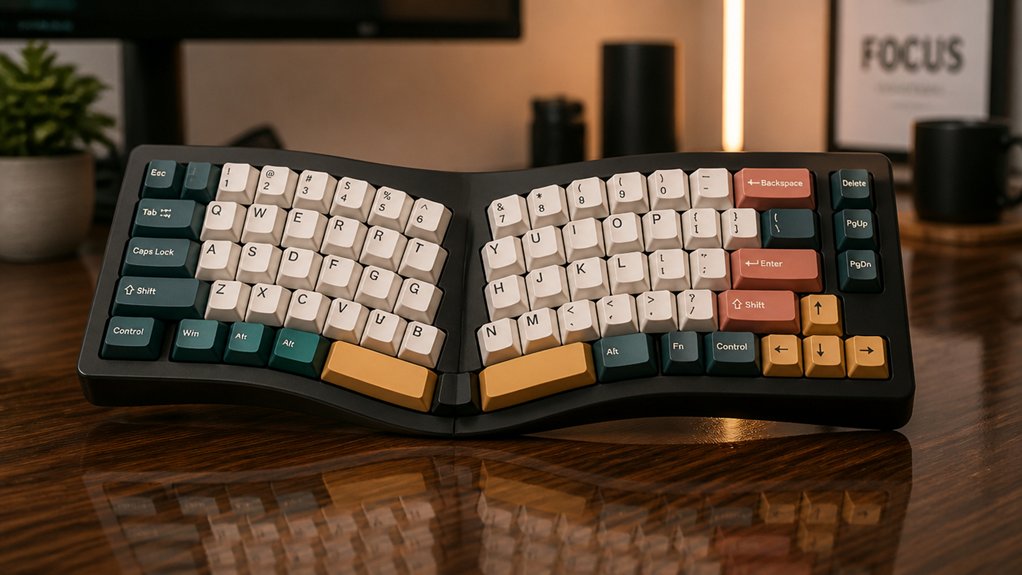
Remapping your keys helps you type more comfortably by aligning key positions with natural hand movements, reducing strain on your wrists and pinky fingers. It minimizes awkward stretches and improves hand posture, which can prevent pain and long-term injuries. Custom layouts and software tools let you reposition modifier keys, making your workflow more efficient and ergonomic. Keep going to discover how to set up your ideal layout and protect your health during long typing sessions.
Why Your Keyboard Setup Might Be Causing Pain
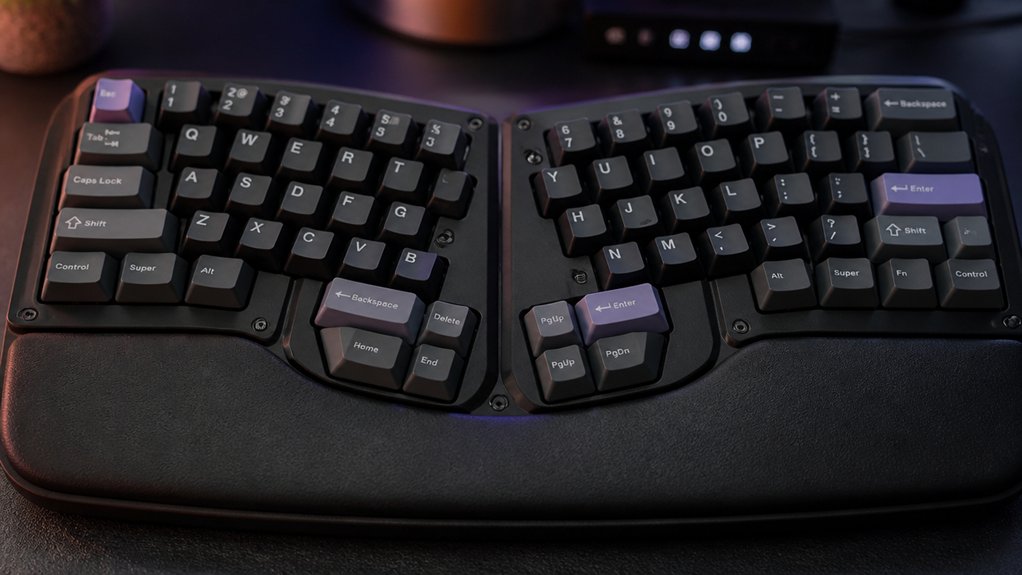
Your keyboard setup can greatly contribute to pain if it wasn’t designed with ergonomics in mind. Standard layouts force your left pinky and wrist into awkward positions, causing ulnar deviation and forearm pronation. This increases the risk of nerve compression and repetitive strain injuries.
Modifier keys like Ctrl and Shift are often placed far from the home row, requiring uncomfortable finger stretches that strain your pinky and wrist. Staggered keys and diagonal finger movements don’t align with natural downward motions, leaving certain fingers overworked and fatigued.
Prolonged typing on unoptimized keyboards leads to persistent discomfort, especially in the wrist and pinky. Without ergonomic adjustments, it’s harder to adopt healthy postures, making pain and discomfort more likely, and reducing your overall productivity. Split ergonomic layouts help mitigate these issues by promoting more natural hand positioning.
How Custom Layouts Can Reduce Hand and Wrist Strain
Custom layouts help you avoid overusing your pinky, reducing fatigue and discomfort. They promote a more neutral hand position, decreasing wrist strain and awkward stretches. Additionally, designing a split ergonomic keyboard layout can further optimize key placement to match natural finger movements and key switch support, enhancing overall typing comfort.
Alleviates Pinky Overuse
Remapping keys can greatly reduce pinky overuse by repositioning frequently used modifier keys like Ctrl and Shift to more accessible, stronger fingers or thumb clusters. This adjustment minimizes awkward pinky stretches and reduces the pinky finger’s workload, which traditionally handles about half of the modifier key’s actions despite being the weakest finger.
Proper key mapping can decrease strain on the pinky, preventing wrist discomfort and repetitive strain injuries caused by increased ulnar deviation and finger contortions. Ergonomic remapping often moves essential shortcuts, such as Ctrl+C and Ctrl+V, closer to the home row, reducing finger travel distance.
This shift not only lightens the pinky’s load but also improves overall typing comfort by distributing modifier key actions more evenly across stronger fingers and thumb clusters. Understanding switch feel and actuation force can further help users optimize their setup for reduced fatigue and enhanced ergonomic efficiency.
Promotes Neutral Hand Position
Arranging keys to promote a neutral hand position can greatly reduce strain on your wrists and forearms. An ergonomic layout shifts keys to align with the natural downward motion of your fingers, minimizing awkward stretches. Prioritizing the home row and symmetrical placement reduces reach, limiting forearm pronation and wrist deviation. Using thumb clusters for essential keys like Space and Delete leverages stronger muscles, reducing finger fatigue. Custom layouts that facilitate comfortable finger movement and keep keys within easy reach help maintain a neutral wrist angle. Here’s how the layout influences your comfort:
| Key Area | Standard Layout | Customized Ergonomic Layout | Benefit |
|---|---|---|---|
| Home Row | Staggered keys, heavier reach | Aligned with natural finger motion | Reduced joint strain |
| Modifier Keys | Pinky overextension | Near the home row | Less pinky fatigue |
| Thumb Clusters | Underused | Used for essential functions | Less finger tension |
| Reach Distance | Distant keys, diagonal stretches | Keys closer to natural movement | Less nerve compression |
| Symmetry | Asymmetric key positioning | Symmetrical for comfort | Limits forearm strain |
Minimizes Repetitive Movements
Redesigning your keyboard layout can greatly cut down on repetitive hand movements that lead to strain. By increasing your home row usage from about 33% to as much as 74%, you reduce finger travel and minimize reaching for distant keys.
Incorporating thumb clusters and rearranged keys near your stronger fingers lessens the need for awkward stretches. Dual-function keys, like spacebar acting as Shift on hold, leverage thumb strength, further lowering repetitive movements.
Remapping keys to balance finger workload decreases ulnar deviation and forearm rotation, preventing nerve compression and strain. These adjustments keep your hands closer to a neutral position, reducing pinky fatigue and wrist tension.
Additionally, choosing ortholinear layouts that align keys in straight rows and columns can further minimize finger movement and reduce overall ergonomic strain during extended typing sessions.
Preserving Muscle Memory While Improving Comfort
To improve comfort without losing your muscle memory, focus on keeping key positions familiar while making small adjustments. Using programmable layers can help you customize your layout without physically changing your keyboard, allowing for ergonomic improvements while maintaining muscle memory.
Balancing Familiarity and Change
When you start remapping keys for better ergonomics, it’s important to do so gradually to maintain your muscle memory. Small changes, like switching Caps Lock to Ctrl, help preserve key positions on your keyboard while reducing strain on your pinky.
Keeping frequently used keys near their original locations minimizes workflow disruption and eases the shift. By retaining common shortcut combinations during remapping, you can prevent confusion and stay productive.
As you adapt gradually, your brain adjusts to new layouts without losing efficiency, and most users regain full typing speed within 1–3 weeks. This balanced approach guarantees comfort improvements without sacrificing familiarity, helping you sustain good habits while optimizing your keyboard layer support.
Maintaining Key Positioning
Maintaining key positioning is essential when remapping for better ergonomics because it allows you to preserve your muscle memory and keep your typing fluid. By keeping most key positions consistent, your fingers can stay within their familiar layout, reducing the learning curve. A well-designed switch puller, such as those made from durable materials, helps ensure your keyboard remains in good condition during adjustments. Small remapping adjustments, like reassigning Caps Lock to Control, leverage existing finger habits to minimize strain without sacrificing shortcut efficiency. Maintaining horizontal and vertical symmetry in your keyboard layout supports natural finger movement and helps avoid awkward wrist angles. Focus on optimizing modifier and navigation keys while keeping alphanumeric keys in their standard positions. This approach lets you improve ergonomic comfort without disrupting your ingrained muscle memory, ensuring that you can type comfortably and efficiently during your adaptation.
Accommodating Muscle Memory
Accommodating muscle memory while improving comfort involves thoughtful remapping that aligns with your existing typing habits. By carefully adjusting key positions, you minimize disruption and preserve familiar patterns. Gradual remapping helps you adapt quickly, often regaining speed within 1–3 weeks. Keeping shortcuts and key functions consistent reduces cognitive load, preventing workflow interruptions. For example, shifting the Ctrl key to Caps Lock leverages known finger movements without needing to relearn sequences. Strategic remapping like this maintains efficiency while offering ergonomic benefits. Utilizing keycap pullers can also facilitate easy access for ergonomic adjustments or cleaning, ensuring your setup remains optimized for comfort.
Choosing the Best Software for Keyboard Remapping
Choosing the right software for keyboard remapping depends on your operating system and specific needs.
If you’re on Windows, tools like Microsoft PowerToys Keyboard Manager provide an easy-to-use interface for key mappings, but require running continuously to keep changes active. For more tailored adjustments, specialized typing software often includes progress tracking and customizable layouts, enhancing ergonomic efficiency.
For macOS users, Karabiner-Elements offers powerful customization, supporting complex layer and chord combos. Linux users might prefer Keyd, which supports multi-layer layouts and macros for ergonomic improvements with less complexity. Cross-platform options like KMonad and Kanata enable advanced ergonomic layouts but demand a steeper learning curve.
Consider your comfort with configuration, whether you want a graphical interface or scripting capabilities, and how dynamic you need your remapping to be. These tools help create tailored ergonomic layouts that reduce strain and improve efficiency.
Common Mistakes When Reassigning Keys: And How to Avoid Them
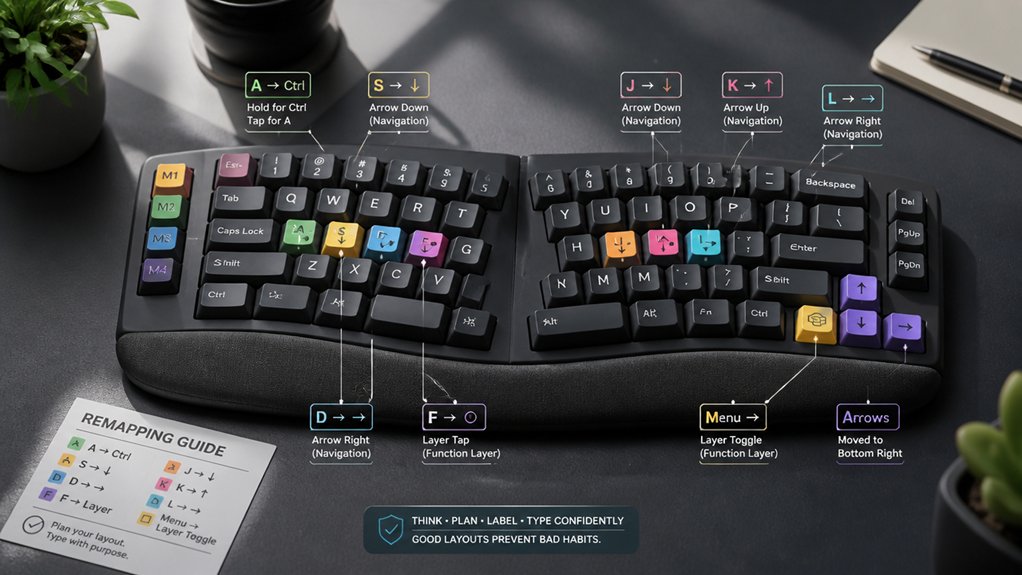
Reassigning too many functions to a single key or layer can confuse you and slow down your workflow. Avoid overloading keys by keeping functions simple and using clear visual cues.
Also, neglecting ergonomic flow by placing frequently used keys in awkward spots can cause unnecessary fatigue and strain.
Overloading Key Functions
Overloading keys with multiple tap-hold functions might seem efficient, but it often leads to timing conflicts that make common shortcuts like Shift+Esc or Ctrl+MouseClick unreliable and frustrating.
When you assign too many modifiers or layers to a single key, especially on pinky fingers, it causes awkward finger contortions and hampers fluid typing.
Heavy pinky load keys, such as left Ctrl or Caps Lock, for frequent shortcuts can cause discomfort and slow you down due to poor ergonomics.
- Using the same key for multiple tap and hold functions
- Assigning complex layers to keys on pinky fingers
- Overloading modifier keys with multiple shortcuts
- Mapping essential navigation keys to hard-to-reach spots
- Relying on layer toggles that are easy to trigger accidentally
Ignoring Ergonomic Flow
Ignoring the natural flow of finger movement when remapping keys can greatly hinder your typing efficiency and cause discomfort. If you disrupt the ergonomic row arrangement or force fingers to move in awkward patterns, you’ll likely experience increased strain and slower typing. A well-optimized remapping process considers stabilizer types, ensuring that key responses remain consistent and comfortable during prolonged use. Reassigning frequently used modifier keys, like Ctrl or Shift, to distant pinky positions without considering ergonomic comfort often results in finger fatigue and slower shortcut execution. Similarly, placing important keys far from their usual spots can break muscle memory and add cognitive load. Failing to incorporate layered functions or tap-hold modifiers misses chances to reduce finger movement. Always test your remapped layout in real-world scenarios to avoid conflicting combinations and uncomfortable sequences that can degrade your flow and lead to frustration.
How Layered Keymaps Boost Efficiency and Ergonomics
Layered keymaps greatly enhance typing efficiency and comfort by allowing you to assign multiple functions to the same keys. This minimizes finger travel and reduces awkward hand movements that cause strain.
Layered keymaps boost efficiency and comfort by enabling multiple functions per key, reducing finger movement and hand strain.
You can activate layers using thumb keys or modifiers like Caps Lock and Right Alt, enabling smooth switching between tasks like editing, navigation, and mouse control without moving your home hand.
Benefits include:
- Access to multiple functions with fewer key presses
- Maintains home row positioning, reducing ulnar deviation
- Ergonomic shortcuts like Shift + Option for selection
- Easier browser navigation commands
- Support for chorded key combos with software like karaml or keyd
Practical Examples of Key Remapping for Better Posture and Speed
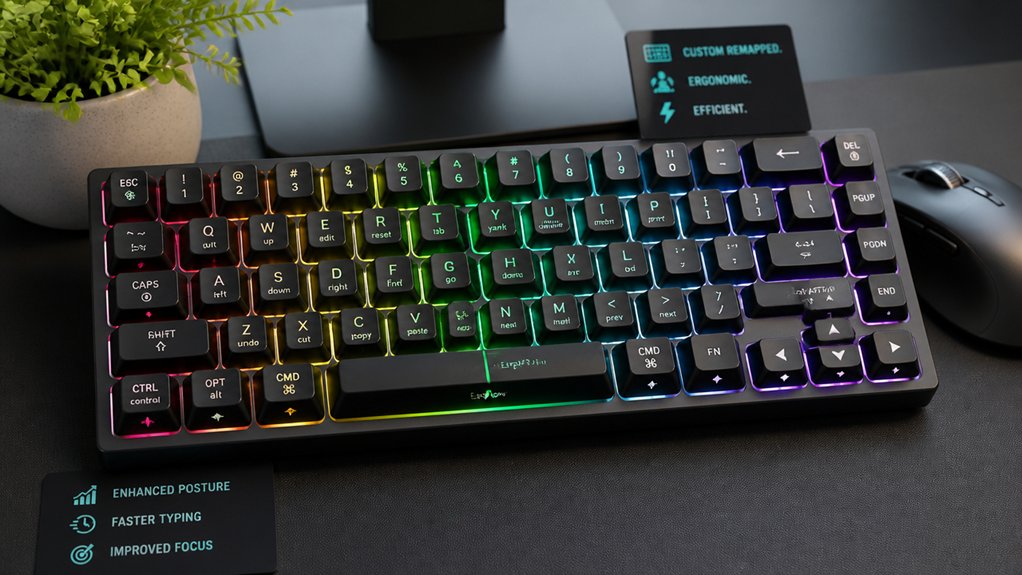
Rearranging your key layout with practical remappings can greatly improve your posture and typing speed. For example, remapping Caps Lock to Control reduces pinky strain and makes modifier keys more accessible, helping you type more efficiently.
Using dual-function keys like tap-for-Space and hold-for-Shift leverages your strong thumb muscles, minimizing awkward pinky movements. Moving arrow keys and navigation commands to thumb layers or the home row decreases hand movement, reducing wrist and forearm fatigue during long sessions.
Remapping frequently used shortcuts—such as Cut, Copy, and Paste—to reachable keys or chords enables one-handed operation without repositioning your hands. Shifting number keys or punctuation closer to the home row, and centralizing punctuation for index finger use, keeps your wrists neutral and speeds up your typing.
Testing and Refining Your Custom Keyboard Layout Safely
Start by making small, incremental changes to your layout to keep your muscle memory intact and avoid overwhelming yourself. Use software tools like PowerToys or Karabiner to test these adjustments safely without permanent hardware changes.
Experiment with non-critical tasks first, and document your settings so you can easily revert if needed.
Safe Experimentation Methods
When experimenting with custom keyboard layouts, it’s important to do so safely to prevent disrupting your workflow or developing uncomfortable habits. Use remapping tools like Microsoft PowerToys or kmonad to test changes without hardware modifications, making reversals easier.
Start small by remapping a few keys at a time, such as Caps Lock to Ctrl, to minimize disruption and adjust your muscle memory gradually. Use layered key functions and tap-hold modifications to explore multifunction keys without losing default access during testing.
Regularly monitor your typing comfort and productivity, adjusting as needed. Be sure to back up configuration files often and keep documentation of changes so you can quickly revert if issues arise.
Focus on key positions that align with your home hand for a smoother, ergonomic experience.
Incremental Adjustment Strategies
To effectively refine your custom keyboard layout, focus on making small, incremental adjustments rather than overhauling everything at once. Begin by remapping a few frequently used modifier keys, like changing Caps Lock to Control, to lessen pinky strain while maintaining existing muscle memory. Use software tools such as Microsoft PowerToys or karaml to test changes safely, allowing easy rollbacks. Gradually introduce dual-function keys—tapping for Esc and holding for layers—to build familiarity and reduce workflow disruption. Track your typing speed and comfort during each phase to assess improvements. Spacing out major layout changes over weeks helps your learning curve, prevents overload, and supports natural muscle memory adaptation.
| Step | Action | Focus Area |
|---|---|---|
| 1 | Remap modifier keys | Muscle memory and ergonomics |
| 2 | Test with software | Safe adjustment process |
| 3 | Add dual-function keys | Gradual adaptation |
| 4 | Track progress | Data-driven refinement |
Balancing Functionality and Simplicity in Your Key Map
Balancing functionality and simplicity in your key map requires thoughtful layering that enhances productivity without overwhelming your workflow.
Focus on preserving key functions like default Tab behavior while adding modifier layers such as Capslock for Extend or Nav. Simplify layer activation by assigning single keys, like Capslock for Extend or Right Alt for Nav, reducing cognitive and physical strain.
Use dual-role keys—for example, tapping Capslock for Esc and holding it for Extend—maintaining muscle memory. Strategically place modifiers, such as remapping Capslock to control Vim, to avoid awkward combos and promote ergonomic comfort.
Incorporate essential shortcuts, like text navigation and clipboard controls, within accessible layers. This balanced approach guarantees your ergonomic keyboard remains intuitive, efficient, and comfortable for extended use.
Using Macros to Streamline Your Workflow
Using macros can dramatically enhance your workflow by automating repetitive tasks and reducing the amount of finger travel required during extended typing sessions.
By combining multiple keystrokes into single shortcuts, macros streamline complex workflows like coding, text editing, or command execution. Customized macros mapped to convenient keys or layers keep your hand in an ergonomic position, boosting comfort and efficiency.
These tools allow you to quickly insert frequently used snippets, navigate documents, or trigger application-specific commands without breaking your flow. Advanced keyboard remapping tools support macro creation and layering, seamlessly integrating ergonomic layouts with workflow automation.
This setup minimizes unnecessary movement, helps prevent strain, and guarantees you stay productive for longer periods, making a strong case for remapping and macro use in your ergonomic typing setup.
Troubleshooting Key Mapping Conflicts and Unintended Behaviors
When remapping keys, conflicts can easily arise from overlapping shortcuts or dual-function keys, leading to unexpected behavior that disrupts your workflow.
To troubleshoot, pay attention to common issues with key mapping.
- Overlapping shortcuts can interfere with commands like Ctrl+C or Shift+Esc.
- Tap-hold mod functions, such as Capslock acting as Esc or Extend, may trigger incorrectly if timing isn’t perfect.
- Modifier keys repurposed for layer toggling can clash with system-reserved shortcuts, causing stuck layers.
- Complex chord combos might misfire if simultaneous key presses aren’t properly timed.
- Differences across software like Karabiner versus keyd can cause conflicts, requiring platform-specific adjustments.
Careful testing and refining timing thresholds for tap-hold mod functions, and avoiding clash between repurposed modifier keys, help guarantee smoother key mapping.
The Long-Term Health Benefits of Ergonomic Keyboard Layouts
Adopting an ergonomic keyboard layout can lead to significant long-term health benefits by promoting more natural hand and wrist positions. With an ergonomic keyboard, you’ll reduce awkward wrist angles and ulnar deviation caused by traditional QWERTY designs, lowering your risk of nerve compression and repetitive strain injuries.
Remapping keys to increase home row usage from about 33% to over 70% decreases finger travel distance and muscle fatigue during long typing sessions. Using thumb clusters for frequently used modifiers and spacebar functions leverages thumb strength, alleviating pinky strain and improving comfort.
Gradually adopting these layouts helps promote a natural hand posture, resulting in lasting reductions in wrist and pinky discomfort while enhancing your overall typing health for the long term.
Transition Tips: Adapting to Your New Layout Without Frustration
Shifting to a new ergonomic keyboard layout can feel overwhelming at first, but easing into it gradually helps prevent frustration. Start by remapping one or two keys at a time, preserving your existing muscle memory and reducing workflow disruption. Use tools like Microsoft PowerToys or Karabiner to remap keys without breaking your usual shortcuts, making the adjustment smoother.
Keep the key position consistent with your home hand as much as possible to maintain familiarity. Expect an initial learning curve of 1 to 3 weeks before hitting your normal typing speed.
Remember to:
- Focus on one or two key remaps at a time
- Maintain familiar shortcut combinations
- Practice regularly to build ergonomic habits
- Layer modifications to optimize comfort
- Prioritize consistency in key position and home hand
Following these tips helps you adapt gradually and comfortably.
Final Tips for Maintaining Comfort and Productivity
To maintain both comfort and productivity while shifting to an ergonomic keyboard layout, it’s essential to keep a balanced approach that combines remapping with ergonomic adjustments. Take your time, remapping one or two keys at a time, so you preserve muscle memory and minimize workflow disruption. Use tools like Microsoft PowerToys or Karaml to create custom layers and combos without breaking your existing shortcuts. Keep frequently used modifiers and navigation keys within easy thumb reach—this helps maintain your typing speed and reduces strain. Regularly adjust your posture and hand positioning to maximize ergonomic benefits and prevent discomfort. Monitor your fatigue and gradually increase layout usage over 1–3 weeks for full speed recovery.
| Focus Area | Tip | Benefit |
|---|---|---|
| Home Position | Keep thumb-accessible keys | Reduce fatigue |
| Remapping | Use seamless tools | Maintain speed |
| Posture | Regular ergonomic adjustments | Prevent discomfort |
| Gradual Shift | Gradually increase usage | Preserve productivity |
Frequently Asked Questions
How to Make Typing More Ergonomic?
To make typing more ergonomic, you should remap frequently used keys to the home row, use dual-function keys, employ layers for shortcuts, and position navigation keys on thumb clusters, reducing hand strain and promoting natural, comfortable posture.
Does an Ergonomic Keyboard Actually Help?
Yes, an ergonomic keyboard helps by reducing wrist and finger strain, improving overall posture, and lowering the risk of repetitive strain injuries. It promotes natural finger movements and comfort, making extended typing sessions more manageable and less painful for you.
Do Ergonomic Keyboards Make You Type Faster?
Yes, ergonomic keyboards can make you type faster over time by reducing finger fatigue, increasing use of the home row, and streamlining shortcuts. While initial speed may drop, proper adaptation ultimately enhances your overall typing efficiency.
What Are the Benefits of a Customizable Ergonomic Split Computer Keyboard?
A customizable ergonomic split keyboard improves your comfort by reducing strain and promoting natural hand positioning. It boosts productivity with programmable layers, minimizes finger travel, and helps prevent repetitive strain injuries, making extended typing more efficient and comfortable for you.
In Summary
Remapping your keys can greatly improve your comfort and reduce strain during typing. By customizing your layout thoughtfully and avoiding common pitfalls, you’ll preserve muscle memory while making your setup more ergonomic. Stick with reliable software and be patient as you adapt. With consistent practice, you’ll enjoy long-term health benefits and a more comfortable, productive typing experience. Take control of your workspace and prioritize your well-being—you deserve it.



