
To fix wireless mechanical keyboard lag, start by replacing the batteries with high-quality, fresh ones for a better connection. Move the receiver closer to your keyboard and keep a clear line of sight, avoiding metal objects and interference from other devices like Wi-Fi routers or Bluetooth gadgets. Test different USB ports, and use extension cables if needed for better stability. Updating drivers or using Windows troubleshooters can also help. Keep exploring for more tips to optimize your setup.
How to Quickly Fix Wireless Mechanical Keyboard Lag
If your wireless mechanical keyboard is lagging, the quickest fix is to guarantee it has a strong, stable connection. Your wireless keyboard relies on its USB receiver to communicate efficiently; if the input lag is noticeable, try unplugging and re-plugging the receiver or switching it to another USB port. Using a USB extension cable can help position the receiver away from interference sources.
Also, confirm the wireless keyboard’s batteries are charged or replaced, as low power can disrupt signals. Disable any power-saving features on your computer that turn off USB devices or enable sleep modes, which can cause delays.
Finally, updating or reinstalling the keyboard drivers helps maintain peak hardware-software communication, reducing lag caused by compatibility issues. Additionally, ensuring the keyboard supports tri-mode connectivity can provide more reliable connections in various environments.
Check and Replace Batteries for Better Connectivity
If your wireless mechanical keyboard is lagging, start by checking the battery level or indicators to see if power is low.
Replacing old or depleted batteries with fresh, high-quality ones can instantly improve connectivity. Regularly maintaining and choosing the right batteries guarantees your keyboard stays responsive and reliable.
Additionally, using batteries with proven charging efficiency can further improve overall performance and reduce lag issues.
Signs of Low Power
Low battery power in your wireless mechanical keyboard often leads to noticeable input lag and delayed keystrokes. If you experience frequent keyboard lag or inconsistent responses, low power might be the culprit.
Many wireless keyboards display a low battery indicator or flashing light to alert you before performance drops. You may also notice repeated characters or lag during typing, which are signs it’s time to check the power level.
Using fresh, high-capacity batteries or fully charged rechargeable cells can restore stable wireless connectivity and reduce latency. Keeping an eye on the battery status helps prevent disruptions during your work or gaming sessions. Additionally, using long-lasting batteries designed for wireless devices can improve overall performance.
Replacing or recharging batteries promptly guarantees your keyboard maintains peak power, keeping your wireless connection smooth and responsive.
Proper Battery Maintenance
Maintaining healthy batteries is key to ensuring your wireless mechanical keyboard stays responsive and connected. Low battery power degrades signal strength, causing lag, stuttering, or input delays.
To avoid these issues, regularly check your keyboard’s battery status and replace or recharge weak batteries promptly. Consider these steps:
- Use battery indicators or software notifications to stay informed.
- Opt for high-quality rechargeable or alkaline batteries for longer usage.
- Keep spare batteries handy for quick replacements.
- Avoid letting batteries fully drain to prevent performance drops.
- Ensure your batteries support optimal power delivery for consistent and reliable connectivity.
Optimal Battery Choices
Choosing the right batteries is essential for maintaining a reliable wireless connection with your mechanical keyboard. High-quality, fresh alkaline or lithium batteries deliver consistent power and prevent voltage drops that can cause lag.
Rechargeable batteries with a high mAh rating, when fully charged, help sustain a stable connection and reduce input delay. It’s important to replace batteries promptly when low battery warnings appear or if you notice stuttering or input dropouts.
Avoid mixing old and new batteries or different brands, as uneven power delivery can weaken the wireless signal. Regularly check and clean battery contacts to guarantee good electrical connections.
Using batteries with stable power output minimizes interference and ensures your device maintains a reliable connection, especially during extended use. Proper battery choices optimize the USB connection and support effective Power Saving features, keeping your keyboard responsive and lag-free for longer periods.
Move the Receiver Closer and Ensure a Clear Line of Sight
To reduce lag, position the receiver closer to your keyboard, ideally within 30 to 80 centimeters.
Make sure there are no physical barriers like walls or metal objects blocking the signal, and keep the line of sight clear. Using a USB extension cable can help achieve the best placement for a stable connection. Ensuring the multi-device pairing feature is properly configured can also help maintain a reliable connection.
Minimize Distance Between Devices
Bringing the wireless keyboard’s USB receiver closer greatly reduces input lag by strengthening the signal. Keeping the receiver within 80 cm guarantees better connectivity and less radio interference. Additionally, using a hot-swap keyboard kit with reliable PCB sockets can help ensure stable connections during frequent switch changes. To improve performance further, consider:
- Using a USB extension cable to position the receiver away from the PC chassis and electronics, reducing interference.
- Maintaining a clear line of sight between keyboard and receiver, avoiding physical barriers that weaken the 2.4 GHz signal.
- Avoiding metal desks, walls, or other wireless devices operating on the same frequency, which can cause lag and stuttering.
- Testing input lag after relocating the receiver to confirm improved responsiveness. Proper placement minimizes radio interference and delivers a more stable, lag-free experience.
Remove Physical Obstructions
Moving the wireless keyboard receiver closer to your keyboard can dramatically reduce lag by strengthening the wireless signal. Keep the receiver within 20 to 30 centimeters to minimize signal degradation and input delay.
Make sure there are no physical obstructions like metal objects, walls, or furniture blocking the line of sight, as these can reflect or weaken the 2.4 GHz signal. Avoid positioning the receiver directly behind your computer chassis or near USB 3.0 ports, which often cause interference and disrupt the connection.
Using a USB extension cable to move the receiver closer can improve signal strength and stability. Ensuring a clear path between the wireless keyboard receiver and your keyboard is essential to prevent intermittent stuttering, freezing, and lag issues. Additionally, wireless connectivity features like multi-device pairing and high polling rates can contribute to a more stable connection.
Identify and Minimize Wireless Interference From Nearby Devices
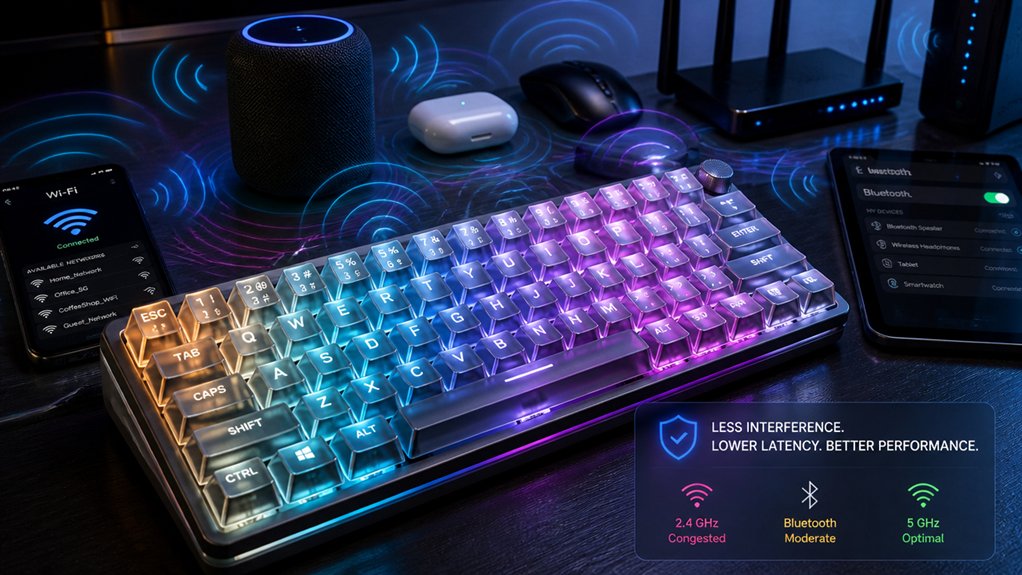
Electromagnetic interference from devices like Wi-Fi routers, Bluetooth peripherals, and cordless phones operating on the 2.4 GHz frequency can cause noticeable lag in your wireless mechanical keyboard. To identify interference sources, you should: 1. Move the wireless receiver closer to the keyboard and away from metal objects or your PC chassis. 2. Temporarily disable or relocate Wi-Fi routers and nearby Bluetooth devices to see if lag improves. 3. Use USB cable extensions to position the receiver away from USB 3.0 ports and external hard drives, reducing radio frequency noise. 4. Lower the transmission power of Wi-Fi devices and enable anti-interference settings on your router. Additionally, considering the use of switch types like Hall Effect magnetic switches or optical switches can improve resilience against interference and enhance overall responsiveness.
Test Different USB Ports and Use Extension Cables for Stability
Testing different USB ports is a simple yet effective way to improve your wireless keyboard’s stability. Try connecting your wireless receiver to various ports, especially USB 2.0 and 3.0, on both the front panel and motherboard. Some ports may provide better power and signal, reducing lag or disconnection. Additionally, using a wired connection instead of wireless can further ensure stability during critical tasks.
If you experience issues, consider using a high-quality, powered USB extension cable to move the receiver closer to the keyboard, away from metal surfaces and other USB 3.0 devices. This minimizes interference issues caused by electromagnetic disruption from your PC chassis.
Avoid using a USB hub, as it can weaken signal quality. Directly connecting the dongle to different ports and positioning it properly helps isolate port-specific faults and improves overall wireless performance.
Update or Reinstall Keyboard Drivers to Prevent Lag
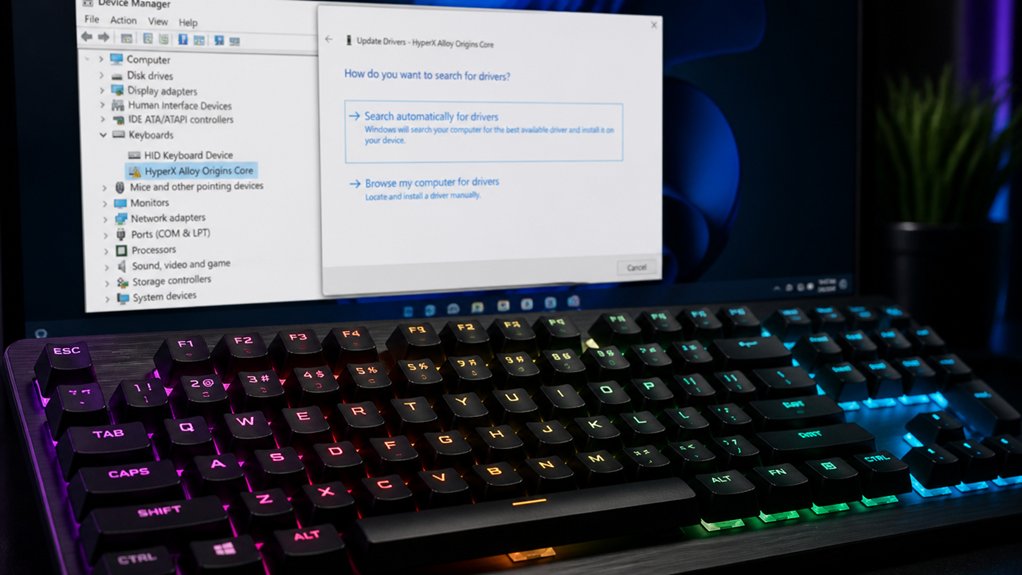
Updating or reinstalling your keyboard drivers can greatly reduce lag by ensuring your device communicates properly with the operating system.
To do this:
- Open Device Manager by pressing Windows key + X and selecting it.
- Locate your keyboard under “Keyboards” and right-click.
- Choose “Update Driver” to install the driver automatically or select “Uninstall device” to remove it.
- Restart your computer to allow Windows to reinstall the driver or manually download the latest version from the manufacturer’s website.
Use Built-In Windows Troubleshooters to Fix Connection Issues
If updating your drivers didn’t fully resolve the lag, using Windows’ built-in troubleshooters can often identify and fix connection problems with your wireless mechanical keyboard. Search “keyboard problem” in the Start menu to run the keyboard troubleshooter, which guides you through resolving common input issues like recognition errors and communication delays.
It can reset keyboard drivers and clear temporary connection buffers that cause lag, ensuring a smoother experience. The troubleshooter also checks for power management conflicts or disabled USB ports that might disrupt wireless signals, helping restore proper communication between your keyboard and PC.
After running the troubleshooter, restarting your system applies the fixes and improves keyboard works. This simple step can greatly reduce lag and restore responsiveness.
Frequently Asked Questions
Why Is My Wireless Keyboard so Laggy?
Your wireless keyboard is laggy because of signal interference, low battery, or receiver positioning issues. Software problems like outdated drivers or power settings may also cause delays, along with system overload or background apps affecting responsiveness.
How to Fix Mechanical Keyboard Delay?
You can fix mechanical keyboard delay by updating drivers, reducing the distance between the receiver and keyboard, removing obstacles, and disabling power-saving features. Recharging batteries and closing background apps also improve responsiveness and minimize lag.
Do Wireless Keyboards Have Lag?
Yes, wireless keyboards can have lag caused by weak signals, interference, or low batteries. You can reduce lag by proper placement of the transceiver, minimizing obstacles, and keeping the battery charged for smoother, more responsive typing or gaming experiences.
Why Is My Keyboard Lagging While Gaming?
Your keyboard lags while gaming because wireless interference, low battery, or high CPU usage slow down signal transmission. Using a wired connection, reducing background tasks, or upgrading to a high polling rate keyboard helps improve responsiveness.
In Summary
Now that you know how to troubleshoot and fix wireless mechanical keyboard lag, you can enjoy a smoother typing experience. Often, simple steps like replacing batteries, moving the receiver closer, or updating drivers make a big difference. Keep your workspace free of interference and try different ports if needed. With these quick fixes, you’ll minimize lag and boost your productivity, making your wireless keyboard as responsive as a wired one in no time.



