
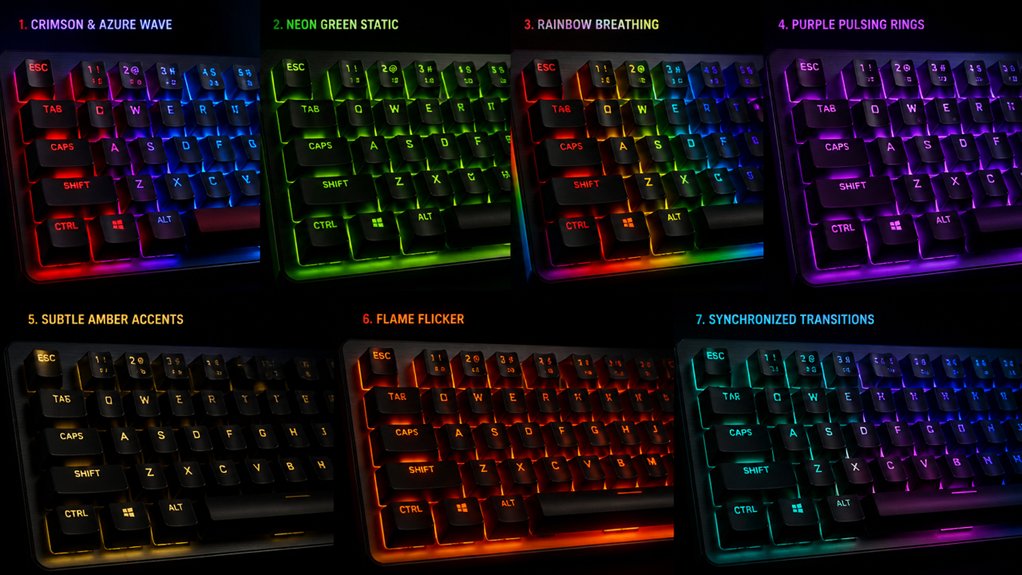
You can customize your mechanical keyboard’s RGB lighting without software by using built-in hardware controls for cycling modes, adjusting brightness, and changing colors. Check whether your keyboard has dedicated keys for effects like breathing or wave patterns. You can also set up different RGB zones and layers in firmware for personalized effects, or modify hardware components such as LEDs and keycaps to enhance light distribution. Plus, enabling OS detection can automatically change lighting based on your system. Keep exploring for more tips to truly personalize your setup.
Our Recommended Products on Amazon


As an Amazon Associate we earn from qualifying purchases.
How to Identify Your Keyboard’s Built-In RGB Features?
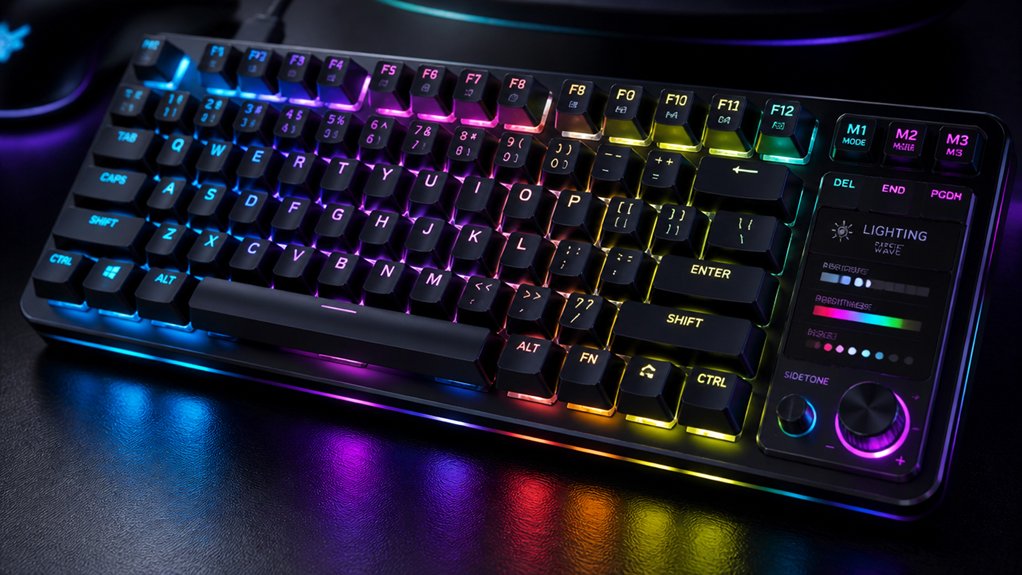
Wondering if your mechanical keyboard supports built-in RGB lighting? The first step is checking for physical clues, like dedicated RGB control keys or key legends indicating lighting functions. Many keyboards have hardware shortcuts, such as Fn + \ or Fn + arrow keys, to cycle through preset RGB modes without needing software.
Review your user manual or visit the manufacturer’s website to confirm if your model has RGB support. Some keyboards also feature per-key RGB customization, activated through specific key combos—offering direct color control without software.
Keep in mind, older models might lack advanced RGB control, only allowing brightness or speed adjustments through shortcut keys. If your keyboard uses south-facing LEDs or limited backlight options, hardware controls mainly toggle overall brightness or lighting modes rather than detailed color changes. Additionally, individually addressable LEDs enable intricate patterns and greater customization options directly on compatible keyboards.
Use Hardware Buttons to Cycle and Change Effects?
Do you know that most RK mechanical keyboards let you change lighting effects directly with hardware buttons? You can easily cycle through different RGB lighting effects without needing software.
Using key combinations like Fn + \ or Fn + arrow keys, you can switch between preset RGB modes. You can also adjust the brightness and speed of effects by pressing dedicated Fn shortcuts combined with arrow keys. Resetting to default patterns is straightforward, often requiring specific hardware key combos listed in your manual.
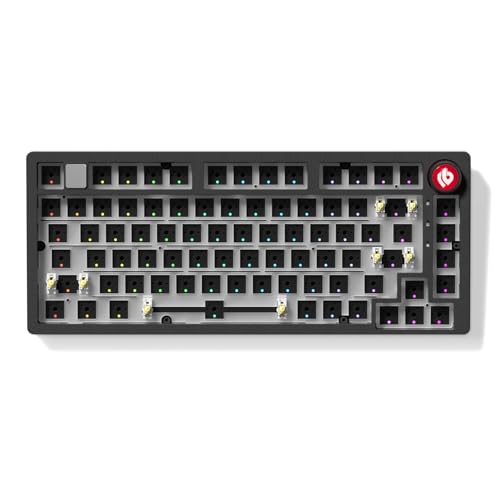
This method is perfect for quick changes or when software support isn’t available. Additionally, many hot-swap keyboard kits support customizable lighting without software, allowing for easy hardware control.
- Cycle through RGB lighting effects with simple key presses.
- Toggle between preset modes instantly without software.
- Fine-tune brightness and speed on the fly.
- Reset lighting to default easily.
Set Up RGB Zones and Layers in Firmware for Customization?
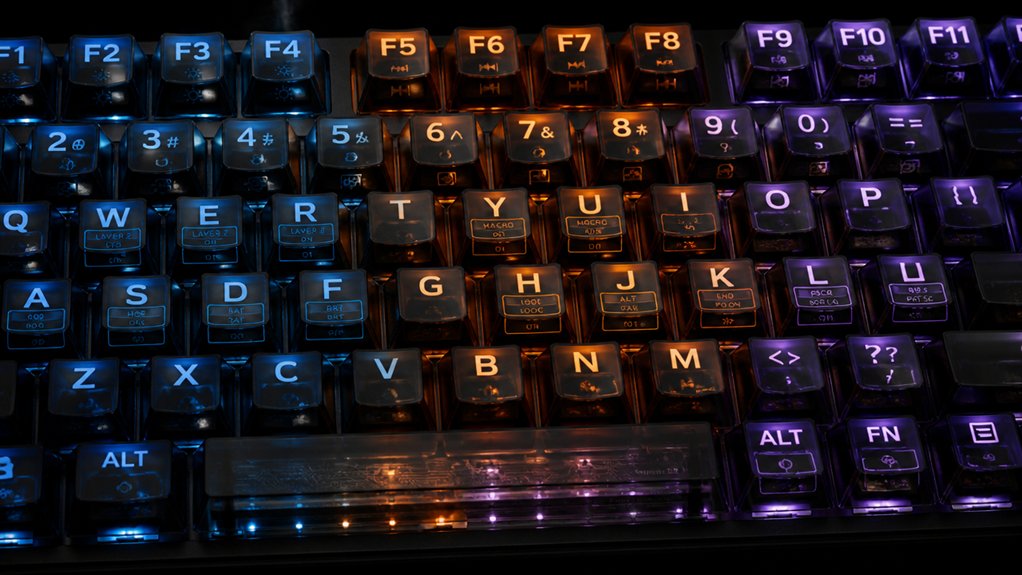
Have you ever wanted to create more dynamic and visually appealing lighting effects on your mechanical keyboard? To do this, you can set up RGB zones and layers directly in the firmware of your RGB keyboard.
In custom firmware like QMK, you’ll define these zones in files like `config.h` or `rgb_matrix_user.inc`, grouping LEDs into specific key clusters for independent control. You can program layers to activate particular RGB zones with different colors or effects, which gives you real-time visual feedback based on the active layer. Additionally, understanding the control and connectivity options can help you optimize your setup for seamless adjustments and advanced effects.
Using the `default_layer_state_set_user` callback, you can automatically change zone colors when toggling layers. Combining layered effects allows for complex visuals, enriching your RGB keyboard’s appearance without relying on external software.
Fine-Tune Brightness and Colors Directly on Your Keyboard?
You can easily adjust brightness and cycle through colors directly using your keyboard’s hotkeys, like Fn plus arrow keys or specific function keys. Many RK models also let you switch between lighting modes and customize per-key colors instantly without software. Quick adjustments like these make fine-tuning your RGB setup simple and fast during gameplay or work. Additionally, some models feature south-facing RGB LEDs, which enable more uniform and vivid illumination across the keycaps.
Adjust Brightness Levels
Many mechanical keyboards, including RK models, make it easy to fine-tune RGB brightness directly on the device without relying on software. You can make sure your backlighting matches your environment by adjusting brightness levels with simple key combos like Fn + arrow keys.
Typically, cycling through preset modes helps you find the perfect illumination. Some keyboards use Fn + \ or other function keys to increase or decrease brightness, giving you instant control.
In addition, certain high-end models support multiple lighting profiles, allowing users to switch between different RGB lighting modes quickly without software.
You can also switch modes and brightness at once, which helps customize your setup quickly. If your backlighting seems off or too dim, be certain to cycle through brightness settings or reset your lighting with dedicated shortcuts.
These features guarantee your keyboard’s backlight always complements your workspace without external apps.
Cycle Through Colors
Cycling through colors and effects is straightforward with dedicated hardware shortcuts on your mechanical keyboard. You can easily switch between preset RGB effects and colors using key combinations like Fn + \ or Fn + arrow keys, no software needed. This allows you to quickly preview different RGB effects and find the look you prefer. Many keyboards also let you fine-tune the brightness and speed of RGB effects directly through hardware shortcuts, enabling on-the-fly adjustments. If you want to explore custom options, some models support toggling self-define modes for per-key RGB personalization without software. Additionally, you can reset lighting or turn it off with simple key sequences. These onboard controls work seamlessly on both wired and wireless modes, as long as your keyboard’s firmware supports native RGB management. Understanding the programmable features helps you maximize your keyboard’s RGB customization options without relying on software.
Configure Lighting Modes
Adjusting your keyboard’s lighting modes directly through the hardware is a quick way to personalize your setup without needing external software. Many RGB mechanical keyboards let you cycle through preset modes using shortcuts like Fn + \ or arrow keys.
You can also tweak brightness and speed of effects through key combinations, often involving Fn with dedicated brightness or speed keys. Some models offer inbuilt “Self-Define” modes, letting you assign specific colors to individual keys without extra software.
Resetting RGB lighting to defaults is simple, usually via Fn + a reset key or a dedicated shortcut.
Here are key options to customize your RGB mechanical keyboard:
- Cycle through preset modes (static, breathing, wave, reactive)
- Fine-tune brightness and speed
- Create custom “Self-Define” modes
- Reset to default settings
Many models also support programmable layers, enabling you to access different lighting configurations and macro functions without software.
Create Custom RGB Effects Using Firmware Features?
Ever wondered how to craft custom RGB lighting effects directly within your mechanical keyboard’s firmware? If so, you can leverage features like `RGB_MATRIX_CUSTOM_USER` in QMK firmware to create unique effects without external software.
By enabling `RGB_MATRIX_ENABLE` and `RGB_MATRIX_CUSTOM_USER` in your `rules.mk`, you can code custom animations and effects right into the firmware. Using the HSV color model, you can design advanced effects like ripple animations with contrasting color hues for better visibility.
You can also create reactive effects such as `RGB_MATRIX_KEYREACTIVE_RND_STROKE`, which assigns a fixed random color to each keypress, blending static backgrounds with dynamic responses. Firmware-based options like these empower you to make personalized, vibrant lighting effects entirely through internal firmware modifications. Additionally, understanding the firmware’s layer and macro support allows for complex, synchronized lighting patterns that respond to different keyboard states.
Enable OS Detection to Automate RGB Changes?
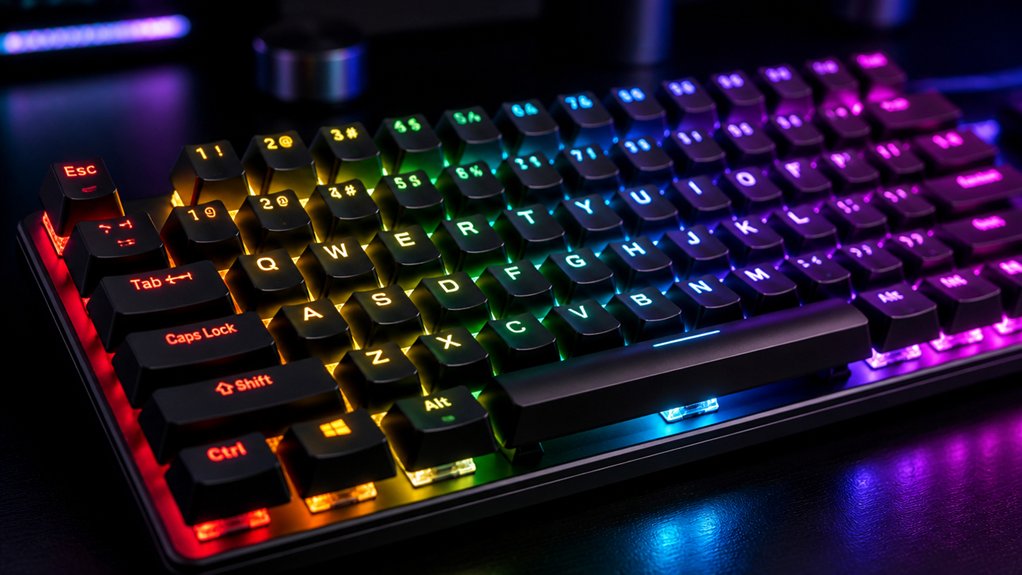
Enabling OS detection lets your keyboard automatically change RGB colors based on the connected operating system, making shifts seamless.
You need to activate this feature in `rules.mk` by setting `OS_DETECTION_ENABLE=yes`. Once enabled, your keyboard adapts its lighting without manual adjustments, creating a more integrated and dynamic experience.
OS-Based Lighting Adaptation
Automatically adapting your keyboard’s RGB lighting to the connected operating system can greatly streamline your customization experience. Enabling OS detection in QMK firmware with `OS_DETECTION_ENABLE=yes` lets your keyboard automatically change colors based on the OS, creating clear visual cues.
The `process_detected_host_os_user` callback customizes backlight hues—yellow for macOS, blue for Windows, red for Linux, and green for unknown OS—without manual software setup. This makes your keyboard lighting context-aware and intuitive. Additionally, understanding the importance of compatible and reliable hot-swap PCB sockets ensures your customization remains durable and responsive during frequent switch changes.
Consider these points:
- Dynamic color shifts enhance user awareness of active OS.
- No need for external software, ensuring simplicity.
- Seamlessly integrates with custom RGB effects.
- Provides immediate, visual feedback through keyboard lighting.
Automating Backlight Shifts
Activating OS detection in your mechanical keyboards’ firmware allows it to automatically adjust the backlight colors based on the connected operating system, creating a more responsive and environment-aware experience.
By enabling the `OS_DETECTION_ENABLE` feature in QMK, your keyboard can identify whether you’re using macOS, Windows, or Linux and change the RGB backlighting accordingly. You can program the `process_detected_host_os_user` callback to assign specific hues: yellow for macOS, blue for Windows, red for Linux, and green for unknown systems.
To achieve this, enable `RGB_MATRIX_ENABLE` and `RGB_MATRIX_CUSTOM_USER` settings in your configuration. This firmware-level automation provides seamless, software-free RGB shifts, helping you easily distinguish between environments and improving your overall typing experience on your mechanical keyboard.
Physically Modify Your Keyboard to Improve Light Distribution?
Have you considered physically adjusting the internal setup of your keyboard to enhance built-in RGB light distribution? Making small modifications can dramatically improve your lighting without software.
- Reorient or flip LEDs upside down inside the keyboard—this boosts keycap backlighting, especially in custom builds where south-facing LEDs don’t illuminate well.
- Install shine-through keycaps designed to maximize light transmission, allowing more RGB light to pass through legends and surfaces.
- Remove or adjust internal components like diffusers or metal plates to improve light diffusion, resulting in a more even glow.
- Swap out standard side-printed keycaps with transparent or translucent ones to let the built-in RGB shine through legends and around keys more vividly.
These tweaks optimize light distribution and highlight your keyboard’s RGB capabilities.
Frequently Asked Questions
How to Change RGB on Keyboard Without Software?
You can change your keyboard’s RGB by using built-in key combinations like Fn + \ or Fn + arrow keys to cycle through modes, adjust brightness, and speeds. Refer to your manual for specific shortcut instructions.
Can I Control RGB Without Software?
Yes, you can control your RGB lighting without software by using built-in hardware shortcuts like Fn plus arrow keys to cycle effects, adjust brightness, or toggle presets. Some keyboards even let you customize per-key colors directly on the device.
Can I Turn on Logitech Mechanical Keyboard Lights Without Software?
Yes, you can turn on your Logitech mechanical keyboard lights without software by using built-in hardware shortcuts. Press functions like Fn + F5 or Fn + arrow keys to toggle lighting, adjust brightness, and switch effects directly on the keyboard.
How to Change RGB Lights on Mechanical Keyboard?
To change your mechanical keyboard’s RGB lights, press the Fn key along with specific arrow or function keys to cycle modes, adjust brightness or colors, or reset settings. Refer to your keyboard’s manual for precise key combinations.
In Summary
By exploring these seven methods, you can easily personalize your mechanical keyboard’s RGB lighting without any software. From using hardware buttons to firmware tweaks and physical modifications, you have plenty of options to craft a unique and vibrant setup. Experiment with different effects and settings to find what looks best for you. With a little effort, your keyboard will not only perform great but also match your style perfectly. Happy customizing!



