
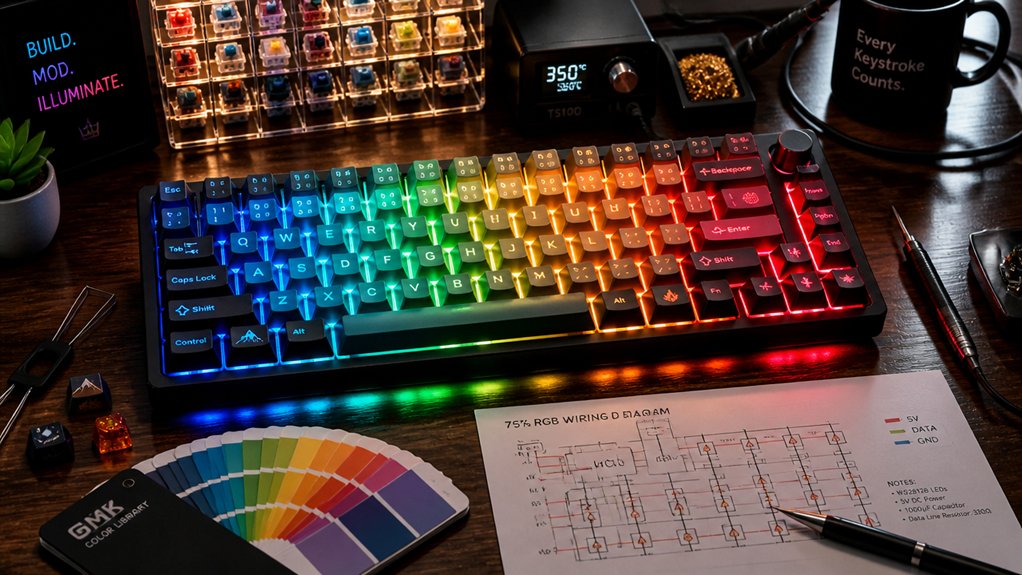
To customize RGB lighting on a keyboard group buy, focus on choosing features like per-key RGB, onboard memory, and support for advanced firmware like QMK. Use software tools like SignalRGB or RK Launcher for detailed effects, zones, and synchronization across devices. Take advantage of hardware shortcuts to quickly switch profiles or adjust brightness. Troubleshoot issues by resetting EEPROM or matching configuration settings. Keep exploring these tips to release the full potential of your RGB setup.
Understanding How RGB Lighting Works on Mechanical Keyboards
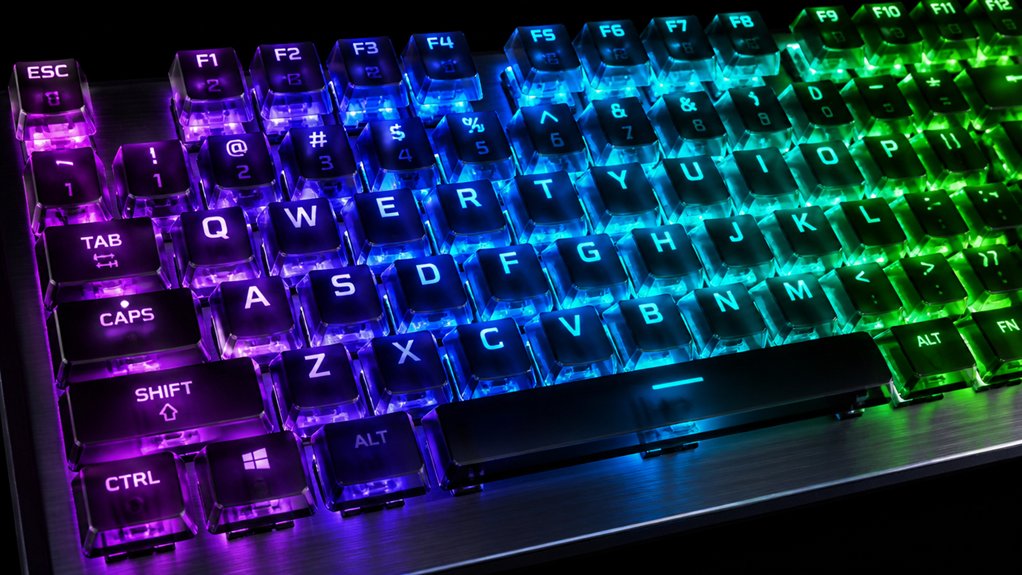
Understanding how RGB lighting works on mechanical keyboards can seem complex at first, but it mainly involves a network of tiny LEDs beneath each key or in designated zones. RGB control allows you to customize colors using software, giving you the ability to create custom lighting effects. Many systems support individually addressable LEDs, which enable detailed customization and complex lighting patterns. With per-key RGB, you get full control on each key, enabling detailed effects and game-specific layouts. Many keyboards feature south-facing LEDs, which improve light brightness and visibility, especially with thicker or custom keycaps. This setup guarantees consistent RGB effects across the keyboard. Plus, RGB lighting operates independently from key input, meaning it won’t affect your keyboard’s performance. Onboard memory then allows you to save your preferred profiles, making your personalized lighting always ready, whether you’re gaming or working.
Choosing the Best RGB Features for Your Group Buy
When choosing RGB features for your group buy, focus on options that maximize customization and compatibility, like per-key RGB lighting and onboard memory.
Consider cost-effective models with advanced effects, brightness control, and hardware shortcuts to get the most value. Prioritize features such as south-facing LEDs and universal control software to guarantee broad compatibility and easy management across all users. Additionally, evaluating the waterproof ratings of the RGB PCBs ensures durability in various environments.
Essential RGB Features
Choosing the right RGB features for your group buy is essential to guarantee participants can personalize their keyboards effectively and enjoy versatile lighting options. Prioritize per-key RGB lighting with full programmability so users can easily customize individual keys, highlight macros, or organize key groups. Make sure the keyboard has onboard memory to store multiple lighting profiles, letting participants switch setups without needing software each time. Look for keyboards with quality effect libraries that offer fine control over speed, direction, color, and brightness, providing adaptable lighting effects. Additionally, include hardware shortcuts for brightness and mode adjustments, so users can quickly modify their lighting without launching software. Avoid overhyped features like millions of colors or music effects—they rarely add practical value for group buy participants focused on reliability and ease of use. Double-shot PBT keycaps and consistent backlighting support are also important to ensure durability and vivid RGB illumination over time.
Advanced Customization Options
Focusing on advanced customization options can elevate your group buy by offering more dynamic and flexible RGB lighting. Prioritize keyboards with per-key RGB lighting and onboard memory, allowing you to customize individual keys and preserve profiles across devices. Opt for keyboards with south-facing LEDs and hot-swap sockets to enhance keycap compatibility and switch customization, improving overall RGB lighting effects. Support for advanced RGB firmware like QMK enables layer-based lighting and custom animations, taking your effects to the next level. Use control apps such as SignalRGB for unified management across multiple brands, simplifying your ecosystem. To prevent overload, limit brightness and power consumption with settings like RGBLIGHT_LIMIT_VAL (~120–128). Additionally, selecting keyboards with hot-swappable switches can significantly expand your customization possibilities without soldering.
Cost-Effective Choices
Opting for cost-effective RGB features means prioritizing options that deliver visual impact and customization without unnecessary extras. Focus on keyboards with per-key RGB lighting and onboard memory, so you can create custom settings and easily transfer profiles without relying on software. Choose models with south-facing LEDs and hot-swap sockets for better lighting compatibility and easier switch replacements. Select keyboards with reliable effect libraries, giving you precise control over speed, color, and brightness—keeping brightness settings around 120-128 helps reduce power consumption and circuitry strain in larger group buys. Supporting broad ecosystem integration, like SignalRGB, allows unified RGB control across multiple brands without vendor lock-in. Additionally, opting for RGB customization options that are compatible with multiple systems ensures versatility and long-term usability. These choices offer impactful customization without the premium price tag or excessive features.
Using Software and Onboard Memory to Customize RGB Layers
Using software like QMK firmware or RK Launcher lets you fine-tune RGB layers with detailed effects and color controls. With onboard memory, your custom lighting profiles stay saved across different computers, making setup quick and consistent. Additionally, understanding compatibility considerations ensures your chosen switches and PCB support your desired lighting features and customizations. Combined, these tools and features let you create dynamic, multi-layered lighting setups that are easy to switch between.
Software Configuration Options
Many RGB keyboards support detailed customization of lighting layers through dedicated software, giving you precise control over colors, effects, and animations for each layer. This software allows you to fine-tune RGB settings, enabling full customization of every layer’s appearance. You can assign specific RGB effects and colors to individual keys, creating dynamic or static visuals tailored to your workflow or gaming preferences. With layer-based configurations, you can switch between different lighting profiles seamlessly. Some programs also let you define “layer state” callbacks, which provide visual feedback for active layers. Combining software control with onboard memory guarantees your personalized RGB effects and full layer setups stay consistent across devices, without needing reconfiguration each time you switch or update your keyboard. Furthermore, understanding hot-swap compatibility can help you easily modify switches and update your lighting effects without soldering.
Onboard Memory Advantages
Onboard memory in RGB keyboards offers a significant advantage by allowing you to save your custom lighting profiles directly to the device. This means your preferred RGB lighting setup stays intact across different computers without needing to reinstall software.
Using onboard memory with software customization tools lets you create complex RGB layers and effects, then store them onboard for instant activation. You can quickly switch between multiple RGB profiles using hardware key combos.
Consider these benefits:
- Save multiple RGB profiles for easy switching.
- Maintain consistent RGB lighting even when changing devices.
- Customize your RGB with detailed layer-specific effects.
- Reduce dependence on specific software ecosystems.
- Support for advanced features like programmability and macro setup enhances customization options.
With onboard memory, your customizations are portable, convenient, and reliable—perfect for group buys sharing hardware or multiple setups.
Setting Up Per-Key RGB Effects and Zones
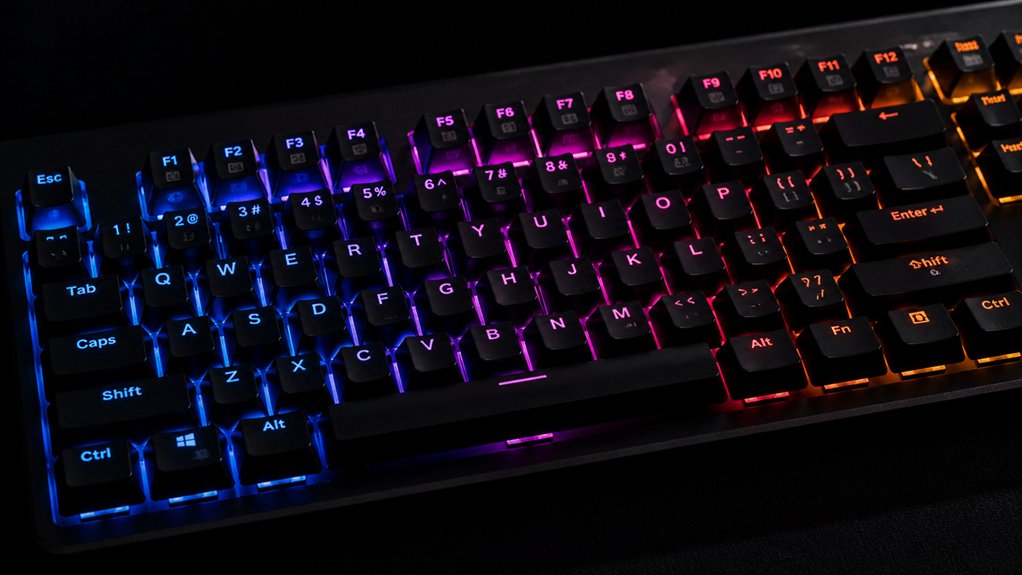
To set up per-key RGB effects and zones effectively, start by activating your keyboard’s Self-Define mode or an equivalent custom lighting setting in your software or firmware. This enables per-key RGB customization, letting you assign unique colors to individual keys. Use RGB LEDs combined with lighting zones to group adjacent LEDs, creating ambient effects without losing precise control over key colors. You can define these zones within your software, customizing macro keys or gaming clusters while keeping overall effects dynamic. Additionally, assign colors and effects directly on each key or group using tools like RK Launcher or SignalRGB for targeted visual feedback. Save your profiles in onboard memory to keep your custom lighting setup across multiple devices and sessions. Remember to consider stabilizer types when assembling your keyboard to ensure smooth, rattle-free keypresses that enhance your lighting effects.
Syncing RGB Lighting Across Multiple Devices and Brands
Synchronizing RGB lighting across multiple devices and brands can be straightforward when you use software like SignalRGB, which enables seamless control over a diverse range of peripherals.
To sync lighting, you need compatible hardware and make certain every device supports RGB lighting. Here are some tips:
- Confirm all devices support RGB lighting and are compatible with SignalRGB.
- Use SignalRGB’s unified interface to create and apply lighting profiles across your RGB mechanical keyboard, mouse, headset, and other peripherals.
- Leverage onboard memory on supported hardware to retain profiles, even when switching computers.
- Combine hardware shortcuts with software controls for real-time adjustments to brightness, modes, and synchronization.
- Ensure your devices have RGB compatibility and utilize features like SMD LED support, which facilitate richer and more customizable lighting effects.
Creating Vibrant, Cohesive RGB Effects Step-by-Step
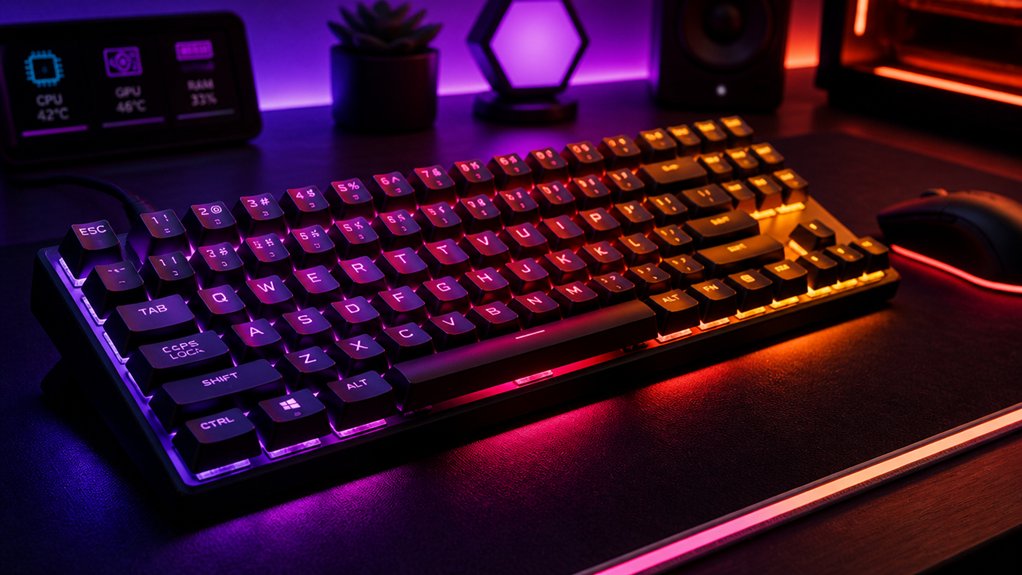
Creating vibrant, cohesive RGB effects involves carefully customizing your keyboard’s firmware and understanding how lighting layers interact. Start by enabling per-key RGB layers in your firmware, like QMK, using directives such as `#define RGBLIGHT_LAYERS`, and define distinct color segments for each layer to create clear visual differentiation.
Use RGB lights segments and HSV color values to assign effects, creating a unified look and avoiding oversaturation by limiting brightness to around 120. Incorporate dynamic animations like blinking or reactive effects to each layer’s state, ensuring effects correspond logically with keyboard modes or profiles for deep customization.
Troubleshooting Common RGB Customization Issues
Have you ever experienced RGB lighting that flickers, sticks, or displays incorrect colors? If so, here are troubleshooting tips for your RGB Keyboard:
- Reduce RGB brightness to around 120-128 using `#define RGBLIGHT_LIMIT_VAL` to prevent power overload and achieve stable, consistent RGB effects.
- Check that `WS2812_DI_PIN` and `RGBLIGHT_LED_COUNT` in `config.h` match your keyboard’s hardware to avoid lighting failures.
- For split keyboards, enable `RGBLED_SPLIT` and `#define SPLIT_LAYER_STATE_ENABLE` to keep RGB effects synchronized across both halves.
- Reset EEPROM or use functions like `rgblight_setrgb_at` when colors get stuck or corrupted during layer-based customization.
These tips help troubleshoot common issues and maintain smooth, reliable LED behavior.
Leveraging Hardware Controls for Dynamic RGB Effects
Many modern RGB keyboards come equipped with hardware controls that let you switch lighting effects and adjust brightness without opening software. Using hardware controls, you can cycle through preset effects, fine-tune brightness in multiple steps, or change modes instantly, simplifying your lighting setup.
Onboard memory stores customized RGB profiles, allowing you to activate preferred lighting effects quickly with hardware shortcuts. South-facing RGB LEDs and hot-swap sockets enable real-time hardware-level adjustments, giving you the flexibility to modify lighting alongside switch and keycap changes.
Dedicated toggles or multi-key shortcuts also let you disable lighting temporarily, perfect for adapting to different environments or conserving power. Leveraging hardware controls provides seamless, low-latency lighting effects, so you don’t interrupt gaming sessions or productivity workflows.
Getting Started With Community Resources and Tutorials
To start customizing your RGB lighting with community resources, you’ll want to tap into the wealth of tutorials, shared configurations, and forums available online. These resources help you develop an eye for peripheral vision effects that make your mechanical keyboards stand out.
Here’s how to begin:
- Explore detailed tutorials like Cory_Galloway’s work to learn about per-key and per-layer RGB customization.
- Use QMK firmware’s RGB layers feature to assign unique effects per layer, enhancing both aesthetics and functionality.
- Leverage open-source tools like OpenRGB and SignalRGB to synchronize RGB setups across multiple devices, including LED strips.
- Join keyboard forums and Discord groups where enthusiasts share configurations, troubleshooting tips, and scripts for different models.
Frequently Asked Questions
How Can I Expand My Keyboard’s RGB Layer Support for More Effects?
You can expand your keyboard’s RGB layer support by updating firmware, using custom software, or flashing custom firmware like QMK or VIA. These methods enable advanced lighting controls, allowing you to add more effects and personalize your keyboard extensively.
What Are the Best Practices for Creating Custom LED Zones With `Rgblight_Segment_T`?
You should define your LED zones precisely using `rgblight_segment_t`, assign correct start and end indices, and guarantee consistent brightness and color settings within each zone. Test thoroughly to achieve seamless, customized lighting effects on your keyboard.
How Do I Ensure Synchronized RGB Lighting on Split or Multi-Device Keyboards?
You synchronize RGB lighting on split or multi-device keyboards by configuring each device’s lighting settings identically, ensuring they follow a shared lighting script or pattern, and use compatible firmware or software that supports cross-device synchronization seamlessly.
What Limits Should I Set to Prevent RGB Lighting From Consuming Too Much Power?
You should set brightness limits, use dynamic lighting effects sparingly, and disable animations or effects when possible. Additionally, lower lighting intensity and choose energy-efficient modes to prevent RGB lighting from consuming too much power and extend your keyboard’s lifespan.
How Can I Programmatically Customize Layers for Different Typing Environments?
You can programmatically customize layers by using firmware like QMK or VIA, assigning different key functions and lighting profiles to specific layers, and toggling them with dedicated keys, allowing seamless adjustments for various typing environments.
In Summary
By mastering RGB lighting customization, you can truly personalize your keyboard to match your style and workspace. Explore the software, experiment with effects, and don’t hesitate to utilize community resources for tips and inspiration. With a little practice, you’ll effortlessly create stunning, cohesive lighting setups that enhance your typing experience. Plunge into your group buy with confidence—your perfect RGB configuration is just a few steps away. Happy customizing!



