

To diagnose keyboard ghosting issues, start by observing signs like missed key presses or unresponsive combination inputs during fast typing or gaming. Use online ghosting tests or on-screen keyboard tools to spot problematic key combinations. Inspect your keyboard for dirt, damage, or worn switches, and clean it thoroughly. Consider testing with different devices or upgrading to a mechanical or anti-ghosting keyboard. Keep settings optimized for gaming, and if problems persist, explore detailed troubleshooting tips ahead.
What Is Keyboard Ghosting and How Does It Affect Your Input?

Ever wondered why some key presses don’t register during intense gaming or fast typing sessions? That’s often due to keyboard ghosting.
Keyboard ghosting happens when you press multiple keys at once, but your keyboard’s hardware can’t detect all of them simultaneously. Most standard keyboards, especially budget ones with matrix wiring, lack enough diodes or circuits to handle complex key combinations.
Keyboard ghosting occurs when hardware can’t detect simultaneous key presses, especially on budget, matrix-wired keyboards.
When this limit is exceeded—typically around three to six keys on full-sized U.S. keyboards—some inputs just don’t register. This results in missed commands during fast-paced gameplay or rapid typing, causing frustration and disruption.
High-quality gaming keyboards address this issue with anti-ghosting and N-key rollover features, ensuring every key press is accurately registered, no matter how many keys you press together. Switch types and internal circuitry design play critical roles in preventing ghosting problems.
How Can You Tell If Your Keyboard Is Ghosting? Signs to Watch For
If your keyboard isn’t registering multiple key presses correctly, you’ll notice unexpected interruptions or missing inputs during fast typing or gaming. When certain key combinations don’t work together, especially in high-action sequences, ghosting is likely the cause. Testing your keyboard with online ghosting demos or on-screen tools can help confirm if keys are failing to register properly. Additionally, using specialized keyboard sound test kits can assist in diagnosing mechanical or electrical issues that contribute to ghosting problems.
Unexpected Key Interruptions
Unexpected key interruptions often reveal ghosting issues when you’re gaming or typing quickly. If you notice certain keys don’t respond as expected or suddenly stop registering during rapid inputs, ghosting could be the culprit.
This occurs when multiple simultaneous key presses fail to register because of hardware matrix limitations. Common signs include missing inputs when pressing combinations like WASD plus additional keys, especially during fast or modifier-heavy sequences. You might also experience repeated failures to register keystrokes despite proper physical presses, often worsened by dirt or spills. Additionally, some high-quality keyboards feature anti-ghosting technology, but even these can be limited if the hardware design isn’t optimal.
To confirm ghosting, try testing your keyboard with online ghosting demos or multi-key input tools. Unregistered keys or inconsistent responses during intense activity are clear signs that ghosting is interfering with your keyboard’s performance.
Missing Combined Inputs
Missing combined inputs are a common sign that your keyboard might be experiencing ghosting. When you press multiple keys simultaneously, especially in gaming scenarios, some keystrokes may not register, leading to incomplete commands. This often occurs with budget or membrane keyboards lacking anti-ghosting features. To identify ghosting, use online ghosting test tools that show which key combinations fail to register. Here’s what to look for:
| Key Combination | Result | Issue |
|---|---|---|
| W + A + Shift | Only W + Shift registered | Missing A |
| W + S + D | Only W + D registered | Missing S |
| General Multi-Key Test | Fewer keys detected than pressed | Ghosting symptom |
If these signs appear, your keyboard likely needs an anti-ghosting keyboard for reliable, simultaneous key presses. Additionally, certain key rollover features can help prevent these issues by allowing multiple key presses to register accurately.
Unresponsive Common Keys
When you press multiple keys simultaneously during gaming or fast typing, unresponsive common keys can be a clear sign of ghosting.
If some keys don’t register while others do, it likely indicates a hardware matrix limitation. Testing with an online anti-ghosting demo or software that shows real-time key recognition can help confirm this.
Repeated failure of keys like W, A, S, D, or other frequently used keys signals potential ghosting issues.
Key signs include:
- Certain keys don’t register when pressed with others
- Frequent missed inputs during rapid or complex keystrokes
- Consistent failure of specific common keys in multi-key commands
Pay attention to these signs to identify ghosting early and determine if your keyboard needs an upgrade or repair. Additionally, higher-quality keyboards with mechanical switches and durable build materials are less prone to ghosting compared to cheaper membrane models.
Test Your Keyboard With Diagnostic Tools to Detect Ghosting Patterns
Use on-screen keyboard displays or online ghosting demos to see which key combinations your keyboard registers accurately. A typing test software can also help identify issues by measuring your accuracy and detecting inconsistent key registration during specialized exercises. Try pressing common gaming keys like ASDW along with other keys to spot ghosting or blocking issues during real-world use. Make sure to use modern browsers for clear results and record your findings to compare patterns and troubleshoot effectively.
Using On-Screen Keyboard Displays
On-screen keyboard displays are valuable tools for diagnosing ghosting issues because they provide real-time feedback on which keys your system detects during simultaneous presses.
By using these tools, you can easily identify missed inputs caused by hardware limitations like poor anti-ghosting features and limited N-key rollover. As you press multiple keys—such as WASD and other combinations—the display shows which keys register and which don’t, helping you isolate problematic combinations.
- Clarifies which key presses fail during intense use
- Reveals hardware limitations impacting performance
- Allows testing of key combinations relevant to your activity
Make sure to use modern browsers like Edge or Chrome for accurate results, as some older or incompatible browsers may interfere with correct key detection. Additionally, choosing a good multimeter can help test and diagnose electrical issues affecting your keyboard’s circuitry and connections for better troubleshooting.
Recognizing Common Ghosting Patterns
To effectively identify ghosting patterns, you should run your keyboard through diagnostic tools like Microsoft’s anti-ghosting demo. This visual test helps you spot which key combinations fail to register on your keyboard.
Focus on common multi-key gaming inputs, like holding down ASDW and adding other keys, to see which ones block or don’t register simultaneously. Notice if certain keys often miss during fast typing or gaming—ghosting usually causes blocked, unregistered key presses, not phantom signals.
Since ghosting stems from matrix wiring limitations, test various sets of keys across different rows and columns. Understanding your keyboard’s matrix configuration can help pinpoint the cause of ghosting issues.
Avoid browsers like Internet Explorer, and make sure the demo window stays focused, as losing focus or interference can lead to false ghosting patterns.
Inspect Your Keyboard for Physical Damage or Dirt Causing Ghosting

Physical damage or dirt underneath the keys can cause ghosting by interrupting electrical contacts or creating unintended connections. Over time, dust, debris, or sticky residues can block the signals between switches and circuitry, causing missed or phantom keypresses on your keyboards. Using appropriate cleaning products like isopropyl alcohol, which evaporates quickly and leaves no residue, can effectively restore the integrity of the electrical contact points.
Dirt and damage beneath keys can cause ghosting by disrupting electrical signals and connections.
To check, gently remove keycaps with a keycap puller and inspect the surface and switch area for grime or damage. Look for cracks, corrosion, or worn components that could mimic ghosting behaviors.
Upgrade to a Mechanical or Anti-Ghosting Keyboard for Better Performance
Upgrading to a mechanical or anti-ghosting keyboard can greatly improve your typing and gaming experience by ensuring all key presses register accurately, even during rapid or complex inputs. Gaming keyboards with full anti-ghosting and N-key rollover prevent missed key registrations during simultaneous multi-key presses. Choosing high-quality switches with a suitable actuation force and durable construction can further enhance performance and reliability. Models like the HyperX Alloy Origins Core or Alloy Elite 2 offer high performance with durable switches rated for up to 80 million keypresses, providing longevity and reliability. Keyboards with six-key rollover or better considerably reduce input failures during demanding game commands involving movement and actions. Choosing spill-resistant mechanical keyboards also helps maintain ghosting prevention by minimizing interference from dirt or liquids. Investing in a dedicated anti-ghosting gaming keyboard guarantees consistent detection of all key combinations essential for fast-paced gaming.
Troubleshooting Steps to Fix Ghosting Issues at Home
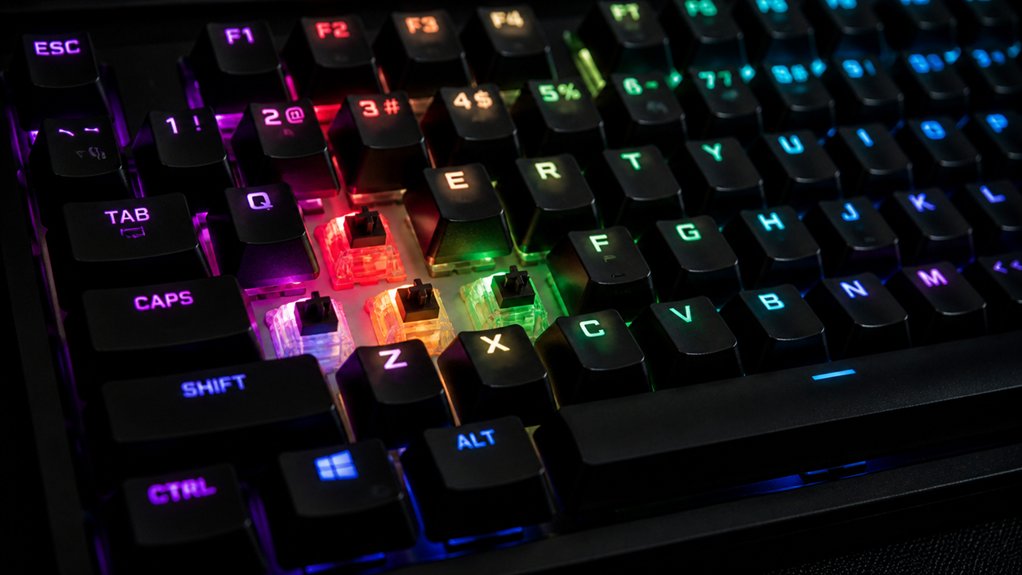
If you’re experiencing ghosting issues even after upgrading your keyboard, there are straightforward troubleshooting steps you can take at home. Start by testing key combinations with online demos like the Microsoft anti-ghosting site to identify problematic presses.
Test key combinations online to identify ghosting issues effectively.
Next, thoroughly clean your keyboard—dirt and spills can interfere with hardware detection—and consider spill-resistant models to prevent future issues.
Check if your keyboard supports N-key rollover or at least 6-key rollover, which guarantees multiple key presses register reliably. Also, inspect your keyboard’s design, especially in hot-swappable models, and replace malfunctioning keys or switches when needed.
- Use online ghosting tests to diagnose specific key failures
- Maintain and clean your keyboard regularly
- Confirm your keyboard’s hardware supports effective rollover
Prevent Future Ghosting With Proper Hardware and Settings
Choosing the right hardware and configuring your settings properly can make a significant difference in preventing future ghosting issues. Look for keyboards with 100% anti-ghosting or N-key rollover (NKRO) features, ensuring multiple key presses register simultaneously without problem.
Mechanical or spill-resistant keyboards with dedicated wiring and diodes reduce ghosting caused by hardware matrix limitations. Connect your USB wired keyboard directly to rear motherboard ports instead of hubs or front panel connectors to avoid input latency and ghosting-like packet loss.
Enable Gaming Mode or disable Legacy USB Support in BIOS settings to improve NKRO functionality and lower multi-key input failures. Regularly clean your keyboard and avoid dirt, dust, or spills that can worsen key blocking.
Proper hardware choices and settings help maintain reliable, ghosting-free performance during intense use.
Frequently Asked Questions
How to Test Keyboard Anti-Ghosting?
You test keyboard anti-ghosting by using the Microsoft Anti-Ghosting demo in your browser; hold common keys like WASD, press extra keys, and observe which combinations register or fail, ensuring you restart the demo for accurate results.
How to Fix Keyboard Ghosting Issue?
You can fix keyboard ghosting by cleaning your keyboard thoroughly, replacing faulty switches, upgrading to a full N-key rollover model, and testing with anti-ghosting tools to identify and address problematic key combinations effectively.
How Do I Tell if My Keyboard Has Ghosting?
You check if your keyboard has ghosting by using an online anti-ghosting demo, pressing multiple keys simultaneously. If some keys don’t register or produce extra inputs, your keyboard likely has ghosting issues, especially during fast typing or gaming.
Why Did My Keyboard Suddenly Start Ghosting?
Your keyboard suddenly started ghosting likely because debris disrupted its circuitry, firmware updates caused compatibility issues, physical damage occurred, your connection is faulty, or software conflicts interfere with key detection, all of which can cause unexpected ghosting behavior.
In Summary
To keep your keyboard responsive and reliable, it’s essential to understand ghosting and how to detect it. Regularly test your keyboard, keep it clean, and consider upgrading to a model with anti-ghosting features. With these tips, you’ll prevent frustrating input errors and guarantee smooth performance. Taking these simple steps helps you enjoy consistent, accurate keystrokes, whether for gaming or everyday use. Stay proactive, and your keyboard will serve you well!



