
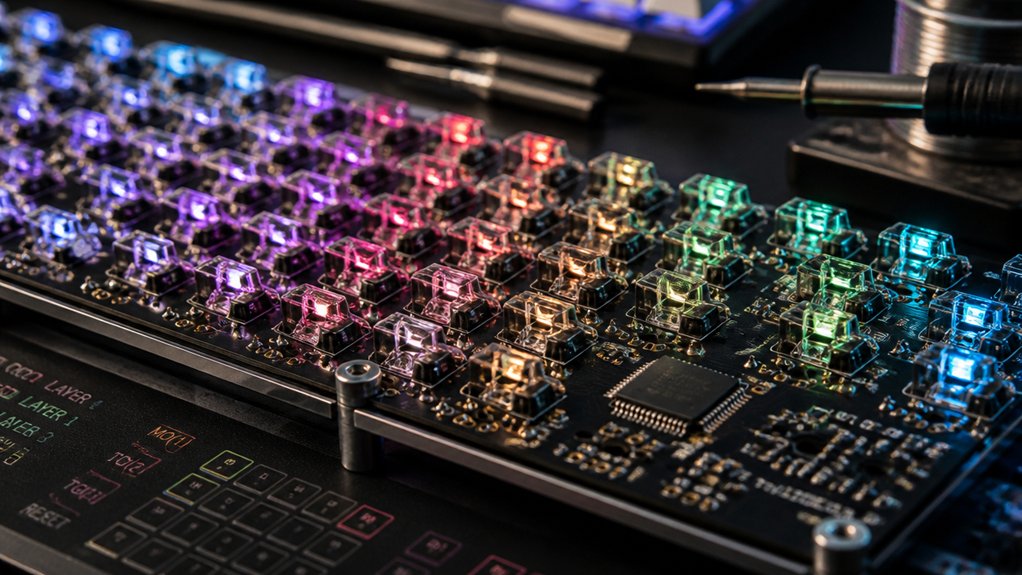
Mastering layers in custom keyboard firmware lets you customize your keyboard for applications, gaming, or macros. Use layered keymaps with functions like MO for momentary access, TG for toggling, and LT for combined tap-hold actions. Prioritize well-organized, ergonomic layouts, and leverage transparency to keep core functions accessible. Integrate advanced features like encoders or RGB lighting for extra flair. Keep your setup maintained and backed up so your workflow stays smooth. For more tips and techniques, continue exploring how to set up effective layer strategies.
What Are Layers and Why They Matter in Custom Keyboards
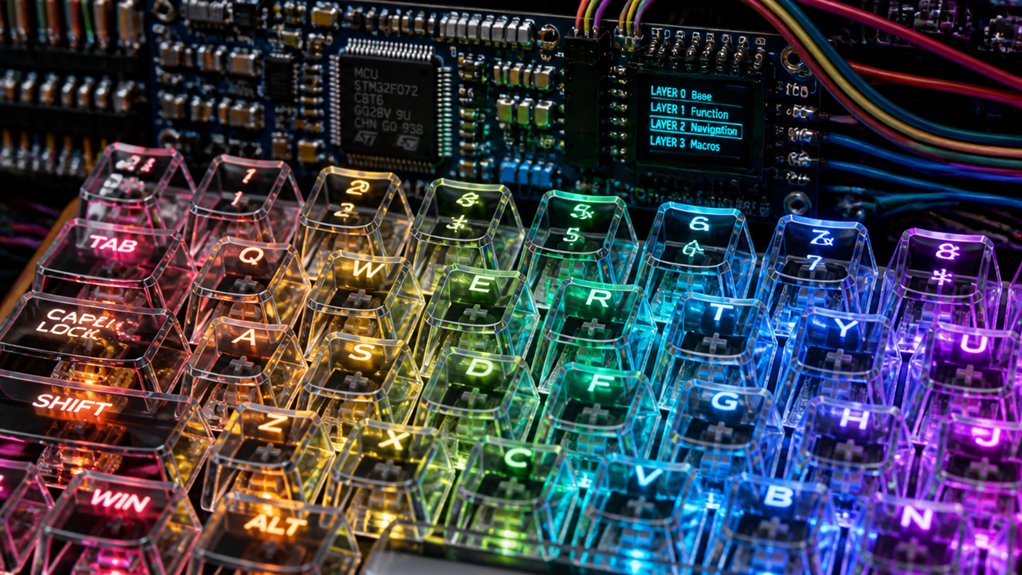
Have you ever wondered how custom keyboards can do so much more than just type letters? It’s all about layers—multiple functional keymaps stacked on a single keyboard.
The base layer, or layer 0, serves as the default, while higher layers reveal additional functions like media controls or shortcuts. The QMK firmware supports up to 32 layers, allowing you to customize extensively. When you use transparent keys (KC_TRNS), pressings pass through to lower layers, creating seamless shifts.
Activation methods like MO(layer) enable momentary layer switching, so you can access extra functions as needed. These layers help you optimize ergonomics and efficiency, grouping related functions together. Understanding layer management is essential for creating complex and flexible keyboard setups.
Fundamentally, layers give your keyboard versatility, turning a simple device into a powerful tool tailored to your workflow.
How Layer Priority and Transparency Shape Your Keymaps
Understanding how layer priority and transparency work together is essential for creating effective keymaps. In QMK, layer priority means higher-numbered layers override lower ones unless you use transparent keys (KC_TRNS).
When you press a key, the firmware scans from the top layer downward, so transparent keys let lower layers’ functions pass through, maintaining the base layout. This system helps you selectively change functions without disrupting your entire keymap.
Proper use of layer priority guarantees that momentary or toggled layers can add functions without losing access to your core keys. Transparency enables layered keymaps where only certain keys are affected, simplifying complex layouts.
This balance between layer priority and transparent keys grants you maximum flexibility in customizing your keyboard for any task. For instance, understanding the impact of layer stacking can help you design more intuitive and efficient layouts.
Using Layers for Gaming and Productivity: Best Practices
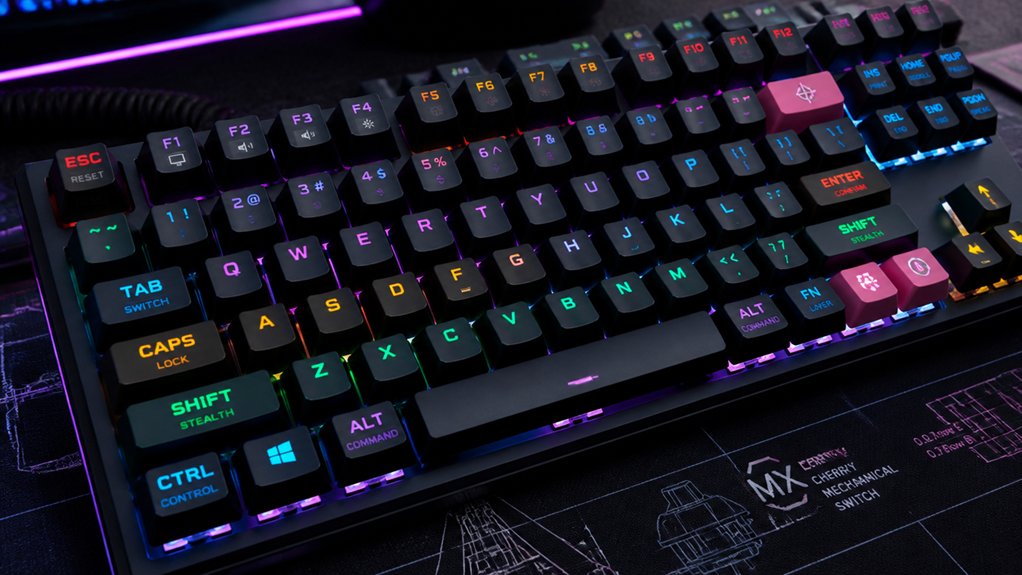
Using layers for gaming and productivity allows you to optimize your keyboard layout for speed and efficiency. In custom keyboard programming, productivity layers position navigation keys—Home, End, PgUp, PgDn—where fingers can easily reach, minimizing movement and boosting workflow.
Gaming layers prioritize essential keys like WASD and the spacebar on the base layer for low latency, while disabling less critical controls—such as the Windows key mapped as KC_NO—to prevent accidental interruptions.
Function and media layers turn sections into media control hubs, grouping playback and volume controls on the number row for quick access. Symbol layers cluster coding symbols, reducing shift combos.
For best results, place layer activation keys under your strongest fingers and use tactile or color-coded keycaps to speed layer switching and reduce errors. Additionally, ortholinear layouts minimize finger travel, helping maintain ergonomic efficiency during extended use.
Step-by-Step: Defining Layers in Your QMK Keymap.c
To define layers in your `keymap.c`, start by using enums to assign descriptive names like `_BASE` and `_FN1`, which keeps your code organized and easy to manage. Then, use the `LAYOUT()` macro to map key assignments for each layer, matching your keyboard’s specific matrix. Finally, activate layers with functions like `MO()` or `TG()` to switch between them seamlessly. Incorporating layer switching techniques can enhance your workflow and customize your typing experience even further.
Organize With Enums
Organizing your layers with enums in your `keymap.c` file makes managing your keyboard layout much easier. Enums allow you to assign meaningful names like `_BASE`, `_FN`, or `_MEDIA` to your layers, improving readability and preventing errors. A well-structured enum system also helps ensure compatibility across different switch types and hardware configurations, as highlighted in the hot-swap PCB section of the knowledge. Since enums start from 0 and increment automatically, referencing layers by name simplifies your keymap logic. You can easily activate layers with functions like `MO(_FN)` or `LT(_MEDIA, KC_SPC)` using these enums, keeping your code clean and organized. Grouping layers with enums also reduces the chance of conflicting layer numbers, making maintenance straightforward. Remember to reference your enum names consistently throughout your `keymap.c` and other layer control functions in QMK for smooth layer switching.
Map With Layout Macro
Defining layers in your QMK `keymap.c` file involves mapping each key to its correct position within your keyboard’s physical layout using the LAYOUT() macro. This macro matches your keyboard’s physical matrix, ensuring each key in the layer corresponds to its correct row and column. Incorporating hot-swappable switches can impact how you configure your layers and keymap since different switch types may influence lighting and responsiveness. To manage multiple layers, assign readable names via an enum, starting with layer 0 as the base. Use transparent keys (`KC_TRNS`) for positions you want to pass through from lower layers. You can assign layer toggles like `MO(_LAYER)` or `LT(_LAYER, KC_KEY)` within layers, enabling momentary or tap-hold switching. When creating a custom firmware with VIA support, include `VIA_ENABLE = yes` in rules.mk and keep the layer count consistent for seamless, code-free layer management.
How to Activate and Toggle Layers With Quick Keycodes (Mo, TG, LT)

You can activate and toggle layers quickly using keycodes like MO, TG, and LT to enhance your workflow. MO lets you temporarily access a layer while holding the key, while TG toggles a layer on or off until you press it again. LT combines tapping and holding, sending a keycode when tapped and switching layers when held, so understanding their proper use makes your setup more efficient. Mastering these functions is especially useful in complex builds with multiple layers, such as hot-swappable keyboard kits that support various switch configurations and custom software programmability hot-swap compatibility.
Activating Layers Instantly
Activating layers instantly turns your keyboard into a versatile tool for accessing different functions without interrupting your flow. By using quick keycodes like MO, TG, and LT, you can seamlessly switch layers on the fly.
- MO(layer) momentarily activates a layer while held, perfect for quick access.
- TG(layer) toggles a layer on or off with each tap, ideal for extended tasks.
- LT(layer, kc) offers dual functionality: tap to send a keycode, hold to activate a layer.
These methods allow you to instantly access media controls, macros, or alternate layouts without losing typing rhythm. Utilizing these techniques makes your keyboard highly adaptable, streamlining your workflow and reducing the need for complex layer management.
Toggling Layer States
Toggling layer states efficiently enhances your keyboard’s versatility by enabling quick switching between different modes or functions without disrupting your workflow.
You can toggle layers on or off with the TG(layer) key, which changes the layer’s state each time you press it, creating persistent mode shifts. For temporary access, MO(layer) activates a layer only while you hold the key, automatically deactivating when released, perfect for quick tasks like media controls.
Alternatively, LT(layer, kc) provides a dual function: tapping sends a keycode, but holding the key activates a layer, combining tap and hold functionality seamlessly. To guarantee smooth layer changes, use KC_TRNS in layers to allow key presses to fall through to lower layers, maintaining fluidity during toggling and momentary access. Implementing advanced layer management techniques can further optimize your custom keymap for complex workflows.
Using Keycodes Effectively
Mastering quick keycodes like MO, TG, and LT can greatly streamline your workflow by enabling rapid and flexible layer management. These keycodes let you switch layers efficiently—whether momentarily, toggling, or dual-function.
- Use MO(layer) to temporarily activate a layer while holding the key, perfect for quick access during typing or gaming.
- Tweak your setup with TG(layer) to toggle layers on or off with a tap, creating easy single-key switches.
- Combine functionality with LT(layer, kc), which sends a keycode when tapped and activates a layer when held, blending typing and layer control seamlessly.
- Remember, due to firmware limits, LT can only assign layers 0-15, so plan your layer structure accordingly. Effective use of these keycodes keeps your layer shifts smooth and intuitive.
Additionally, understanding the layer architecture allows for better customization and organization of your layers, especially as your custom keyboard builds become more complex.
Setting Up Easily Switchable Layer Keys for Seamless Use
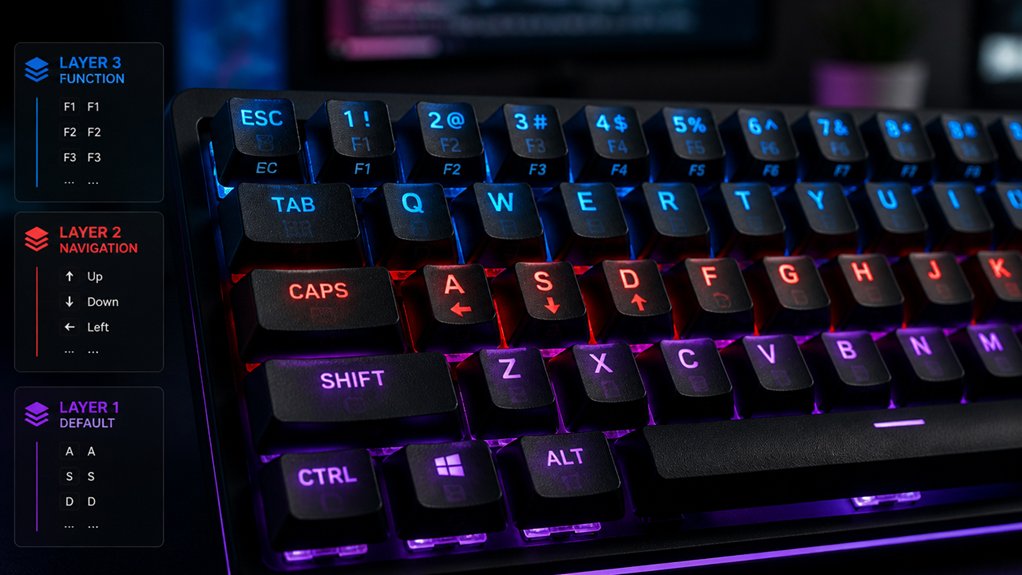
To set up easily switchable layer keys for seamless use, you can leverage simple keycodes that make layers work smoothly and switching layers intuitive. Use keycodes like MO(layer) for momentary layer activation, allowing you to access a layer only while holding the key. Toggling layers becomes straightforward with TG(layer), enabling instant switching. Assign LT(layer, kc) to keys so they switch layers when held but send a keycode when tapped, balancing efficiency and functionality. Place these layer-switch keys under strong fingers—index or middle—to reduce finger movement and boost comfort. Additionally, if you’re using a VIA-compatible keyboard, set up switchable layers via the VIA app for real-time customization without reflashing firmware. Considering the build quality and materials of your keyboard can also impact the ease and durability of layer switching, especially with different enclosure types and keycap materials. Proper placement and keycode use guarantee seamless, effortless layer shifts.
Managing Multiple Layers and Preventing Conflicts
Effective management of multiple layers begins with thoughtful design. You should organize your layers in a tree layout, keeping layer 0 as the default layer state, avoiding conflicts.
Organize layers in a tree layout with layer 0 as default to prevent conflicts and ensure clean, effective design.
Limit the use of higher-numbered layers, and reference only higher-numbered layers in your keymaps to prevent errors. Use transparent keys (KC_TRNS) strategically to let keypresses pass through to lower layers, ensuring smooth layer shifts and preventing key blocking.
Avoid locking your keyboard into layers without an exit strategy; include keys to deactivate or return to the default layer. Be cautious with layer except logic, and treat multiple base layers as mutually exclusive to maintain clarity.
These best practices help you prevent conflicts and keep your custom firmware reliable.
Test and Troubleshoot Your Layers in QMK and VIA
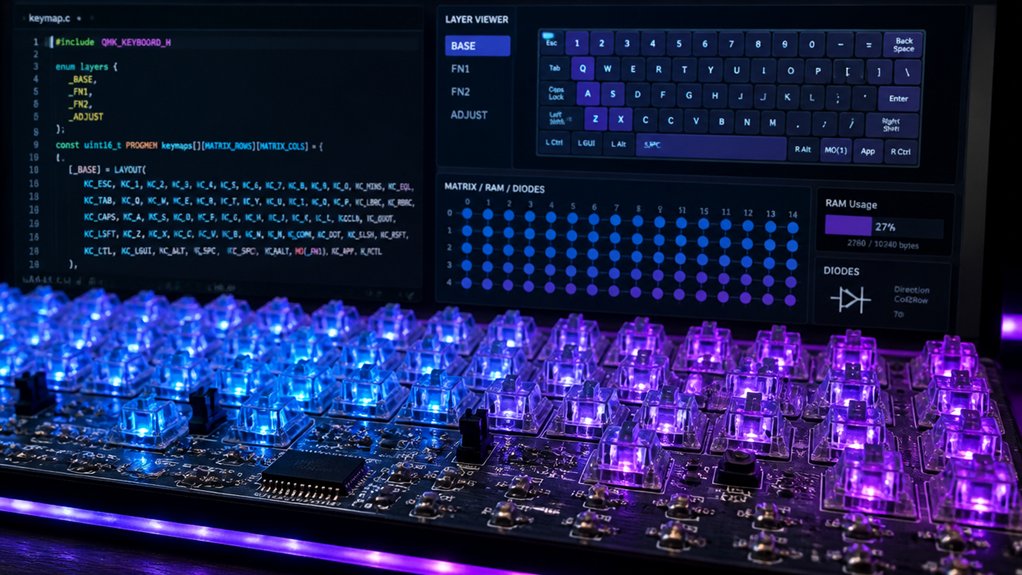
Ever wondered if your custom keyboard layers are working properly? To troubleshoot, start by testing your layers in QMK Configurator’s test mode or VIA’s Key Tester Tab after flashing your firmware. This allows you to confirm real-time functionality of all keys and layers.
If a layer gets stuck or isn’t working, reset it by pressing all layer keys simultaneously or unplugging the keyboard for 10 seconds to clear the layer state. Debug issues by disabling all but the base layer, then re-enabling layers step-by-step to identify conflicts.
If layer activation feels inconsistent, adjust the TAPPING_TERM value in your QMK config.h. For VIA sync problems, confirm your firmware and VIA JSON files match in VENDOR_ID, DEVICE_VER, and PRODUCT_ID, and check for software conflicts like Razer Synapse or Logitech G HUB.
Designing Efficient Layer Stacks for Your Workflow
Designing an efficient layer stack starts with organizing your layers logically, so you can access key functions quickly without interrupting your workflow.
Keep the base layer 0 as the default layout, with 2 to 5 total layers dedicated to specific tasks like media control, navigation, or gaming. Use layer activation keys—such as momentary (MO), toggle (TG), or layer tap (LT)—strategically on the strongest fingers to enable smooth switching.
Arrange layers in a tree layout, avoiding multiple entry points into the same layer to prevent confusion or accidental lock-ins. Incorporate transparent keys (KC_TRNS) to pass through keypresses from lower layers, making interactions seamless.
Combine persistent and momentary layers to create a flexible, ergonomic stack tailored to your workflow.
Enhancing Your Keymaps With Layer Macros and Custom Functions
Building on your layered setup, incorporating layer macros and custom functions can greatly streamline your workflow. Layer macros in QMK automate complex key sequences or toggle layers with a single press, saving time during intensive tasks.
Custom functions enable dynamic layer manipulation, such as activating multiple layers simultaneously, conditional switching, or resetting layers based on context. QMK’s advanced functions like `layer_on()`, `layer_off()`, `layer_move()`, and `layer_invert()` give you precise control.
When combined with tap dance or tap-hold features, keys can perform multifaceted roles—switching layers when held or sending different keycodes on tap. Implementing these custom layer macros improves productivity by reducing physical key presses and creating personalized, task-specific layouts.
Layer Compatibility With Advanced Features: Encoders, RGB & More
Integrating advanced features like rotary encoders and RGB lighting into your firmware requires explicit configuration to guarantee VIA support. You need to declare features such as ENCODER_ENABLE and RGBLIGHT_ENABLE in rules.mk and define them correctly in the VIA JSON.
Explicitly enable encoder and RGB features in firmware and VIA JSON for proper support and functionality.
Rotary encoder positions must be specified to enable real-time adjustments within VIA, ensuring smooth functionality across layers.
RGB lighting features, including underglow and per-key lighting, demand proper enablement in firmware and synchronization with the JSON file for effective layer-based effects.
- Enable and define features like encoders and RGB lighting in both firmware and VIA JSON
- Properly specify rotary encoder positions for individual layers
- Sync RGB settings for layer-specific lighting effects
- Troubleshoot VIA issues by confirming device IDs and firmware compatibility
Maintaining and Updating Your Layer Configurations Over Time
To keep your layer configurations reliable, make sure you regularly back up your firmware and VIA JSON files before making any changes.
Conduct periodic audits of your settings to spot inconsistencies or outdated configurations that could cause issues later. By maintaining version control and staying organized, you’ll simplify updates and quickly recover from any mistakes.
Backup and Version Control
Ever wonder how to keep your keyboard firmware stable and manageable as you experiment with different layer setups? The key is regular backups and effective version control. Always save your working keymap and firmware file before making significant changes to protect your configurations.
Use version control systems like Git to document layer modifications, track history, and enable easy rollbacks if needed. Descriptive layer names, such as _GAMING or _MEDIA, help you quickly identify and update configurations. Keep your keymap.c file organized with clear comments.
Regularly update your config.h and rules.mk files to remove deprecated settings and keep your build tidy. By maintaining a structured approach, you guarantee your layered firmware remains reliable as you iterate and refine your setup.
- Save working keymap and firmware versions before editing
- Use version control systems for tracking changes
- Name layers descriptively for easy identification
- Keep configuration files clean and up-to-date
Regular Configuration Audits
Regular configuration audits are essential for maintaining an organized and reliable layered firmware setup. During audits, review your keymap.c and config.h files to verify layer definitions are clear, well-commented, and free of deprecated or unused settings.
Keeping layer counts synchronized between your firmware and VIA JSON files prevents mismatches and activation errors, especially for VIA-compatible keyboards. Additionally, cleaning rules.mk by disabling features you no longer need can save 1–3KB of firmware memory and improve compile times.
Document any changes and use descriptive layer names like _GAMING or _MEDIA to make navigation easier. After updates, test all layers with tools like QMK Configurator or VIA’s Key Tester to confirm proper functionality and catch conflicts early, ensuring a smooth user experience.
Frequently Asked Questions
How Do I Create Custom Layer Key Combinations for Specific Applications?
You assign custom key combinations by programming layer toggles or key macros specific to applications. Use firmware tools to map shortcuts or macros, ensuring they activate only within designated programs, streamlining your workflow for enhanced efficiency.
Can I Assign Different Functions to the Same Key Across Multiple Layers?
Yes, you can assign different functions to the same key across multiple layers by configuring your firmware’s layer-specific key mappings. This allows you to customize key behavior depending on the active layer, enhancing your typing efficiency and functionality.
What Are the Potential Issues With Layer Conflicts in Complex Configurations?
Layer conflicts can cause unintentional key activations, making your keyboard behave unpredictably. They might override each other or create confusion during complex configurations, so you should carefully plan layer hierarchies and test thoroughly to avoid issues.
How Can I Automatically Switch Layers Based on Context or Software Detection?
You can automate layer switching by integrating custom scripts or macros that detect specific software or window focus, triggering layer changes seamlessly. Use firmware features like event triggers or software APIs to make context-aware shifts smooth and reliable.
Are There Performance Impacts When Using Multiple Layers Simultaneously?
Using multiple layers simultaneously can impact performance slightly, especially on less powerful microcontrollers. You might experience minor delays or increased memory usage, but these effects are usually negligible on modern, well-designed custom keyboard firmware setups.



